
View by category
How can I send reminders to invited authors?
Last updated on June 15, 2026
When authors have been invited to submit either via the Proposal option, or the Solicit Commentary option, Editors may need to send reminders.
If there are no automated reminders defined for Invited Authors, then reminders can be sent manually by editors who have permission to send reminders, and who are either assigned to the Parent submission or proposal, or else have permission to view other editor's assignments.
As soon as the invited author begins to Submit Invited Article, then the invitation is considered to be closed out, and cannot be reminded via these steps.
How?
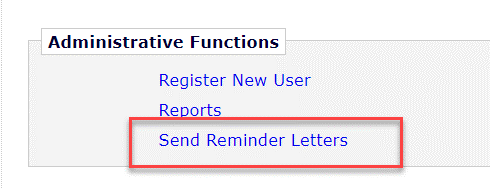
- On the Editor Main Menu, scroll to the bottom to see if Send Reminder Letters appears.
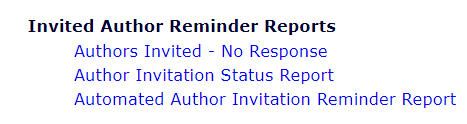
- If yes, then click it and look for the Invited Author Reminder Reports .
- If the Send Reminder Letters link is missing, then you do not have permission.
- Click Automated Invitation Author Reminder Report
- If it is missing, that means you do not have permission to manage automated reminders. Check with your Editorial Office or Journal Manager before proceeding, so that you are not conflicting with any automated reports.
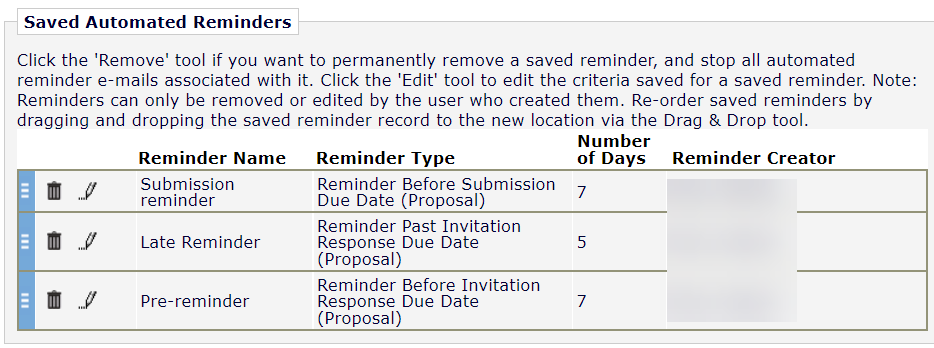
- Scroll to the bottom and look at the Saved Automated Reminders list.
- You can see the type and frequency of reports listed.
- Note that each reminder must be defined to apply only to Proposals, or only to Commentaries.
- You can only edit a report you created personally.
- When you are sure that you need to send manual reminders, return to the Send Reminder Letters menu and click on the type of reminder you want to send:
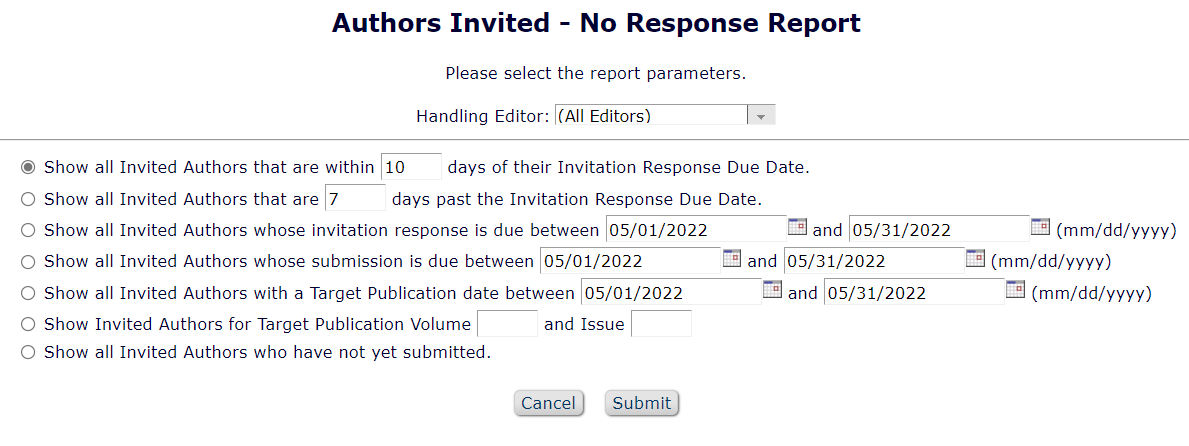
This report reminds authors who have not agreed or declined.
To fill out parameters for Authors invited No Response :
- If you select an option that mentions due dates, then invitations with a blank due date will be excluded.
- Your permissions may be restricted to include only invitations where you are assigned to handle the Proposal/Parent submission.
Author Invitation Status Report
This report reminds authors who have agreed (or been assigned without invitation) but have not yet submitted.
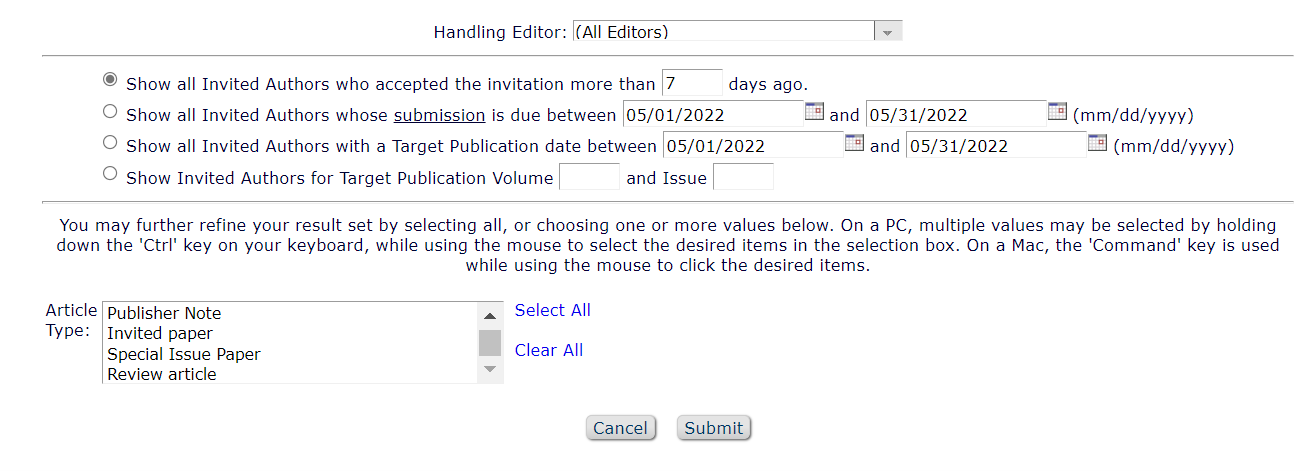
To fill out parameters for Author Invitation Status Report :
- Handling Editor refers to the person assigned to the Proposal or Parent submission.
- You may already be limited to only those proposals/parents assigned to you .
- When selecting a date range, any invitation without a due date will be excluded if the parameter is based on due date.
- For article type, you are filtering on the Proposal/Parent article type. Selecting nothing will include all article types.
- Click Submit to run the report.
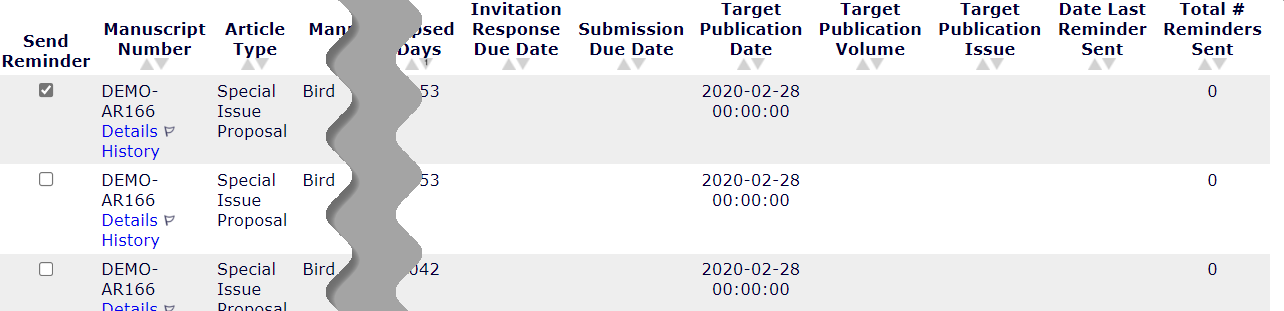
- All outstanding author invitations or agreed authors that meet your criteria are listed as in this screenshot .
- The Article type, Manuscript Title, and Handling Editor that appear are from the Proposal/Parent record.
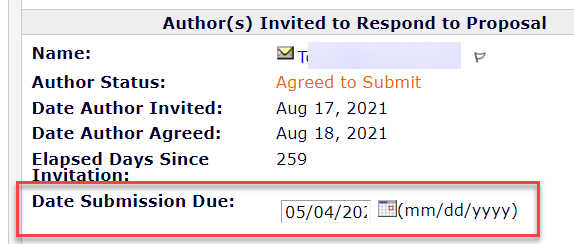
- To change a due date, click on Details under the manuscript number.
- Look for the Author(s) Invited to Respond section.
- If you have permission, you can edit the due dates here .
- To save your change, scroll down and click Save and Close at the bottom of the Details page.
- Tick the Send Reminder box for any author you want to remind.
- Consider the date of last reminder when selecting authors, as well as the number of reminders already sent.
- All authors you select will be sent the same letter template.
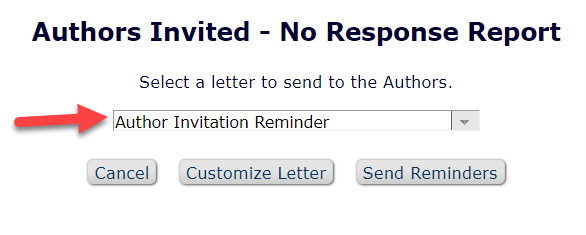
- Click the Send Reminders button after you are done selecting authors.
- Select the letter to be sent and click either:
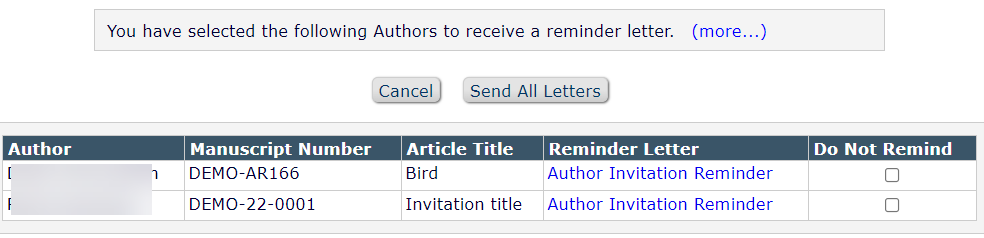
- Customize letters: to preview and potentially edit the reminder letters for individual authors.
- Send Reminders: To send the same letter to all selected authors without changes.
- If you selected Customize Letters :
- Click the link next to each author you need to customize.
- Tick Do Not Remind to skip an author's reminder.
- After any customizations are done, click Send All Letters.
Did we answer your question?
Related answers
Recently viewed answers
Functionality disabled due to your cookie preferences