
View by category
How can I approve my submission?
Last updated on October 03, 2026
After completing all submission steps and initiating the creation of the PDF, the Corresponding Author must view and approve the PDF in order for the submission to be submitted to the journal for review. It is possible to wait after triggering the PDF build process, but it is also to possible to leave the system and return later to approve the submission.
If a submission is left incomplete without approval, then depending on the journal configuration you may receive reminders by email until the process is completed. Incomplete submissions are eventually deleted per the Journal's Retention Policy.
In order to view PDF documents, you will need to have a PDF viewer such as the free Adobe Acrobat Reader software installed on your computer.
How
- All required submission steps were completed, and the 'Build PDF for Approval' button was selected.
- Your account was designated as the Corresponding Author before the 'Build PDF for Approval' button was selected.
- The system has completed the Build PDF process. The time it takes for the system to build the PDF will vary by submission, depending on the size and type of files you've uploaded. Submission PDFs containing large files will take longer to appear, and you will receive an email from the system when the PDF has been built.
- You have a PDF viewer such as the free Adobe Acrobat Reader software installed on your computer.
It is possible for the submitting author to select one of the co-authors as the corresponding author. In that case, the submitting author will select "Build PDF for Approval" and then their control of the manuscript will be done. The Corresponding Author will be the one to view and approve the PDF, and will keep control for the remainder of the submission's workflow.
- If you logged out after submitting, log in to the journalopens in new tab/window that you're submitting your manuscript to.
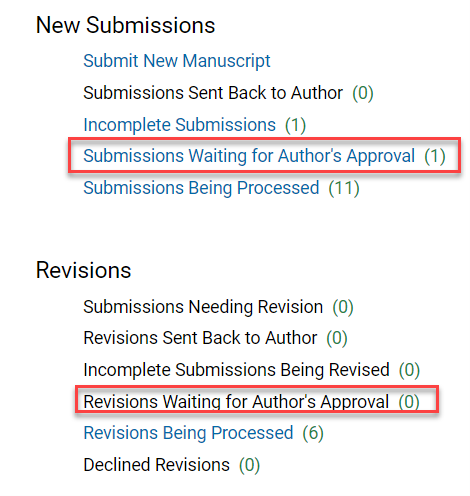
- Select 'Submissions Waiting for Author's Approval' or 'Revisions Waiting for Approval' as in this screenshot .
- This opens an overview of all new/revised manuscripts that have entered the PDF Approval stage of submission but that you haven't approved yet.
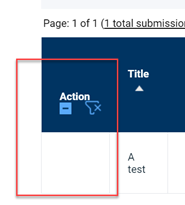
- The action menu will be blank for any submissions where the PDF has not yet been built, and the screen will auto-refresh periodically. It normally takes only a few minutes for the PDF to build after you have approved the PDF.
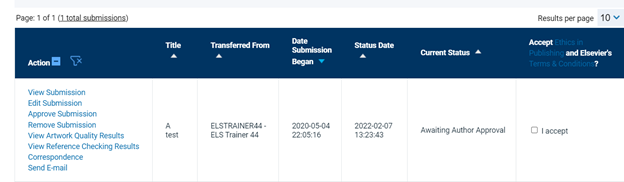
- Once the PDF is available, the screen show actions. See screenshot .
- If the submission is not listed on this page at all, Check the Incomplete Submissions, or Incomplete Revisions folder on your main menu. If you did not select ‘Build PDF for My Approval’ the submissions will be there.
- Select 'View Submission'. The PDF version of your submission will download or open, depending on your browser settings. Please note you will be unable to approve the submission until you have viewed the PDF.
- View your PDF and make sure your submission appears correctly.
- Some journals may also display a Reviewer PDF. This version of the PDF omits certain file types and metadata, usually to preserve author confidentiality in a double anonymized journal. If this version is displayed, you may also be asked to separately view and approve the Reviewer PDF.
- If you notice anything you want to edit:
- Select 'Edit' to return to the submission steps.
- Make the changes to the metadata or files.
- Select 'Build PDF for my approval'. This can take a few minutes. You receive a notification by email when the PDF is built.
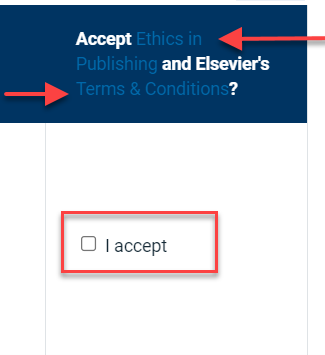
- After reviewing the guidelines for 'Ethics in Publishing' and Elsevier’s 'Terms & Conditions', check the box in the last column to register your acceptance.
- Select 'Approve Submission' in the 'Action' column to finish your submission.
After completing these steps:
- You may receive an email notification confirming your approval, depending on journal configuration.
- Your submission moves to 'Submissions Being Processed' or 'Revisions being Processed' on your 'Author Main Menu' page.
Still have a question?
We can help. Click “Chat with us” at the bottom right to reach Eva, our virtual assistant, for further assistance.
Did we answer your question?
Related answers
Recently viewed answers
Functionality disabled due to your cookie preferences