
View by category
Reviewer Guide to new peer review experience
Last updated on May 20, 2026
Watch this short videoopens in new tab/window for an overview of the reviewer guide to new peer review experience.
Editorial Manager’s (EM) new peer review experience introduces a redesigned interface which contains all reviewer comments, author responses to these as well as editor comments together in one single place. The clear and easy process benefits reviewers, authors and editors via more timely and efficient communication. It also allows editors to make informed decisions more efficiently.
Disclaimer: Please note that the information on this page relates only to journals that have transitioned to the new peer review experience.
New peer review experience is not available on mobile, please use other devices to view the links.
You will receive an email from the journal, inviting you to review the manuscript. The email includes the paper's title, abstract, and the peer review deadline.
You can choose whether to accept or decline the invitation via the links in the email.
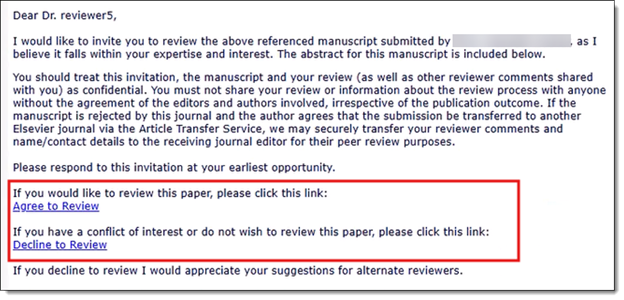
Both the links in the email direct you to EM, and the submission is available in your ‘New Reviewer Invitations’ folder.
If you agree to review, the submission appears in your ‘ Pending Assignments’ folder.
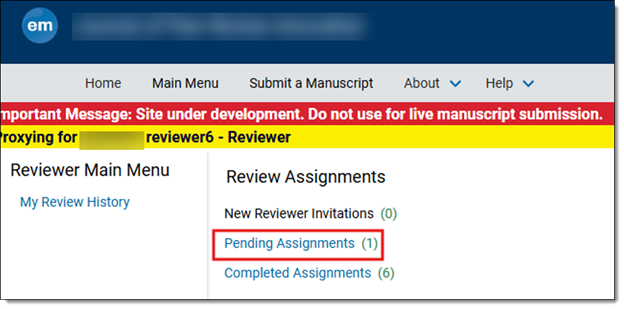
If you decline to review, you can add the reason to decline and suggest alternative reviewers.
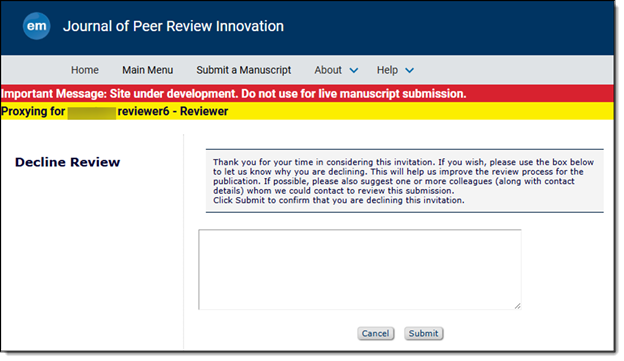
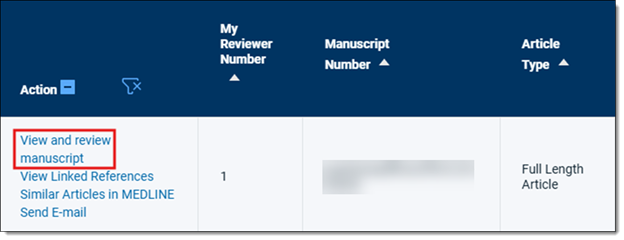
To start your review, go to your ‘Pending Assignments’ folder in EM and access the manuscript you agreed to review.
Click the ‘View and review manuscript’ action link. This takes you directly to the new peer review experience, where you can read the manuscript and add your comments.
Before writing your reviewer comments, make sure you familiarize yourself with any journal-specific guidelines (these are noted in the journal’s guide for authors available on each journal's homepage. On our site How to conduct a reviewopens in new tab/window, you can find useful guidance to writing your review and what questions you can take into account while doing so.
IMPORTANT: When providing comments, do not include any personal information, such as your name, email address, or any identifying details in the text of your review. Your feedback must remain anonymous to the author.
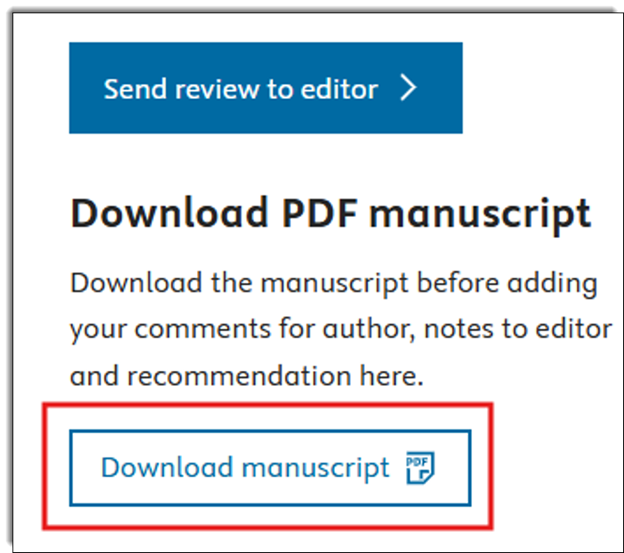
Click the ‘Download manuscript’ button on the right side of the review page to view the manuscript.
Once the review is reopened, the review status changes to “Partially Saved”. At this stage, the review can no longer be revoked. The reviewer must complete and submit the review again to finalize the process.
Structured Review Guidance is a new feature available for all Elsevier journals that provides reviewers with prompts to help structure and support their peer review process.
This feature replaces reviewer questions (mandatory and optional) as well as Structured Peer Review. Structured Review Guidance is currently offered as optional reviewer support.
Reviewers can upload a supporting file while adding their comments in the new peer review experience.
To upload a file, navigate to the ‘Comments for author’ tab and enter your reviewer comments in the comment box. Click the ‘Upload a file’ button located below the comment field, then select a supported file from your device. Once uploaded, click ‘Save changes’ to save both your comments and the attachment before submitting your review to the editor.
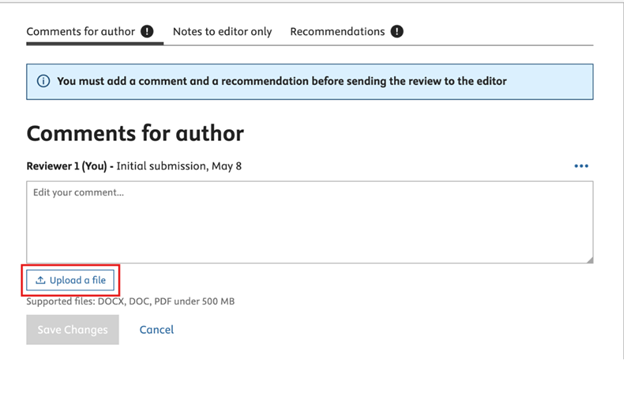
The system currently supports the following file formats:
- PDF (.pdf)
- DOCX (.docx)
Reviewers can upload only one file per review submission. Multiple file uploads are not currently supported.
No. Reviewers must still provide comments in the Comments for author text box. File attachments are intended to support reviewer comments, not replace them. The option to Post review is enabled only when the comments are entered in the text box.
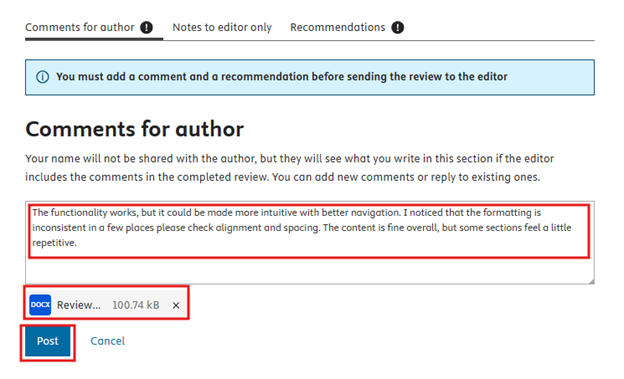
All uploaded files undergo virus scanning, file sanitisation, and security validation before they are accepted. An upload may fail if the file is corrupted, contains restricted or unsupported content, includes macros or embedded objects, exceeds the 500 MB file size limit, or is password protected.
If your upload fails, try re-saving the file, uploading a clean PDF or DOCX version, removing password protection, or removing tracked changes and embedded objects where possible.
Sanitisation is an automated process that removes identifying metadata from uploaded files to help preserve reviewer anonymity. In some cases, a file may fail sanitisation if it contains unsupported metadata, embedded objects, macros, tracked changes, comments, or security restrictions. If this occurs, try saving the file as a new PDF or DOCX, remove tracked changes or comments where possible, and then re-upload the cleaned version.
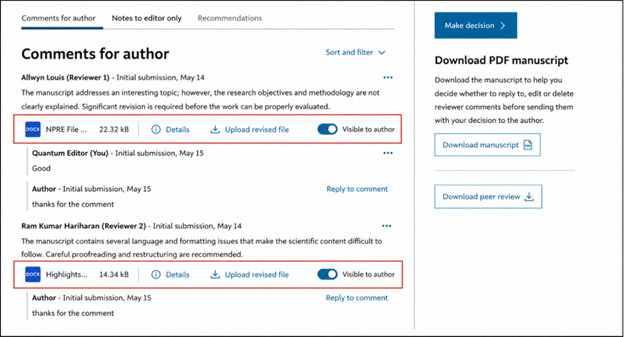
Yes. Reviewers can remove or replace an uploaded file at any time before submitting the review.
No. The “Notes to editor only” comments section currently supports text comments only and does not support file uploads.[
If you forget to upload an attachment before submitting your review, the review must be reopened. In such cases, please contact the support team for assistance.
After a review recommendation is submitted, the uploaded attachment will be visible below the reviewer's comments section of the submission. Editors can download and edit the attachment file and can also choose to make it visible to the author. Authors can download the file when the reviewer's attachments are shared with them.
To add comments to the author, navigate to the ‘Comments for author’ tab within the review interface. Click on this tab to open the comment box, where you can type your comments. Once you enter your comments and click ‘Post’ to submit them, the author can see your feedback.
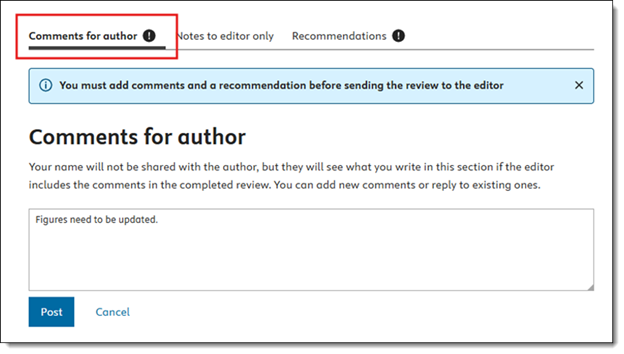
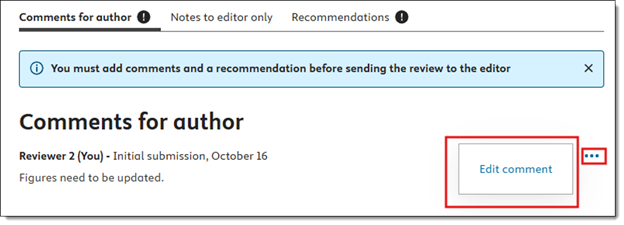
- Locate your previous comment in the ‘Comments for author’
- Click on the three dots icon on the right-hand side of your comment, then select Edit comment.
- Make the necessary changes in the text box that appears and click ‘Save’ to update your comment.
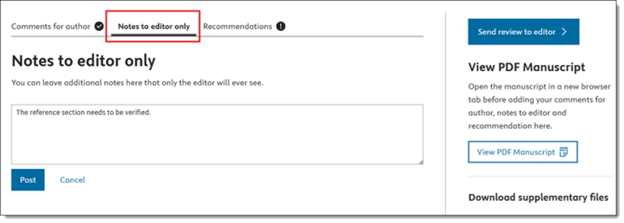
To add feedback that is only visible to the editor, click on the ‘Notes to editor only’ tab. Enter your comments in this section. These comments are confidential and are not visible to the author.
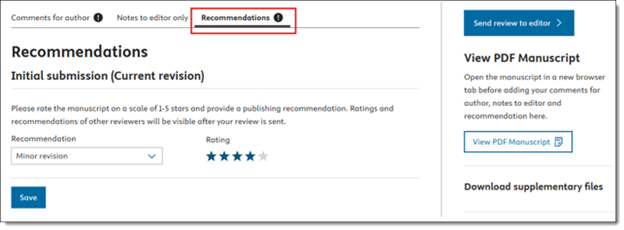
- Navigate to the ‘Recommendations’
- From the dropdown menu, select your overall recommendation for the manuscript. Additionally, you have the option to provide a manuscript rating to further specify your review.
- Once you make your selections, ensure you save them by clicking on ‘Save’.
After you add your comments and select your recommendation, click on ‘Send review to editor’ to submit your review. Once the review is successfully submitted, a confirmation message appears, indicating that your review is sent to the editor.
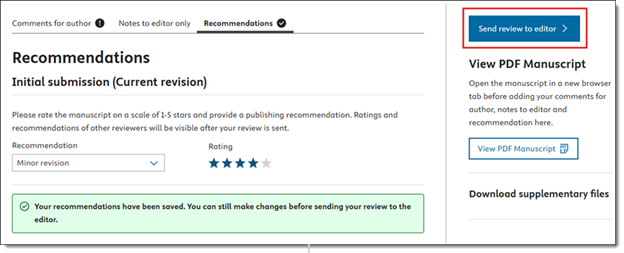
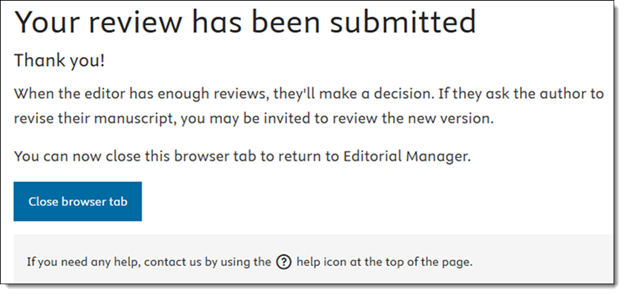
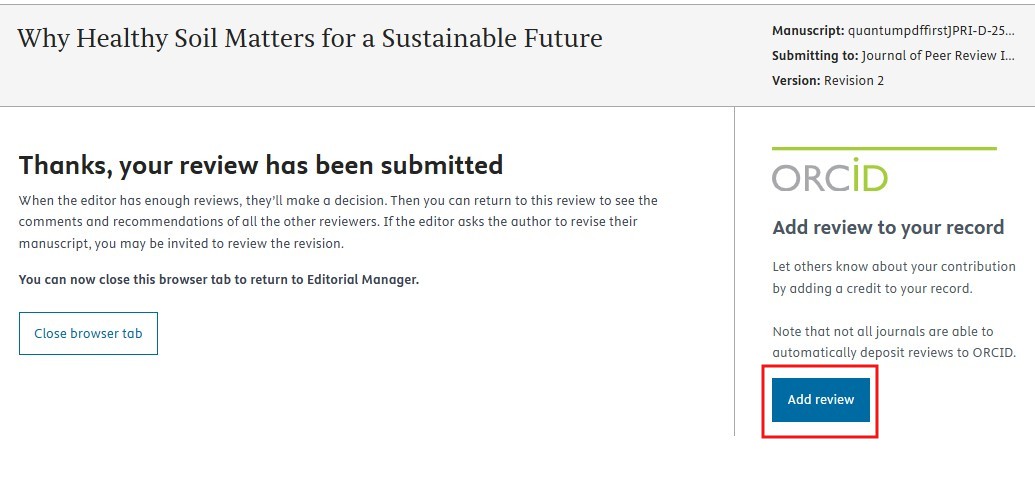
After you submit your review, a confirmation page appears indicating that your review has been successfully submitted.
On this page, you will see an ORCID section on the right-hand side with the option “Add review to your record.”. Click “Add review” to proceed.
You will be asked to provide consent to update your ORCID record with your review activity. Select "Yes" to authorize Editorial Manager to deposit the reviewer credit to your ORCID record.
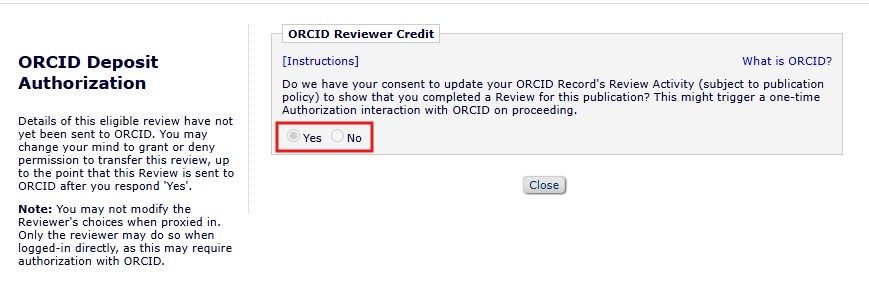
If you are not already signed in to ORCID, you may be prompted to complete a one-time ORCID authorization. Once authorized, your completed review will be added to your ORCID record.
All reviewer comments are visible to the authors.
Authors cannot see reviewer names or personal details, confidential comments to the editor, star ratings, or the recommendation term the reviewer has provided to the editor.
When reviewing a revised manuscript, you can see the comments you provided in the original submission, as well as comments from other reviewers.
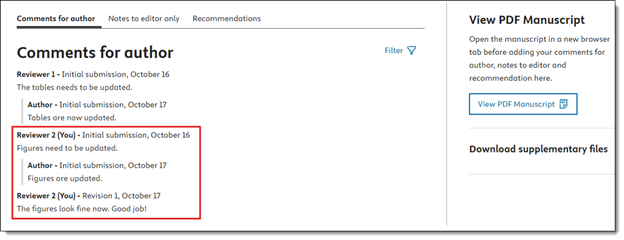
- Click ‘View and review manuscript’ to open the online peer review environment. From there, you can access the revised paper, review the author’s responses and revisions, refer to your earlier comments, and add your new feedback based on the updated version.
- Once you complete your review, select your recommendation and click ‘Send review to editor’ to submit your updated feedback.
You can download the manuscript file and prepare your review report offline if you prefer. However, you must return to the new peer review experience in your browser to post your comments, provide your recommendation, and submit your completed review.
The new peer review experience is accessible only through a web browser on a desktop or laptop. You cannot view or submit your review using a mobile device.
There is a known issue with Safari users due to popup blockers in EM. This problem is scheduled to be fixed by the EM product team in the April release.
In the meantime, new peer review experience users on Mac with the latest version of Safari can follow these steps as a workaround:
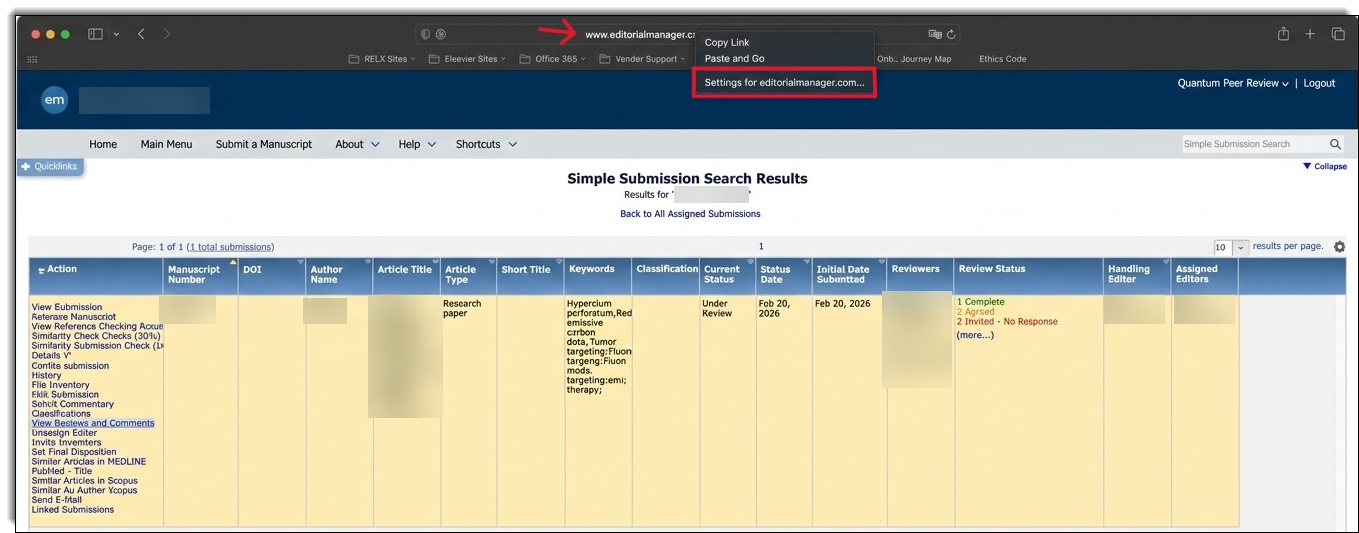
- Right-click on the tab URL.
- Select "Settings for editorialmanager.com"
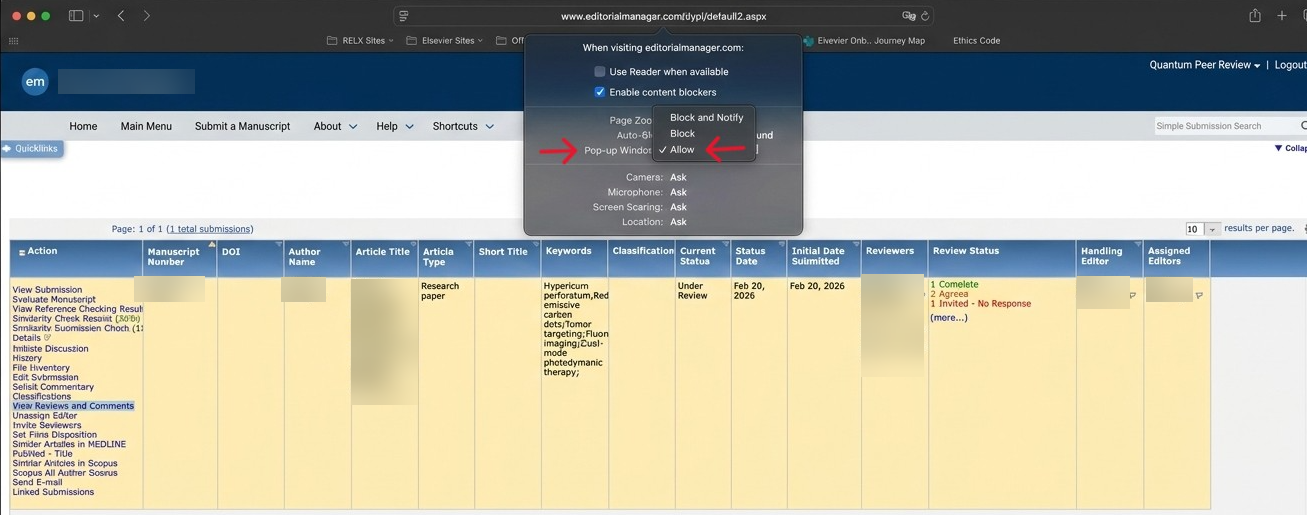
- In the new popup, locate the "Pop-up Windows" row.
- Click on the current value (e.g., "Block" or "Block and Notify") and select "Allow" from the dropdown menu.
Did we answer your question?
Related answers
Recently viewed answers
Functionality disabled due to your cookie preferences