
View by category
Editor Guide to new peer review experience
Last updated on September 11, 2026
Watch this short videoopens in new tab/window for an overview of the editor guide to new peer review experience.
Editorial Manager’s (EM) new peer review experience introduces a redesigned interface which contains all reviewer comments, author responses as well as editor comments together in one single place. This guide provides step-by-step instructions for viewing all reviewer and author comments, making editorial decisions, handling manuscript revisions and helping streamline and enhance your editorial workflow.
Disclaimer: Please note that the information on this page relates only to journals that have transitioned to the new peer review experience.
New peer review experience is not available on mobile, please use other devices to view the links.
The process of inviting reviewers has not changed: it takes place in Editorial Manager (EM). You can select, invite, and send reminders to reviewers as before. Reviewers can accept or decline the review invitation in EM. If they accept, they can download the manuscript and submit their recommendations directly within the new peer review experience.
When the target number of completed reviews is met, you will be notified by email and the submission will be available in your ‘Submissions with Required Reviews Complete’ folder in EM.
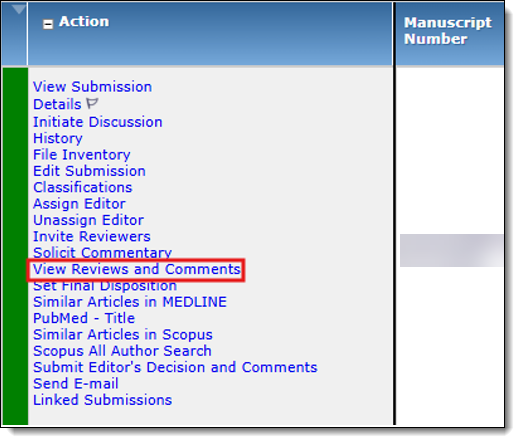
To view the reviewer comments in the new peer review experience, simply click the ‘View Reviews and Comments’ link in EM.
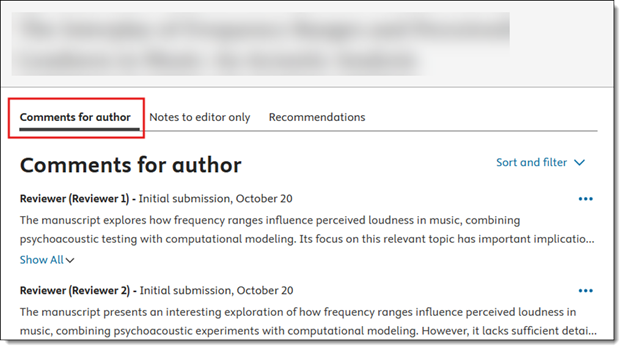
On the ‘Comments for author’ tab, you can see all reviewer and author comments added during peer review. Each reviewer’s feedback is listed under their name and submission date, and any responses from the author to the reviewer comments are also visible in this section.
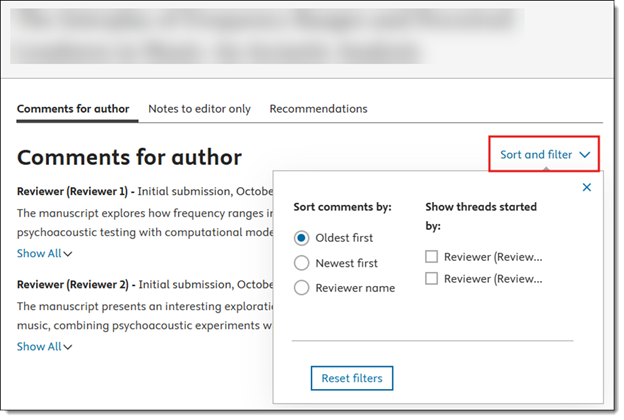
If multiple reviewers have provided feedback, you can use the ‘Filter comments’ option on the right-hand side to view comments from specific reviewers.
No. Editors cannot upload files separately. Editors can only replace a file that was originally uploaded by the reviewer. If the reviewer has not uploaded a file, the Editor will not be able to upload one.
Editors can review files uploaded by reviewers directly within the ‘Comments for author’ section of the new peer review experience.
Uploaded files appear below the reviewer’s comments and display the file name and file size, allowing editors to download the file using the download icon and view additional file information by selecting ‘Details’.
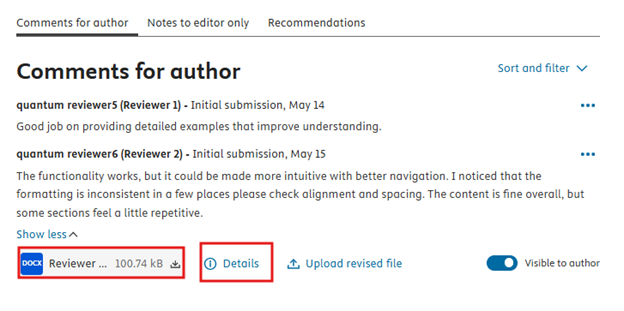
Yes, editors can click the ‘Upload revised file’ button to upload an updated version of a reviewer file. The revised file will replace the previously uploaded version while allowing editors to manage the file shared during the peer review process.
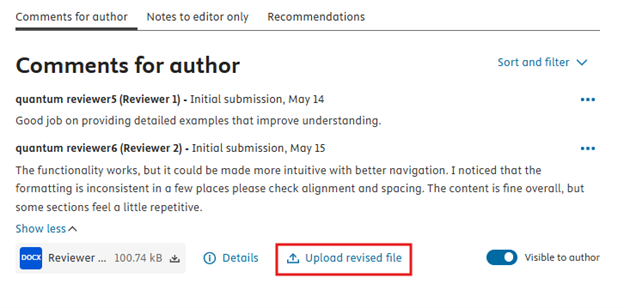
Editors can control whether reviewer attachments are shared with authors using the ‘Visible to author’ toggle displayed next to the uploaded file. When the toggle is enabled, the reviewer file becomes visible to authors during the revision process.
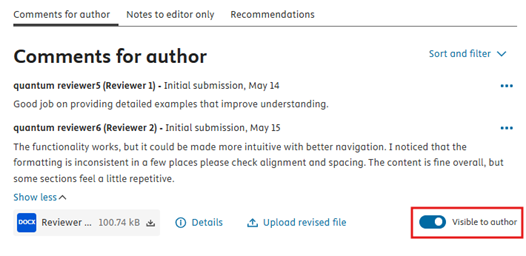
Editors should carefully review uploaded files before sharing them with authors. If a file contains confidential or identifying information, do not share the file with authors. Instead, request a revised anonymized version from the reviewer or contact support for assistance.
You may be unable to open or download a reviewer file due to an incomplete upload, browser issues, security restrictions, or a temporary platform issue. If this occurs, try refreshing the page, using another supported browser, or downloading the file again later. If the issue persists, please contact support.
No. File uploads are optional and are intended to supplement reviewer comments, not replace them.
If a reviewer does not upload a file during the review stage, editors cannot upload a file on the reviewer’s behalf during the decision stage. In addition, Journal Manager or Support team do not currently have permission to upload reviewer files once the submission has reached the decision stage.
As a workaround, the review must be re-opened so the reviewer can access the review again and upload the required file. Please refer to the step-by-step workaround guidance document(Opens in a new tab or window)opens in new tab/window for further instructions.
In the new peer review experience, you can either edit reviewer's comments or reply directly to them as needed. This feature facilitates clear communication and allows you to make any necessary adjustments before sharing the comments with authors.
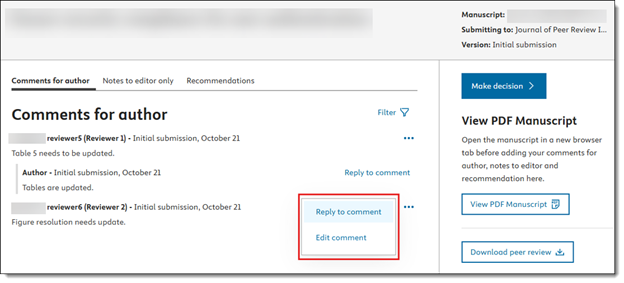
To reply to a reviewer comment, click on ‘Reply to comment’, enter your response, and then click ‘Post’ to save it.
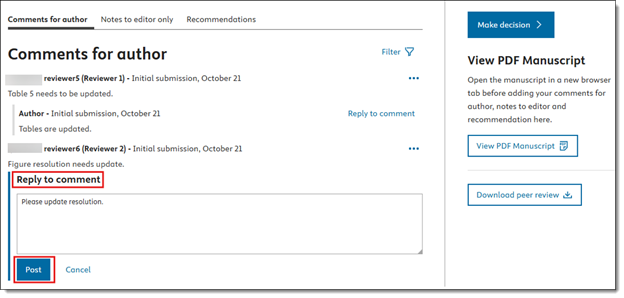
To edit a reviewer’s comment, click on ‘Edit comment’, which opens the comment box for you to make your changes. Once you finish editing, click ‘Save changes’ to update the comment.
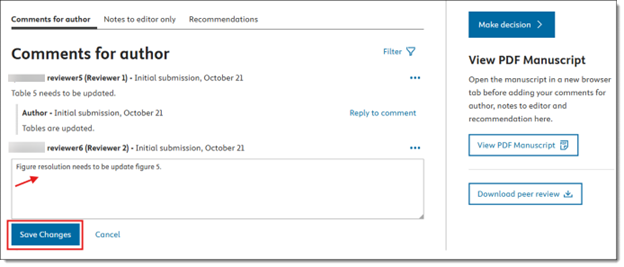
To download the complete peer review for a manuscript, click ‘Download peer review’ on the right panel. A PDF is generated containing all reviewer comments and author responses for easy reference.
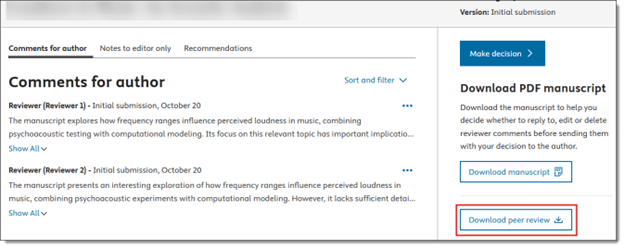
Confidential comments from reviewers are available under the ‘Notes to editor only’ tab in the new peer review experience.
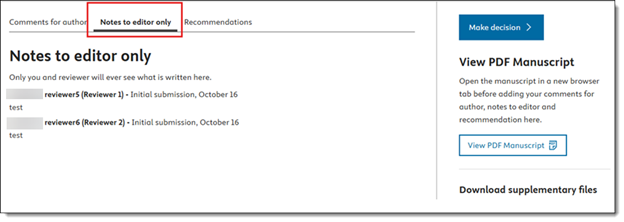
Reviewer recommendations are displayed under the ‘Recommendations’ tab in the new peer review experience, where reviewers can also provide a rating for the manuscript.
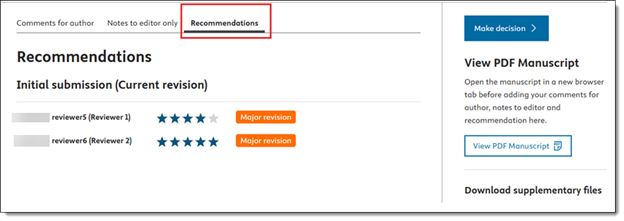
Click the ‘Download manuscript’ button in the new peer review experience to open and read the manuscript in PDF format. This is the same PDF version that reviewers see during their review process.
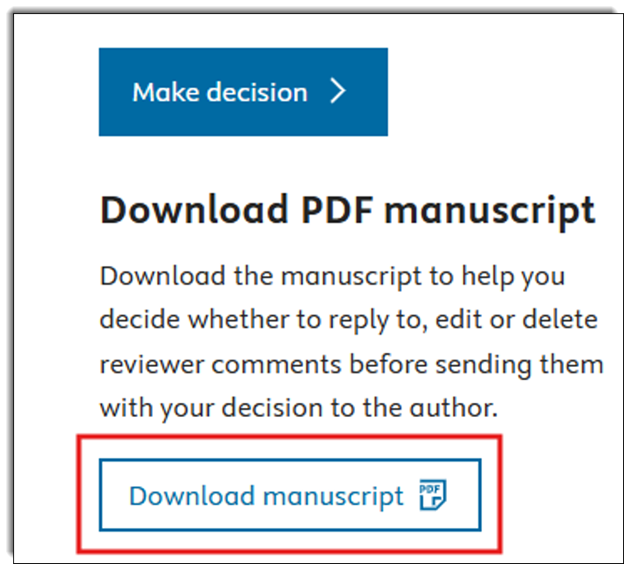
After responding to the reviewer’s comments in the new peer review experience, click on the ‘Make decision’ button.
This action seamlessly redirects you to EM, where you can continue with the standard editorial decision-making process.
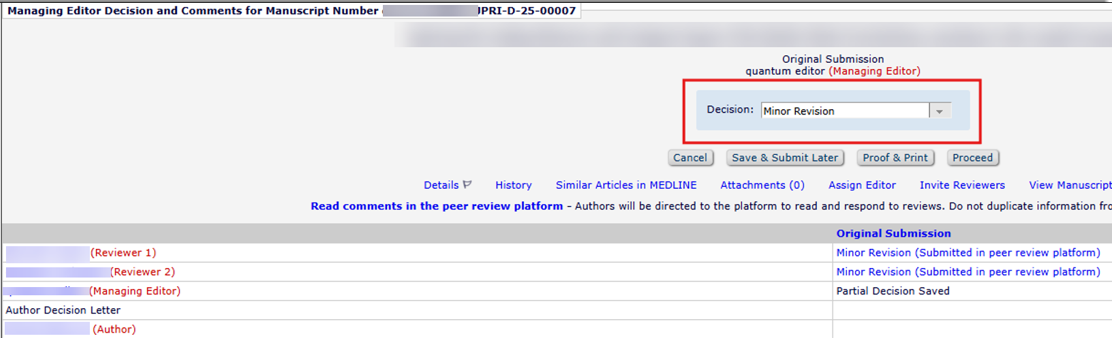
Because the review takes place in the new peer review experience, the ‘Comments to Author’ and ‘Confidential Remarks to Editor’ sections on the decision screen in EM contain system-generated text that instructs you to go to the new peer review experience to read the reviewer comments. Please do not remove or modify this text. When you select the ‘Proceed to Notify Author’ step, the decision letter instructs authors to log in to EM and navigate to their manuscript in the ‘Submissions Needing Revision’ folder under the ‘Author Main Menu’ to view their reviewer feedback.
Therefore, there is no need to copy and paste the reviewer’s comments, as these remain accessible in the new peer review experience.
When authors begin the revision process, they are directed to the new peer review experience where they can view and respond to both reviewer and editor comments. After making the necessary revisions to their manuscript, authors must return to EM to upload the revised files and submit the updated manuscript. This workflow is clearly explained in the decision letter sent to authors.
You will be notified via email once the author has submitted their revised manuscript in EM.
When assessing a revision:
- Click the ‘View reviews and comments’ link in EM to access the new peer review experience, where you can review the reviewer comments and the author’s corresponding responses.
- Review the revised manuscript submitted by the author in EM.
- Based on the revised manuscript and the author’s responses to the reviewer comments, decide whether an additional round of peer review is required.
If you require an additional round of review:
- In EM, select previously invited reviewers and/or invite new reviewers to review the revised manuscript.
- The selected reviewers will receive an invitation to review the revision. Once they accept the invitation, they can access and review the revised manuscript in the new peer review experience.
- Reviewers submit their comments and recommendations in the new peer review experience.
- Once all required reviews have been completed, you will receive a notification through EM.
- Click the ‘View reviews and comments’ link in EM to access the completed reviewer comments and recommendations in the new peer review experience.
- After considering the reviewer feedback, return to EM and submit your editorial decision.
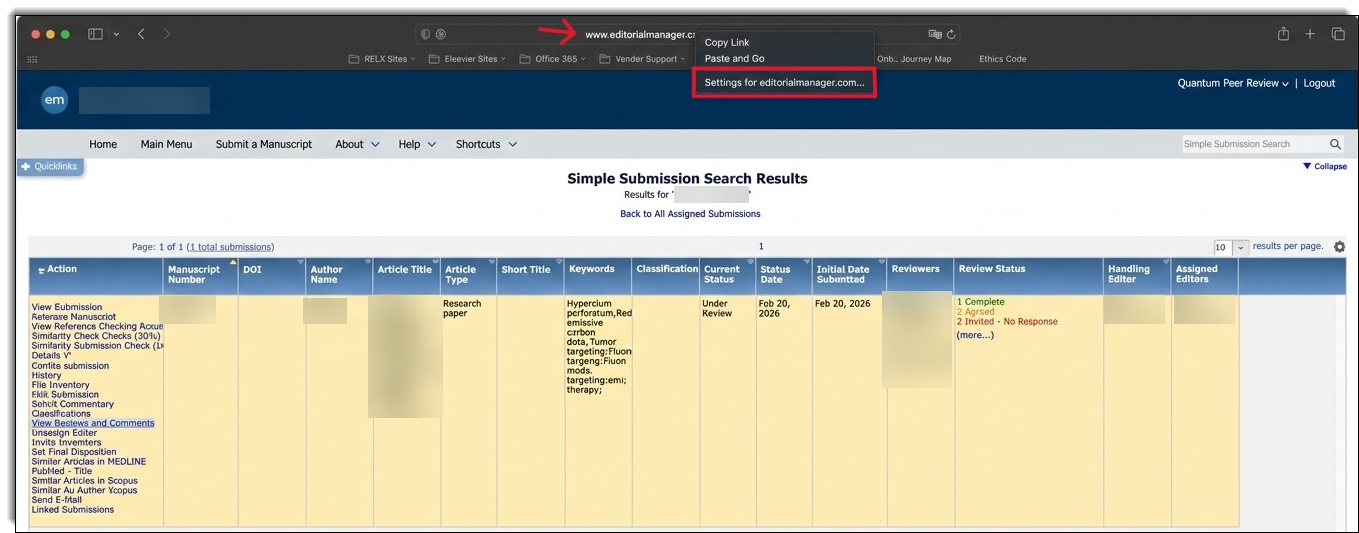
There is a known issue with Safari users due to popup blockers in EM. This problem is scheduled to be fixed by the EM product team in the April release.
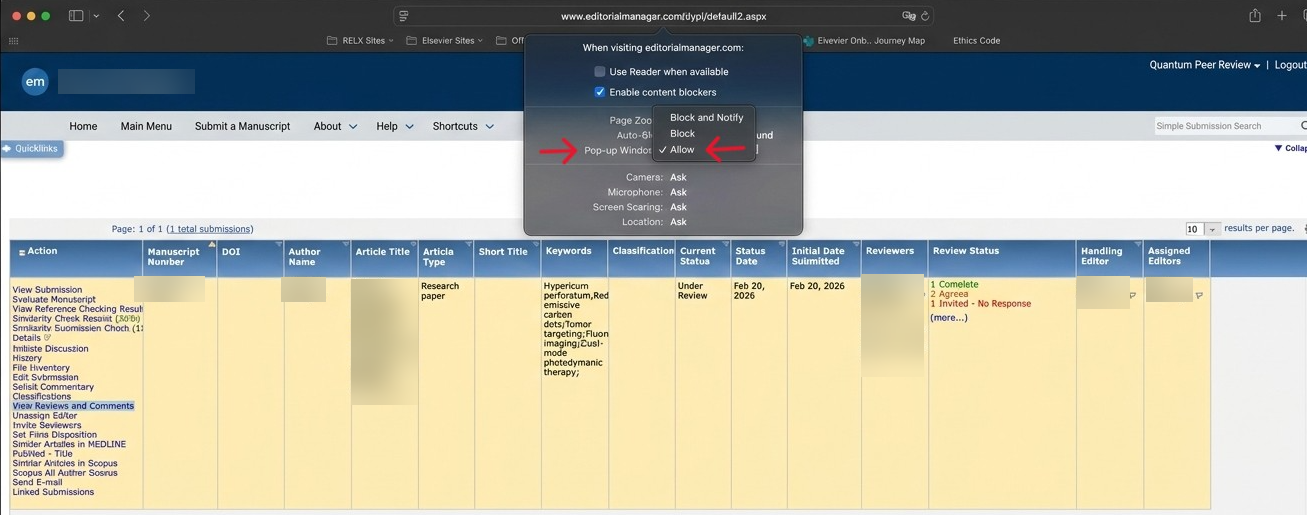
In the meantime, new peer review experience users on Mac with the latest version of Safari can follow these steps as a workaround:
- Right-click on the tab URL.
- Select "Settings for editorialmanager.com"
- In the new popup, locate the "Pop-up Windows" row.
- Click on the current value (e.g., "Block" or "Block and Notify") and select "Allow" from the dropdown menu.
For further assistance on the online peer review service, please contact your Journal Manager via the journal mailbox.
Did we answer your question?
Related answers
Recently viewed answers
Functionality disabled due to your cookie preferences