
View by category
How can I assign a batch of new submissions to one Editor?
Last updated on August 05, 2026
Editorial Manager (EM) allows editors to assign a group of new or newly revised submissions to a single editor as a batch, with the newly assigned editor receiving one email listing all the new assignments. Only the first editor assignment can be done as a batch.
This functionality available only for the editor role responsible for handling incoming submissions, which may be an Editorial Office or Managing Editor. Contact your Journal Manager or other Support contact with any questions about who has this permission in your journal.
How
Clicking 'Cancel' within the 'Batch Assign to Editor' process will take you back to the previous step. If you click 'Cancel' on the first step, you will be asked to confirm that you are cancelling the whole process.
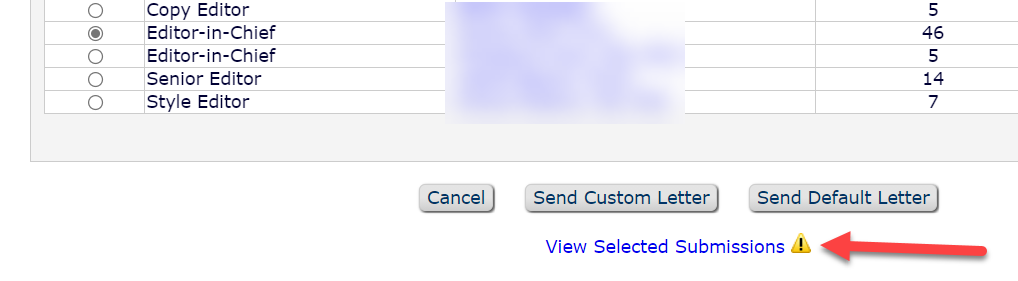
Click 'View Selected Submissions' to return to the list of selected submissions.

For most conflicts, the details are listed in red and you can decide whether to unselect the conflicted submission.

If the corresponding author is the editor, then the submission will be automatically unselected for you.

- If you made any change to the selected submissions, click 'Proceed' to commit the change. Otherwise click 'Cancel' to continue as-is.
- You will return to the 'Editor Selection' screen, where you could change the editor or keep the same editor.
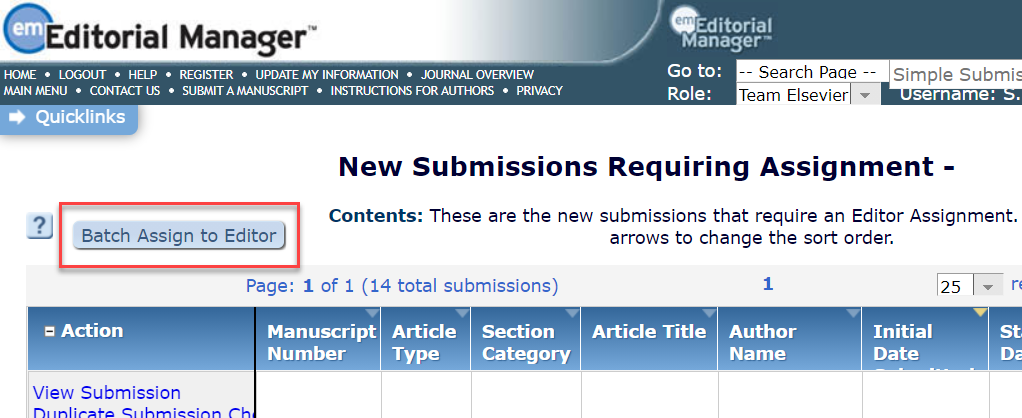
- Go to the folder 'New Submissions Requiring Assignment' or 'Revised Submissions Requiring Assignment'.
- If you do not see these folders, you do not have permission to handle incoming New and Revised submissions.
- If you see the folders but they are not linked, then you have permission but there are currently no submissions to be assigned.
- Click the button 'Batch Assign to Editors'.
- If this button does not appear at the top of the listed submissions, then you do not have permission to assign by batch.
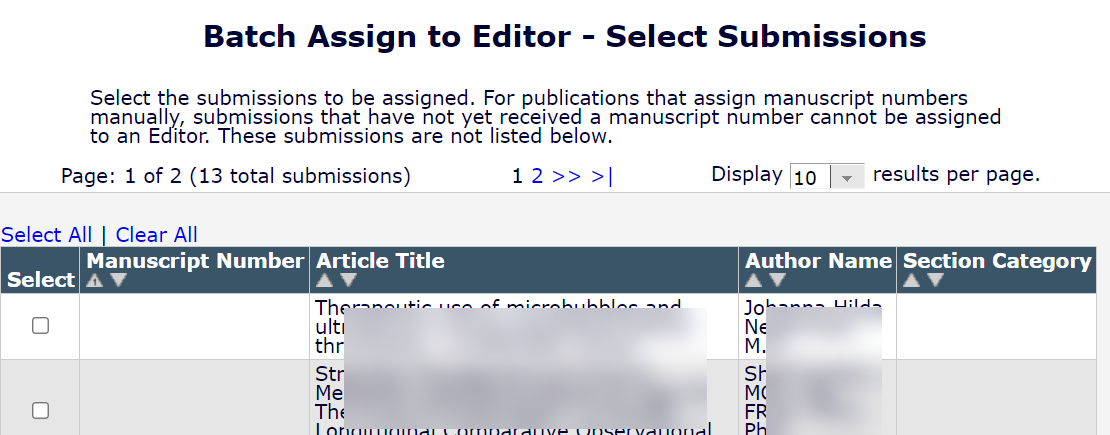
- Select one or more of the listed submissions, and click 'Proceed'.
- The list may be divided into pages, see the top right to change the number displayed per page.
- 'Select All' and 'Clear All' links appear at the top, these apply to all submissions not just those on the current page.
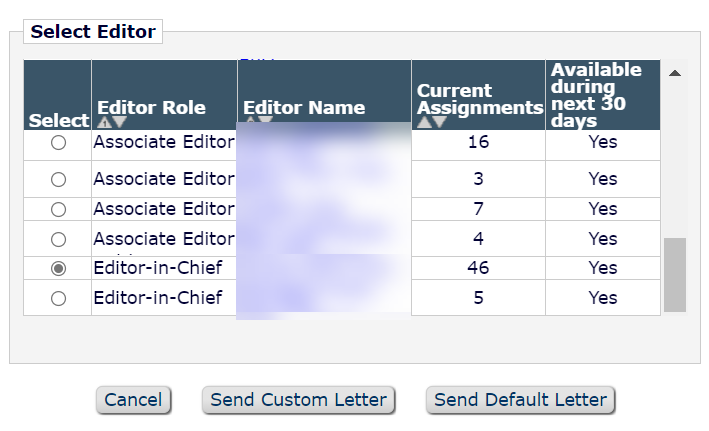
- Select an Editor name from the list.
- If there is some reasons this editor should not be assigned to one of the submissions, you will see a warning flag at the bottom of the screen, just under the action buttons. Do not proceed until the warning has been resolved.
- Click 'Send Custom Letter'. It is important to use the 'Custom Letter' option to be sure the correct letter is sent.
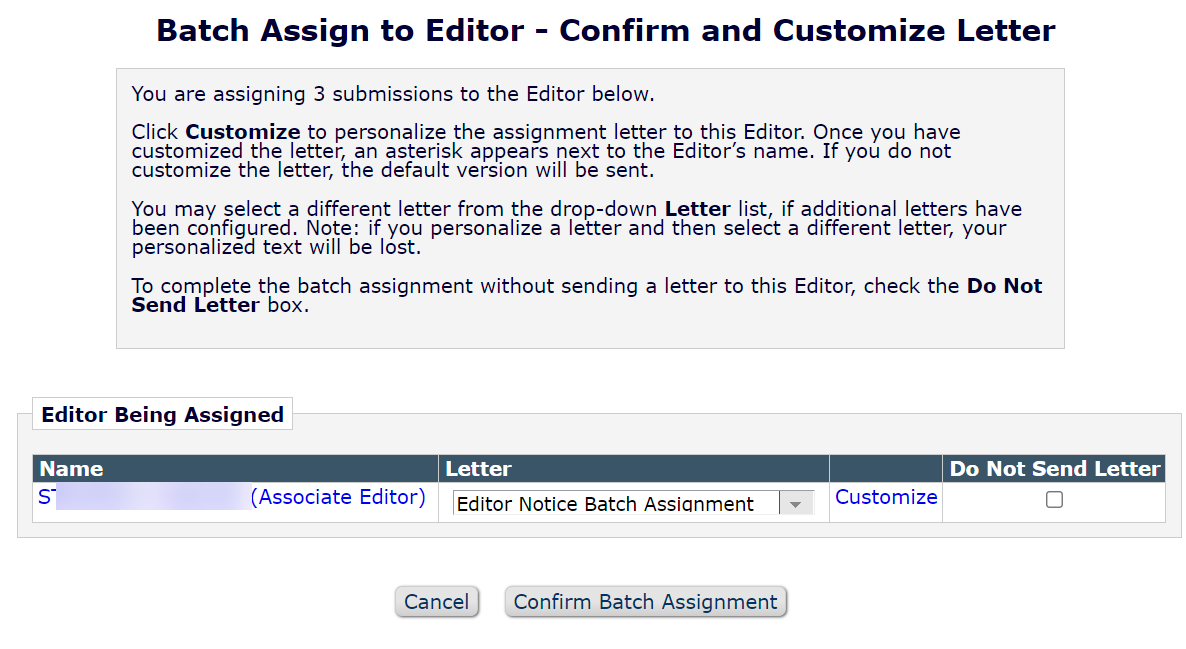
- You will see the 'Confirm and Customize Letter' screen:
- o Click the drop-down list to check the letter to be sent. The same family includes letters sent when doing batch unassign, so you may need to select the correct letter for assignment.
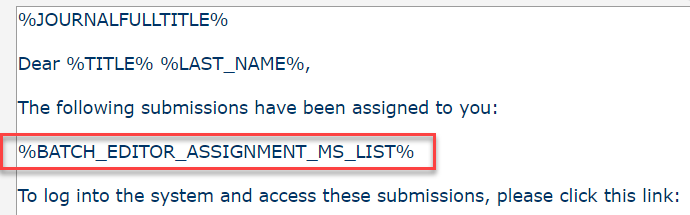
- If needed, click 'Customize' to update the letter.
- The letter includes a merge code that lists all the new assignments. Note that the list will not be populated until the letter Is sent, you cannot preview the list within the letter.
- When ready, click 'Confirm Batch Assignment'. Large assignment batches will take longer to process, please wait for confirmation to appear before clicking away from this page.

After completing these steps:
- The selected group of new, or newly revised, submissions are assigned to one Editor, who receives a single email listing the new assignments.
- The submissions will appear under 'New Assignments' for the newly assigned Editor.
- • The status will change to 'With Editor' (or the journal's customized status term).
Did we answer your question?
Related answers
Recently viewed answers
Functionality disabled due to your cookie preferences