
View by category
Author Guide to Editorial Manager’s new submission experience
Last updated on October 04, 2026
Watch this short videoopens in new tab/window for an overview of the steps
Disclaimer: Please note that the information on this page relates only to journals which have transitioned to the new submission experience. If you would like to know if your journal is included, please check the 'Guide for Authors'.
Editorial Manager’s new submission experience has been designed to enhance the manuscript submission journey for authors in Editorial Manager (EM).
We have developed a new streamlined submission experience which helps authors improve the quality of their submissions to an Elsevier journal. You will need to log in using your Elsevier Account.
Manuscripts submitted through the new experience will be transferred to EM, where editors will manage the review process.
If you are invited to revise your manuscript by the Editor, all correspondence and revisions will also be handled within EM, not through the new experience.
From your journal’s ScienceDirect homepage, click "Submit Your Article" to access the new submission experience page and start your submission by selecting "Start a submission ”.

If you begin your submission through the Editorial Manager, you will be redirected to the new submission experience automatically.
Why did I receive an email from Editorial Manager (EM) after submitting my manuscript in EM’s new submission experience?Do I need an Editorial Manager account to track my submission?Is there a deadline to complete my EM registration?What happens if I do not register within 90 days?I registered after 90 days using the same email address. Why can't I see my submission?How can I regain access to my submission after the 90-day period?Will my manuscript be affected if I don't register within 90 days?Will I lose my manuscript if my account is anonymized?Can the support team reactivate my anonymized account?Should I create another EM account using a different email address?How can I avoid this issue in the future?Who should I contact if I need help?
After you submit your manuscript in the new submission experience platform, it is transferred to Editorial Manager (EM) for peer review. Once the transfer is complete, EM sends a confirmation email to the email address you used in the new submission experience.
This email allows you to register for an EM account (if you do not already have one) and track the progress of your manuscript throughout the peer review process.
Yes. If you do not already have an EM account associated with the email address you used in the new submission experience, you will need to complete the registration process in Editorial Manager to access and track your submission.
Yes. You should complete your Editorial Manager registration within 90 days of receiving the registration email.
If registration is not completed within this period, your pending account will be automatically anonymized for privacy and security reasons.
If you do not complete your registration within the 90-day period:
- Your pending EM account will be anonymized.
- Your manuscript will continue through the editorial process.
- You will no longer be able to access the submission by simply registering later.
- You will need to contact the support team for assistance.
After your original pending account has been anonymized, registering again with the same email address creates a new Editorial Manager account.
Your manuscript remains associated with the anonymized account and is not automatically linked to the newly created account.
To access your submission, please contact the support team so they can securely link your manuscript to your new account.
Please contact the Support team and provide:
- Your full name
- The email address used during your submission in the new submission experience
- The journal name
- Your manuscript title or manuscript number (if available)
Support will verify your information and reconnect your submission to your active EM account.
No. Your manuscript will continue through the editorial and peer review process as normal.
The 90-day registration period only affects your ability to access and track your submission through Editorial Manager.
No. Your manuscript is not deleted. Only the unregistered user account is anonymized.
Once your identity has been verified, the support team can help restore your access by linking the submission to your active account.
Yes. The support team can assist in restoring access to your submission by reactivating or relinking your account after verifying your identity.
No. Creating multiple Editorial Manager accounts is not recommended, as it can lead to duplicate records and make it more difficult to associate your manuscripts with the correct account.
If you are unable to access your submission, please contact the support team instead.
If you have already created another Editorial Manager account using a different email address, please inform the support team so they can make the necessary corrections and ensure your manuscript is associated with the correct account.
To ensure uninterrupted access to your submission:
- Complete your Editorial Manager registration as soon as you receive the confirmation email.
- Register within 90 days of receiving the invitation.
- Use the same email address that you used when submitting your manuscript in the new submission experience.
- Keep your contact information up to date.
If you are unable to access your submission or believe your account has been anonymized, please contact the Support team.
To help us resolve your request quickly, include:
- Full name
- Registered email address used in the new submission experience
- Journal name
- Manuscript title
- Manuscript number (if available)
Our support team will verify your information and assist you with restoring access to your submission.
Important Reminder
To avoid losing access to your manuscript in Editorial Manager, complete your account registration within 90 days of receiving the registration email. If you miss this window, your account will be anonymized, and you'll need to contact the support team to restore access to your submission.
Log in using your Elsevier account. Ensure that the email address associated with your Elsevier account matches the email used for the selected journal’s EM site. If the email addresses do not match, the system may create a duplicate EM account, leading to potential confusion. To prevent any issues, update and align your email addresses before submitting.
It is currently designed for specific submission purposes, and there are certain scenarios where this cannot be used. You cannot use this service for the following:
- Continuing with or checking on a submission that you started in Editorial Manager
- Submitting transferred manuscripts
- Performing editorial tasks or reviewing
- Co-author verification or review
To submit a manuscript, select “Start a submission”.
- Next, choose the article type that best describes your submission and select ‘Save and Continue’.
You can now submit manuscripts to a Special Issue article type.
When starting your submission, go to the “Choose your article type” section and select Special Issue from the list of available article types.
How do I complete the “Confirm your ethical declaration” step?What information do I need to provide for Human research?
Can I review my ethical declaration before continuing?
How do I complete this step?
What if my study relates to Animal research?
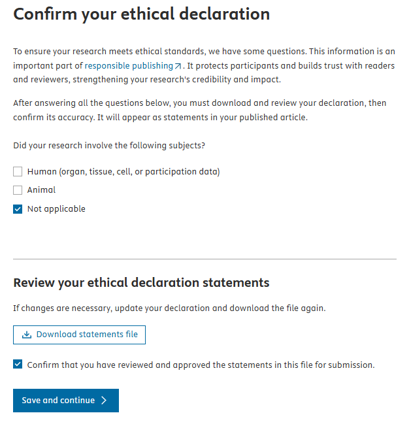
What if Ethical declaration is not applicable to my submission?
Will the ethical declaration appear in my final published manuscript?
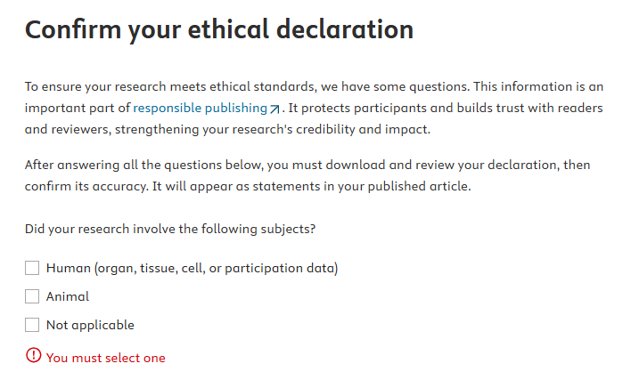
The Confirm your ethical declaration step requires authors to provide the ethical compliance information needed for their manuscript submission.
Authors are asked to confirm whether their study involves:
- Human research,
- Animal research, or
- Ethical declaration is not applicable.
Based on the selected research type, the system will display the relevant ethical questions that must be completed before you can continue.
If you select Human research, complete all requested ethical questions on the page.
This may include confirming:
- compliance with applicable laws, regulations, and ethical guidelines,
- ethics committee approval or exemption details,
- whether the study is a clinical trial,
- participant informed consent and privacy protection,
- use of human biological materials, and
- whether the submission is a case report or case series.
Where required, enter the requested supporting details in the mandatory fields.
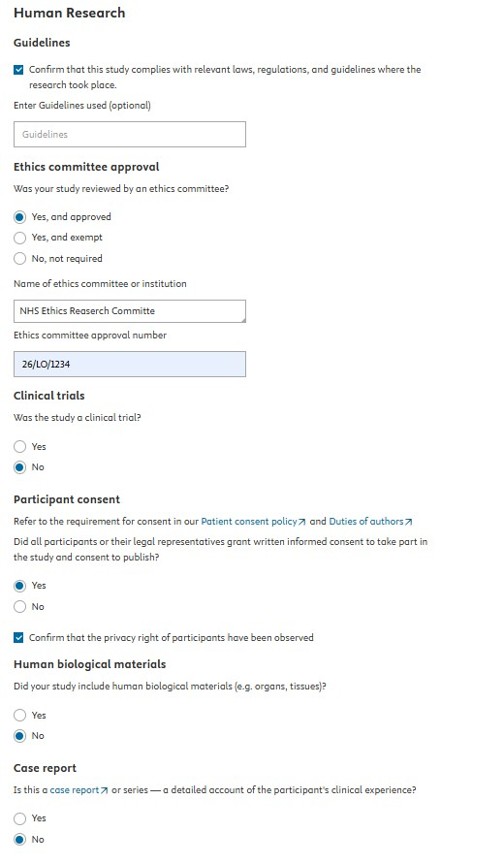
Note: The questions shown in this screenshot may differ from those displayed during your submission, depending on your manuscript and future updates to the submission system.
Can I review my ethical declaration before continuing?
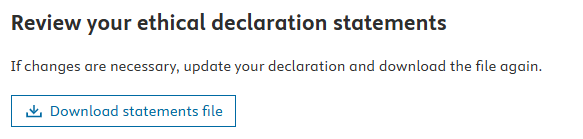
Yes, after completing all required responses, scroll down to the Review your ethical declaration statements section.
Here you can download the generated ethical declaration file to review the statements that will be included as part of your submission.
If changes are needed, you can update your responses and download the file again before proceeding.
How do I complete this step?
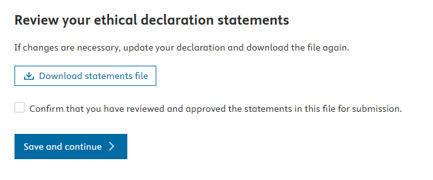
Once you have reviewed the statement generated:
- Select the confirmation checkbox to approve the declaration file.
- Then click Save and continue to proceed to the next submission step.
As with other pages in the new submission experience, all mandatory questions must be completed before the system allows you to continue.
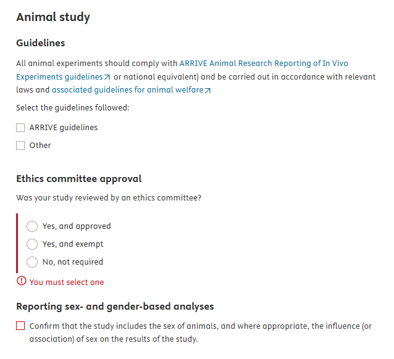
What if my study relates to Animal research?
If your submission relates to Animal research, select this option and respond to all ethical questions displayed on the page.
The system will request the relevant animal study compliance and approval details based on your responses.
Complete all mandatory information before continuing.
What if Ethical declaration is not applicable to my submission?
If ethical declaration is not applicable, select Not applicable.
You will still be asked to complete the requested confirmation details shown on the page before proceeding with the next step.
Will the ethical declaration appear in my final published manuscript?
Yes. The ethical declaration will appear in the final published article.
Authors can review and approve it during proofing before the final version is published on ScienceDirect.
On the Upload your submission files screen, you will find a list of required and optional files for the journal.
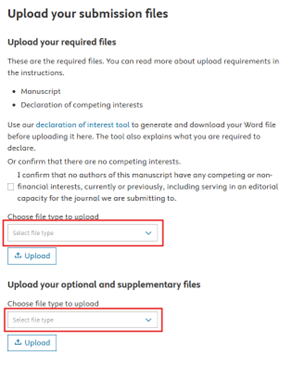
Please note that the manuscript and the ‘Declaration of Competing interests’ files are mandatory across all journals. Additional files may also be mandatory at the discretion of the journal.
To upload your manuscript file, select "Choose your manuscript." You may submit your manuscript without adhering to specific journal formatting, and it can include figures and tables.
If you choose to upload a Word file, the system will try to automatically extract the metadata, including the title, abstract, keywords, and authors, which you can review and modify on the subsequent pages.
If you need assistance with your Declaration of Competing Interests file, a tool is available to help generate one. Please click the link located above the 'Choose declaration of interest statements' button.
The system will try to automatically extract the title, abstract, and keywords from your uploaded manuscript file and fills in the corresponding fields on the next screen. If the system cannot extract this information or if you wish to make changes, you can manually edit these fields.
A list of submission stepsis displayed on the right side of the screen. This list shows which steps have been completed, which steps remain, and your current progress. If any required information is missing, the related step is marked with an error. You can choose a specific step to edit and add the necessary details.
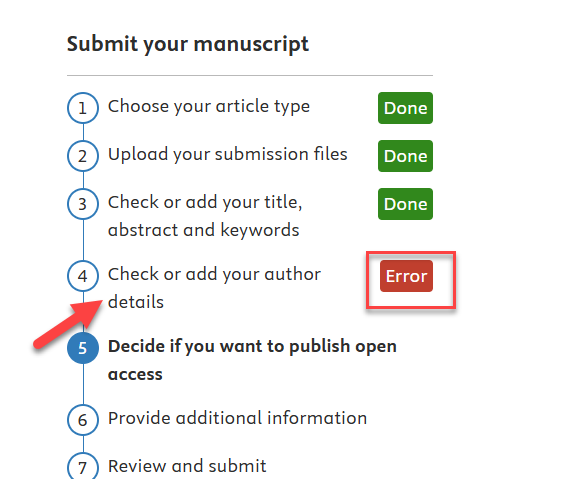
Once you have reviewed and confirmed all information is accurate, click “Save and continue” to proceed.
On the "Additional Information" screen, the author information extracted from your manuscript is displayed. Please review this information carefully to verify its accuracy.
If any corrections are needed, you can edit the details at this stage. You also have the option to add any additional authors who are not listed here.
Why do I need to add my funder details?
How do I add a funder?
What if I can't find my funding organisation?
Are grant or contract numbers required?
Can I add more than one funder?
What should I do if my work did not receive funding?
Funding information helps determine whether your submission may be eligible for reduced open access publishing charges, where applicable.
How do I add a funder?
- Select Yes if your research received funding.
- Search for and select the funding organisation.
- Optionally, enter the grant or contract number.
- Select the grant recipient (author), if applicable.
- Select Confirm to add the funder.
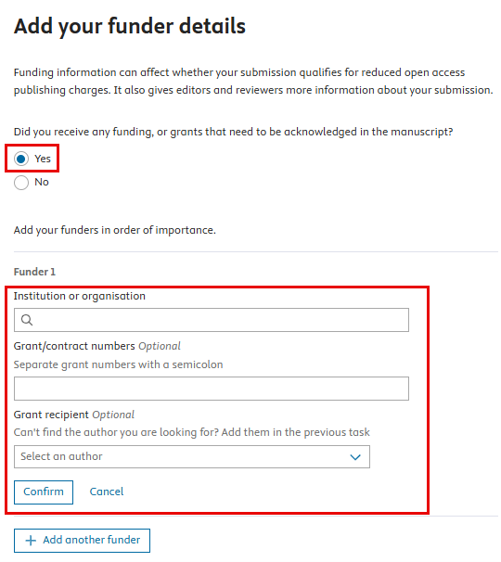
What if I can't find my funding organisation?
Search using the official name of the funding organisation. If you still cannot find it, contact the Elsevier Publishing Support Centeropens in new tab/window for assistance.
Are grant or contract numbers required?
No. Grant or contract numbers are optional. If available, enter them exactly as provided by your funding organisation. If you have multiple grant numbers, separate them with a semicolon.
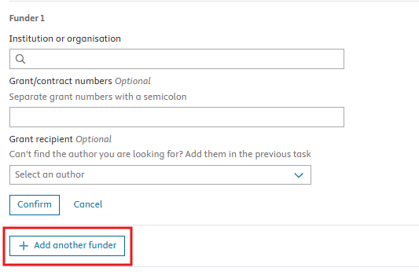
Can I add more than one funder?
Yes. If your research is supported by multiple funding organisations, select Add another funder and enter each funder separately.
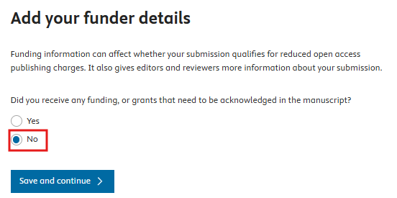
What should I do if my work did not receive funding?
If your work did not receive funding, select No and continue with your submission.
Depending on the journal, the subsequent screen presents you with options tailored to your article type and institution.
Please review the available options and make your selection accordingly and select “save your return”.
Provide additional information screen features journal-specific additional information. It is important to read each question carefully and provide your responses. Once you have completed the page, select “Save and continue” to proceed.
You can use the Oppose Reviewer option to list reviewers you prefer not to review your manuscript. Select “Yes”, then enter the reviewer’s name, email, and reason for opposing. Please note that the availability of this option is determined by the journal and may vary depending on the article type selected.
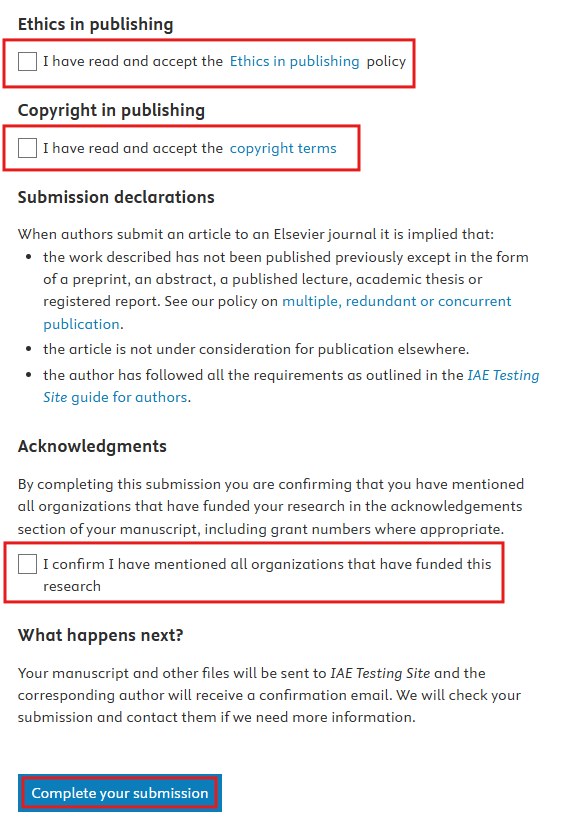
The final step is the “Review and Submit” screen.
Any incomplete sections are highlighted in red for you to address. Before submitting, make sure all required fields are filled out.
Then, read and agree to the ethics of publishing policy and copyright terms. Also, confirm that you have disclosed all funding to organizations for your research.
When everything is ready, select “Complete your submission”.
After a successful submission, you will receive a confirmation email from the journal.
- Note: Revisions will be handled in Editorial manager.
- Need assistance with troubleshooting? Please click the "Chat with us" icon at the bottom‑right.
Did we answer your question?
Recently viewed answers
Functionality disabled due to your cookie preferences