
What’s the difference between comments and notes?
Last updated on March 25, 2026
Elsa allows you to communicate with your project team with notes and comments.
Notes are added when an item is sent in the workflow and are visible on the Project Overview page while comments are visible while you are editing in the Write space.
Read on to find out how to add these items.
Notes are visible to anyone with access to the Project from the Project Overview page by hovering over the comment bubble in the Notes column.

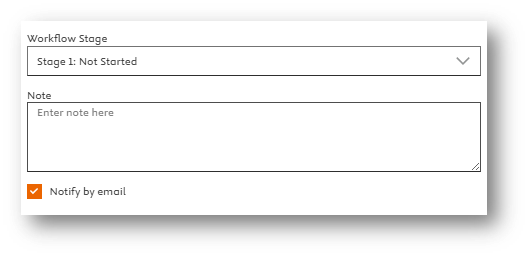
Notes can be added when sending an item in the workflow by clicking on the ‘Exit & Send’ option under ‘Exit Chapter.’ When the Send window opens, enter your note in the open-text field and then click "Send".
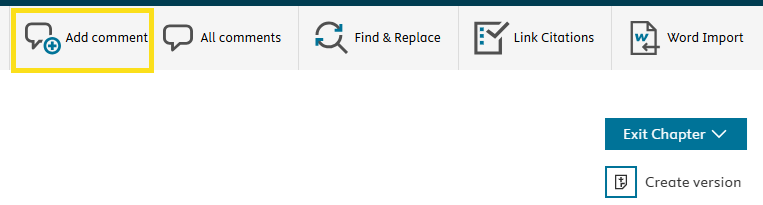
To add a comment:
- Highlight a piece of content
Navigate to the ‘Add Comment’ icon on the Home tab of the toolbar.
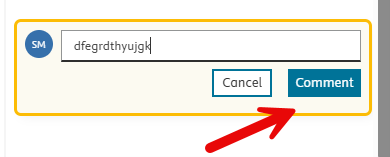
When the comments pane opens, enter your comment in the field and then click 'Comment'.
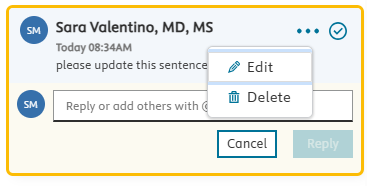
After you’ve created the comment, you have the option to edit it or delete it
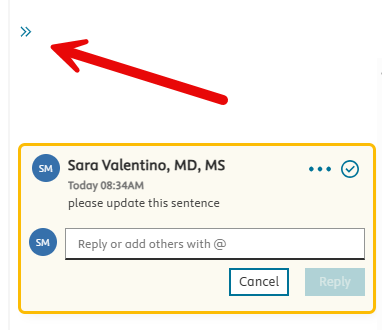
Close the comments pane by using the double arrows at the top.
To view and reply to specific comments, click on the speech bubble icon on the right-hand side of the text.
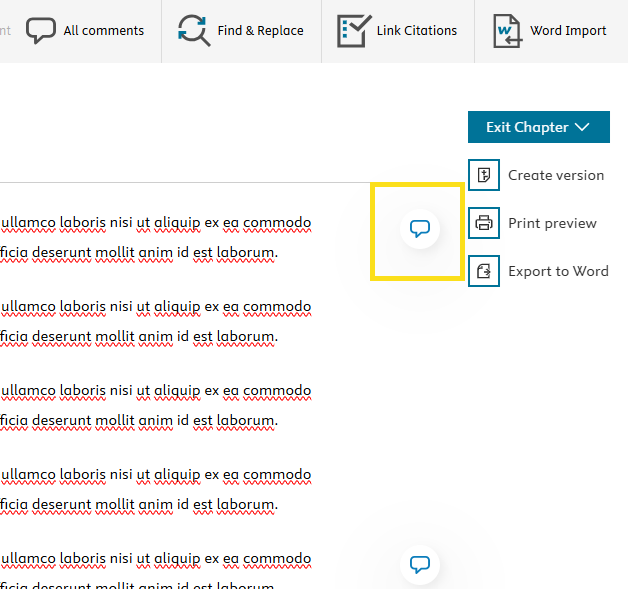
The specific portion of text the comment refers to will be highlighted in yellow.

Addressing comments:
- You can continue to click on each comment in the pane to address them individually and the relevant portion of text will be highlighted.
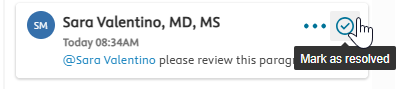
To address a comment, you can reply to it and mark it as resolved, using the blue tick on the corner.
The "All comments" button on the top toolbar allows you view all comments in an organized manner.
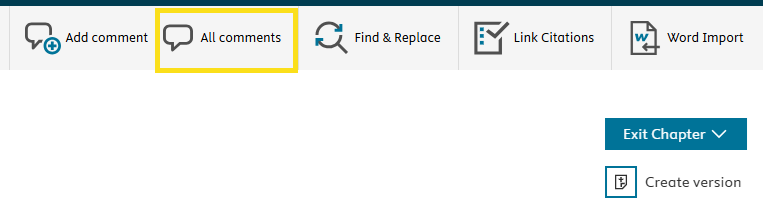
You can see the "Active" comments, check those that have been resolved and see the comments where you’ve been tagged in the "For You" section, facilitating collaboration among co-authors and editors.
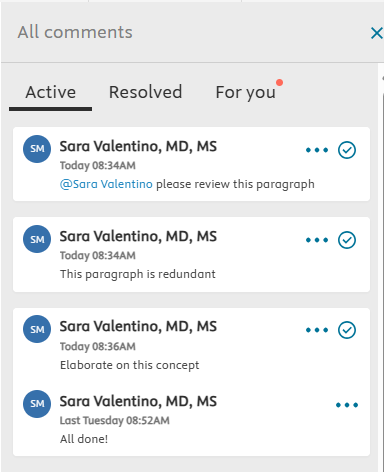
Clicking on each comment will highlight the text it refers to and you can reply or resolve comments. For comments you have added yourself, you also have the option to edit and delete them.
Did we answer your question?
Related answers
Recently viewed answers
Functionality disabled due to your cookie preferences