
As an Editor, how do I send and receive chapters in the workflow for review?
Last updated on September 22, 2026
If you are an Editor on a project, you will know a chapter is ready for you to review because you will receive an email notification that the chapter has been sent to you in the workflow. If there are multiple editors on your project, you will all be notified simultaneously.
However, if your project has designated “Responsible Editors,” only that person will be notified. You'll also see a "Ready for Review" label on the Dates & Milestones tab of the Project Overview page when a chapter reaches your review stage. See the “Responsible Editor” section below for more information.
There are two places you can send a chapter: from the Project Overview page, or from inside the chapter itself.
Chapters can be sent both forward and backward in the workflow. You can also skip stages and return to them at a later time. A full list of the workflow stages can be found at the bottom of this page.
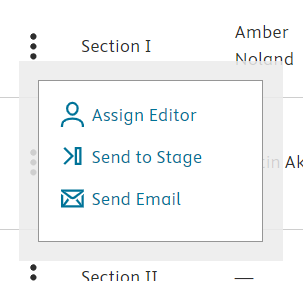
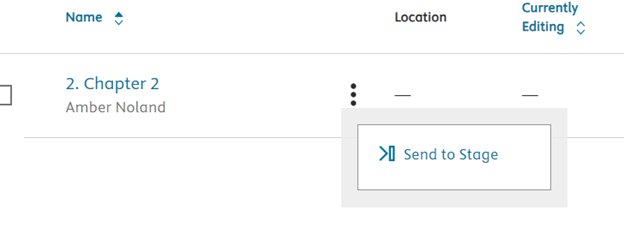
From the Project Overview: navigate to the 'Send to Stage' function on the 'More Options' menu and select the workflow stage to which you would like to send the chapter.
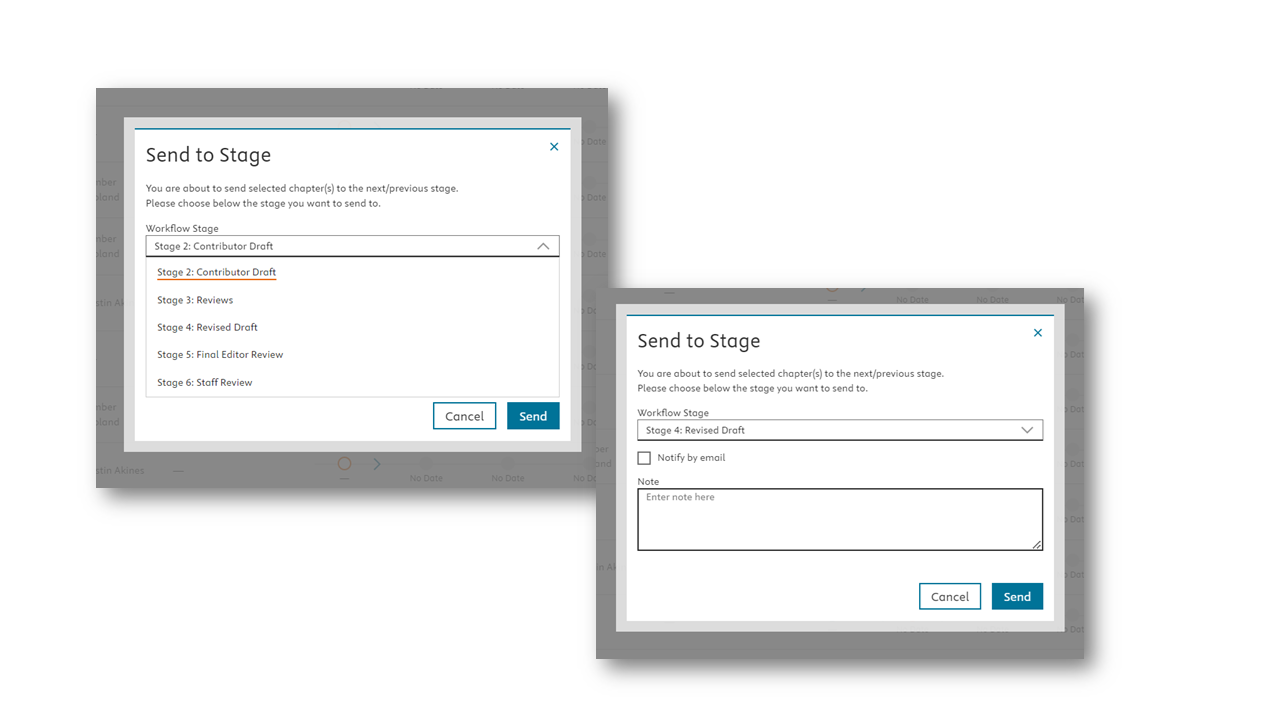
From Inside the Chapter: Click the 'Exit Chapter' icon and then select 'Exit & Send'. Select the workflow stage to which you would like to send the chapter.
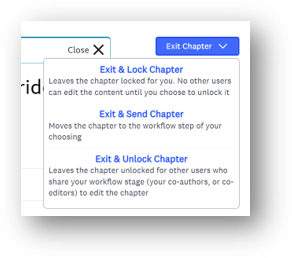
On a project, you can assign responsible editors to specific chapters to make clearer which editor is responsible for reviewing that chapter.
Assigning a Responsible Editor
From the Project Overview page, under the Responsible Editor column, click the pencil icon and then select in the modal window dropdown which editor(s) should be designated for the chapter.
Note that anyone in an Editor/Author or Associate Editor role can be assigned as a Responsible Editor.
What changes once someone is assigned
- Notifications: Once a Responsible Editor is assigned for a role on a chapter, only that person (or those people) will be notified by email when the chapter reaches their review stage — other editors of the same role type will no longer receive that notification. If no Responsible Editor is assigned for that role on a chapter, notifications still go to everyone in that role.
- "Ready for Review" label: On the Dates & Milestones tab of the Project Overview page, the Responsible Editor sees a Ready for Review label appear on a chapter once it reaches their stage. It stays until the chapter moves out of that stage. Other editors with access don't see this label.
- Default filter: The "Chapters I'm responsible for" filter in Table Filters & View is turned on automatically for the Responsible Editor when they open the project. A dismissible banner explains this the first time you see it. You can turn the filter off yourself if you'd rather see all chapters.
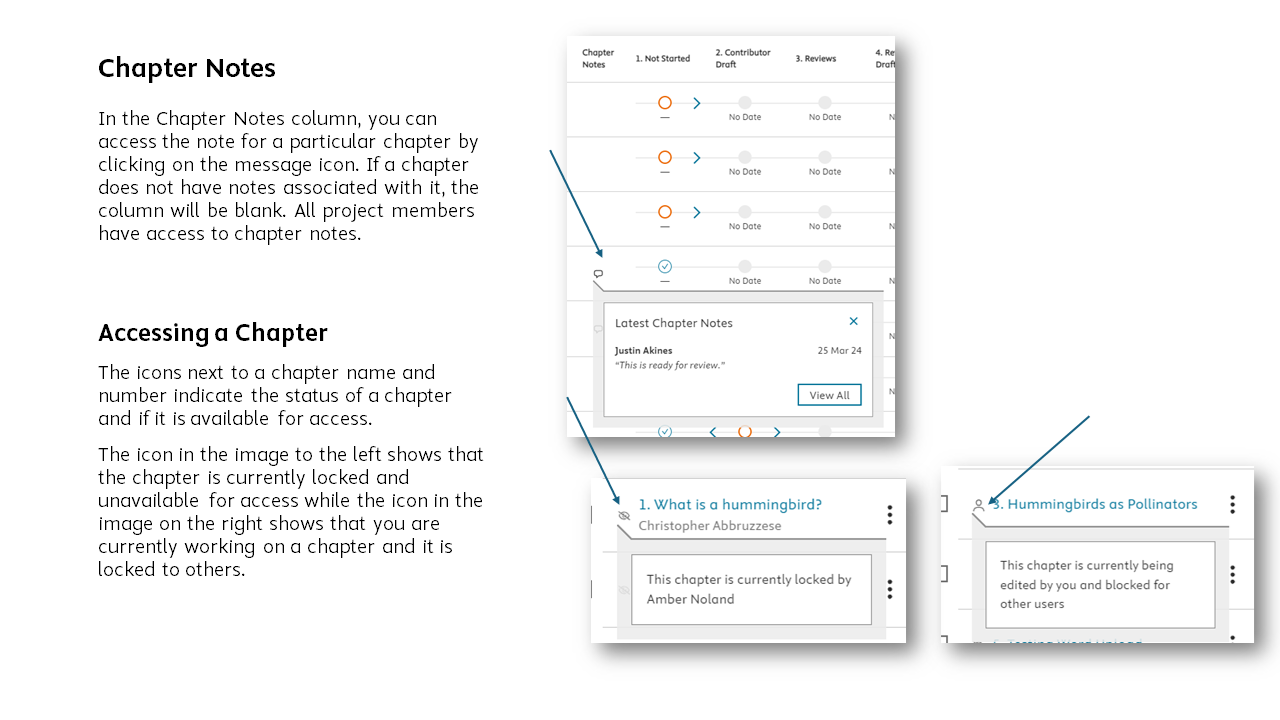
To learn more about comments and how to enter new comments, see this support article: What’s the difference between chapter comments and chapter notes?
You can filter the chapter view on the 'Project Overview' page, by selecting the 'Table Filters and View' button at the far-right of your screen. From here, you can choose to view chapters by section, those you are working on or are responsible for, missed due date, and you can also show more or less information by selecting or de-selecting columns under 'Show Table' columns.
If you need to gain access to a chapter and know that the contributor has finished working but they have not sent the chapter to you in the workflow, you can send it to yourself in order to gain access.
To do this, select "Send to Stage" from the "More Options" menu on the Project Overview and select "Send to Stage".
To review the chapter, click on the title of the chapter via the Project Overview Page or the Table of Contents. You may be asked to ‘edit’ the chapter, or the chapter may already be in edit.
The Publishing Assistant, found at the bottom of your Elsa screen, is also a helpful tool when reviewing chapters. The Publishing Assistant alerts you to tasks that are still incomplete in the chapter, such as inserting citations, figure callouts, permissions, and more. For more information, see this support article: What is the Publishing Assistant?
If you need to gain access to a chapter that is currently unavailable to you, you can try sending it to the same stage in the workflow with the “Send to Stage” option from the Project Overview page.
To do this, click on the More Options ellipsis icon, select “Send to Stage” and select the current stage of the chapter in the workflow from the dropdown menu.
Note: you should only complete this step if you have confirmed that no one else is actively working. This action should not result in content loss but private changes may be made public.
Once you have reviewed a chapter, you can send the chapter further in the workflow directly from the Write Space. Navigate to the Exit Chapter icon and select the Exit and Send option from the dropdown to launch the Send window (note if you have missing information such as abstracts or keywords, you may be asked to review this information first).
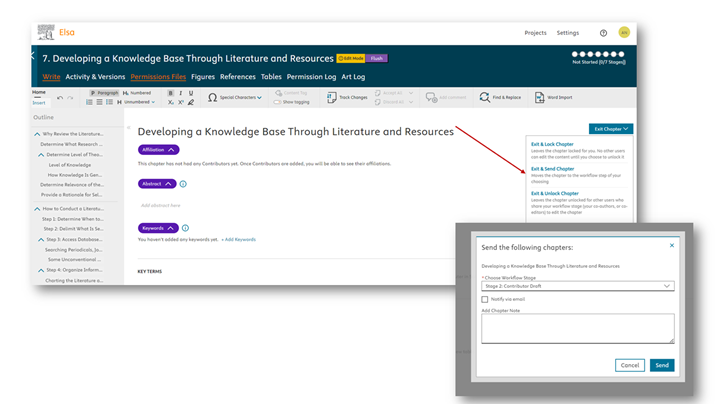
From this window, you can select the relevant workflow stage.
Sending a chapter to Review stage places it in a bucket for all reviewers to access. If you need to send the chapter to a specific reviewer, we recommend including a note for the specific person in the Comment field when sending the chapter to the Reviews stage. Alternatively, you can send an email from inside Elsa to the person (reviewer 1; reviewer 2) who should pick up the chapter for review.
What are the workflow stages?
Workflows can be customized by an Elsevier staff member depending on the best set-up for your project so the below stages may appear in a different sequence or have added or fewer steps. Workflow stage names can also be customized and may vary according to project. We recommend looking at the top banner of the Dates and Milestones section of the project overview page to confirm the workflow for your project.
Edited Title Workflow
- Not Started/Ready: This stage indicates a chapter is not currently in a workflow stage. Once a chapter has been moved out of this stage of the workflow, it is generally not recommended to send it back here as this removes all associated due dates and can indicate that no one has started working in the chapter.
- Contributor Draft: Contributors submit a draft of their chapter for submission, then send to Initial Editor Review.
- Initial Editor Review: Editor reviews the chapter and provides feedback for the Contributor, then sends to Revised Draft.
- Review: an external reviewer or another project member other than an Editor or Elsevier staff member provides a review of the chapter. Can be blind or non-blind.
- Revised Draft: Contributor corrects any feedback from Editor and finalizes chapter, then sends to Final Editor Review.
- Final Editor Review: Editor reviews the revised chapter (sending it back for additional edits if necessary) and confirms that it is complete, sending it to Staff Review.
- Staff Review: Elsevier staff member reviews the chapter, sending back to Editor if changes are necessary. Once finalized, Elsevier staff member sends on to Production. Once a chapter has been sent to Staff Review, you will not have access to it unless an Elsevier staff member returns it to you.
- Production: Production are where post-authoring and editing steps – like copyediting and indexing – take place before the book is transmitted for publication.
Monograph Title Workflow
- Not Started/Ready: This stage indicates a chapter is not currently in a workflow stage. Once a chapter has been moved out of this stage of the workflow, it is generally not recommended to send it back here as this removes all associated due dates and can indicate that no one has started working in the chapter.
- Draft: Author submits a draft of their chapter then sends to Staff Review.
- Staff Review: An Elsevier staff member reviews the chapter, sending back to the Author if changes are necessary. Once finalized, Elsevier staff send the chapter on to Production.
- Production: Production are where post-authoring and editing steps – like copyediting and indexing – take place before the book is transmitted for publication.
Did we answer your question?
Related answers
Recently viewed answers
Functionality disabled due to your cookie preferences