
Elsa Training Guides for Editors and Authors
Last updated on March 12, 2026
Welcome to Elsa! These guides are meant to be self-paced training for current or upcoming Editors and Authors. Simply click the drop-downs to reveal training guides and more information.
Need more help? Our Elsa User Support Specialists can be reached by email or chat.
Not a current Elsa User? Find out more about Elsa by visiting Elsevier Solutions.
Elsa is an easy-to-use, online, authoring tool for authors, contributors, and Elsevier staff that retains content fidelity, puts you in control of your content and tracks completeness, so you can spend less time reworking your content and receive fewer queries from editorial and production staff.
What you’ll need to get started
To get started in Elsa, you’ll need these things:
- Connection to the Internet.
- Elsa is not available for use offline.
- Google Chrome Microsoft Edge; or Mozilla Firefox Browser.
- Visit Google Chrome, Microsoft Edge or Mozilla Firefox for more information, or to download or update your browser.
- An invitation to a project in Elsa.
- Currently, you must have an invitation to an Elsa project in order to use Elsa. Not working on a project in Elsa yet? Visit our solutions page to find out more about Elsa and how you can author for Elsevier.
At any time, you can access the Elsa Resource Center via the help icon in the upper-right hand corner of your screen.

The Resource Center links to the Elsa KnowledgeBase of support articles, YouTube channel, webinar schedule and to contact an Elsa User Support Specialist.
Elsa Support
Elsa Support is available via email and chat Monday-Friday 9:00 A.M.-5:00 P.M. CST. To find the time in your local time zone, we recommend converting to your local time zone hereopens in new tab/window.
Elsa makes it easy to find your projects and track their progress at a glance.
From the Project List Page, you can see all of the current projects to which you are assigned. Click on the name of the project in order to access it and start working.
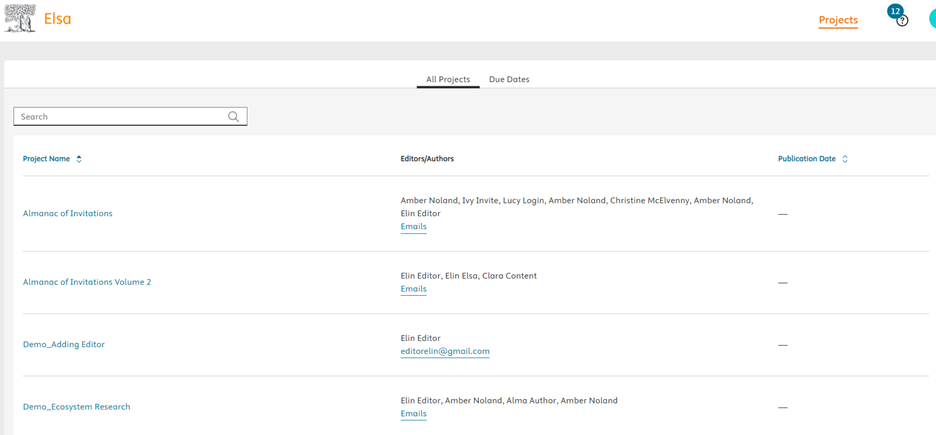
When you click on a project name, you’ll be taken to the Project Overview page.
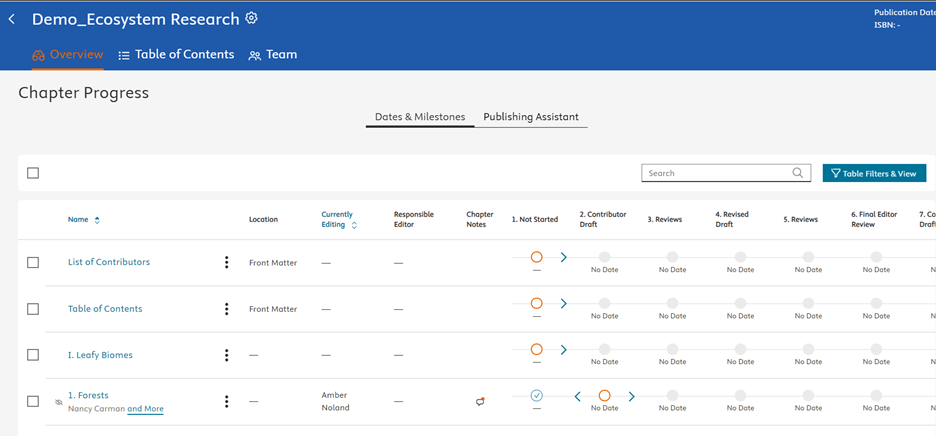
From the Project Overview page, you can see all chapters to which you have access in a project, their progress, due dates, who is currently editing the chapters, and chapter notes.
You can also send a chapter in the workflow (see section Saving and Workflow).
The  icon next to the chapter name indicates that a User is currently editing the chapter and it is not accessible for anyone else to edit. Hover over the icon to see who is editing the chapter.
Editors/Authors do not have permission to change due dates. Any questions about changing due dates should be directed to Elsevier staff.
Once a new project is created in Elsa, the Table of Contents for that project can be built. Elsevier staff and Editors/Authors can edit the Table of Contents. From the Table of Contents, you can:
- Set autonumbering options.
- Add chapters.
- Move chapters.
- Rename chapters.
- Add sections.
- Move sections.
The Table of Contents must be built first before Contributors can start writing. When you create a new Chapter in the Table of Contents, you are creating the document Contributors will write in. The ToC can be edited at any time by Editors/Authors, so don’t worry if your ToC is not final at the start of your project, you can make changes throughout the authoring process.
How do I create and edit my Table of Contents?opens in new tab/window
You can add Figures - images and illustrations - to any chapter you have permission to edit. The Figures Library for each chapter contains all Figures anyone with access to edit the chapter has uploaded, and can be found under the Figures tab.
Figures cannot be created, resized, cropped or otherwise edited in Elsa. Any editing or resizing of images should be done using third party software or programs, such as Adobe Photoshop.
How do I insert figures into my chapter?opens in new tab/window
One of the benefits of working in Elsa is the Elsa Publishing Assistant, which shows how you are tracking towards key requirements for publication.
To allow Editors/Authors and Contributors privacy when working in their chapters, Elsa only allows one User to work in a chapter at a time.
Elsevier staff have permission to unlock a chapter. If a User is editing a chapter and leaves that chapter inaccessible to others for a period of time, Elsevier staff may find it necessary to unlock the chapter so others can access it.
To unlock the chapter, click on the 'more' ellipsis, then 'Unlock'.
Unlocking a chapter will make any private changes a User has made public. Unlocking should be used as a last resort when all other attempts to make the chapter accessible have been exhausted.
Did we answer your question?
Related answers
Recently viewed answers
Functionality disabled due to your cookie preferences