
How do I log In and how can I troubleshoot log in issues?
Last updated on May 20, 2026
When you are invited to a project in Elsa, you are emailed an invite link. When you click on that link you will be taken to the Elsa landing page to create your account. After logging in to your project for the first time, we recommend bookmarking the Elsa site to access the tool going forward: https://app.elsa.elsevier.com/project/listopens in new tab/window as invitation links expire after 60 days.
Elsa uses Elsevier’s ID+ SSO systemopens in new tab/window to log in. If you already have an ID+ account associated with the email used to add you to an Elsa project, you will use the same password to log in to Elsa.
Information about troubleshooting errors and log-in issues can be found at the bottom of this page.
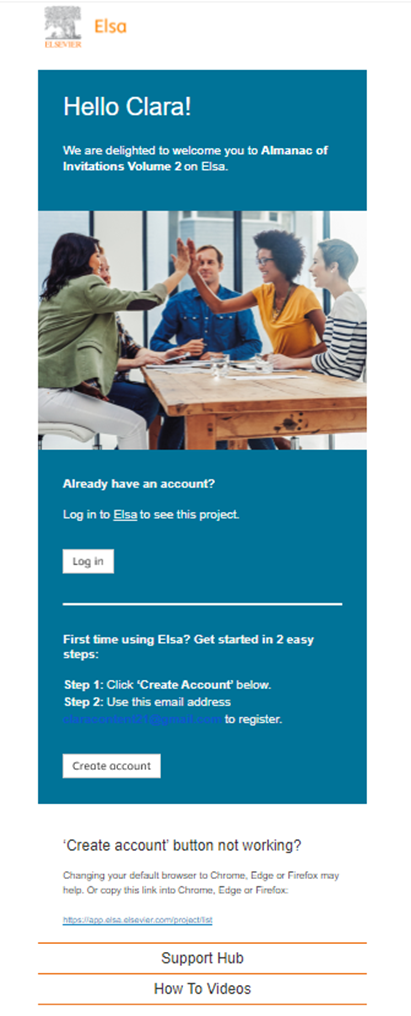
- If you already have an account, click the "Log In " button in your invitation email and then select "Sign In " on the Elsa home page.
- If you are a new user and need to create an account, click the "Create Account " button in your invitation email and then click "Get Started " on the Elsa home page to create an account with Elsevier’s ID+ service, which will serve as your Elsa login.
- Whether creating a new account or logging in to an existing account, confirm the email that is on file by checking the email listed in Step 2 of the Create Account section. If you have difficulties seeing this, we recommend highlighting the hyperlink with your cursor.
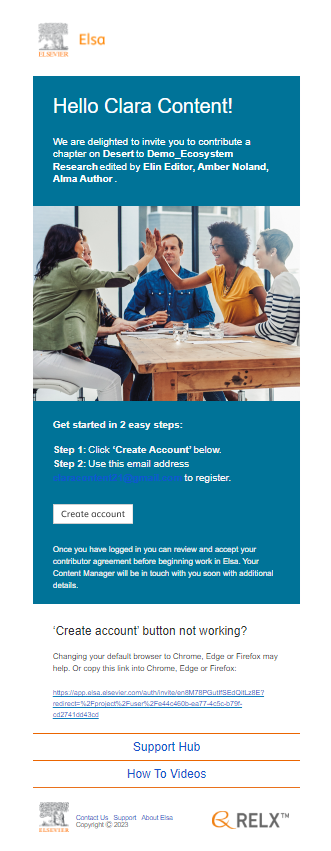
- Click the "Create Account " button in your invitation email
- Click the "Get Started " button on the Elsa home page to create an account with Elsevier’s ID+ service, which will serve as your Elsa login.
- If you already have an Elsa account, first confirm that the email for your current project is correct by checking Step 2 of the Create Account section in your invitation email. If you have difficulties seeing this, we recommend highlighting the hyperlink with your cursor.
- If the emails match, you can select "Sign In " on the Elsa landing page and enter your credentials to access your account. If the emails differ, contact your lead editor/author and/or your Content Manager. You can also contact the Elsa Support teamopens in new tab/window if a Content Manager has not yet been assigned to your project.
If you need further assistance, please contact usopens in new tab/window for the quickest and easiest resolution to your question.
If you’re having trouble signing in to Elsa, use the table below to identify the message you’re seeing and learn what steps to take next. Select the error message that matches your screen for more information and troubleshooting guidance.
Error Message | What it means | What to do |
|---|---|---|
“Couldn’t process invitation link” | You must use the invitation link sent to your email to access Elsa for the first time. | Open your invitation email and use the unique link provided. |
“Couldn’t find account with that email” or “Incorrect email address” | You were invited to Elsa using a different email address. | Check your invitation email to confirm which email address was used. |
“You don’t have access to Elsa yet” | Your account has not yet been added to the Elsa project. | Contact an Elsevier staff member or support desk for access. |
“Invitation link has expired” | Invitation links expire after 60 days. | Select “Request new link” to receive a new invitation email. |
“IDP or Elsevier Identity account is missing or unsupported” | There is an issue with your identity provider or account configuration. | Contact the support desk for assistance. |
If you have changed institutions and need to update the email associated with your account or change your password, you can do this within your ID+ profile. Elsevier staff cannot make this change on your behalf owing to GDPR restrictions.
To update your email address, either login to Elsa and click on the icon in the upper-right hand corner of your screen with your initials and then select Elsevier Account Settings.
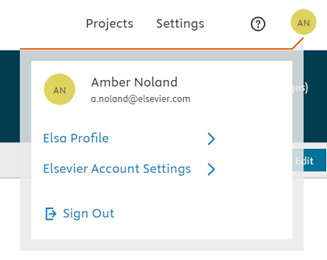
If you cannot access Elsa, or would like to access your ID+ directly, you can go to the ID pageopens in new tab/window.
If you do not know your current password, follow the below steps:
- Enter the email address you registered with,and click 'Continue'.
- Click 'Forgot password?'
- Check the email address is correct, and click 'Send me a link'
- You'll receive a reset link and further instructions via email to the address you entered.
If you do know your password, follow the below steps:
- Enter the email address you registered with,and click 'Continue'.
- Enter your password
- If editing your email address, select the pencil icon next to the email address field in your ID+ profile to update and edit your email address on the next screen.
If resetting your password, select the pencil icon next to the password field and you'll receive a reset link and further instructions via email to the address you entered.
If you are new to Elsa and are being prompted to Sign In/enter your password when registering with the system, you most likely already have an ID+ account:
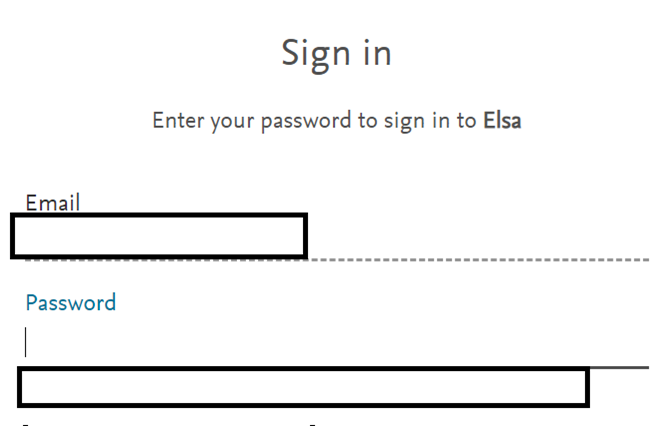
You’ll need to either enter the password that you use to access other Elsevier products (ScienceDirect, Mendeley, etc.) or reset your password by selecting Forgot Password/resetting it directly in your ID+ profile:
- Go to the ID pageopens in new tab/window.
- Enter the email address you registered with, and click 'Continue'.
- Click 'Forgot password?',
- Check the email address is correct, and click 'Send me a link'.
- You'll receive a reset link and further instructions via email to the address you entered.
After doing this, we recommend clearing your cache and browser for all time to clear out any remaining cookies, etc. and then try accessing Elsa again through your invitation link.
To Add a Secondary Email:
If you have an existing ID+ account, but would like to add an additional email address, you can do this directly in your ID+ profile.
- Log In to your ID+ profile https://id.elsevier.com/settings/opens in new tab/window
- Add the additional email address in the field "Add Secondary Email"
Did we answer your question?
Related answers
Recently viewed answers
Functionality disabled due to your cookie preferences