
Chapter Allotments
Last updated on August 28, 2025
What are chapter allotments?
Chapter allotments define limits for words (or pages), figures, tables, boxes, and references within a chapter. For example, if a project’s total word count is 200,000, Chapter 1 might be allotted 10,000 words.
- Allotments are set only by Elsevier staff in Elsa.
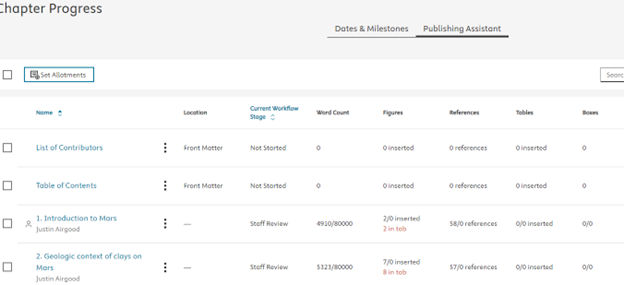
- Authors, editors, and contributors can view allotments in Publishing Assistant on both the Project Overview page and within individual chapters.
Key Points
- There is not currently a way to separate allotments for word count vs. figure, table, box, count. When no allotment is required for a chapter element, the target allotment will display as 0 (e.g., 1/0). This indicates there is no limit. Authors may disregard overage flags in these cases.
- They can be applied in bulk to all chapters or individually.
- Frontmatter and backmatter are included.
- Data appears in the Project Status Report.
- Content marked e-only does not count toward allotments (e.g., a 5,000-word allotment allows 5,000 words plus any additional e-only content).
Setting Chapter Allotments (for Content Managers)
Step 1:
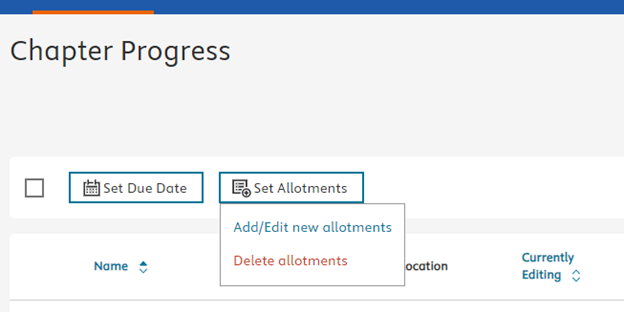
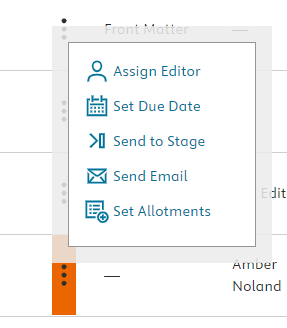
Go to the Set Allotments icon on the Project Overview page, or use the More Options (⋯) menu next to a chapter and select Set Allotments.
- To apply allotments to specific chapters, select them first on the Overview page.
Step 2:
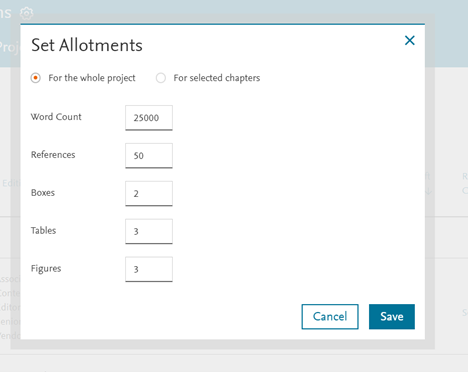
Choose Add/Edit Allotments. The allotments window opens where you can set limits for the entire project or selected chapters.
Step 3:
To edit allotments, select the chapters (or the entire project), update values in the modal, and click Save.
Step 4:
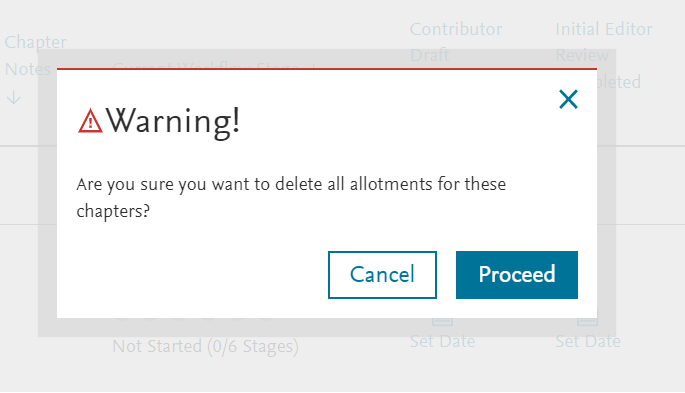
To delete allotments, click the Allotments icon > Delete Allotments. Confirm by selecting Proceed when the warning appears.
Viewing Chapter Allotments
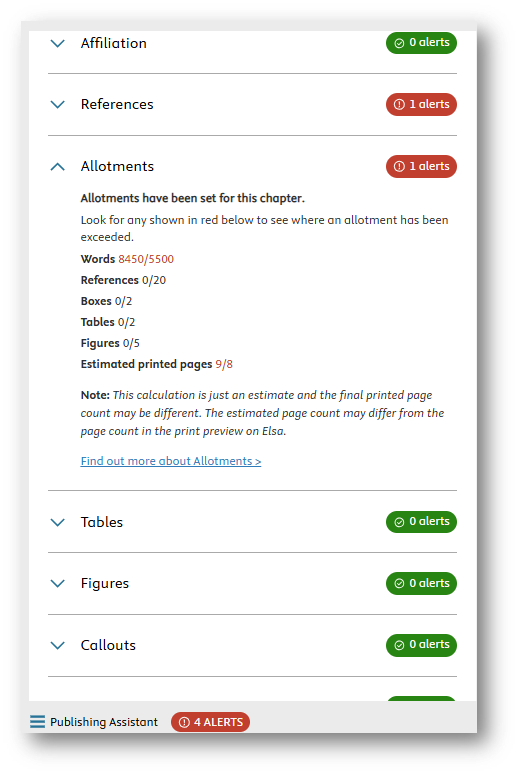
- Allotments appear in the Publishing Assistant tab on both the Write Space and Project Overview page.
- Progress is shown as a fraction:
- Top number = current progress
- Bottom number = target allotment
- If the bottom number is 0, no allotment has been set.
Did we answer your question?
Related answers
Recently viewed answers
Functionality disabled due to your cookie preferences