
How do I delete a chapter?
Last updated on May 08, 2026
Video: How to edit the Table of Contentsopens in new tab/window
NOTE: Use caution when deleting chapters, especially if writing has already begun on your chapters, and only delete chapters when access is no longer needed.
When you delete a chapter, even if it has content in it, the chapter will be permanently deleted, users will no longer have access, and the content will be lost.
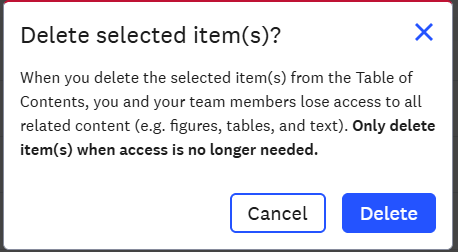
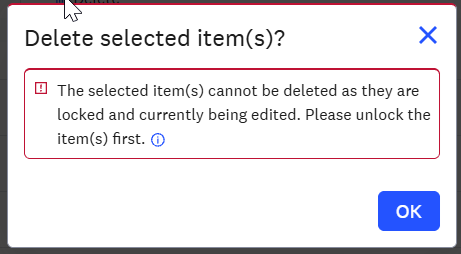
If you select a chapter(s) to delete that already has content written or is currently being edited by another user, you will receive one of these warning messages before you can delete it:
How
To delete a chapter, make sure you are editing the Table of Contents.

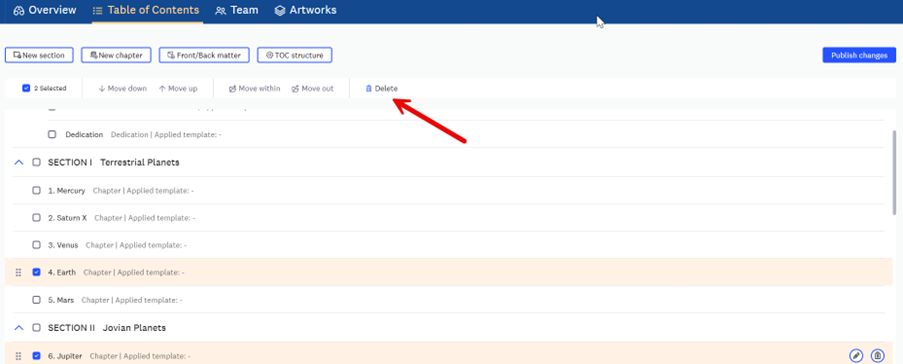
Select the chapter(s) you would like to delete and then select the ‘delete’ icon from the top toolbar.
You will see a warning message about deleting the chapter, if you wish to proceed click ‘Delete’. If not, click on ‘Cancel’.
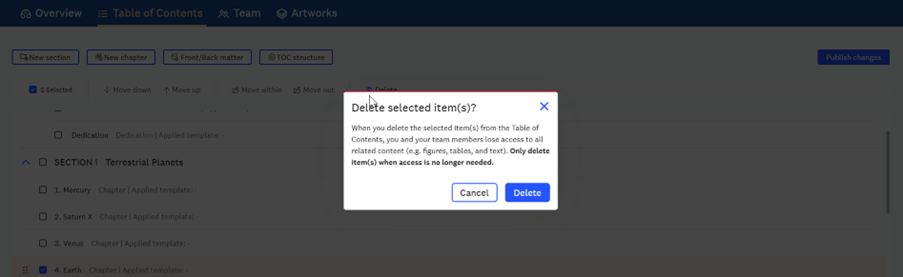
- Once deleted and you click ‘Publish Changes’, the chapter will no longer appear in the ToC.
You can also delete chapters one at a time by hovering the relevant chapter and clicking on the bin icon.

Did we answer your question?
Related answers
Recently viewed answers
Functionality disabled due to your cookie preferences