
How do I edit a Table of Contents?
Last updated on March 12, 2026
The Table of Contents (ToC) is initially created before Editors and Authors are added to a project. Once the project is underway, Editors and Authors are expected to manage and maintain the ToC themselves. This includes editing existing chapters, adding new chapters or sections, deleting content, and reorganizing the structure as the project evolves.
For guidance on next steps after creating a project, see:
The ToC can be edited by Editors, Authors, and Content Managers and is accessed via the Table of Contents tab.
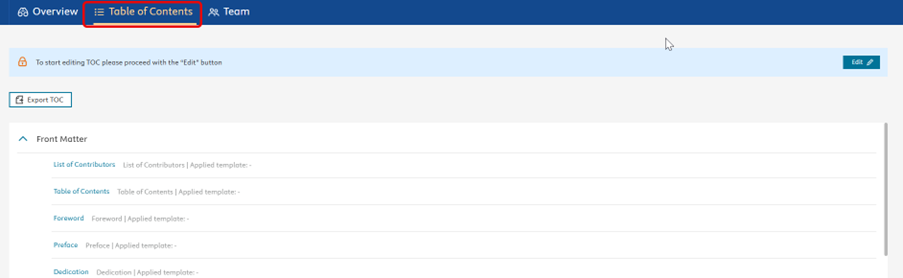
What You Can Do in the Table of Contents
From the Table of Contents, you can:
- Change auto-numbering options
- Add, move, rename, or delete chapters
- Add and move sections
- Add front matter or back matter pages
When you create a new chapter in the ToC, you are creating the document Contributors will write in. The ToC can be edited at any time, so it does not need to be final at the start of your project. You can continue to make updates throughout the authoring process.
Editing the Table of Contents
Only one person can edit the ToC at a time. To begin editing, click "Edit".

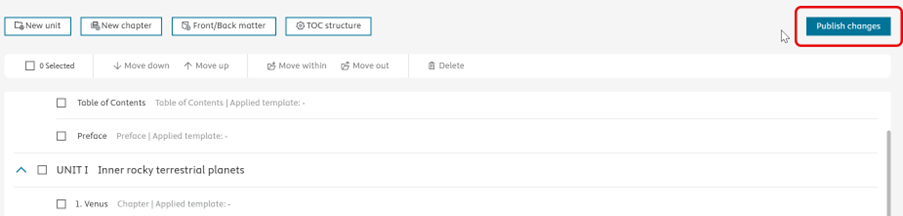
While you are editing, your changes are not visible to other users until you click "Publish Changes". For example, if you add several new chapters, none of them will appear for other users until the changes are published.
Elsa automatically numbers chapters in the Table of Contents. You can adjust numbering and structural preferences at any time:
- Go to the top toolbar.
- Click TOC structure.
- Select your preferred structure and numbering for Parts/Units and Sections.
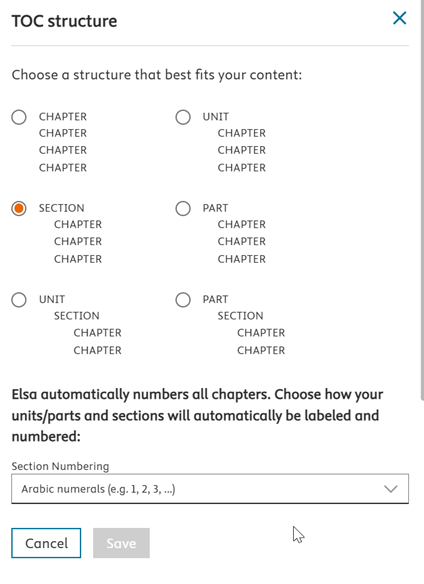
Your Table of Contents will update automatically. You can change these preferences as often as needed.
To add chapters, parts/units, sections (depending on your auto-numbering settings use the icons in the top toolbar and follow the on-screen instructions.

You can add multiple chapters or sections at once by clicking the + icon.
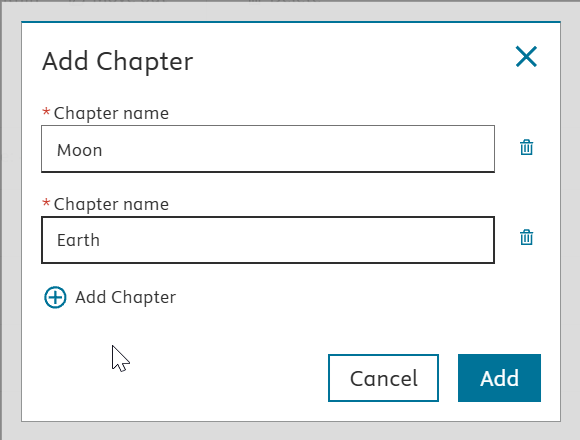
Remember, Elsa auto-numbers chapters, so you do not need to include chapter numbers in chapter titles.
You Content Manager can enable Sections/Units/Parts in the project settings.
Note: Once enabled, this setting cannot be turned off to prevent content loss.
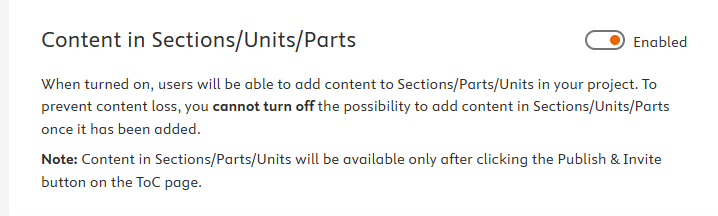
- Ensure your ToC auto-numbering style includes sections, units, or parts (see Auto-numbering options).
- Create a new section, unit, or part in the Table of Contents.
- Click Publish Changes.
- Open the Write space by selecting the linked title in the ToC or from the Project overview
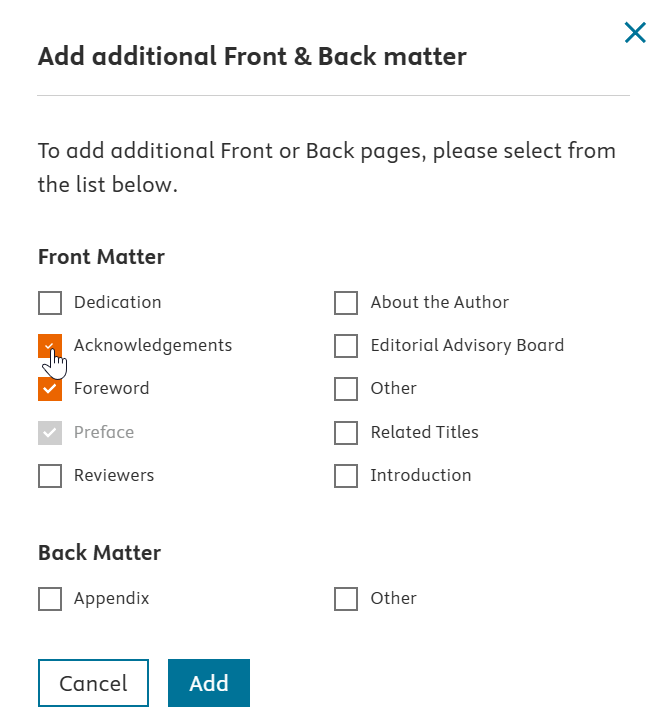
Use the Front/Back matter button

Select the items you wish to add from the side panel and click on "Add".
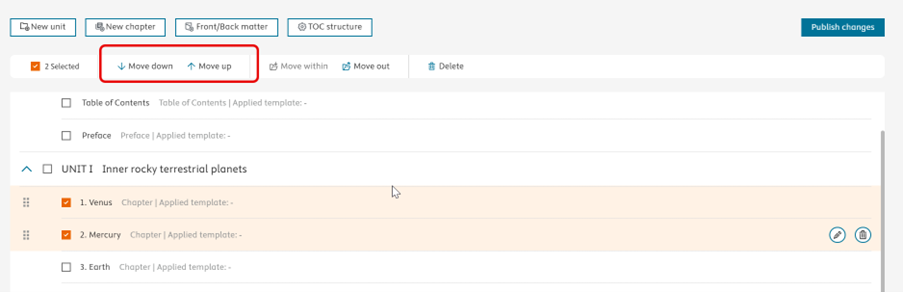
Select the chapter, part/unit, or section (multiple can be selected at one time) you would like to move and then drag and drop the component(s) to where you would like them to be moved. You can also use the top toolbar functions "Move down" or "Move up".
You can also move chapters into or out of sections using the toolbar icons.
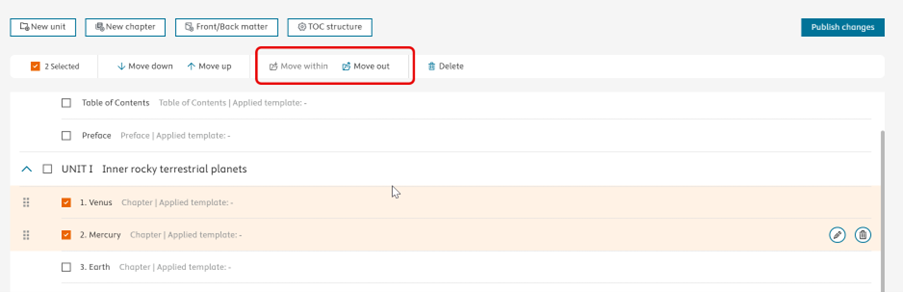
Elsa automatically renumbers chapters as you move them—no manual renumbering is required.
To rename a chapter:
Click the pencil icon next to the chapter.

Upate the chapter name in the pop-up window.
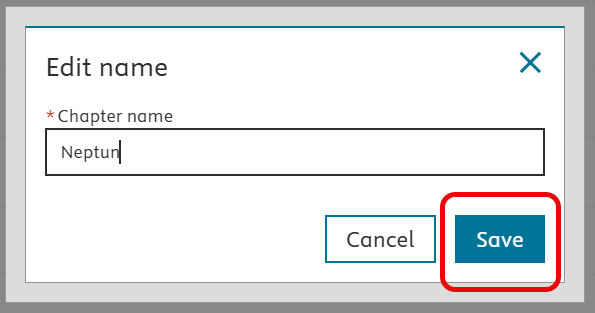
- Click "Save".
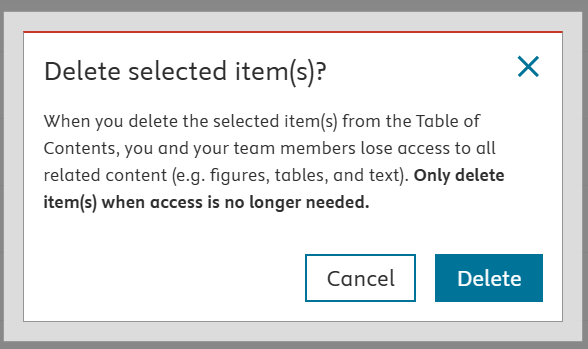
Use caution when deleting chapters, especially if writing has already begun or if the chapter contains content from a previous edition. Only delete chapters when access is no longer needed, as deleted chapters and their content cannot be recovered.
When you delete a chapter, it is permanently removed—even if it contains content. Users will no longer have access to the chapter, and all content will be lost.
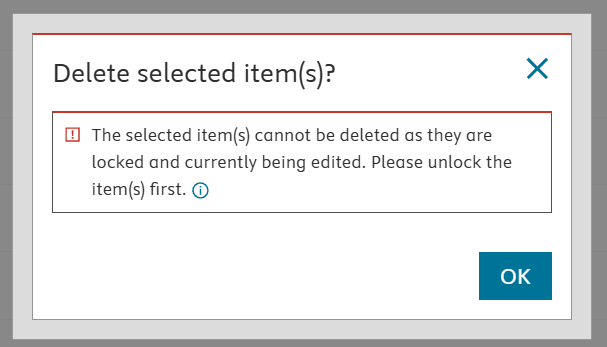
If you select a chapter to delete that already has content written or is currently being edited by another user, you will see one of these warning message before you can delete it.
Ensure you are in "Edit" mode in the Table of Contents.
Select the chapter(s) you want to delete. Click the "Delete" icon in the top toolbar.
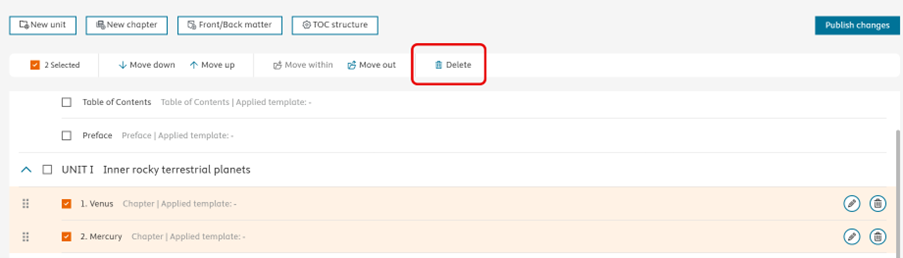
You will be prompted to confirm the deletion. Click "Delete" to proceed or "Cancel" to stop.
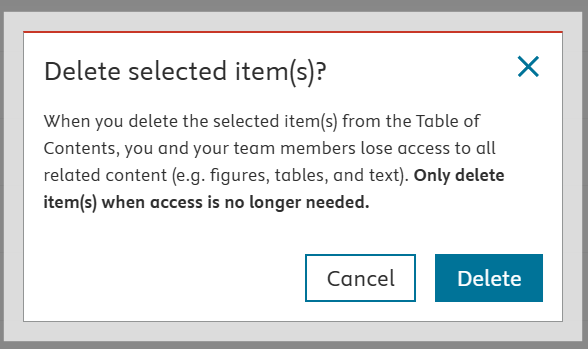
Once you click "Publish Changes", the deleted chapter will no longer appear in the ToC.
You can also delete chapters individually by clicking the bin icon next to a chapter.

Changes made to the Table of Contents do not take effect until you click "Publish Changes".
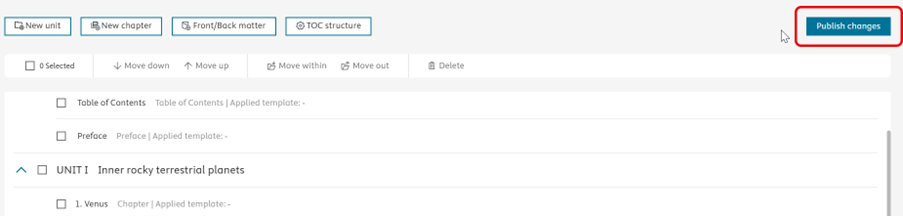
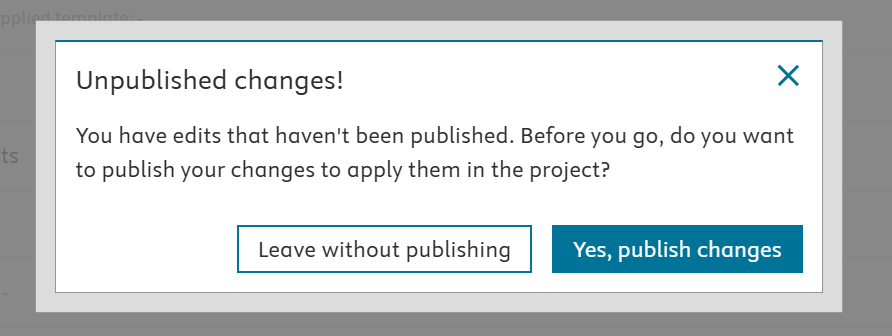
If you try to leave the Table of Contents without publishing, you’ll see a reminder pop-up prompting you to either publish or discard your changes.
To avoid locking the Table of Contents for other users, we recommend publishing your changes as soon as you’re finished editing.
Did we answer your question?
Related answers
Recently viewed answers
Functionality disabled due to your cookie preferences