
How do I add Formulas/Equations?
Last updated on July 25, 2025
Elsa uses the Wiris MathType Equations Editor to power our Formula Builder. For more information or help using the Formula Builder, visit the MathType web documentation centeropens in new tab/window.
If you are working with LaTeX, please visit this FAQopens in new tab/window for more information on how to add your files to Elsa.
Currently Elsa does not support entering callouts for formulas/equations in text.
Read below for more information on how to create equations in Elsa or import them from a Word file.
To create a formula/equation that will be inserted inline with your text and/or is not numbered, follow these steps:
- Place your curser where you would like the formula/equation and click on the Equation icon in the top tool bar.
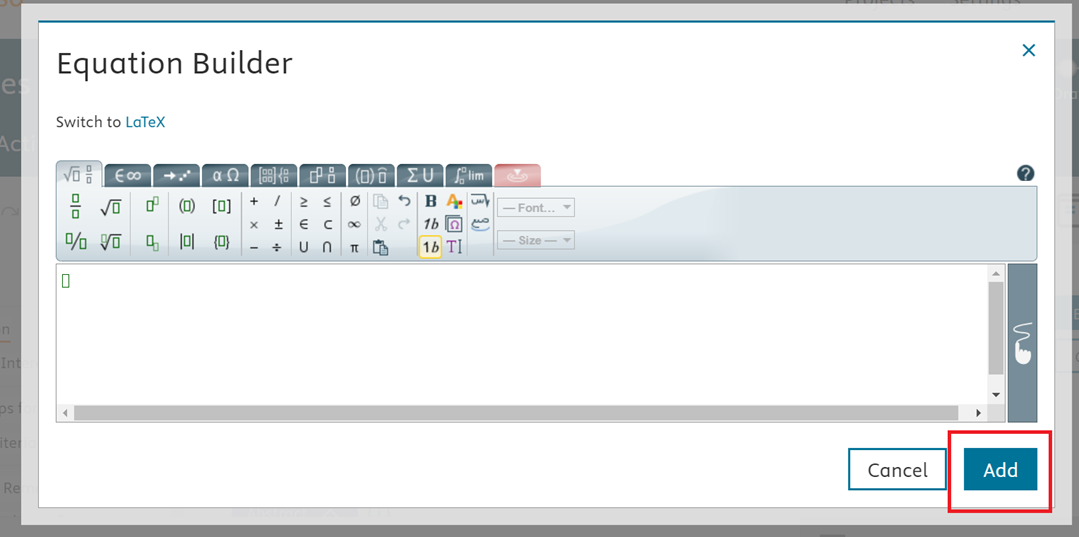
- The Equation Builder will open. Type or paste your formula/equation in and click 'Add'. Tip: Although the formula-builder supports LaTeX, the writing area does not. LaTeX files should be added to the LaTeX files tab.
- Your formula/equation will appear inline with your text.
- Editing equations: If you need to edit your formula/equation, click on the formula/equation and the Equation-Builder will re-open for you to make your edits.
- Deleting equations: to delete the inline formula/equation, simply use backspace on your keyboard to delete.
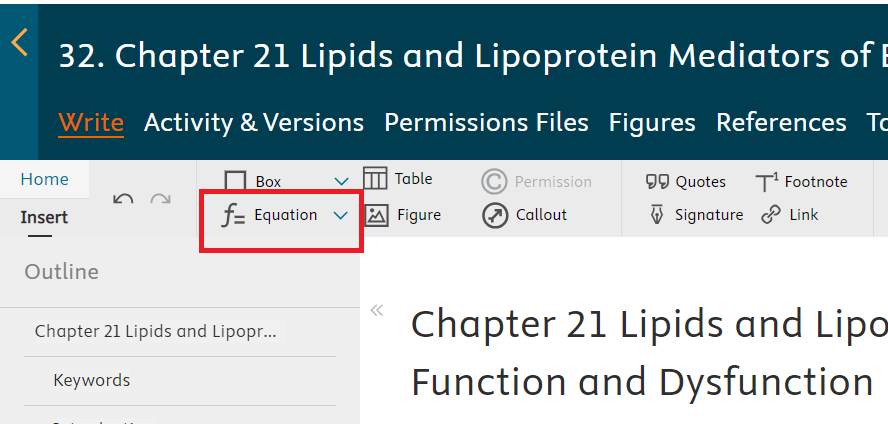
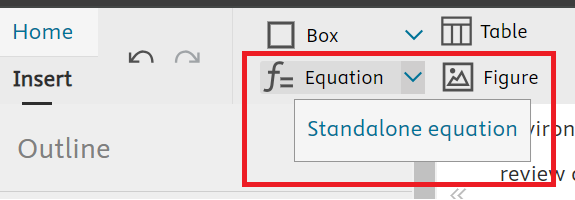
To create a numbered formula/equation:
- The equation-builder will open. Type or paste your formula/equation in and click 'Add' . Tip: Although the formula-builder supports LaTeX, the writing area does not. LaTeX files should be added to the LaTeX files tab.Your numbered formula/equation will now appear.
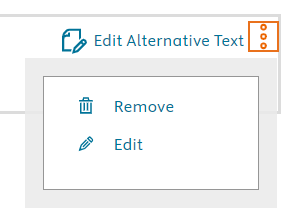
- To edit or remove your numbered formula/equation, click on the three dots in the right corner and choose Remove or Edit.
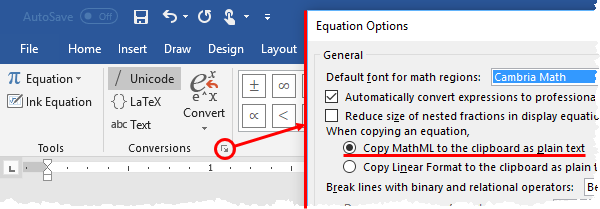
To upload a Word file with equations or to copy and paste equations from Microsoft Word to Elsa, we recommend setting the equation conversion settings to MathML. Note that depending on your version of Word, the options window may be in the Tools group rather than the Conversions group as shown here.
For PCs, in Word 2016, go to the Format menu on the toolbar, then Equation Options. Be sure the option under “When copying an equation,” is set to “Copy MathML to the clipboard as plain text” as shown below.
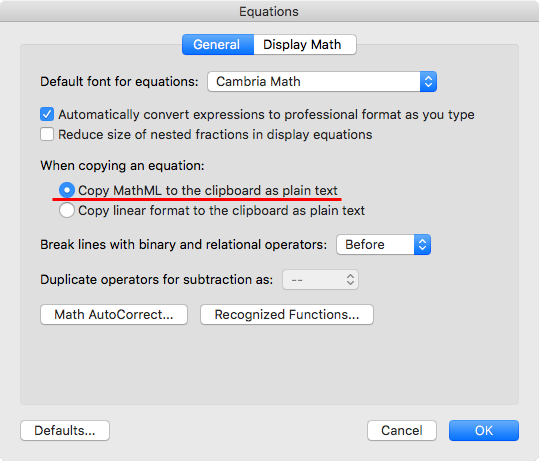
There is a similar setting on a Mac. In Word 2011, it's in Word > Preferences > Equations as shown below.
To import your file to Elsa, follow the instructions here How do I import a Word file?
If your equations did not successful import, check the following:
- The equations may have been created in an old or outdated file type. Right-click on the equation in your Word file to confirm that it is editable and not saved as an image. Please contact our support team or your content manager if you notice the equation is an image.
- Check the equation conversion settings
Did we answer your question?
Related answers
Recently viewed answers
Functionality disabled due to your cookie preferences