
How do I add an abstract or use the AI Abstract Generator?
Last updated on October 27, 2025
Elsa displays an Abstract pill at the top of your chapter. Many Elsa projects require an abstract to be included, as it helps improve the discoverability of your chapter in online searches. While around 150 words is the recommended length for an abstract, Elsa allows you to create one that’s shorter or longer based on your content — this is a best practice, not a strict limit.
To add an abstract:
- Click the arrow in the Abstract pill to open the section.
- Choose how you’d like to add your abstract:
- Use AI Abstract Generator — Click the “+ AI Abstract Generator” button to have Elsa’s AI create a draft abstract based on your chapter content. You can edit and refine the text before saving.
- Write your own — Type directly into the field labeled “Add Abstract Here.”
The abstract is not part of the published book but helps ensure your chapter can be found in online searches and indexing tools.
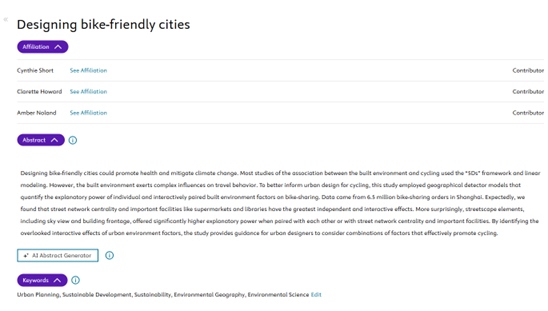
Abstracts can also be added upon import of a Word file.
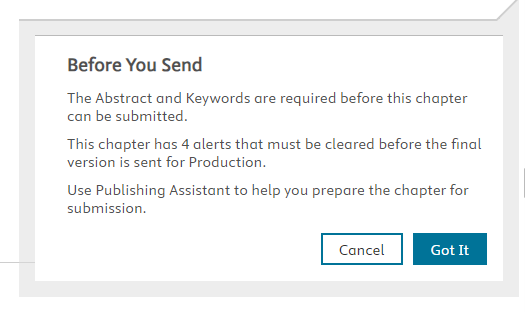
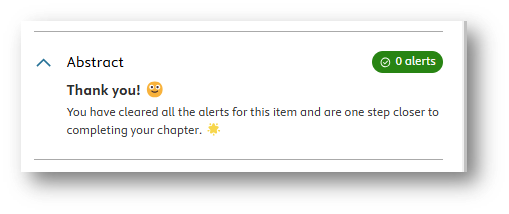
If your project requires an abstract, you will also need to add this before sending or passing your chapter in the workflow otherwise, you will receive the below message when you click the "Send" button. Once you have added an abstract, the alert will also clear in the Publishing Assistant.
The AI Abstract Generator
The AI Abstract Generator helps authors quickly create and refine abstracts using AI assistance directly within the authoring tool. You can generate, edit, or delete AI abstracts at any point before submission but you can only generate an abstract with AI one time in the Write space.
Note: You do not need to indicate use of the AI abstract-generator on the Elsa AI disclosure.
Create an AI-Generated Abstract- Ensure you have content entered into the Write space for the AI-abstract generator to summarize.
- Navigate to the Abstract section
- Click “AI-Abstract Generator.”
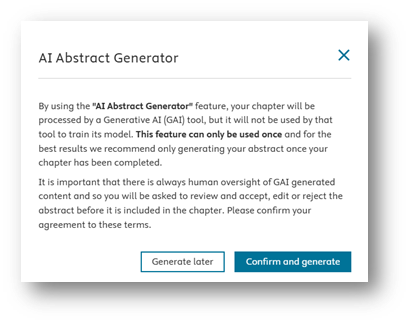
- Click Confirm and Generate on the prompt acknowledgment
- The tool analyzes your chapter text and automatically produces a suggested abstract.
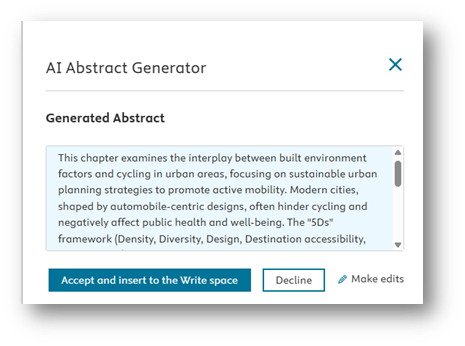
- Review the generated abstract in the preview panel.
- Click “Accept and Insert into the Write Space” to add the abstract to your manuscript, or “Make Edits” if you’d like to adjust the text. You can also choose to decline the AI-generated abstract if you wish.
Tip: You can still edit the generated text before or after inserting it. The AI’s suggestion is only a starting point.
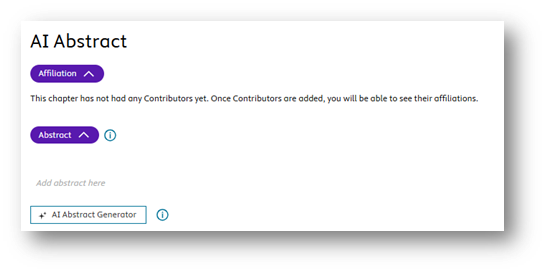
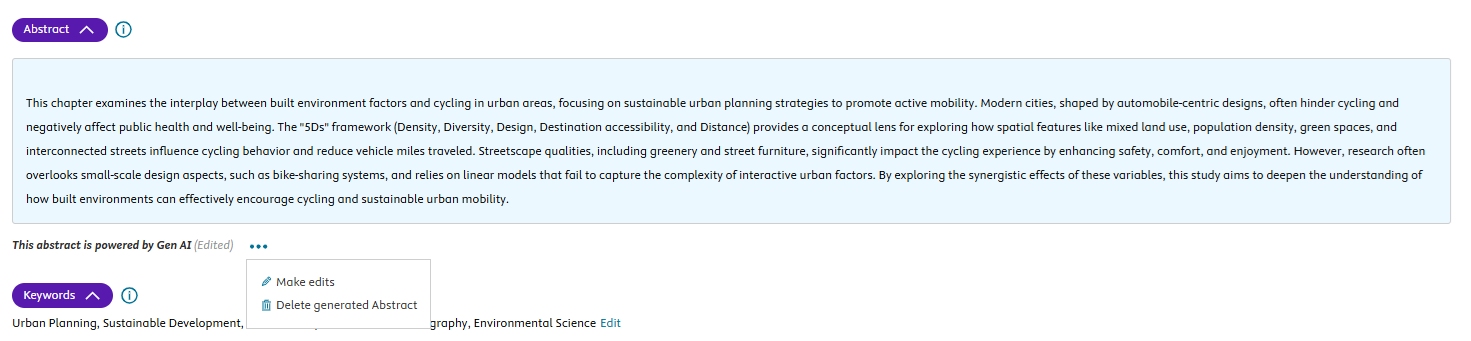
- Click the More Options icon below the Abstract field
Select Make edits or Delete generated Abstract
Did we answer your question?
Related answers
Recently viewed answers
Functionality disabled due to your cookie preferences