
How do I see changes made in a previous version of my chapter?
Last updated on July 08, 2025
Each time a chapter is exited or sent in the workflow by a user, Elsa creates a new version of that chapter. The 'Activity & Versions' tab is where users can access chapter version history and view other general information about chapters like project type and language. Note that a new chapter version is not created when a Word file is imported.
Version History: Compare Selected
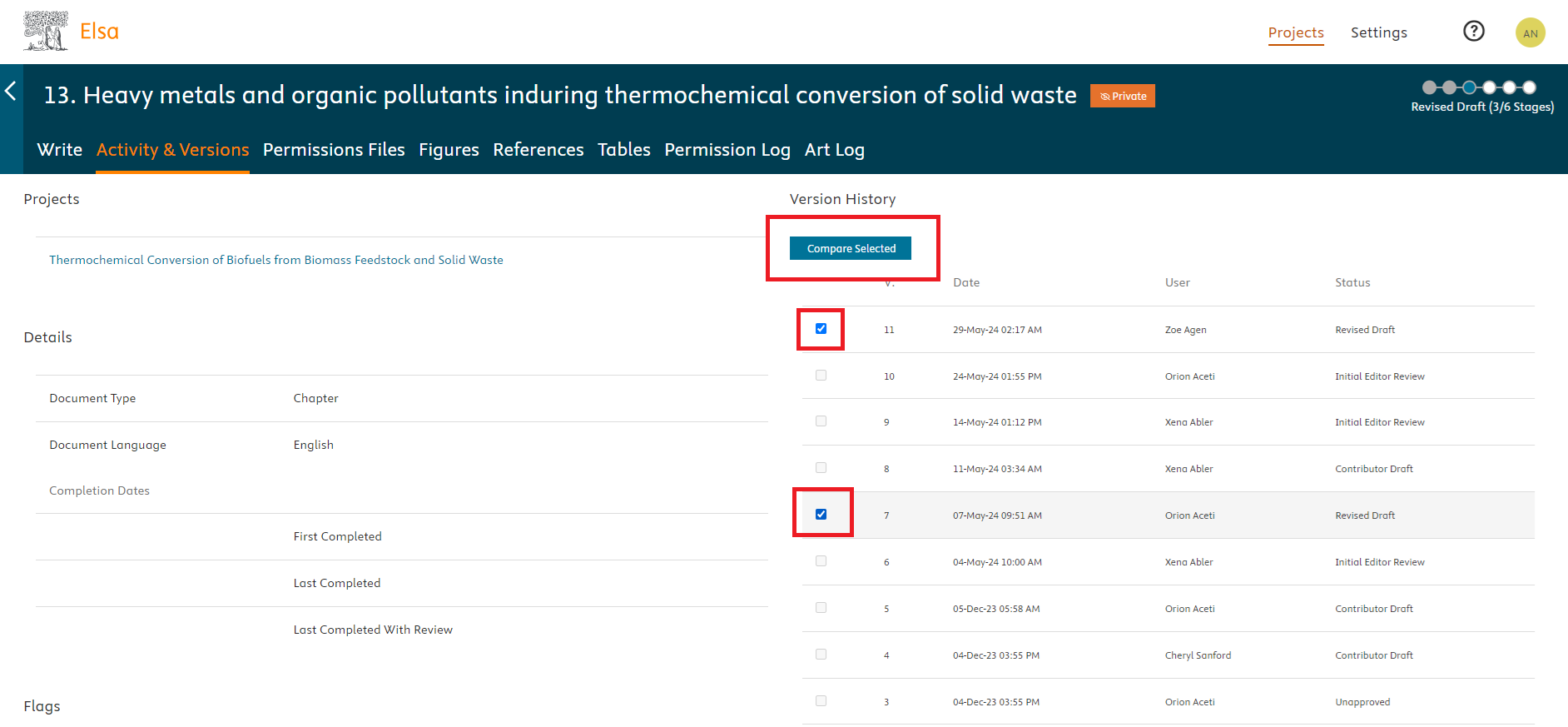
To compare versions, select two different versions and then click 'Compare Selected'.
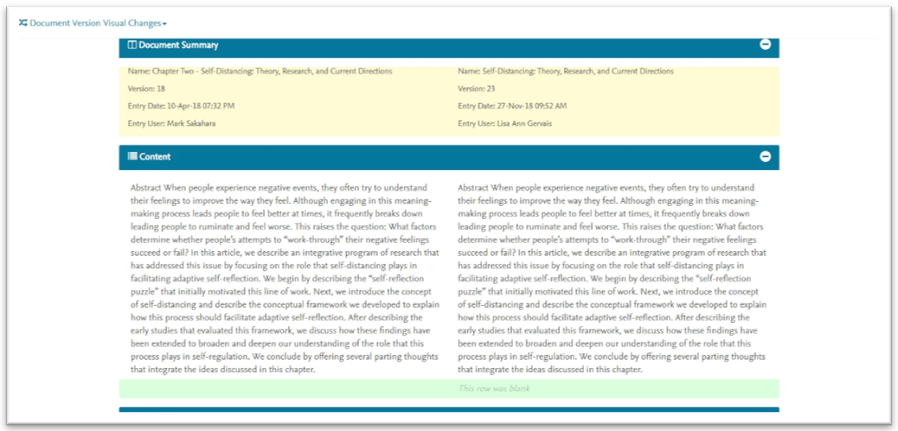
A side-by-side comparison will open in a new window showing details of the two versions being compared and which changes were made from one version to another.
Paragraphs that include changes will be highlighted in yellow while text that is unchanged between the versions is highlighted in white.
Text highlighted in green indicates that has been added while text highlighted in red indicates that it has been removed.
Did we answer your question?
Related answers
Recently viewed answers
Functionality disabled due to your cookie preferences