
How do I add Footnotes?
Last updated on May 22, 2025
Footnotes can be inserted by placing your cursor in the text where you would like the footnote to appear, navigating to the “Insert” tab on the toolbar and then selecting the footnote icon  from the top toolbar.

A window will open to the right of your screen where you can enter your Footnote text and then click 'Add'.
Hint: You may need to scroll down to see the 'Add' button.
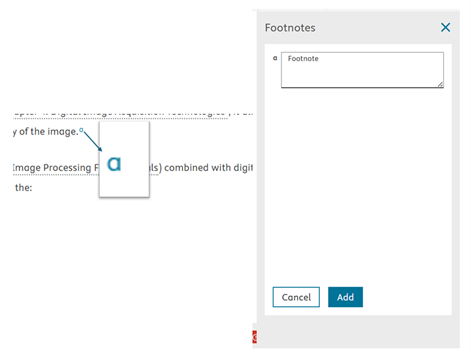
Note: When you move content where a footnote appears, Elsa will automatically renumber the Footnote based on the new position.
Editing and Deleting Footnotes
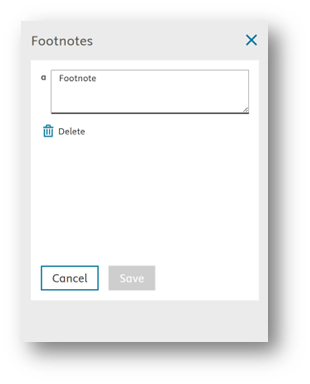
Editing: To edit a Footnote, click on the Footnote link in the text. The footnote pane will open. Edit the footnote there and click 'save'.
Deleting: To delete a Footnote, place your curser behind the Footnote number and press backspace on your keyboard, or click on the footnote link in the text and click the trashcan ‘Delete’ icon beneath the text field.
Adding Footnotes to Tables
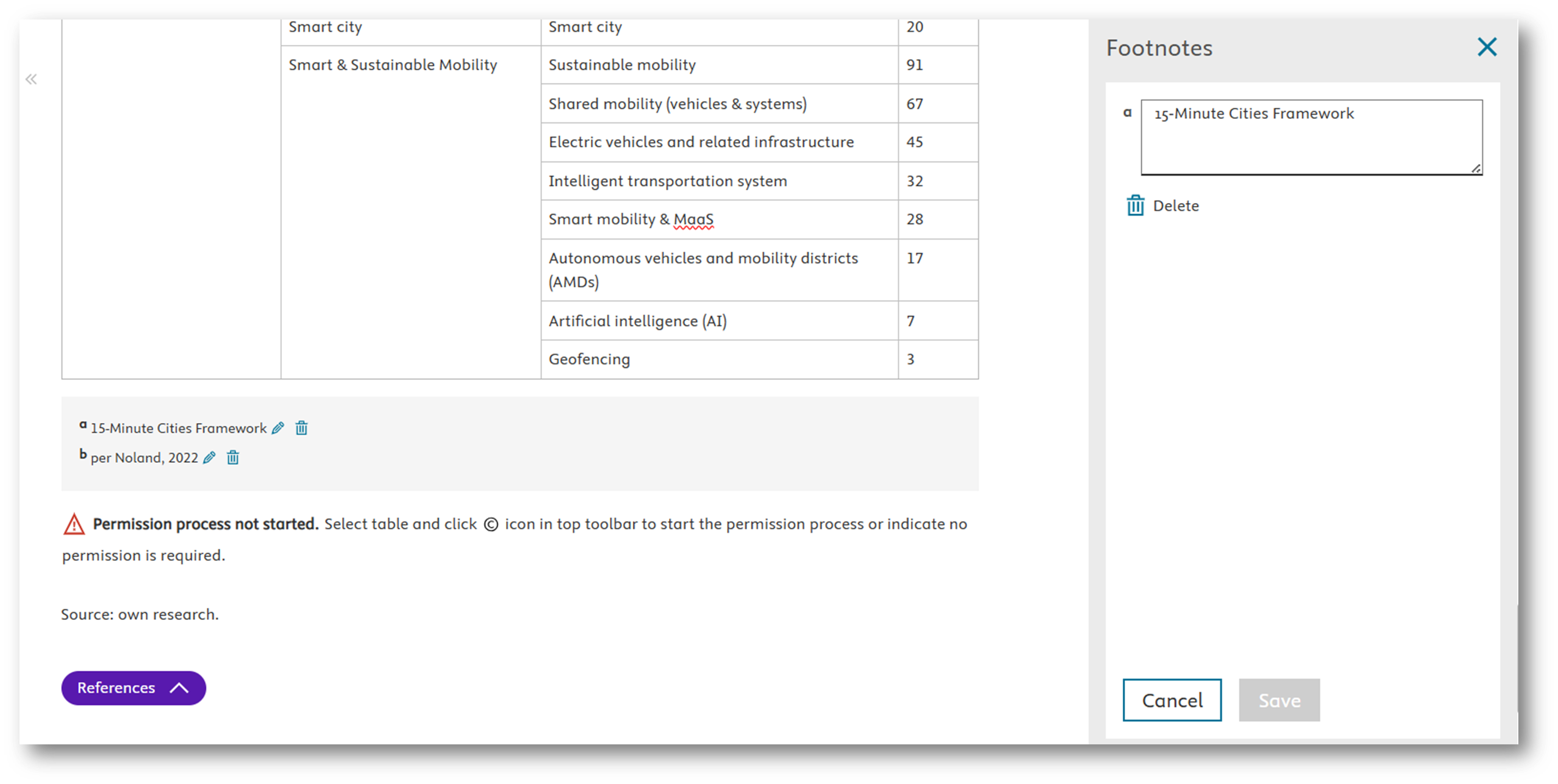
If you need to assign a footnote to a table, these will appear directly below the table as a separate footnote list.
- To add the footnote, click into the table header or cell where you would like to place it.
- Navigate up to the Insert section of the toolbar and select the Footnote icon.
- Enter the footnote information in the footnotes pane and click Save,
The footnote can then be edited or deleted from the footnotes section below the table.
References and Footnotes
Elsa does not currently support references included in footnotes. Similarly, if you created references as footnotes or endnotes in Word, Elsa will not recognize these during Word import. If your Word file contains references as foot or endnotes, contact our Support team for a workaroundopens in new tab/window.
Did we answer your question?
Related answers
Recently viewed answers
Functionality disabled due to your cookie preferences