
Elsevier Open Access Platform (EOAP) – User support
Last updated on July 15, 2026
If you need to change your account details and settings, you can contact [email protected]opens in new tab/window and include your name, e-mail address and institute(s) you should have access to.
For ‘draw down’ type agreements, the Agreement Dashboard can be activated at Consortia or Institution level. This will be defined as part of agreement set up and shows the status of the agreement based on number of approved APCs.
If you believe you should have access to Agreement Dashboard, but you are not seeing the option in EOAP please contact [email protected]opens in new tab/window.Please include your details and which institute(s) you should have access to.
The Open Access Ordered date is the date the Author completed their journey, and the APC was available for validation in EOAP.
Once the APC (Article Publishing Charge) is approved in EOAP, the invoice will be sent to the billing address specified in the agreement for central billing agreements, or to the address provided by the author, for the author provides billing address agreements.
There is an automated approval e-mail option which is pre-checked and when you click on the ‘Confirm’ button, the author will automatically receive a notification.
APC charge is inclusive of the publishing cost only. It therefore does not include colour costs.
Prices of the APCs are only shown for Discount and Pre-paid deposit style agreements. The list price, any applicable discounts and tax will also be shown. However, if the APC has a waiver on it, it will show with a zero (0.00) price.
All Approved and Rejected APCs are stored in EOAP for future reference in the ‘Approved’ and ‘Rejected’ tabs in Requests.
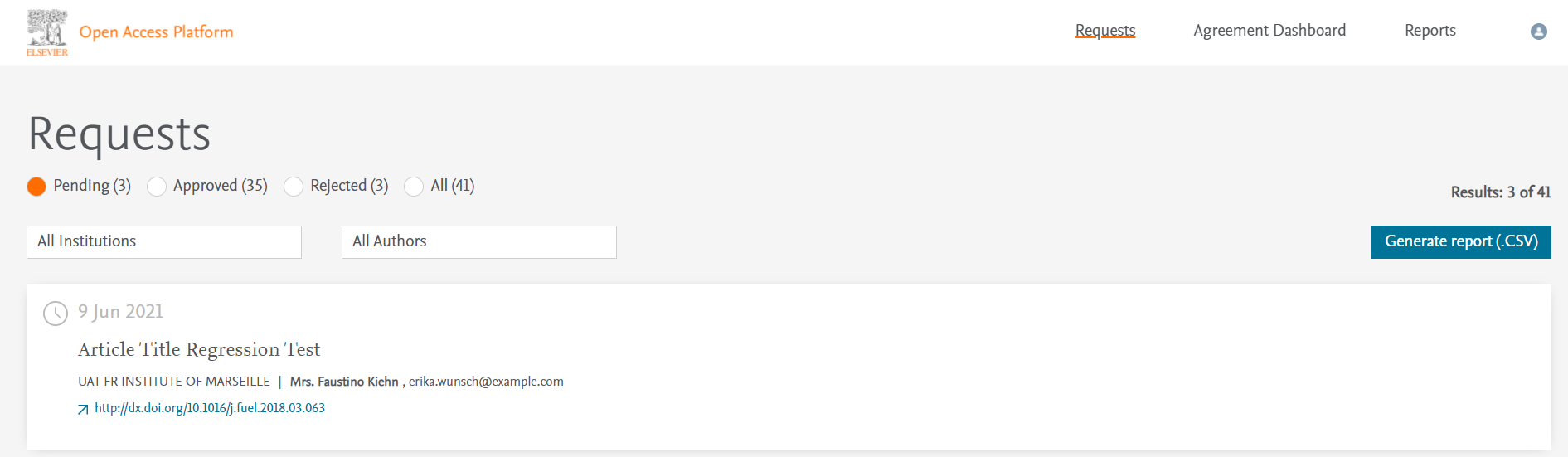
Follow these steps to download a report of APCs:
- On each tab you will see a Generate Report (.csv) button. It will generate a report for the APCs at that status (Pending, Approved or Rejected). To download a report with all APCs, use the 'ALL' tab.
- Click on ‘Generate Report (.csv)’.
- Click on ‘Export’.
- Select the file type you want to download - we recommend using 'Details Only' and Excel.xlsx format.
All APCs that require validation will be shown in the Pending Requests Tab. To approve an APC, follow the below steps:
- Click on the ‘Requests’ tile from the main landing page.
- Click on ‘Approve’ to see the detail of the APC.
- If author is eligible to participate under the agreement, click on ‘Confirm’.
If you receive an APC request that is not relevant, conduct further investigation about the article, authors, and their respective funding body with the DOI link.
If your investigation does not satisfy any of your institutional criteria, you can reject the APC or you can contact [email protected]opens in new tab/window, including details of the APC, the PII number and any supporting detail of why the APC is not relevant under your agreement.
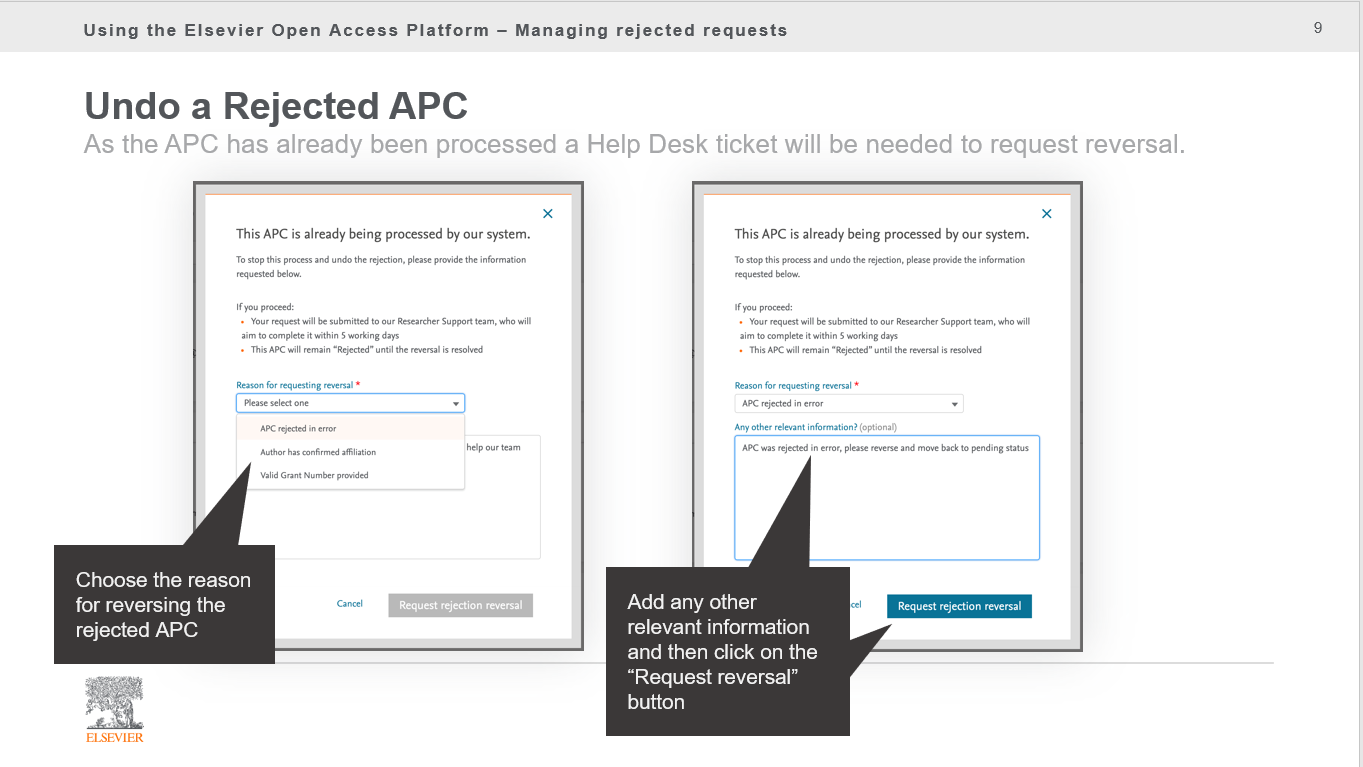
If you rejected the APC in error or need to reverse your rejection, there is an Undo Rejection option that is shown on the modal with the details of the APC. Simply click on Undo Rejection and the rejection will be reversed.
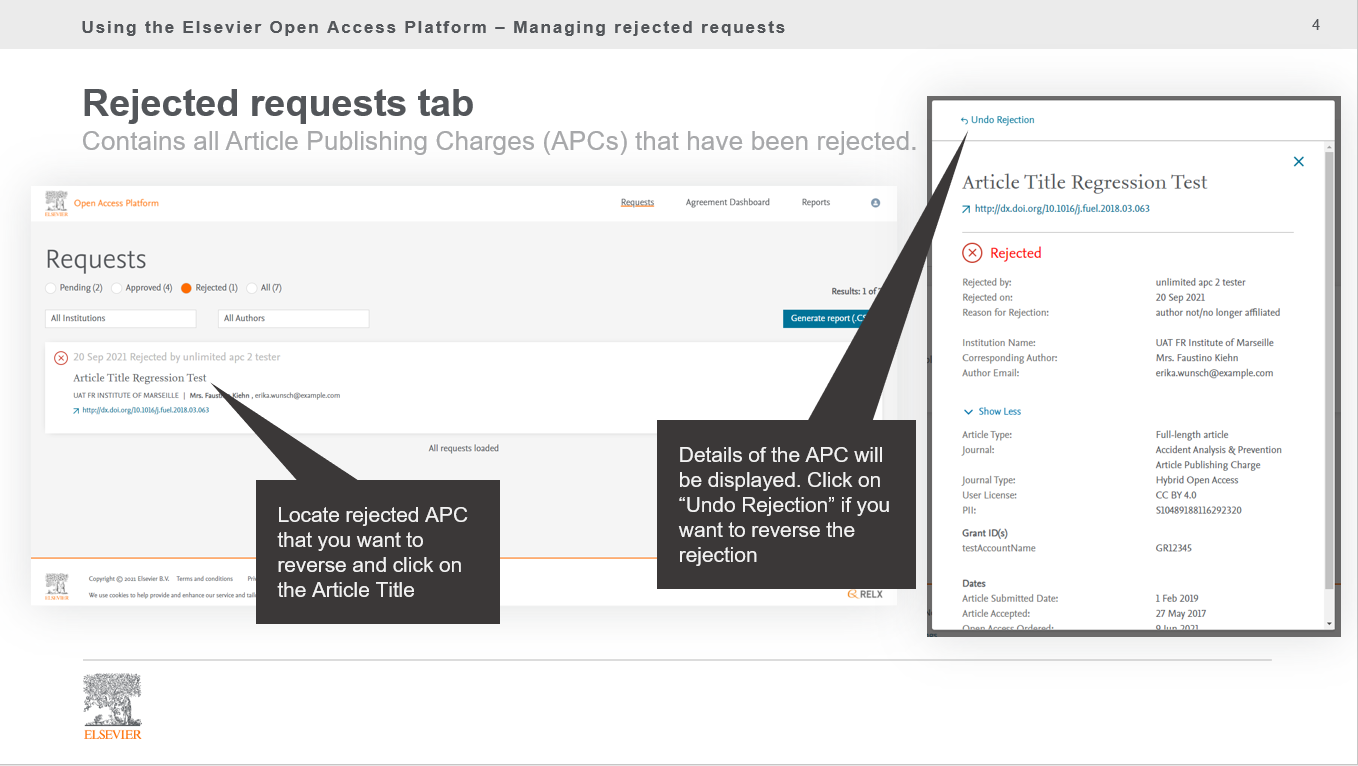
If the APC has not been processed, it will be moved back to the Pending tab and you can action it. If it has been processed the system will raise a helpdesk ticket that will be routed to Researcher Support to action
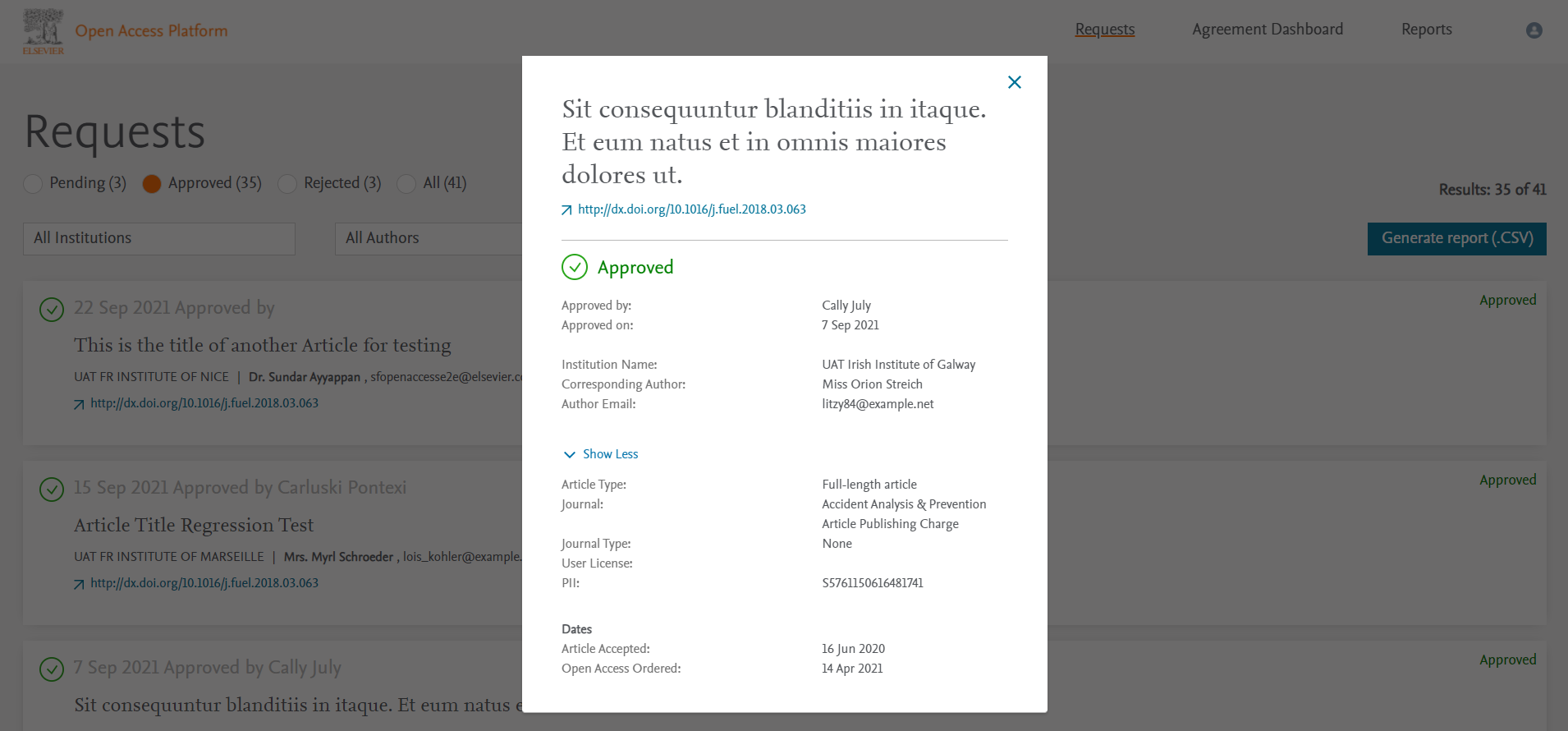
You can see the full details of an approved or rejected APC by clicking on the article title.
If there is a waiver on the APC, it will not show in the Agreement Dashboard.
If the author has not selected the correct institutional affiliation, the Optional Billing Address functionality (if enabled for your agreement) will allow you to select an alternative billing address from the drop-down menu. On approving the APC will then be sent to the requested address.
Still have a question?
We can help! Contact us via the Chat option at the bottom of this page. Enter your details in the quick form and select 'Open Access' for contact reason before you 'Start chat'. (Thank you in advance for giving our representatives helpful information so they can respond swiftly to your query.)
Did we answer your question?
Related answers
Recently viewed answers
Functionality disabled due to your cookie preferences