
View by category
Creating researchers and departmental hierarchy structures
Last updated on November 15, 2024
Also available in
SciVal gives you the flexibility to analyze any researcher or group of researchers from any institution. Create groups or even recreate your institution’s complete hierarchy with a few easy steps. You can then analyze and benchmark the researchers and groups against each other for promotion and tenure decisions, potential collaboration opportunities or to provide metric evidence of their research impact.
You an even push a hierarchy of organisations and persons from Pure into SciValopens in new tab/window. (link to Pure Support Centre)
Learn more about how to push a hierarchy from Pure to SciValopens in new tab/window (in the SciVal support centre)
Below are FAQs for each step needed to create a hierarchy using the import functionality:
To import a group of researchers, follow these instructions:
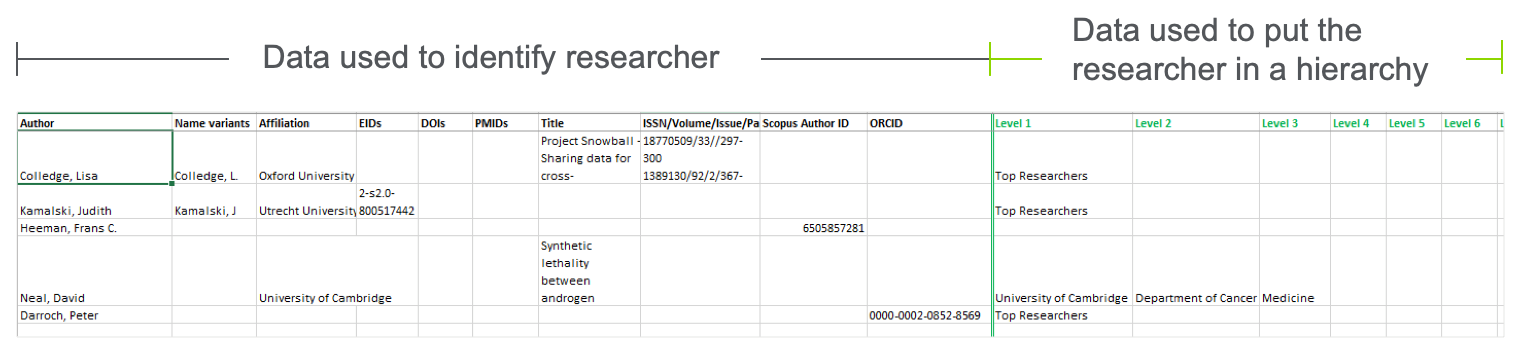
- Download the import spreadsheet (this can also be found by clicking Import Researchers > Need an example > XLS).
- Complete the spreadsheet.
We’ve split the spreadsheet so it’s clear what data is used to identify the researchers and what’s used to put them in a hierarchy. You can import up to 1,000 authors in one go and add tags to them, but we recommend breaking these into smaller chunks if possible, to make it more manageable. Hierarchies of 1,000+ authors can be imported in multiple batches.
Tips:- If a valid Scopus Author ID or ORCiD is present, all other data is ignored.
- Multiple valid Scopus Author IDs given for a researcher will result in a merge request to Scopus (if not already done). This is manually checked by the Scopus profiles team and you will receive progress updates via email.
- The order of the columns does not matter; the spelling does.
- If no affiliation is given, the home institution of the user will be used.
- In most cases, only a researcher with a valid Scopus author ID or ORCiD provided will result in a direct match, unless more specific information is given.
- Every single researcher in SciVal links back to a Scopus author ID.
- Ultimately if you don’t provide a Scopus author ID for a researcher, the refinement process in SciVal helps you find one.
- The more details you can provide on the researcher, the easier it will be to make an exact match to a Scopus author ID.
- There is a limit of 200,000 publications for a hierarchy. Within that, there is no limit to the number of levels you can create.
- A researcher can belong to multiple groups – add a new row for each one they belong to.
- If you provide multiple valid Scopus author IDs for a researcher, but they have already been merged, we use them to link to the primary author ID.
- If you’re not sure which ID is the primary one, submit them all.
- Keep it manageable – no more than 1,000 researchers per spreadsheet (smaller is recommended to get started).
- Hierarchy groups that contain more than 10,000 publications (1996 – current date) will take up to 6 hours to be calculated. If you add or remove any researchers to those groups at a later stage, SciVal will need up to 6 hours to recompute the metrics.
- To avoid this, consider creating smaller groups.
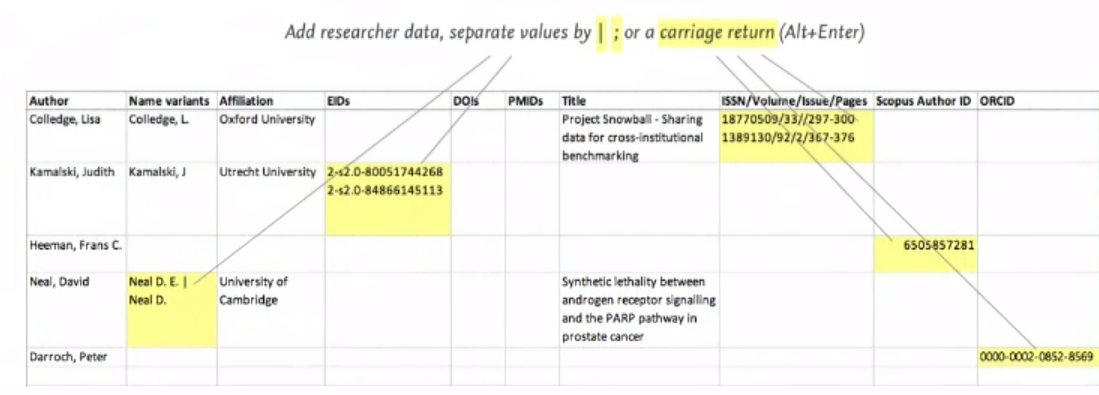
- You can add tags to the researchers as part of the import spreadsheet. These can be used to help segment your hierarchy at a later date for separate analyses.
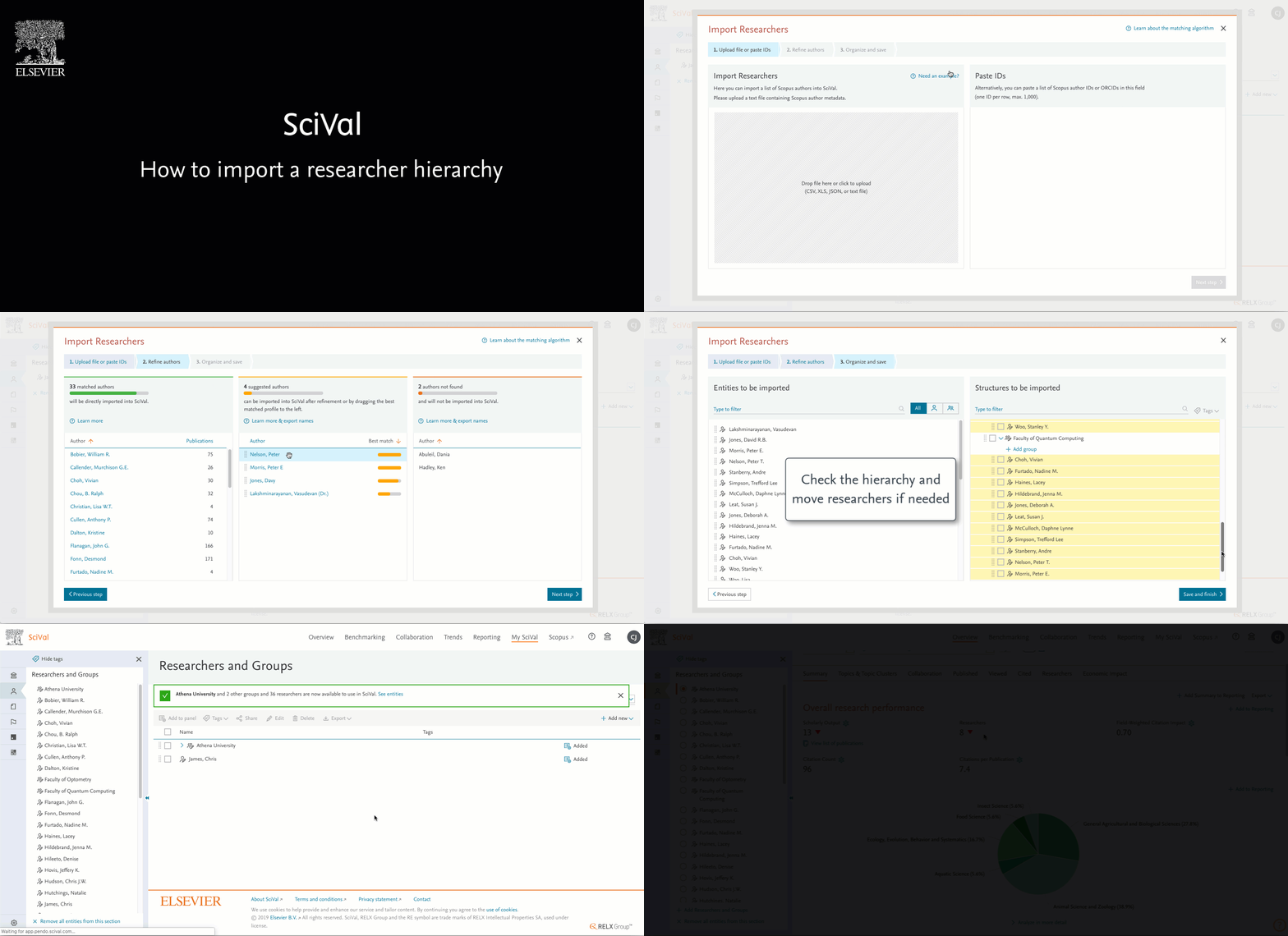
- Import the researchers.
- Go to My SciVal > Add new > Import Researchers.
- Refine the unmatched authors.
- You can drag and drop the suggested matches, or
- Export the unmatched profiles so you can work on them later.
- Check the hierarchy structure
- The yellow highlighted rese.archers will be added to the hierarchy. Non-highlighted researchers already exist in the hierarchy.
- Save and finish and your hierarchy. If it is smaller than 10,000 publications, it will be immediately available, otherwise you will need to wait up to 6 hours for the next daily calculation run. It is then available in My SciVal and can be used in the modules, or shared with other users in your institution.
Below is an illustration of the above steps:
Can I import researchers into an existing hierarchy?
Yes, you can. SciVal checks the existing hierarchy structure (Level 1, Level 2 etc.) against the import spreadsheet. Newly imported researchers will automatically be added to the existing hierarchy where applicable. Note: Ensure the hierarchy names are spelt correctly, otherwise new groups will be formed.
You can also synchronize a Master Spreadsheet, or spreadsheets with your existing hierarchies in SciVal. This allows you to add and remove researchers from your groups and create new groups.
Notes:
- There can be up to 1,000 researchers per spreadsheet.
- There must be a Scopus Author ID for each researcher.
- Ensure each level in your Master Spreadsheet is complete.
- SciVal will compare the levels (hierarchy structure) in the spreadsheet with the existing ones in. SciVal. If a level is mentioned once in your Master Spreadsheet, SciVal will use that information to overwrite the existing one if applicable.
- Any researchers currently included in your hierarchy in SciVal that are not included in your Master Spreadsheet, will be removed from the hierarchy in SciVal.
- If the hierarchy is new, it will be added.
- Researchers are never deleted during this process, just removed from the hierarchy and added to a folder called "Removed" making them easy to locate.
- If your complete hierarchy contains more than 1,000 researchers, split it into multiple spreadsheets and do multiple synchronizations. Ensure each spreadsheet contains complete hierarchy groups.
- Export your current hierarchy from SciVal – this gives you Scopus Author IDs for each researcher, plus the correct level information.
Go to My SciVal > Researchers and Groups (choose that in the left-hand panel) > select the hierarchy you want to export > Export.
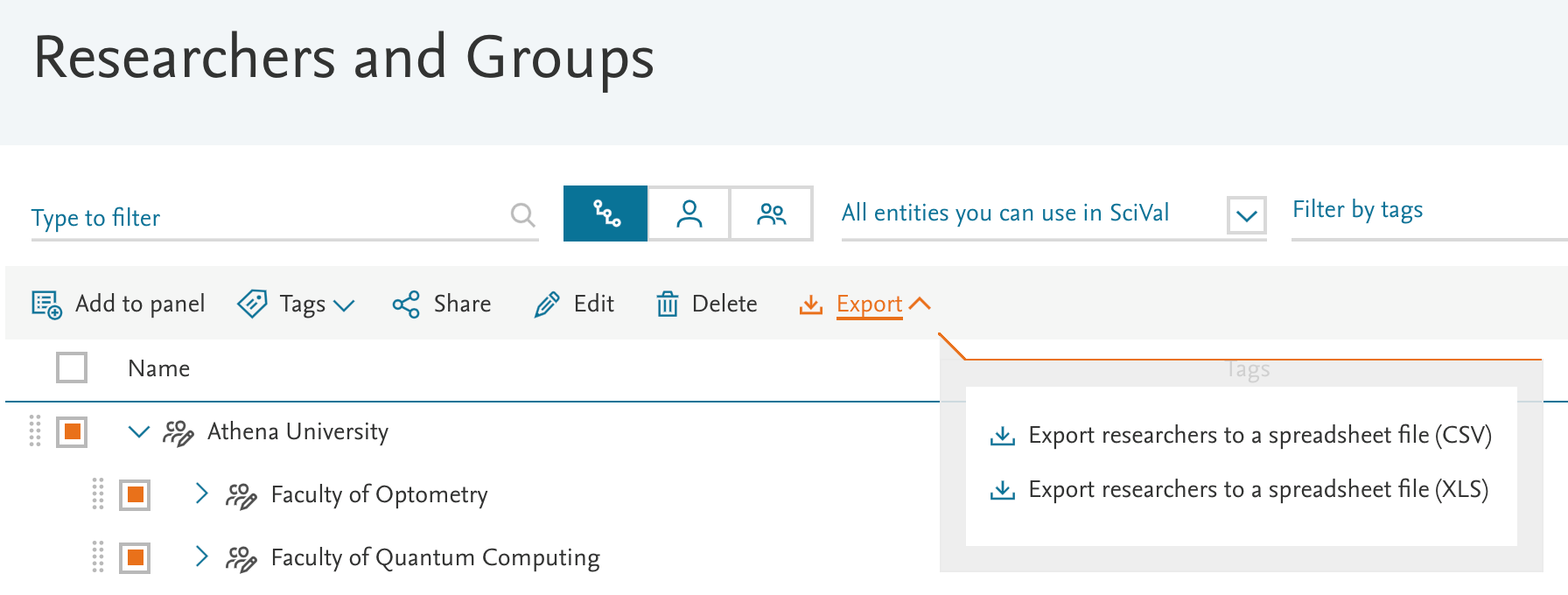
To synchronize your hierarchy, follow these steps:
- Prepare your Master Spreadsheet so that it contains the updated hierarchy and each researcher has a valid Scopus Author ID.
- Go to My SciVal > Researchers and Groups > Add New > Synchronize Groups.
- Drag and drop or upload your Master Spreadsheet.
- Verify the changes
- If needed, click 'Edit' to overwrite the changes and move the researchers into different hierarchies.
- Take note of all the crossed-out Researchers and mark them in your master file. Once the synchronization is complete you can use this list to potentially unshare these researchers with your SciVal users. Learn more in How does removing Researchers through the synchronization process affect users whose entities contain those Researchers?

If you are trying to synchronize your Master Spreadsheet with your existing hierarchy in SciVal you may have seen this message:
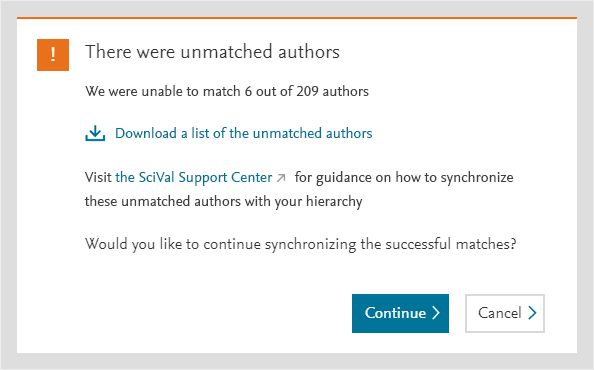
At this stage, we recommend downloading a list of the unmatched authors and then continue to synchronize the matched authors.
What does this message mean?
There are IDs on your Master Spreadsheet you have tried to synchronize that are not recognized and that we can therefore not match. This can be because:
- The IDs are wrong
- The IDs you have provided have since been replaced by other IDs
- This can happen when two or more author profiles have been merged. One of the author IDs is then dormant and all of the publications are now listed under the second ID. If your spreadsheet contains old IDs that are no longer valid, SciVal will not be able to locate the appropriate researcher.
How can I add the unmatched authors to my hierarchy?
We recommend that you download the list of unmatched authors and then press 'Continue' to synchronize the matched authors. Once that is done, follow these steps:
- Check the unmatched authors download, with the Master Spreadsheet used to synchronize your hierarchy in SciVal.
- Make a note of the unmatched authors.
- Export a copy of your current hierarchy from SciVal.
- Go to My SciVal > Researchers and Groups (choose that in the left hand panel) > select the hierarchy you want to export > Export – Let’s call that spreadsheet the SciVal Spreadsheet.
- Use the SciVal Spreadsheet to check the Scopus Author IDs in the Master Spreadsheet.
- If you find differences, replace the Scopus Author IDs in your Master Spreadsheet with the ones from the SciVal Spreadsheets.
For the remaining Scopus Author IDs that failed to synchronize, run an author search in Scopus.com and copy the IDs from the relevant author into your Master Spreadsheet.
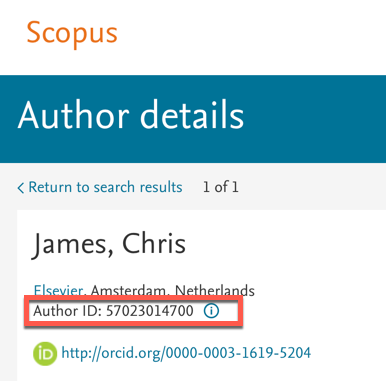
- Once your Master Spreadsheet contains the relevant Scopus Author IDs, use the synchronization option to complete the process and finalize your hierarchy structure.
What are the minimum required fields for the import?
The minimum fields are: Author names and Affiliations. Other fields (e.g. name variant, DOIs, publication titles etc.) are optional, but the more complete the information provided is, the higher the chance we have of matching it in Scopus.
How do you match authors in the import file to Scopus author profiles?
There is an algorithm which uses a minimum matching score to determine whether an author matches to a Scopus author profile or not.
A match will not occur unless both the name and at least part of the home institution (which is set on the user’s profile once they start using SciVal) or input affiliations match. This is necessary to eliminate false positive matches, particularly in the case of common surnames.
Matching is done on a full-word basis except in the case when documents are passed in, where there is a partial-word matching using the Levenshtein distance between each word(s).
More information about can be found in the 'Learn about matching algorithm' link found on the top-right of the Import Researchers flow:
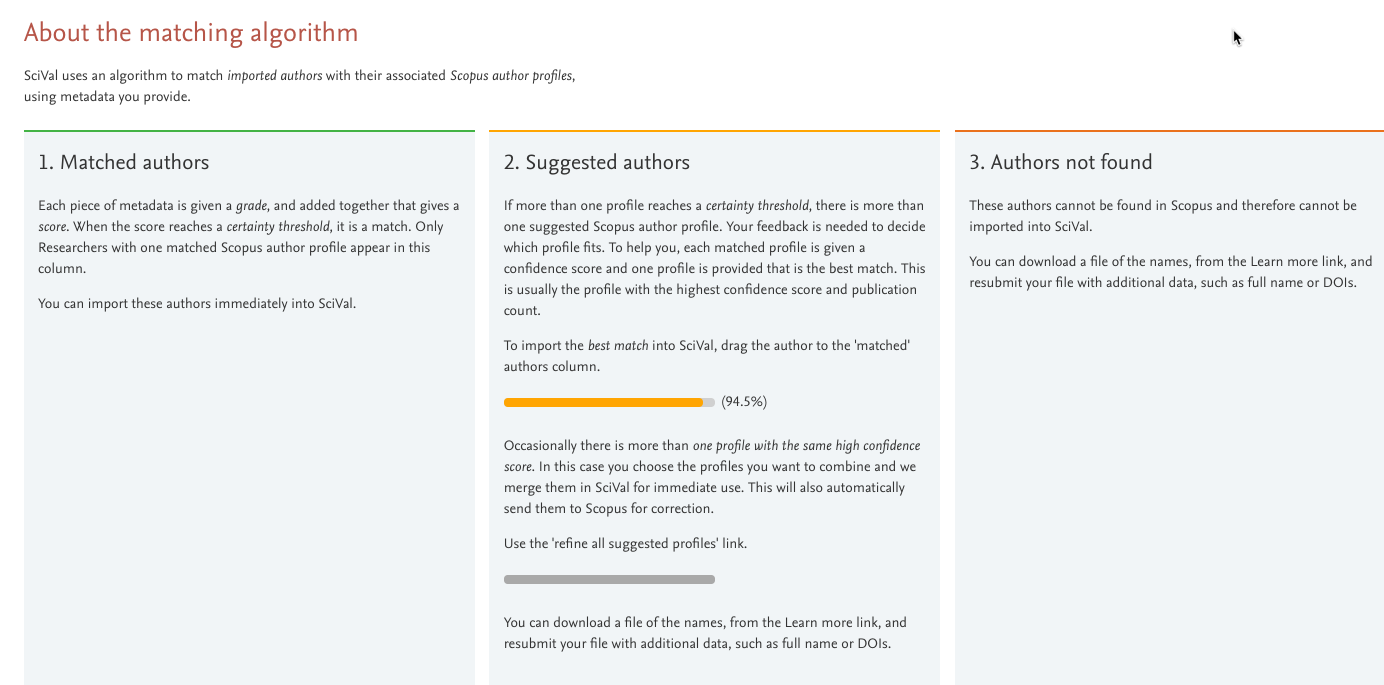
Is the Scopus Author ID compulsory?
No, but the reason for providing as much information as possible, is to match a Scopus Author ID to the researcher. The import can work with just names and affiliations, but in case the Scopus Author ID is indicated in the file, it will be the first field we try to match upon. A Scopus Author ID is a binary match: either it is in Scopus, and in that case, we will find the matching profile, or it is not in Scopus (for instance, it was merged to another author profile). If the Scopus Author ID has been merged with another ID, they will be linked together and either ID can be used to locate the researcher.
How many researchers can I import in one go?
You can import up to 1,000 researchers at a time, but for ease of use, we recommend splitting large imports into smaller more manageable chunks. If you need to import a larger set, you will have to split the researchers among multiple files. Once the researchers are imported, you can easily merge their groups in SciVal. If the group structure already exists, the imported researchers will automatically be added to them where appropriate.
Is the affiliation indicated in the affiliation column, the top-level affiliation of my hierarchy structure?
No. The affiliation in the import file is only needed for matching authors. If you want to have the affiliation in your hierarchy, you need to add it as a Level (Level1 if you want to have it at the top level).
Can I upload my entire institutional structure in one go?
If your entire structure contains up to 1,000 researchers, they can indeed be all imported in one go. If it contains more than 1,000 researchers, you need to import them with multiple files, as explained in the point above.
If the structure contains more than 10,000 publications, it will be available once the metrics have been calculated in the next daily processing, which can take up to 6 hours. Learn more about the daily processing calculation.
Sub-groups and researchers are immediately available if <5K and can be used/managed in the researchers and groups sections in My SciVal.
I have DOIs/EIDs for my researchers. How many of them should I include in the import file?
We recommend entering DOIs/EIDs or 2 to 3 publications that are indexed in Scopus and published after 1996. If you have a valid Scopus Author ID, DOIs/EIDs are not needed.
Can I use my own spreadsheet headers?
No. We use the headers of the spreadsheet to determine which information is passed through in each column (as such, the order of the columns is not important). For this reason, it’s important that the headers are exactly indicated as the example file that you can download from SciVal.
Which format should the author name have?
Author names need to be entered with one of the following formats:
- In one column with header Author. The format is: Last Name + comma + space + First Name (e.g. Colledge, Lisa).
- In two separate columns with headers: Last Name and First Name.
Should the column order be the same as in the example file?
No, the order of the column doesn’t matter. We identify which data is present into each column by looking at the headers. For this reason it’s really important that the headers are indicated exactly as in the example file in SciVal.
Some of my researchers belong to more than 1 group, how can I reflect this in my departmental structure?
You can simply repeat the researcher details (Name-Affiliation or Scopus author ID) in separate rows for each group.
Some of my researchers only belong to the first level of the hierarchy, how can I reflect this in my departmental structure?
Simply add them to the first level (Level 1) and leave the lower levels (e.g. Level 2 and Level 3) empty in the import file.
How many levels can a departmental structure have?
There are no limits to how many levels can be created, so long at the total publication output of the hierarchy is below 200,000 (1996 – current date). Simply indicate the levels as Level 1 (top level), Level 2, Level 3 …. Level N.
To enhance quality of data and increase synchronicity of author profiles between SciVal and Scopus, the Scopus Author Feedback Wizard is integrated within SciVal. If more than one author profile is being selected during creation of researcher profile, a merge request is sent to the Author Feedback team who manually checks the validity of the request.
The Author Feedback team checks the used name variant, the subject area, the affiliation of the author and other meta data to validate the request. If validation is successful a merge request is approved, and the profile is made available both on Scopus and SciVal.
How can I request an admin to be set up for my departmental structures?
Please get in touch with your Elsevier representative, or contact us at https://scival.com/contact.
When the top level of the departmental structure is shared with the entire institution, will all the sub-groups be shared?
Yes, also the sub-groups will be institutionally shared.
Can a group shared with the Admin be institutionally shared by the Admin?
No, the admin can only share the groups which he/she created, with the institution. The person who shared the groups with the Admin, can transfer the ownership to the Admin if needed.
How can researchers shared with the institution can be identified within the list of researchers in My SciVal?
In My SciVal, you can view the researchers provided by your institution, by using the ‘entities provided by your institution’ filter.
Will the tags assigned to institutionally shared groups be visible to all users?
No, tags are visible only to the user who assigns them. Tags assigned by the admin are visible to the admin only, unless they choose to make them public.
Are institutionally shared entities automatically added to the left panel?
No, users can use My SciVal to add all the entities they need to the selection panel. They can filter by ‘entities provided by the Institution’ to use these entities only. They can also use tags to get even better filtering and selection capabilities from My SciVal.
Can entities shared with the Admin be added to the institutionally shared departmental structures?
No, the Admin can only add researchers and groups they have created themselves (i.e. entities they own). As a workaround, the sharer should transfer the ownership to the Admin. Once it has been done, the group can be added to the structure and be visible to all users. Note: If the structure has more than 10,000 publications, it will take 3 to 6 hours to be recomputed.
Can I use the export functionality to update my groups?
Yes. You can export the full hierarchy, make changes to the spreadsheet and then use the synchronization functionality to update the hierarchy in SciVal. Learn more.
What happens if two or more Admins edit the structure at the same time?
If two or more Admins edit the structure at the same time there may be conflicting changes, and hence it’s highly recommended that they talk to each other before making any updates.
Is it just Admins who can edit a departmental structure or everyone?
Once the Admin creates the structure and share it with the Institution, he/she will be the only one who can edit the structure.
How many Admin users can one institution have?
There are no restrictions on how many Admins the institution can have, but only one Admin can be displayed on the homepage.
The researchers are still available for all users they have been shared with, but are no longer in the original hierarchy structure. Why is this?
Imagine this scenario. You’ve shared an organizational structure with other SciVal users in your institution. During the synchronization process, researchers are removed from a group in the hierarchy. At this point the researchers are not deleted, but moved from the group level to the root of the directory (not in a group anymore). They are still shared.
If you’d like to stop your users having access to these researchers, you can either unshare them, or delete them.
Did we answer your question?
Related answers
Recently viewed answers
Functionality disabled due to your cookie preferences