
View by category
Entities can be defined, editied, tagged, imported, exported, and shared.
What are entities?
An entity is anything that can be viewed in SciVal in terms of academic performance.
- Researchers / groups of researchers
- Publication sets
- Research areas
- Groups of institutions
- Groups of countries
How
Use the entity selection panel to select the entities that you want to analyze. It is on the left side of the screen in each of the three modules. Think of the entity selection panel as a workspace. All your entities of interest are in one clear and organized place.
You can choose from the thousands of pre-defined entities in the SciVal database (institutions or countries), or define your own entities. Your self-defined entities can be researchers, research teams, publication sets or even research areas.
Add entities to the selection panel
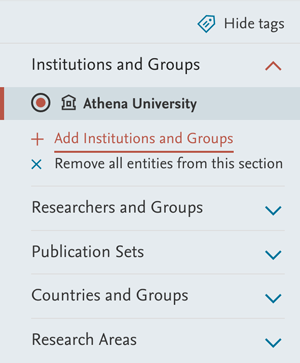
To add additional items to the entity selection panel:
- Click 'Add' link at the bottom of the currently opened section:
- Start typing the name of the entity you will like to add.
- Then click on the name when it appears in the search results. You can also click on the 'Define' links to define an entirely new entity.
In My SciVal, you can add an entity into the selection panel by clicking the 'Add' icon for that entity. The entity is now marked with 'Added' to indicate that it has been added to the panel. The 'Add' icon for that entity flips to a 'Remove' icon which you can click to take it back out of the panel.
Remove entities from the selection panel
To remove an entity from the panel:
- Click the 'remove' (x) icon that appears when you hover over the entity in the panel.
- You can also use the 'Remove all entities from this section' to, for example, remove all researchers and groups of researchers from the 'Researchers and Groups' section.
You can safely remove entities from the panel. They will not be permanently deleted. You can add them back at any time.
Add sets of entities to the panel
To move an entire set of entities into the selection panel in My SciVal:
- Select the entities in My SciVal (using the checkboxes) and then click 'Add to entity selection panel'. This opens a modal window where you can either add the entities to the current set of entities in the panel.
You can also choose to replace the current set of entities in the panel with the new set. This allows you to easily move sets of entities in and out of the panel.
These are the different ways of interacting with new entities. Select a topic below:
To define a new entity:
- Click 'My SciVal' in the top right corner of your screen.
- In My SciVal, choose a category (for example 'Researcher and groups') and open the 'Define a new entity'.
- Now click on one of the links in the menu to define a new entity.
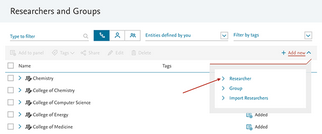
This will take you through a step-by-step process to define, name and save the new entity.
Note: Some entities with large number of publications are not available immediately but take up to 6 hours to compute. You will receive an email as soon as the entity is ready to use.
View the list of entities defined by you
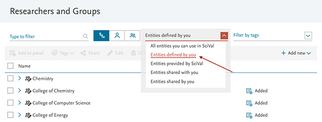
To see an overview of all the entities defined by you:
- Choose a category (for example 'Researchers and groups') and then select 'Entities defined by you' from the drop-down menu.
You can import a list of researchers into SciVal in two ways:
Upload a CSV, XLS, JSON or txt file
For creating a hierarchical structure of researchers
- Download one of the example files.
- Replace the example content with your own content. The minimum fields are: Author names and Affiliations. Other fields (e.g. affiliations, DOIs, publication titles etc.) are optional, but the more complete the information provided is, the higher the chance we have of matching it in Scopus.
- The hierarchy can be as many levels deep as you need, i.e. Level 1 (highest level), Level 2, and so on.
- You can import up to 1,000 researchers at the time. If you need to import a larger set, you will have to split the researchers among multiple files. Once the researchers are imported, you can easily merge their groups in SciVal.
Paste a list from a text file containing a list of Scopus author IDs.
- The file containing the list of publication IDs should be a text file (with a .txt extension in Windows). The text file should also be ANSI format or Unicode/UTF-8.
- The Scopus authors IDs should be listed one per line (max. 300 IDs per file).
- During the import process, you can choose to create a new group of researchers containing the researchers you're importing. So you can for example import a research team and immediately create a group of researchers entity for that team.
Tip: When you export a list of researchers from SciVal, the export will include the Scopus author ID of each person. You can paste this list of IDs into a text file and reimport the list of researchers back into SciVal.
You can import a publication set from a text containing a list of publication IDs. These can be DOIs, PubMed IDs, or Scopus IDs (EIDs). You can import up to 50,000 publications in a single publication set. We recommend using EIDs if possible.
- The file containing the list of publication IDs should be a text file (with a .txt extension in Windows). The text file should also be ANSI format, not Unicode/UTF.
- The Scopus publication IDs should be listed one per line (max. 50,000 IDs per file).
- You will be notified if any IDs in the file are not known to SciVal. This may be because the publications were before 1996 (the cutoff point for the Scopus data used by SciVal), or because the publications are very recent and therefore not yet included in the Scopus data cut used by SciVal.
- When you export a list of publications from SciVal, the export will include the Scopus EIDs for each publication. You can paste this list of EIDs into a text file and reimport the list of publications back into SciVal.
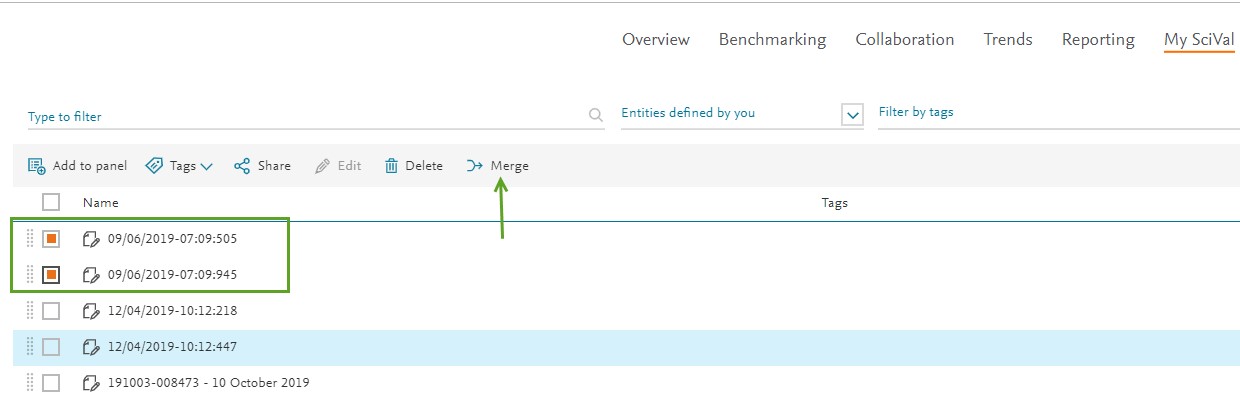
Tip: It is possible to merge multiple Publication sets up to 200,000 documents. Select the Publication Sets in My SciVal and click 'Merge' .
In My SciVal, you can add tags to entities or sets of entities. For instance, you can attach keywords to entities or use tags to distinguish two researchers with the same name.
- In My SciVal, click on the 'tag' icon for an entity to add tags. You can add as many tags to a single entity as you like.
- To tag multiple entities in one go, select them in My SciVal (using the checkboxes) and click the 'Add tags' button along the top.
- You can also tag entities during the entity creation process. For example, when defining a new research area, you can assign tags to the new entity during the final (name and save) step of the process.

When you create a researcher group in SciVal, it is possible to not only tag the group itself but the individual researchers within the group as well. The feature allows you to use a group level tag and cascade it to all researchers who belong the group. This option can be useful during an analysis for which identification of individual researchers who belong to the same group is important.
The option only appears in SciVal when a tag is added to a researcher group.
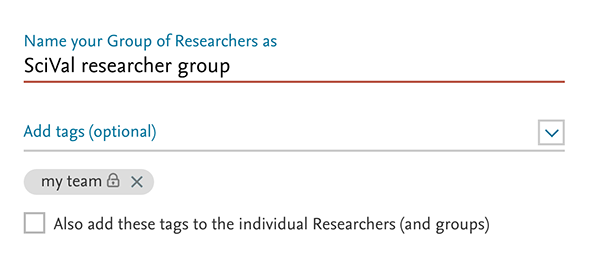
You can use tagging to create various grouping or categories of entities. Use the rightmost drop-down menu (marked 'All tags') to view entities by tag. You can use this to select all entities with a particular tag, then move these into the entity selection panel by selecting them and clicking on 'Add to entity selection panel'.
Example: You have tagged five researchers with 'possible hires'. You can then filter the list of researchers by this tag, select all five researchers and move them into the entity selection panel. Now the five researchers are ready for you to compare them in the Benchmarking module.
Tag filters are included in the define flows of Groups of researcher, institution and countries. By using filtering by tag you can quickly and easily find researchers, institutions and countries with the tags you've defined when creating entity groups. You can filter by using multiple tags.
SciVal offers greater flexibility for further analysis through an increased number of export fields for lists of publications.To access this feature:
SciVal provides you with the default fields to be exported, but this can be further refined and changed in the Export publications window.
- Open a list of publications in SciVal.
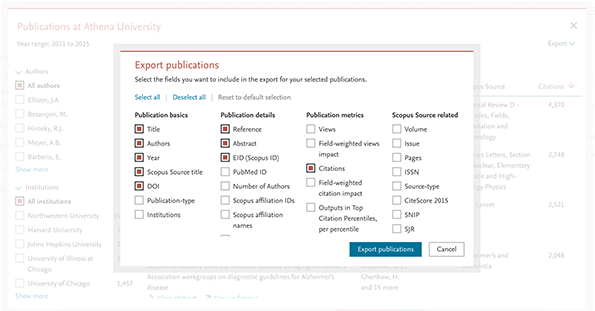
You can export up to 100,000 publications and their related metrics at a time. Large exports are handled outside of SciVal and are usually available within 15 minutes. Once it's ready you'll receive an email with a download link.
You can share entities you've defined in SciVal (such as researchers, groups of researchers and Research Areas) with other SciVal users at your institution.
Example: You could set up part of your institution's department structure as groups of researchers in SciVal, and then share that with others at your institution. Or you could define a Research Area in SciVal and share that with the other members of your research team. Sharing is possible with any groups or individuals within your institution.
By default when you share an entity, you remain the owner. Other users can only view the entity. You are the only user who can make changes to that entity, and the only user who can delete it from SciVal. However, you have the option to transfer the ownership of a shared entity.
A shared entity is the same for all users. When it is changed or updated with new publications, these changes are immediately visible to all users.
When you create an entity, your preferred subject classifications are also recorded (you can have up to 4 in total). When the entity is shared, the recipient of the entity can also only use the 4 same subject classifications and cannot choose any of the other categories. Only the user who created the entity can choose which subject classifications are available for the entity. Learn more about subject classifications in SciVal.opens in new tab/window
How
- Go to My SciVal.
- Click on the 'Share' icon for that entity to bring up the sharing settings.
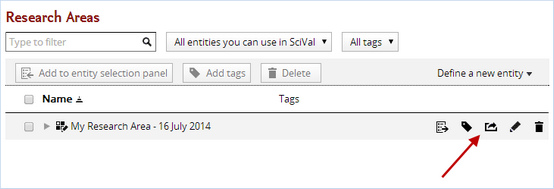
You can invite SciVal users at your institution by entering their email addresses, separated by comma. You can create and manage your invitation list from the sharing panel. Invited users receive an email - which can be personalized- with a link that gives them access to the entity
Use the drop-down menu to the right of the filter box in My SciVal to display only entities that have been shared with you ('Entities shared with me'). You can also choose to view only entities that you have shared with others ('Entities shared by me').

Share multiple entities with your peers
It is possible to effortlessly share multiple research entities with groups of peers in SciVal.
- Go to MySciVal.
- Select multiple entities.
- Click on the 'share' icon.
Create a Publication Set in Scopus and move it to SciVal.
If you have access to both Scopus and SciVal it is possible to create a Publication Set from a Scopus search query with just a few clicks and perform further in-depth analysis in the SciVal Overview, Benchmarking and Trends modules.
Note:
- Publication lists of 2,000 or fewer documents will be immediately processed and you’ll be taken to SciVal to use the Publication Set. Larger Publication sets will take up to 6 hours to process and you’ll be sent an email once they are ready.
- SciVal uses data from Scopus from 1996 to current date and is between 1-2 weeks behind Scopus. If the total document count in SciVal is less than the expected export amount, these are the reasons why.
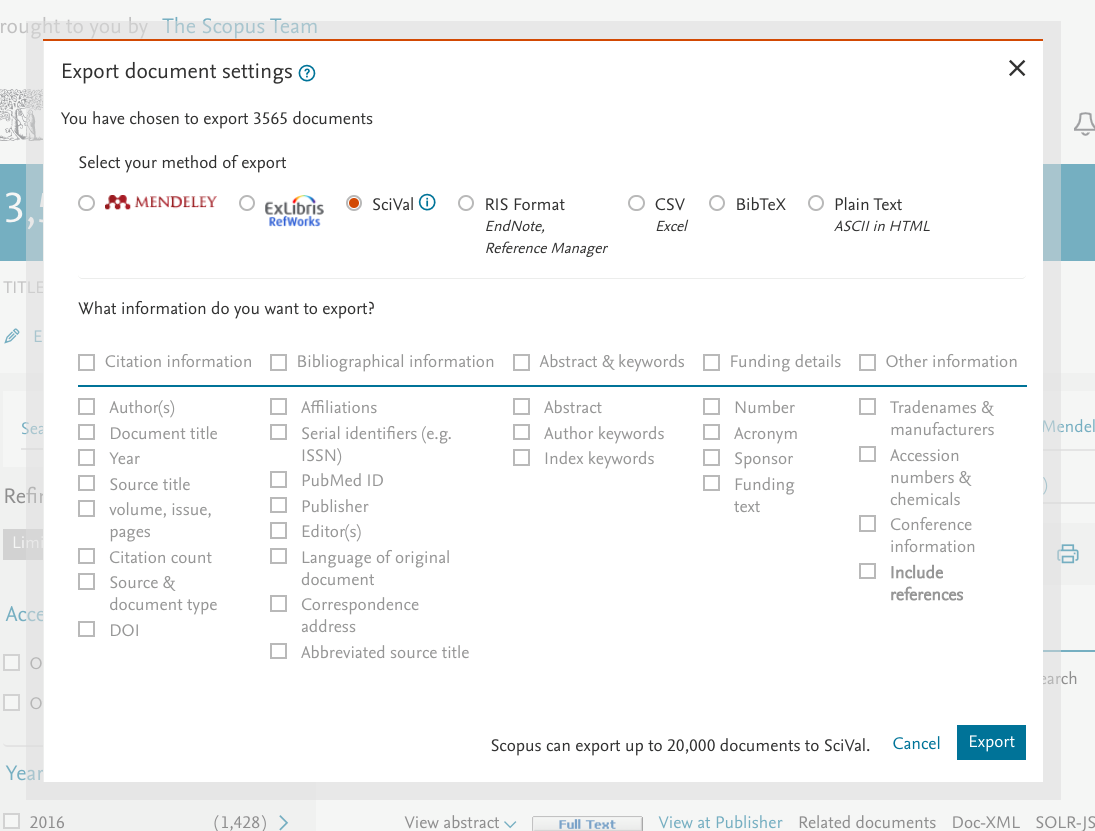
- Enter your search in Scopus.
- From your search results, select the desired publications up to a maximum of 20,000.
- Click Export and choose SciVal.
- Click Export.
Did we answer your question?
Related answers
Recently viewed answers
Functionality disabled due to your cookie preferences