
View by category
How do I invite an Unregistered Reviewer in Editorial Manager?
Last updated on November 18, 2025
Watch this short video to see the steps.
Editors with appropriate permissions can invite Reviewers who are not registered, as long as the First Name, Surname, Country and Email address are known. For some journals the Editor can instead send an email to a specific journal staff member who will perform this task. It is also possible to proxy register a user without relationship to a specific submission.
Users registered by an Editor can be invited as Reviewers (or authors) immediately. When they first log in the user must agree to the Privacy Policies, set a password, and complete required registration fields before proceeding. Unregistered Reviewers are able to decline the invitation from an email link, without completing registration.
How
To invite unregistered reviewers for a specific submission:
- If you have not done so already, locate the submission and click the 'Invite Reviewers' action link.
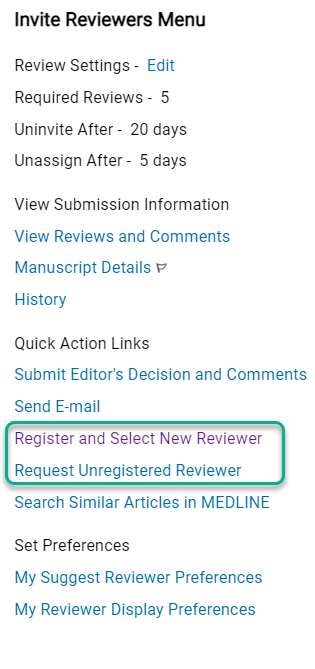
- Check the left hand menu under 'Quick Action Links'. Most editors will have one or both of these options available.
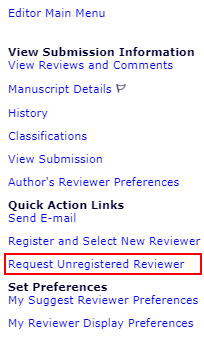
- 'Request Unregistered Reviewer' allows you to send the information you have about the Reviewer(s) to be registered by your journal office.
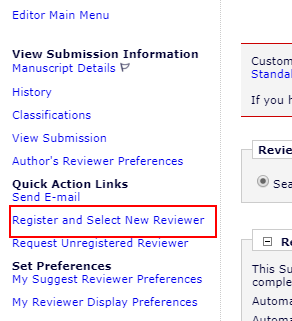
- 'Register and Select New Reviewer' allows you to proxy register a new user, and proceed to the 'Select and Invite' step.
- To proceed, select an option below.
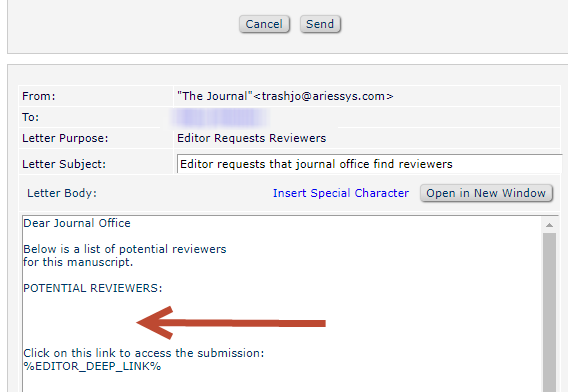
- Click the 'Request Unregistered Reviewer' link to open a popup window: Customize Request Unregistered Reviewer Letter. The letter will be sent to the person who assigned the first editor, usually a journal office or managing editor.
- Paste or type the details of the Reviewers you need to have registered in the email Letter Body as shown in the screenshot. See screenshot.
- Include the Title, First and Last Name, Email Address, and Country for each reviewer.
- Indicate if you want the journal office to take additional action on your behalf, such as invite the reviewer(s), or set each one as alternate.
- When ready, select 'Send'.
- Depending on your journal polices you may get a response from the recipient to confirm when action has been taken.
This option allows you to first register a new user, and then immediately Invite, Assign, or set that person as Alternate or Proposed.
- In the next screen, fill in the email address and select 'Proceed'.
- If the address is already registered, you will not be able register the same address again. See Why is a Registered person not found in Reviewer Search.
- Fill in the required information, and add any optional information as desired. Required details may vary by journal but will always include:
- First and Last Name
- Email Address
- Country
- Select 'Register User and Send Letter'.
- Customize the letter as desired, and then select 'Send Letter'. Please note this is not a Reviewer invitation, it is the notice of registration.
- You will proceed to a Search results screen where you can choose to Invite, Assign, Propose, or set as Alternate. See How do I select and invite reviewer candidates in Editorial Manager?
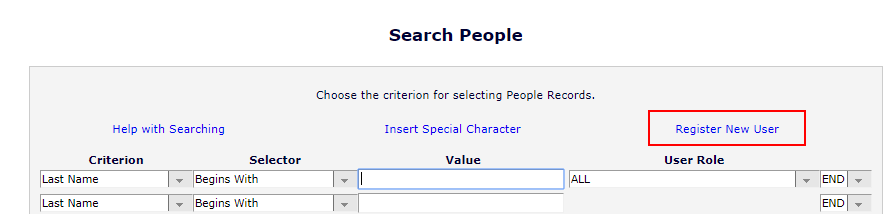
- From your main menu select 'Search People'.
- First search for the person by name or email to verify they are not registered.
- Select the 'Register New User' link. If the link is missing, you do not have permission to proxy register new users.
- In the next screen, fill in the email address and select 'Proceed'.
- If the address is already registered, you will not be able register the same address again.
- If the address is already registered, you will not be able register the same address again. See Why is a Registered person not found in Reviewer Search.
- Fill in the required information, and add any optional information as desired.
- Required details may vary by journal but will always include:
- First and Last Name
- Email Address
- Country
- Select 'Register User and Send Letter'.
- Customize the letter as desired, and click 'Send Letter'.
After sending the registration letter, you may want to assign a reviewer role to that person.
- In search people, search for the person you just registered.
- When found, select the hyperlinked name of the person to open their account details.

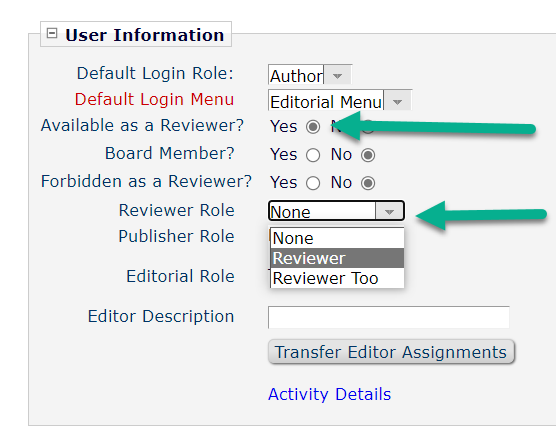
- Select a Reviewer role from the drop down, and toggled Available as a Reviewer to Yes, as in this screenshot.
- The person can only be found in EM reviewer searches if Available as a Reviewer is set to Yes, and Forbidden to as a Reviewer is set to No. See https://service.elsevier.com/app/answers/detail/a_id/29942/supporthub/publishing/
- Select the Submit button at the bottom to save your change.
After a user has been proxy registered:
- The user will receive a 'welcome' email with initial login instructions.
- Upon first log in, the user must agree to the Privacy Policies, set a password, and complete required registration fields before proceeding.
- Until the user has agreed to Privacy Polices and completed registration, they can be sent invitations and other communications but no one is able to complete any actions on their behalf. See How can an Editor work on behalf of another user?
Did we answer your question?
Related answers
Recently viewed answers
Functionality disabled due to your cookie preferences