
How can I use the Elsevier Account for single sign-on to Editorial Manager (EM)?
Last updated on July 31, 2026
Watch this short video to see how to use your Elsevier account for single sign-on to Editorial Manager (EM) and this video for tips and troubleshooting guidance on using your Elsevier account to sign in to Editorial Manager.
NOTE: The Elsevier Account login method is currently under development and so the option to use this sign-on method may not be enabled for all journals.
Journals can now allow users the option to sign in to EM using their Elsevier Account username and password instead of an EM username and password.
When enabled, this feature displays as an Elsevier Account button on the journal’s login page.
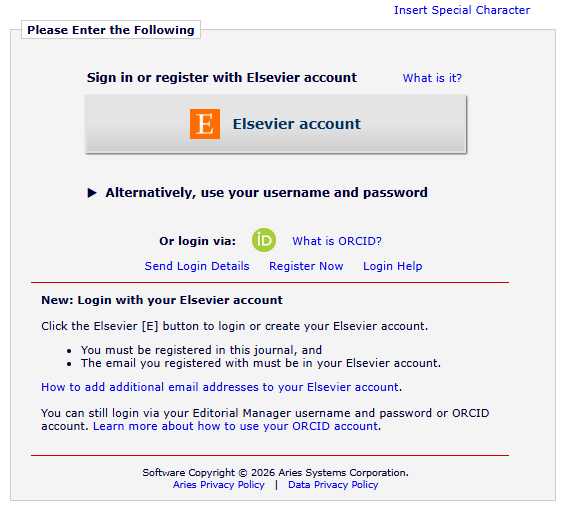
Single Sign-On via the Elsevier Account offers a streamlined access experience. If you remain signed in to your Elsevier Account, you can access multiple EM sites and Elsevier services—such as ScienceDirect, Scopus, and Mendeley—during that session without needing to re-enter your login credentials.
If you are a new user to the EM site and have not yet registered with the journal before, you need to create an account on the specific EM site before using the Elsevier Account login method. Make sure to register an EM account, with the same email address as used by your Elsevier Account.
For information on registering an account on Editorial Manager, see How do I register an account on Editorial Manager?.
For information on registering an Elsevier account, see the How do I create an Elsevier account?.
You can sign in to the EM site using the Elsevier Account login method, provided that the email address registered with your Elsevier Account matches the email associated with your EM account.
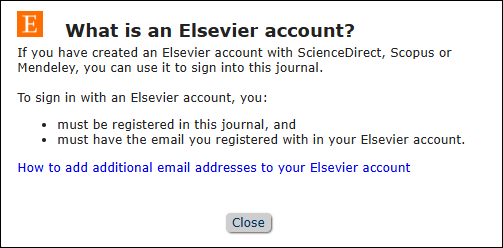
How to Log into Editorial Manager Using Your Elsevier Account?
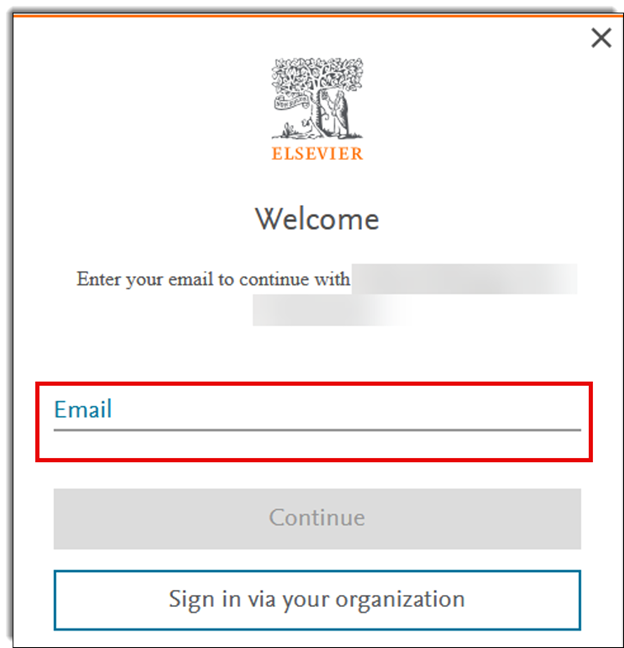
Click the Elsevier button to log in or create your Elsevier account.

If you are logged in to your Elsevier Account already, the Elsevier Account screen closes after a few seconds, and you are logged into EM and taken to your default Main Menu.
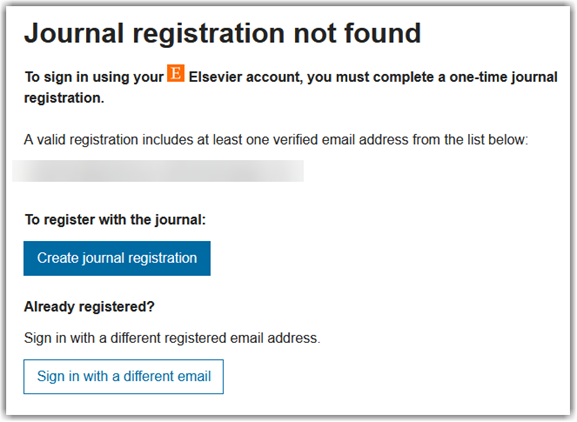
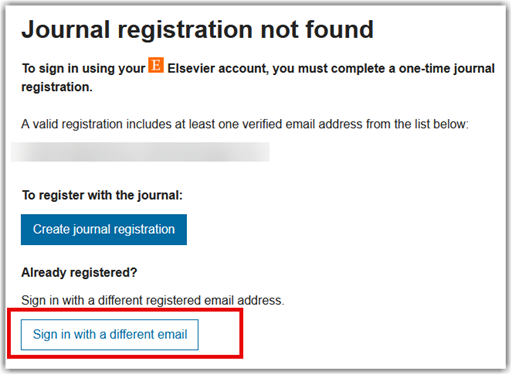
If you are not already logged into your Elsevier Account, you are prompted to create a journal registration.
If you do not have an already registered account in the EM site, you are prompted to enter your credentials. Once entered, you are logged directly into EM and taken to the default Main Menu.
Selecting Create journal registration prompts an EM registration page, where your first name, last name and email address are pre-populated with information from your Elsevier account. The name and email address fields are not editable, to ensure they match the details from your Elsevier account.
Any other mandatory registration fields need to be completed to finalise the registration process. The mandatory fields are distinguished by red font and an asterisk sign *. Once all fields are completed, selecting the submit button completes the process and you are logged in to the EM site. The registration is a one-time activity per EM site accessed.
- If you have a registered EM account, but it is registered with a different email address to your Elsevier account, you can select the option to sign in with a different email.
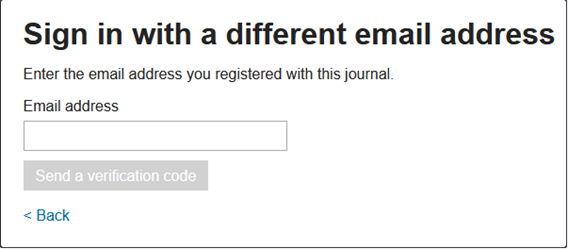
- A screen appears prompting you to enter the email address you have registered with the journal.
- Once the email address is entered, a new screen appears, confirming a verification code has been sent to that email address. You have 15 minutes to enter the one-time verification code. Once you have entered the verification code, you are logged in directly to EM.
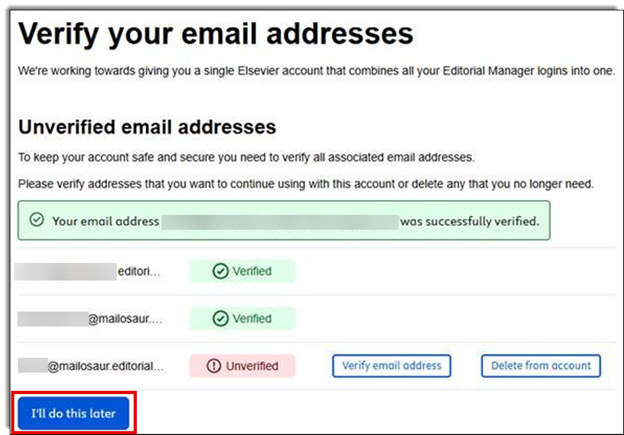
If your EM account contains multiple email addresses that have not been previously verified or deleted, a screen appears prompting you to verify or delete the email addresses associated with your account:
- To log directly into EM, you can select the “I’ll do this later” button. However, you will be prompted to this screen upon each login until all listed email addresses have been verified or deleted.
- For any email addresses that are no longer needed, you can delete them from your EM account by selecting “Delete from account.”
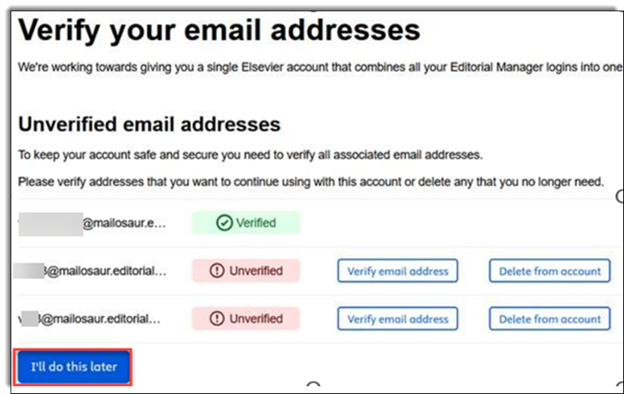
NOTE: If you opt to delete the email address, this deletes the email address from being present in the account as a secondary email address. It does NOT delete the account.
- If you wish to keep secondary email addresses associated with your account, you will need to verify each one.
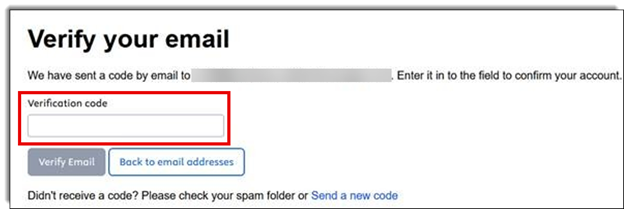
- When you choose to verify a secondary email address, a screen appears confirming that a security code is sent to that email address from [email protected].
- Upon receiving the security code, you have 15 minutes to enter the one-time verification code. Once you have entered the verification code, you will be logged in directly to EM.
If there are any other additional email addresses associated with your account, you return automatically to the previous page where you can verify or delete those additional email addresses.
The “I’ll do this later” button is also available, allowing you to log directly into EM.
By following this procedure, you will be able to securely verify your email addresses and gain direct access to EM efficiently. Ensuring timely entry of the verification code and managing your associated email addresses helps maintain the security of your account and streamlines your login process.
Need assistance with troubleshooting? Please contact us via live chat at the right bottom to assist you further.
Did we answer your question?
Recently viewed answers
Functionality disabled due to your cookie preferences