
View by category
How do I upload individual images into a Curated Collection in Image Finder?
Last updated on August 17, 2026
When you are given the Add permissionopens in new tab/window in a collectionopens in new tab/window, you can add images to that collection either by adding them one at a time or in a batchopens in new tab/window. You can access this and other features on the collection's tabopens in new tab/window in the application's ribbon.
Images that you add to a collection can be downloaded and used directly by users of that collection. Therefore, you need to take images quality for different image sources into consideration as follows:
- If you want to curate images from books that have already published by Elsevier, then you should make sure that you get the original artworkopens in new tab/window from the Global Book Archive and add that, rather than adding a screenshot/grab. Only images from the Archive are considered high enough quality for use in book projects.
- If you want to curate images from journals, you can download these directly from Image Finder. However, you should make sure that the quality of the image you have downloadedopens in new tab/window is high enough for the intended uses/users of your collection.
- If you want to curate an image that you have from another source (e.g. the web or external image library), the same considerations regarding quality apply.
How
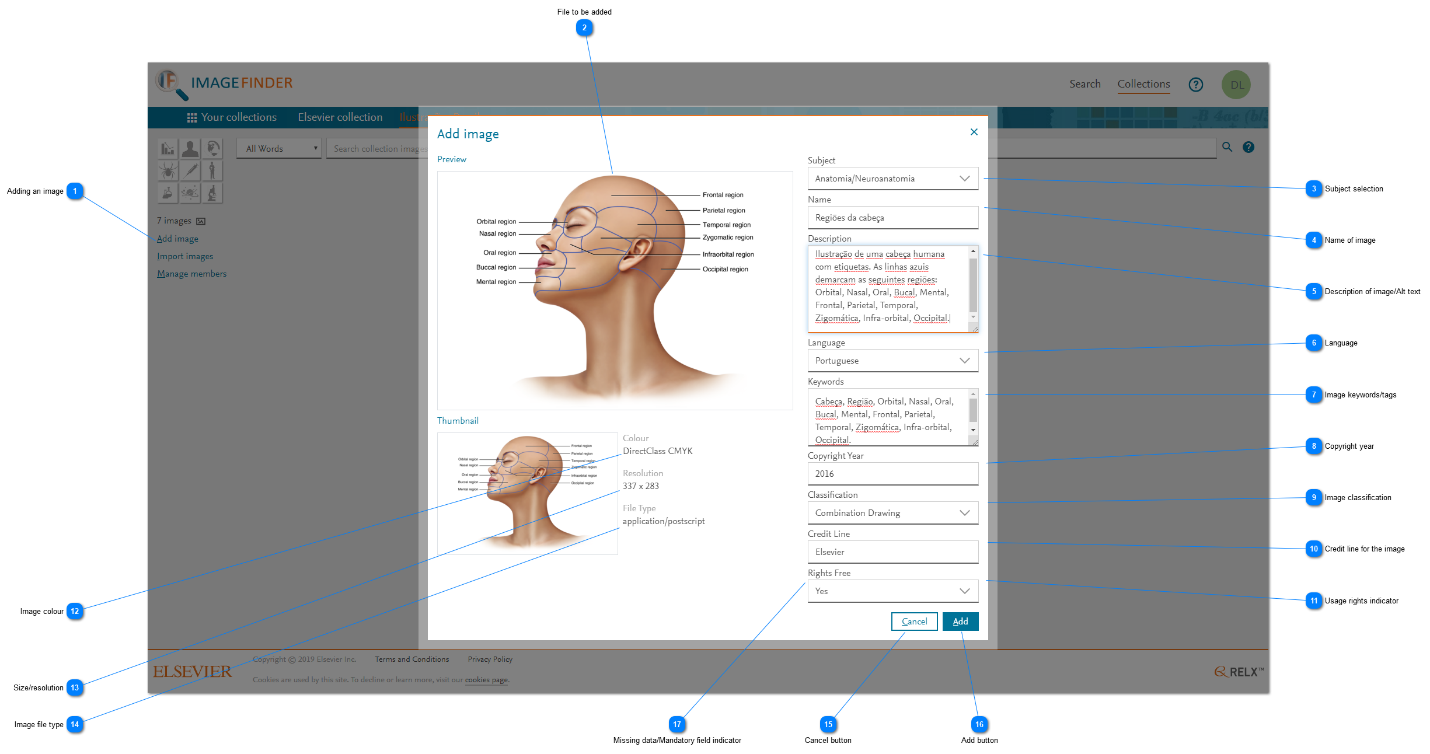
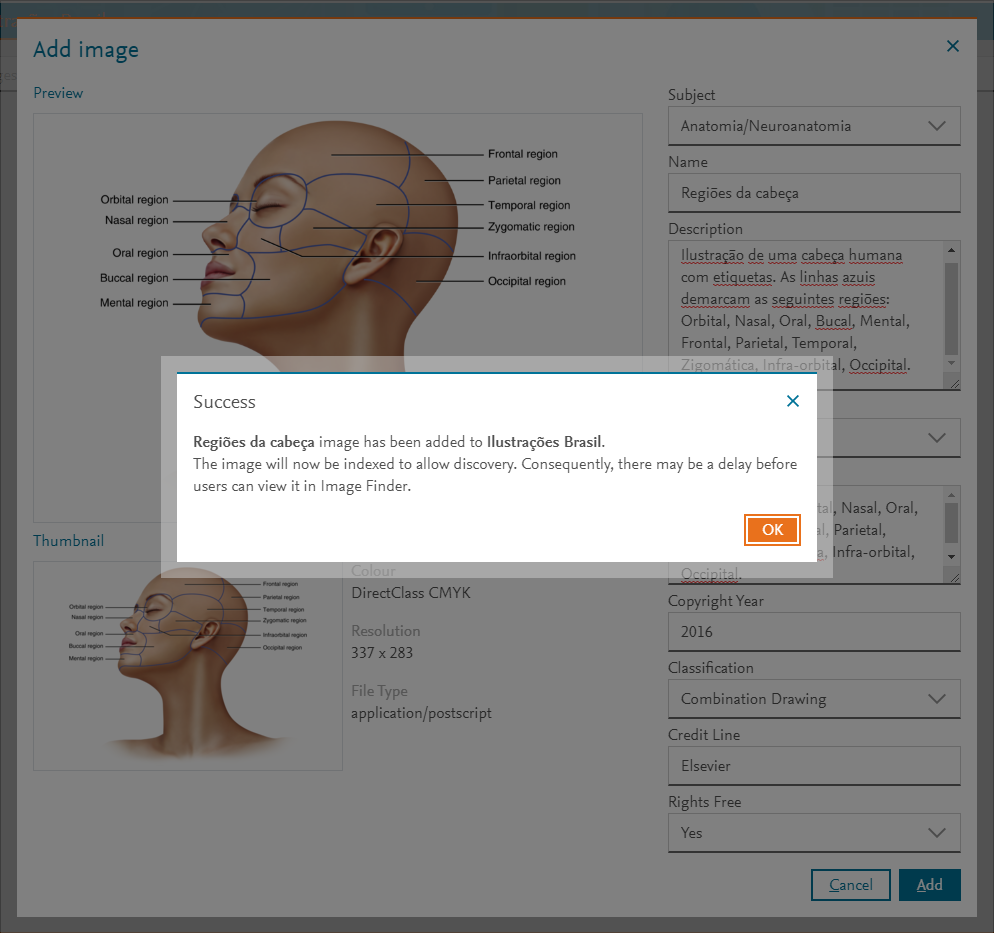
- Adding an image: Click 'Add image' in the collection's tab for a collection to display the 'Add image' pop-up window. Enter property information (metadata) for the image that make it discoverable and for facilitating the permissions seeking process when the image is downloaded and used. ALL the properties are mandatory.
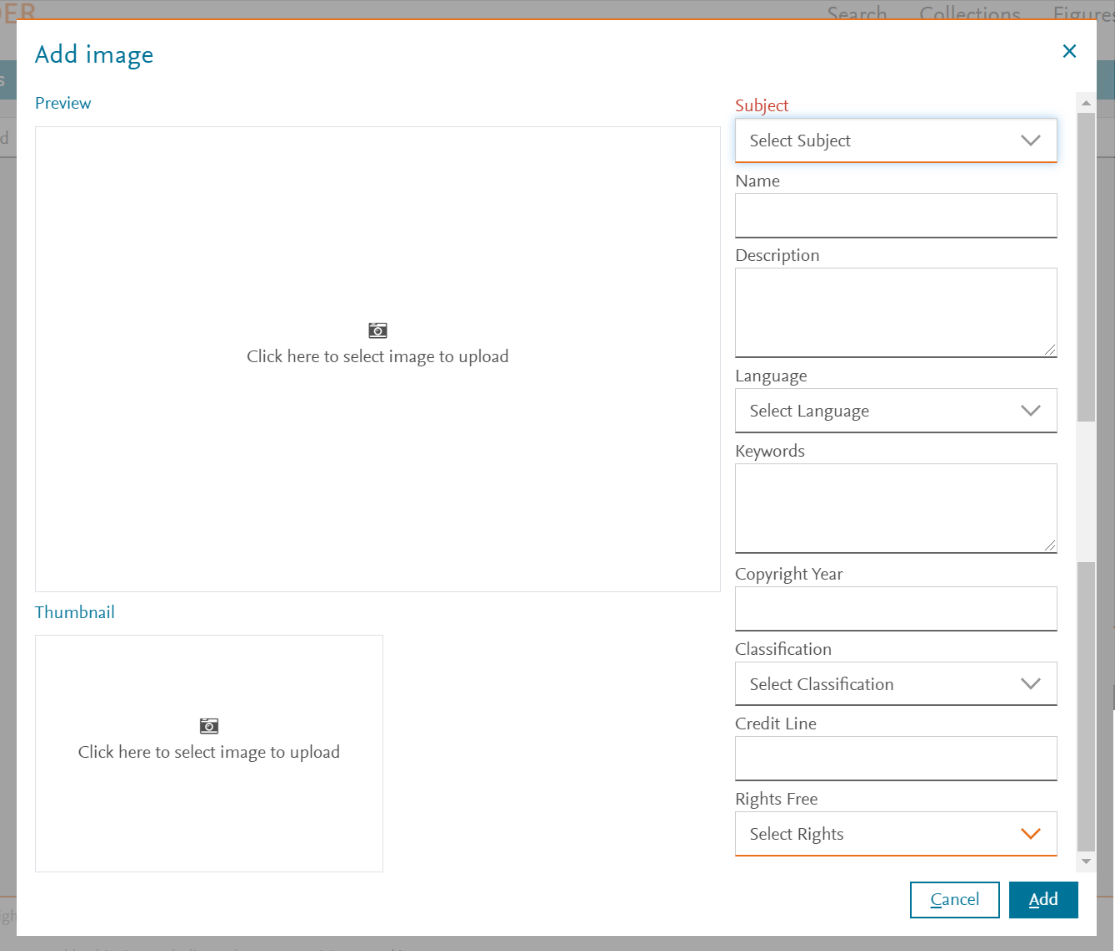
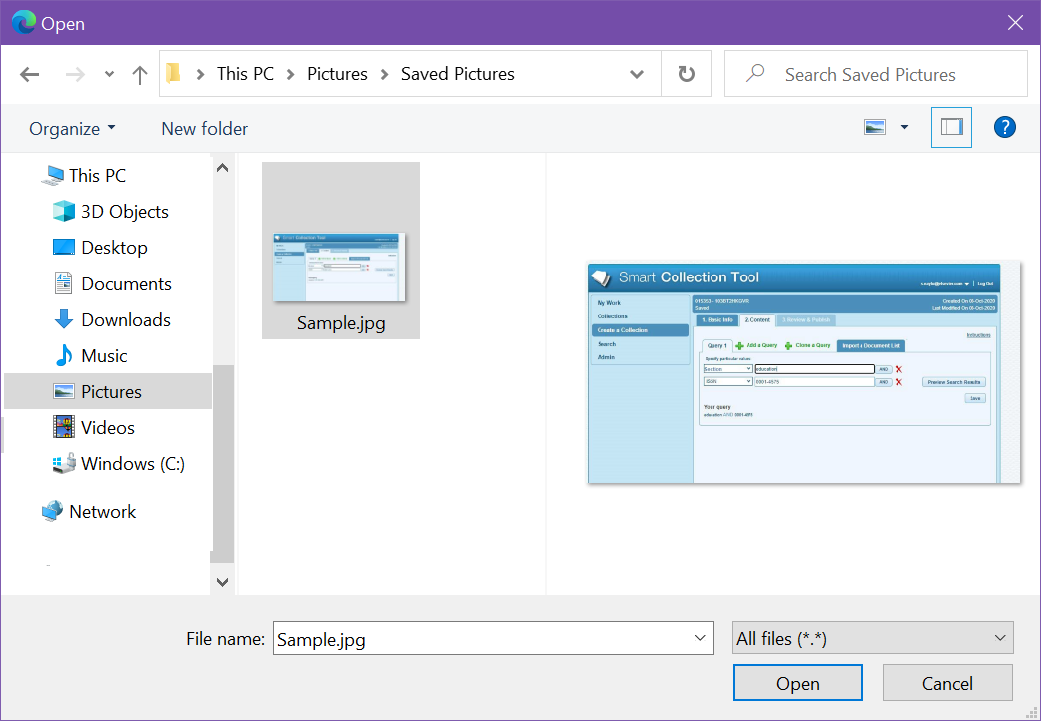
- File to be added: Click in the 'Preview' or 'Thumbnail' area to display the Open pop-up window for choosing a file. After you have selected an image and clicked Open, the selected image is loaded into the thumbnail and preview areas of the Add image pop-up window. Alternatively, you can add an image by dragging an image from Windows Explorer and dropping it anywhere in the 'Add image' pop-up window.
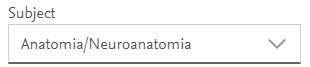
- Subject selection: Select a subject value from the 'Subject' drop-down box. The range of subject values is specific to a collection. The subject values are added when a collection is created. If you want to add any new subject values, please contact us using the Email option at the bottom of this page.
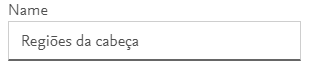
- Name of image: Enter a name for the selected image in the Name field. The name should be tersely descriptive. When users searchopens in new tab/window for images, the search is performed on the name, description, and keywords (see steps 5 and 7 below) of an image by matching the text in these fields with the search text provided by the user.
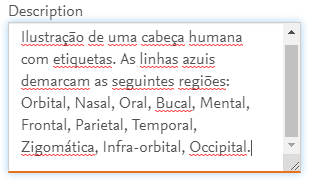
- Description of image/Alt text: Enter a description for the selected image in the 'Description' field. The description should be verbosely descriptive. Note: At some point the description may be used to describe the image in a context where the image cannot be viewed. When users searchopens in new tab/window for images, the search is performed on the name, description, and keywords (see step 7 below) of an image by matching the text in these fields with the search text provided by the user.
- Language: Select a language for the selected image from the 'Language' drop-down box. This is especially important for images that contain text. If the language that you need is not available in the drop-down selections, please contact us using the Email option at the bottom of this page.
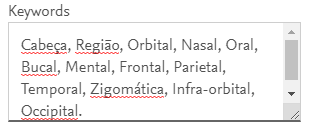
- Image keywords/tags: Enter a coma-separated list of key words or phrases in the Keywords field for the selected image. These can be any terms that are presented in the selected image but are not included in the name or description of the image.
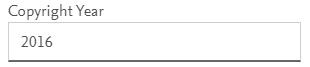
- Copyright year: Enter the copyright year of the selected image in the 'Copyright Year' field. If you sourced the selected image from Image Finder, you can find the Copyright Year information in the image preview.
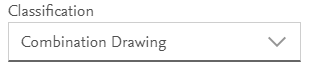
- Image classification: Select an image classification from the 'Classification' drop-down box. Classifications and their descriptions are listed in the following table:
Classification
Image type
Description
Chart
line drawing
An image that shows a graphical representation of data.
Graph
line drawing
An image showing the relationship between variable quantities (typically of two).
Algorithm
line drawing
Illustration of a recipe to solve a problem (or achieve a goal) mathematical or not.
Table
line drawing
An image that shows a tabular representation of data.
Chemical Structure
line drawing
An image showing the actual number of atoms of elements in a compound, how the atoms are arranged and which atoms are bonded to one another.
Scan
line drawing
An image generated by scanning technology.
Photograph
halftone
An image captured by a camera.
Micrograph
halftone
A photograph taken through a microscope.
Topograph
halftone
A type of x-ray photograph of land surfaces.
Screenshot
halftone
Image captured from a computer (or other device) screen.
Formula
Graphical image representation of a mathematical or chemical formula. The image is in JPG format and the resolution is 500 dpi.
Combination Drawing
line drawing + halftone
A multi-panel image where some are halftones and others are line drawings.
Line Drawing
line drawing
An image that consists of distinct straight or curved lines placed against a usually plain background, without gradations in shade (darkness) or hue (colour) to represent two-dimensional or three-dimensional objects.
Halftone
halftone
An image that simulates continuous-tone imagery through the use of dots, varying either in size or in spacing, thus generating a gradient-like effect.
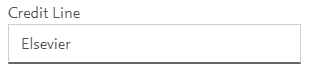
- Credit line for the image: Enter information that identifies the source of the selected image in the Credit Line field. This information is crucial because it is essential to the permission seeking process and must also be presented for acknowledging the creator when the image is reused.
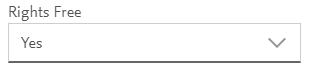
- Usage rights indicator: Select the rights status of the selected image from the 'Rights Free' drop-down box. Choose ‘Yes’, if you are CERTAIN that Elsevier has acquired the rights to use the selected image without restriction (i.e. in perpetuity, in any publication and in any jurisdiction). Choose ‘No’, if you have ANY UNCERTAINTY about any aspect of Elsevier's right to reuse the selected image. The selection you make for the rights status is VERY IMPORTANT. For rights free images, we can save a lot of time and effort by excluding them from the permissions seeking process when they are reused and we can encourage users to use those in preference to images that may attract reuse fees.
If we classify an image as rights free when it is not, there may be significant legal repercussions for Elsevier. Please use with care.
- Image color: The Color information is determined automatically as the selected image is uploaded.
- Size/resolution: The Resolution information is determined automatically as the selected image is uploaded.
- Image file type: The File Type information is determined automatically as the selected image is uploaded.
- Cancel button: To abandon the upload process of the selected image, click 'Cancel'. All the image metadata provided so far is lost and the selected image is not added to the collection.
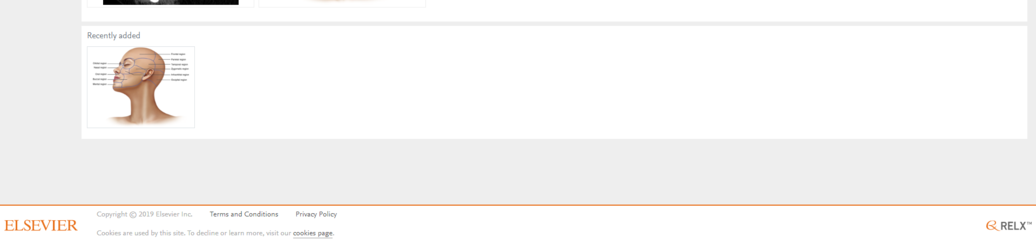
- Add button: To complete the upload of the selected image and its metadata, click 'Add'. The selected image is added to the collection. However, the system needs to update the index of images and might take a little while to do so. Consequently, the newly added image is not immediately discoverable. You can find thumbnails of images that are still being indexed in the 'Recently added' panel in the collection's tab.
- Missing data/Mandatory field indicator: All the metadata properties of the selected image are required. If you try to add an image without defining all the information, the label for any missing data turns RED as shown here.







Did we answer your question?
Related answers
Recently viewed answers
Functionality disabled due to your cookie preferences