
View by category
How do I set permission on a Curated Collection?
Last updated on August 17, 2026
As the owner(s) of a collectionopens in new tab/window, you can assign permissions to other users and define what they can do with the collection. A collection can have more than one owner. The collection owners are specified when a collection is set upopens in new tab/window. If you want to change the owner(s) of a collection, please contact us using the Email option at the bottom of this page.
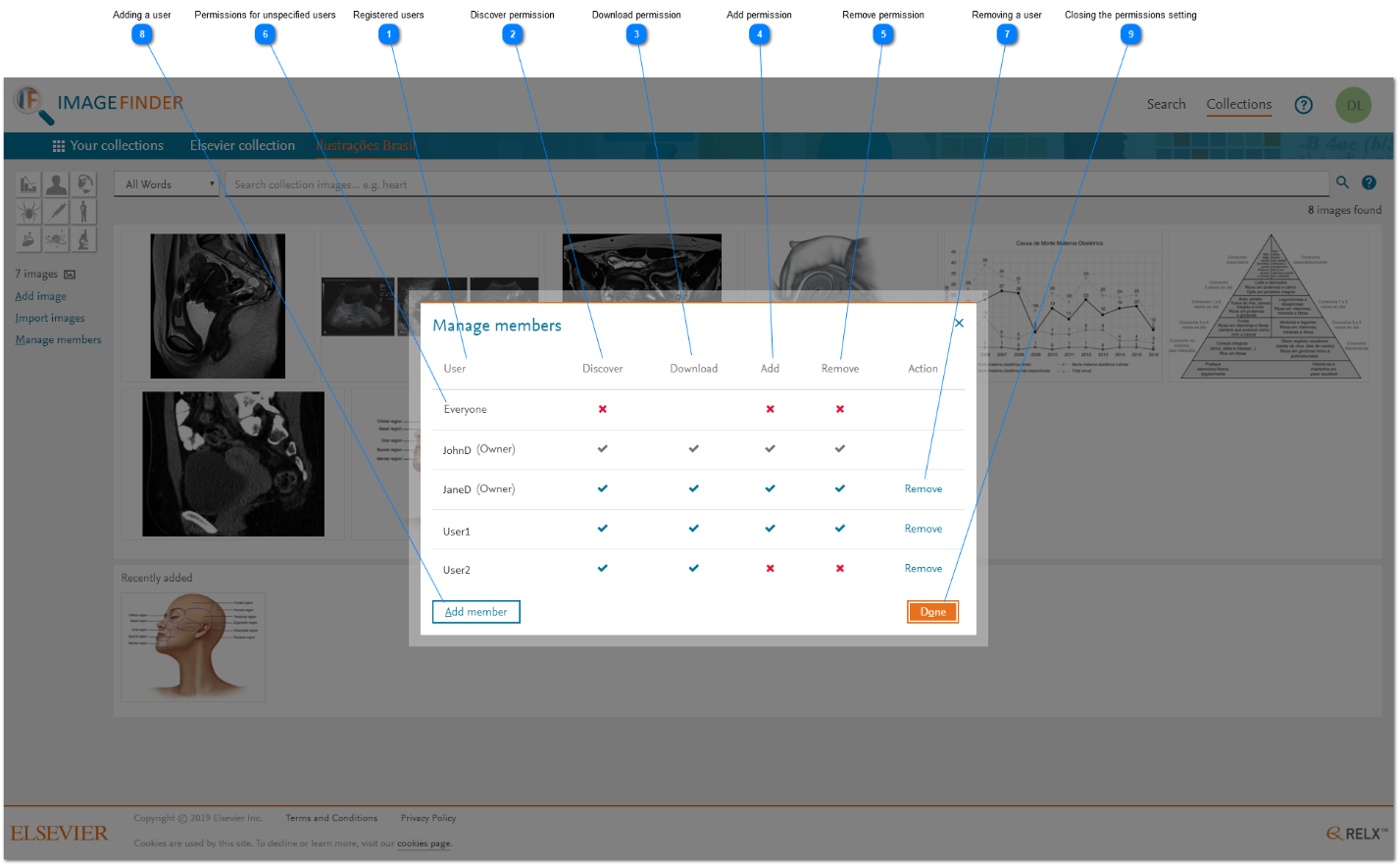
How
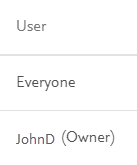
- Users: The 'Users' column shows the users that have had permissions assigned. Default entries for a collection are "Everyone" (see step 6 'Permissions for unspecified users' below) and owner(s).
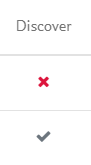
- Discover permission: The 'Discover' column indicates whether or not the collection images are included in a searchopens in new tab/window performed by a specific user or the "Everyone" user group. Click on the icon under this column for a specific user or user group to switch between excluded (
 ) and included (
 ).
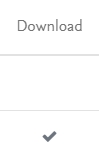
). - Download permission: The 'Download' column indicates whether or not a user or user group can downloadopens in new tab/window the high resolution version of the collection images. If a user does NOT have Discover permission, this column is blank. Click on the icon under this column for a specific user or user group to switch between disable download () and enable download ().
- Add permission: The 'Add' column indicates whether or not a user or user group can add images to the collection. If a user or user group can add images, then the administration workspace is available to that user or user group in the user menu and the Add imageopens in new tab/window and Import imagesopens in new tab/window options are available. Click on the icon under this column for a specific user or user group to switch between disable adding images () and enable adding images ().
- Remove permission: The 'Remove' column indicates whether or not a user or user group can remove images from the collection. Note: If a user or user group ONLY has Remove permission, then the administration tab does NOT display any menu options on the left. The Remove actionopens in new tab/window is available in the Update image pop-up window. Click on the icon under this column for a specific user or user group to switch between disable removing images () and enable removing images ().
- Permissions for unspecified users: Instead of having to set permissions for every user of your collection, you can set the default permissions for the "Everyone" user group. The default permissions are overridden by the permissions for an individual user. The permissions for the "Everyone" user group are defined as part of the collection setupopens in new tab/window, but can be modified by the collection owner(s). Typically, the permissions for the "Everyone" user group would enable any user to discoveropens in new tab/window and downloadopens in new tab/window images.
- Removing a user: To remove all specified permissions from a user, click 'Remove' under the 'Actions' column for a particular user. The permissions for that user are then revert to the permissions that are specified for the "Everyone" user group.
- Adding a user: To add permissions for a user, click 'Add member'. The 'Add member'opens in new tab/window pop-up window is displayed.
- Closing the permissions setting: Click 'Done' to finish setting permissions.



Did we answer your question?
Related answers
Recently viewed answers
Functionality disabled due to your cookie preferences