
View by category
How do I manage a Curated Collection?
Last updated on August 17, 2026
Image Finder supports two types of collections: derived and curatedopens in new tab/window. See What types of images are available in Image Finder?opens in new tab/window
Derived collections | These are created as a side effect of our publication production processes. There is one collection of journal images and one collection of book images. Derived collections are automatically updated with new images as publications are published. |
Curated collections | These are created explicitly in order to impose a much more rigorous process of describing an image, thus improving its discoverability and hence its value. The process for placing the images in a collection is explicit, it can also be used to determine the rights and permissions status of an image in a collection. Some images in these collections can be much more easily reused by avoiding the permissions seeking process. |
To create a collection, see How do I create a Curated Collection?opens in new tab/window
If the owner(s) of a collection have provided you accessopens in new tab/window, you can search for images in their collectionopens in new tab/window. If the owner(s) provide you with administration accessopens in new tab/window, you may also be able to addopens in new tab/window, modifyopens in new tab/window and/or removeopens in new tab/window images in that collection.
You can access the administration workspace for the collections that you have access to through the Collections feature in the main toolbar.
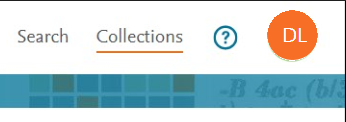
After you have accessed the collections through the menu, the administration screen is displayed in a 'Your Collections' tab in the application's ribbon.
How
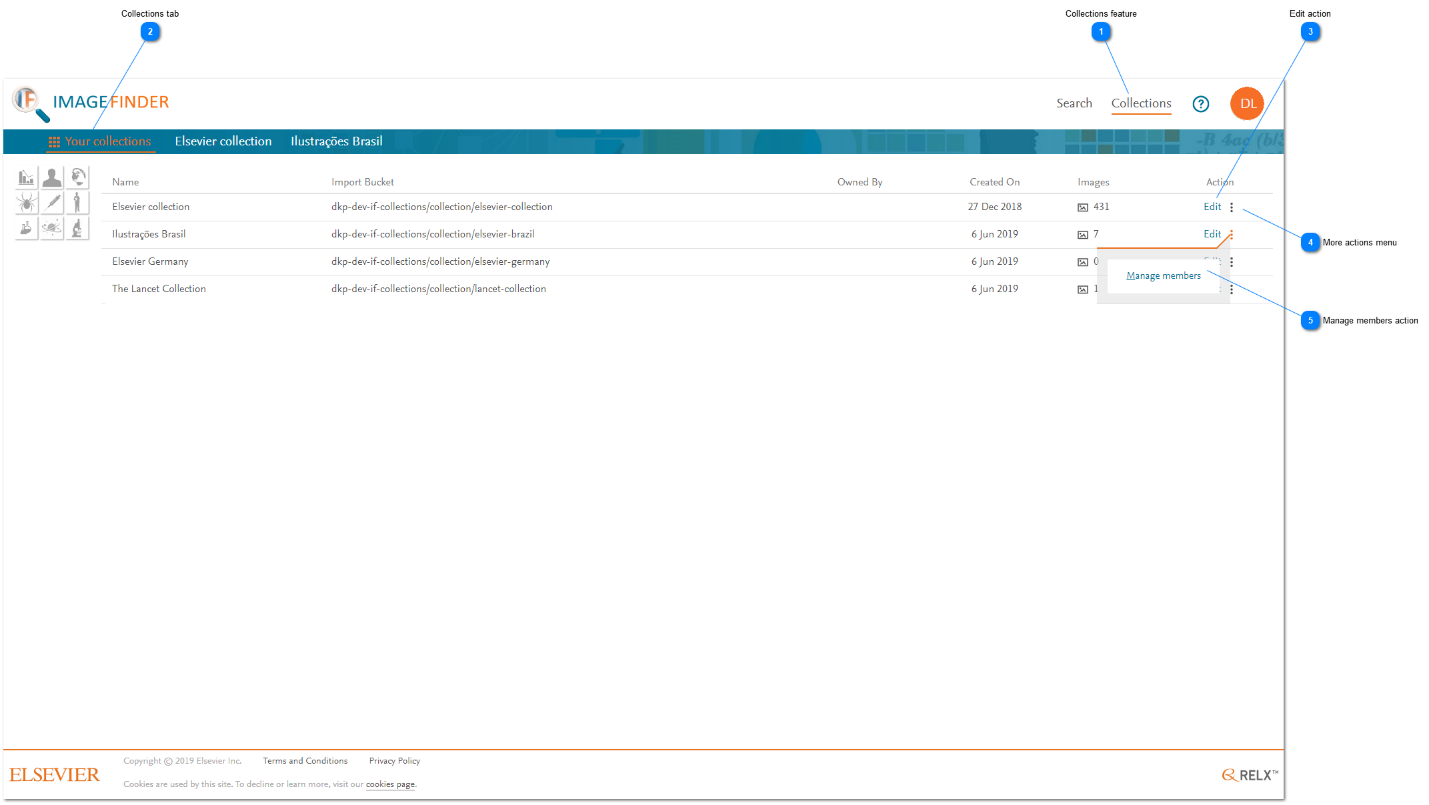
- Collections feature: Click 'Collections' to access the collections that you can administer/contribute to. Note: If you do not have access to any collections, this feature is not displayed.
- Collections tab: After you clicked on the Collections feature in the main toolbar, the list of collections that you can access is displayed. Click 'Your collections' to switch back to administering your collections when the focus has shifted to another task (e.g. search or a specific collection).
- Edit action: Click 'Edit' for a specific collection to administer its contents. This action creates a tab for the selected collection in the application's ribbon. Refer to the following sections for more information on administering a specific collection:
- More actions menu: The vertical ellipsis provides access to actions that you can perform on the collection without opening the collection's specific tab. Note: Only actions that you have permissionopens in new tab/window to are displayed. If you do not have any permission, clicking the vertical ellipsis of a specific collection have no effect.
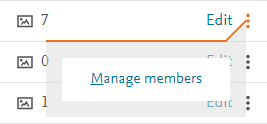
Hovering over a vertical ellipsis of a collection when you have permissions to perform more actions.

Hovering over a vertical ellipsis of a collection when you don't have permissions to perform more actions.
- Manage members action: To set the access permissions for other users, including search and administration access, the owner(s) of a collection can click Manage members. The 'Manage members' pop-up windowopens in new tab/window is displayed. This menu item is also displayed in the administration tab for a selected collection.





Did we answer your question?
Related answers
Recently viewed answers
Functionality disabled due to your cookie preferences