
View by category
How do I search for images?
Last updated on August 17, 2026
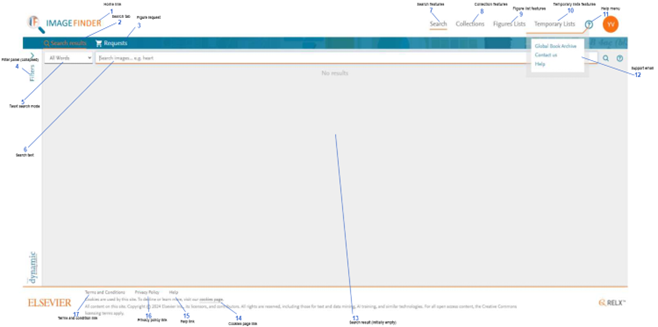
The primary feature of Image Finder is 'Search'. The search feature is presented on the 'Search results' tab in the application's ribbon when the Search feature has been selected in the application’s main toolbar. This is the application state when the user first signed in. Search is available to RELX employees and contractors (internal users) and authors (external users). However, external users will only have access to the search feature when they are actively contributing to a figures listopens in new tab/window. To contribute to a figures list, an author must be addedopens in new tab/window and invitedopens in new tab/window by a creator or content manager of a figures list to contribute, and the author must acceptopens in new tab/window that invitation.
How
- Home link: Click the ImageFinder logo to clear all search criteria and search results. The view as shown above is displayed.
- Search tab: Click 'Search results' to access the image search feature, which enables you to search for images in publications and curated collectionsopens in new tab/window that you have access to. The search feature includes setting filtersopens in new tab/window, specifying keyword criteriaopens in new tab/window and viewing results. See Why are some images not shown in the search results?opens in new tab/window
- Figure Request : the click request will contain all the listed figures for which you wish to submit a request to Archive.
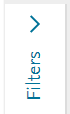
- Filters panel (collapsed): You can expand and collapse the Filters panel by clicking on the right and left chevrons adjacent to the word 'Filters'. See How do I use the search filters?opens in new tab/window
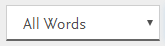
- Text search mode: Select the mode that you want to use for the text entered in the subject search box. By default, Image Finder matches image captions that contain ALL the words you provide. You can choose to search on captions that contain ANY of the words instead. For more information on how to enter subject criteria, see How do I search by keywords?opens in new tab/window
- Search text: Enter the text that you want to search for in the text box. For more information on how to enter subject criteria, see How do I search by keywords?opens in new tab/window
- Search features: Click 'Search' to access the search features. Search features include Searching for images and managing a Request Cartopens in new tab/window. The features available to you vary based on your permissions. See:
- Collections features: If you have permissionopens in new tab/window to manage or contribute to any collections, click 'Collections' to access the curated collectionsopens in new tab/window features, which includes a summary of all the collections that you have access to.
- Figures Lists: Figures lists enable authors and others to contribute figures to a book project. .
- Temporary Lists: Search images by ISBN, select them all, and add to a temporary list. Export the metadata, then move the organized images to a Figures List created from a DAC key for collaboration with Contributors.
- Help menu: Click the ? icon to access the Support Center.
- Support e-mail: If you need to contact the Image Finder technical support team, click Contact us to start an e-mail in your e-mail client.
- Search results (initially empty):
Image thumbnails are displayed in the Search results area when there are results that match the criteria that you have entered. If there are no images that match the criteria entered, the results grid displays the text 'No results'.
The grid also shows 'No results' immediately after you signed in and after you cleared the criteria and results. See Why are some images not shown in the search results?
- Cookies page link: Click 'cookies page' to display the standard explanation of how Elsevier websites use cookies.
- Help link: Click the help link to visit the Image Finder Support Center page.
- Privacy Policy link: Click 'Privacy Policy' to display an explanation of how Elsevier collects, uses and shares personal information captured by the websites.
- Privacy Policy link: Click Terms and Conditions to display the standard terms and conditions that apply to the use of Elsevier websites.











Did we answer your question?
Related answers
Recently viewed answers
Functionality disabled due to your cookie preferences