
View by category
How do I view image details?
Last updated on August 17, 2026
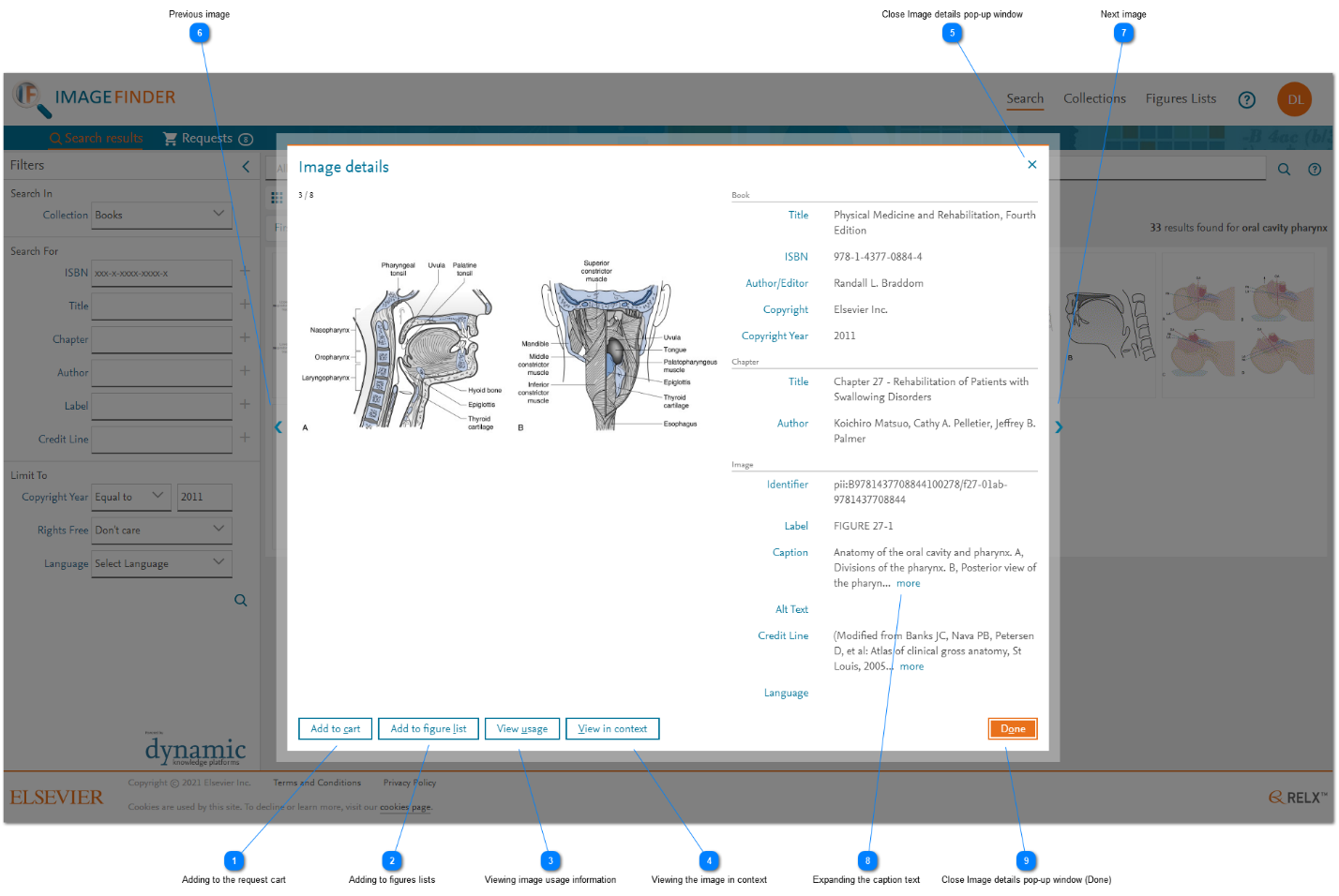
Click on any image thumbnail in the search results gridopens in new tab/window and the Image details pop-up window is displayed. It contains metadata for the selected image and actions you can perform. The attributes of metadata depend on the publication types. Regardless of publication, image caption text is part of the metadata shown.
On the Image details pop-up window, the following actions are available:
- Add an image to the request cart. This is only available for images from books.
- Add an image to a figures list, if you are a creator, content manager, or contributor of one or more book projects.
- Download a high resolution version of the displayed image. This is only available for journal images, Elsevier collection images, and Dermatology Decision Tree images.
- View information about where the image has been used.
- View the image in the context of the publication.
How
- Adding to the request cart: Click 'Add to cart' to add an image to the high resolution request cart.
For book images, the high resolution version of the image has to be retrieved from the Global Book Archive. Image Finder consolidates requests in a request 'cart' so that you can submit a requestopens in new tab/window for multiple images in a single request.
From the Image details pop-up window, you can add the image to the request cart.
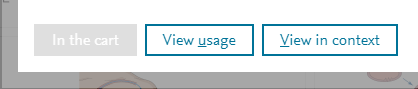
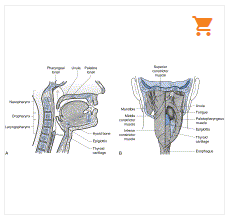
Effects of adding an image to request cart: After you have added an image to the request cart, the Add to cart button in the Image details pop-up window is disabled and the label is changed to ‘In the cart’. In the search results, any image that has been added to the cart is displayed with a cart icon on the upper-right of the image thumbnail.
Requesting an image also increments the cart content counter that is displayed in the cart tab. For more information on displaying and managing the cart contents, see How do I manage a Request Cart?opens in new tab/window - Adding to figures lists: Click 'Add to figure list' to add the image to a figures listopens in new tab/window. This button is available to creators, content managers, and contributors of figures lists.
- Viewing image usage information: Click 'View usage' to display the usage log of the image. When an image for journal or collections is downloaded, the ID of the image is embedded in the downloaded copy as a tracker. If Image Finder encounters an image with a tracker ID, it increases the reference count for the original image in the Image Finder log. For more information on displaying the usage log, see What information is in image details?opens in new tab/window
- Viewing the image in context: Click 'View in context' to display the PDF of the publication in which the image resides. The PDF is displayed in a new tab in your Web browser. This button is not available for collection images that are stored in the system explicitly for reuse.
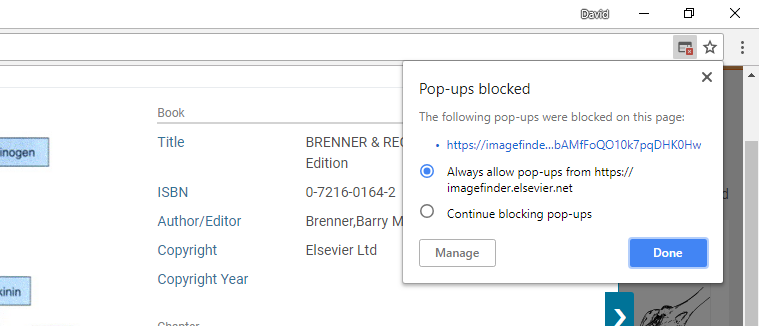
Possible scenarios for the PDF new tab not displaying:- There is no URL for the PDF in the metadata for the publication.
- The URL is broken.
- Pop-ups are blocked for this site in your Web browser.
- Error in viewing image in context. Please contact application support team.
For more information on displaying the PDF publication, see What information is in image details? - Close Image details pop-up window: Click 'x' to close the Image details pop-up window.
- Previous image: Click < to display the previous search results image in the Image details pop-up window. This navigation icon is not available for the first of the images that is displayed on the window.
- Next image: Click > to display the next search results image in the Image details pop-up window. This navigation icon is not available for the last of the images that is displayed on the window.
- Expanding the caption text: Click the 'more' link that is displayed after the ellipsis. This expands the pane to reveal all the caption text. When the full length of the caption text is displayed, you can collapse the caption text again by clicking the less link that is shown at the end of the expanded caption.
- Close Image details pop-up window (Done): Click 'Done' to close the 'Image details' pop-up window.










Did we answer your question?
Related answers
Recently viewed answers
Functionality disabled due to your cookie preferences