
View by category
What information is in image details?
Last updated on August 17, 2026
Besides the metadata of a selected image is shown in the Image detailsopens in new tab/window pop-up window, you can view image usage and view a found image in context of the source material that it is in.
See How do I search for images?opens in new tab/window
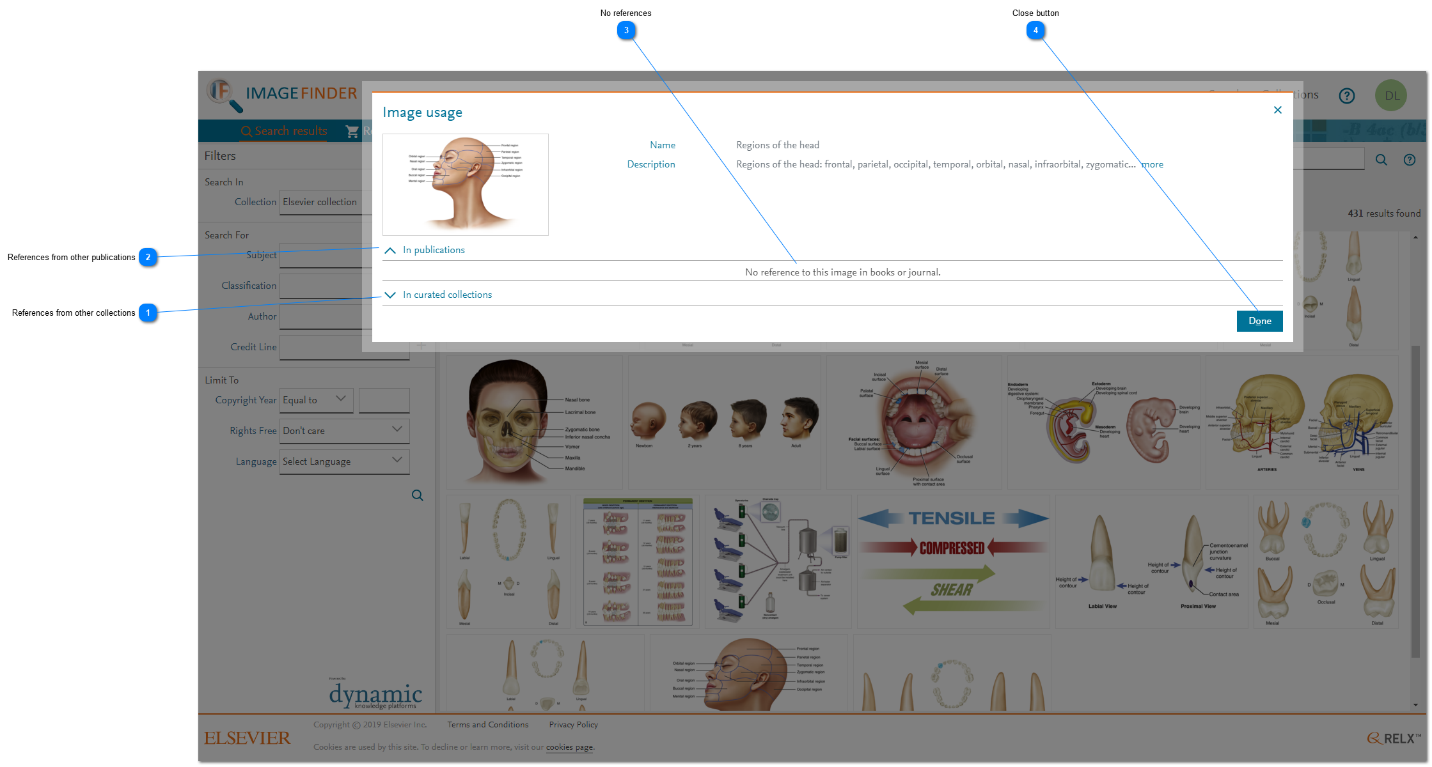
When images are downloaded through Image Finder, they are given a unique Tracking ID, if they do not already have one. This ID is embedded inside the image's metadata and is carried with the image. If the image is then used in a book, journal, or being added to another collection, Image Finder updates the reference to the image and displays the references in the Image usage pop-up window.
To display the Image usage pop-up window, click the 'View usage' button in the Image details pop-up window.
Image Finder has no control over an image after it has been downloaded. It is possible that the image is edited in some way before it is reused and that edit may eliminate the tracking ID in the image's metadata. In that case, the reference is lost. Also, for images that are sourced from the Global Books Archive, it is not currently possible to embed the tracker in the images that are delivered by the archive team to your project, so those images cannot be tracked.
How
- Close button: Click 'Done' to close the 'Image usage' pop-up window.




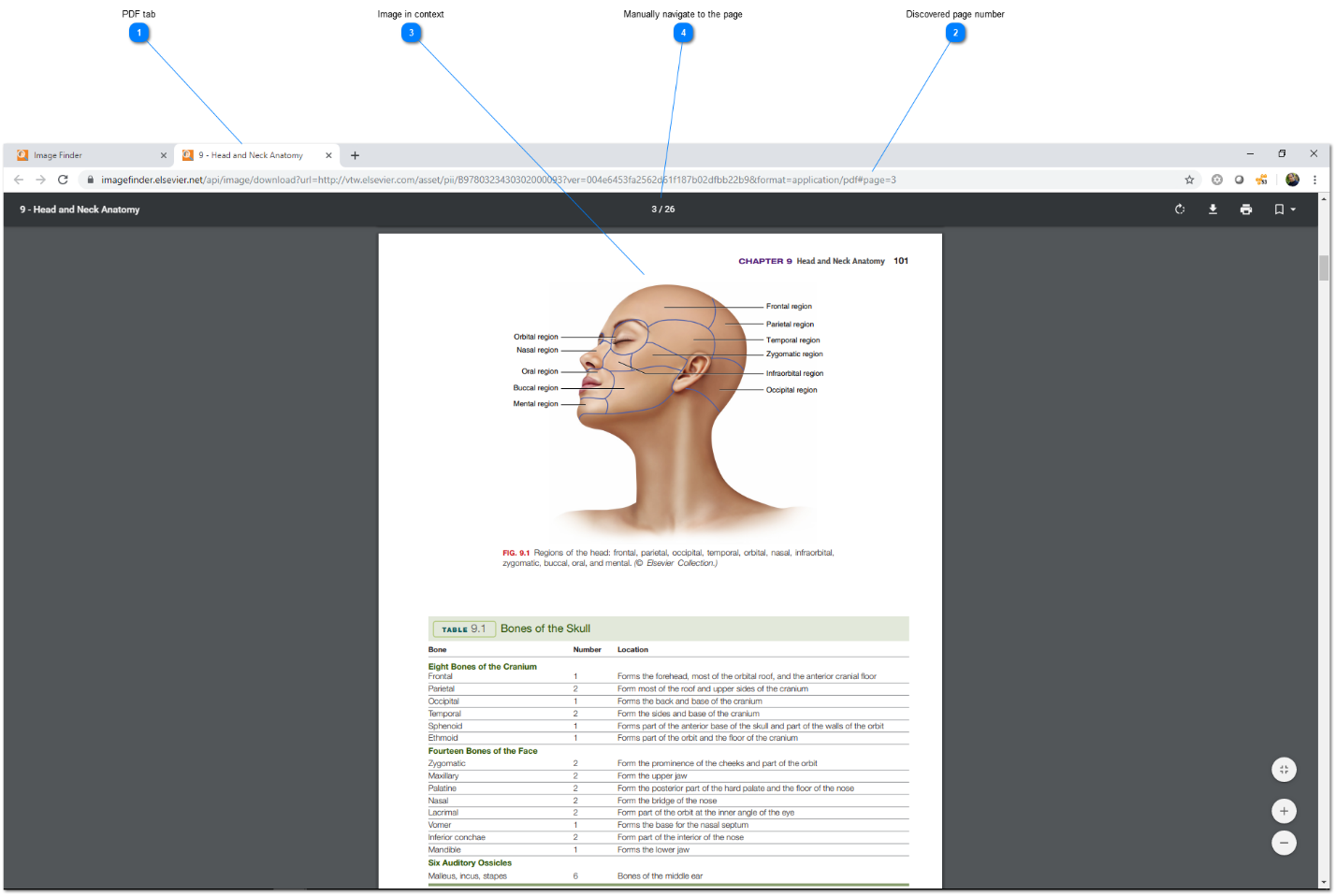
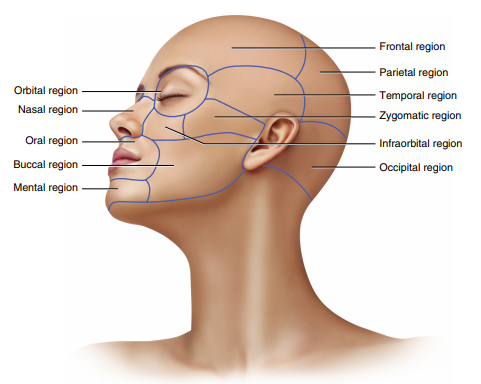
Images from books and journals can be displayed in the context of the book chapter or journal article in which the images reside. In most cases, Image Finder can display the exact point in the chapter or article where the image is.
How
- PDF tab: The publication PDF containing the image is displayed in a new tab in your Web browser for each image that you clicked the 'View in context' button. Consequently, you may have several context tabs open at the same time. Close those tabs that you no longer need.
- Discovered page number: The PDF is automatically opened to the page that contains the image. However, sometimes the caption text in the image metadata in Image Finder does not precisely match the caption text in the PDF, resulting the first page of the PDF is displayed instead of the page on which the image is displayed.
If the image location could be found in the PDF, the page number of the page that contains the image is displayed at the end of the URL on the PDF tab. - Image in context: If the image is found and you are using one of the Web browsers listed in step 4 below, the PDF is opened at the top of the page that contains the image. You may need to scroll down the page to locate the image.
- Manually navigate to the page: Automatic scrolling to the image is not currently supported in the following Web browsers:
- Microsoft Edge
- Apple Safari



Did we answer your question?
Related answers
Recently viewed answers
Functionality disabled due to your cookie preferences