
View by category
How do I track image usage?
Last updated on August 17, 2026
When images are addedopens in new tab/window to a collectionopens in new tab/window, they are given a unique ID by the system. This ID is embedded inside the image's metadata and is carried with the image when it is downloaded.
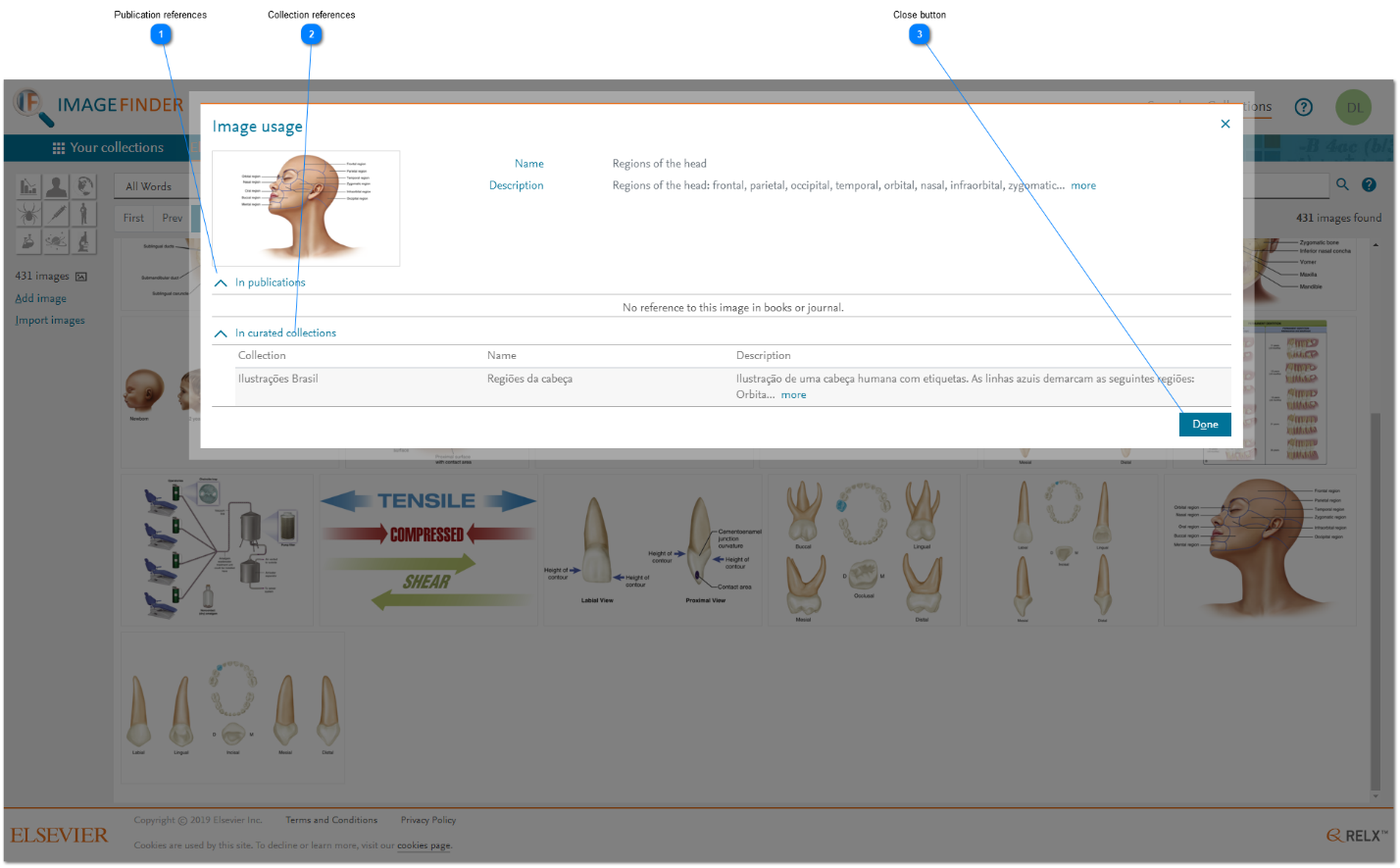
If the image is then used in a book, journal, or added to another collection, Image Finder updates the reference to the image and you can view the references in the Image usage pop-up window.
Image Finder has no control over the image after it has been downloaded. It is possible that the downloaded image is edited in some way before it is reused and that edit may eliminate the tracking ID in the image's metadata. In such scenario, the reference is lost.
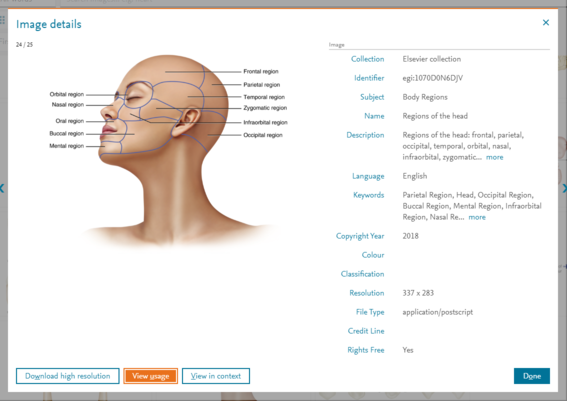
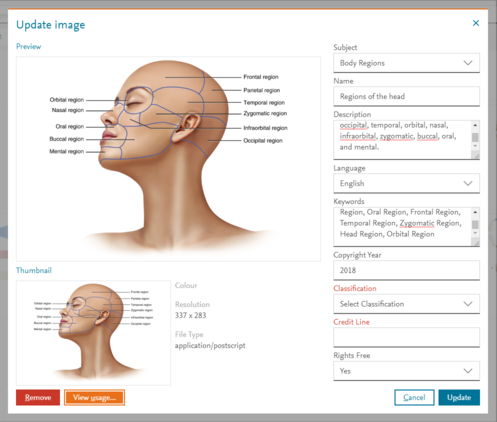
You can display the Image usage pop-up window by clicking the ‘View usage’ button in the Image details pop-up window when viewing searchopens in new tab/window results or in the 'Update image'opens in new tab/window pop-up window when administering a collection, as shown below respectively.
How
- Publication references: Click the ^ icon to expand or collapse a list of the references for the selected image from publications (i.e. non-curated collections).
The list shows the following information:- The type of the referring publication.
- Its ISBN/ISSN Vol #.
- The title of the chapter/article.
- The figure label.
- The figure caption.
- Collection references: Click the ^ icon to expand or collapse a list of the references for the selected image from curated collections.
The list shows the following information:- The name of the referring collection.
- The name of the image in that collection.
- The description of the image in that collection.
- Close button: To close the Image usage pop-up window, click 'Done'.





Did we answer your question?
Related answers
Recently viewed answers
Functionality disabled due to your cookie preferences