
View by category
How do I manage a Request Cart?
Last updated on August 17, 2026

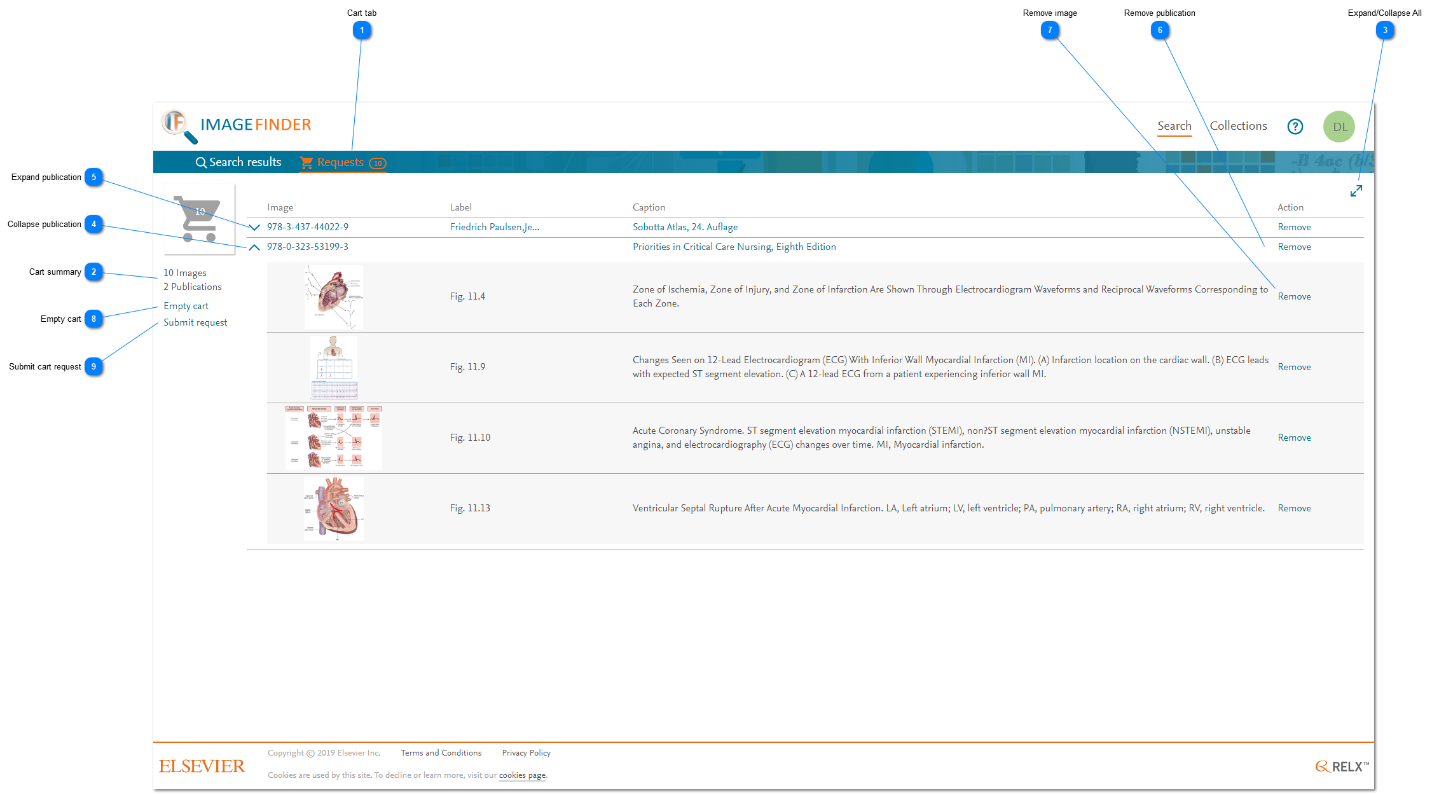
The Request Cart is a two tiered list with the top tier representing a publication and the second tier representing all the images that have been requested from that publication. This enables you to be aware of any possibility that you may be borrowing too many images from a single publication as well as making it easier to source and deliver the high resolution images to you.
You can remove images from your Request Cart by emptying it, by removing the publication (i.e. all the images in that publication), or by removing individual images. Any cart that has not been explicitly emptied by removing images or submitting the requestsopens in new tab/window is persisted even after you signed out of Image Finderopens in new tab/window.
See:
How
- Cart tab: You can view all the images in the Request Cart by clicking 'Requests'. The cart icon is annotated with the total number of images that you have put in the cart.
- Cart summary: The requested images are grouped by publication in the cart. When a request is submitted, the publication is retrieved from the archive and the images are extracted from that. The cart summary shows you the total number of images you have selected and the total number of publications these images are sourced from.
- Expand/Collapse All: Click the 'Expand/Collapse All' so that the publications and all of the images selected are displayed or only the list of publications in the cart is display.
 Expand All
 Collapse All
 - Collapse publication: You can collapse and expand the view of any publication to make it easier to view your request cart. To collapse a publication that has been expanded, click on the up chevron to left of the publication’s identifier (ISBN/ISSN). The requested images for that publication are not displayed, but they are present in the cart.
- Expand publication: To expand a publication, click on the down chevron to left of the publication’s identifier (ISBN/ISSN). The images selected for that publication are displayed in a nested second tier.
- Remove publication: To remove all the images for a publication, click 'Remove'. A Confirmation message is displayed. Click Yes to confirm and proceed.
- Remove image: To remove a single image, click 'Remove' for that image. A Confirmation message is displayed. Click 'Yes' to confirm and proceed.
- Empty cart: To empty the cart, click 'Empty cart'. A Confirmation message is displayed. Click 'Yes' to confirm and proceed.
- Submit cart request: When you have completed your selection of images, you can submit the consolidated requestopens in new tab/window by clicking 'Submit request'. After you have provided the necessary information, Image Finder automatically generates and sends an email request to the Global Book Archive, who process the request and respond to you (based on your login credentials).


If you have any issues with images requests, please contact the Global Book Archive Teamopens in new tab/window.
Did we answer your question?
Related answers
Recently viewed answers
Functionality disabled due to your cookie preferences