
View by category
How do I request high resolution images for images found in Image Finder?
Last updated on August 17, 2026
After you have found the imagesopens in new tab/window that you want by searching in Image Finderopens in new tab/window, you can put them into a Request Cartopens in new tab/window, then you can submit the request to Global Book Archive.
When you are ready to request images from the Global Book Archive, you can submit the request cart by clicking 'Submit request' in the cart. Submitting the cart automatically generates an email containing the relevant information and sends it to the Global Book Archive, who process the request based on the options you have selected in the request form.
If you have any issues with images requests, please contact us using the Email option at the bottom of this page.
How
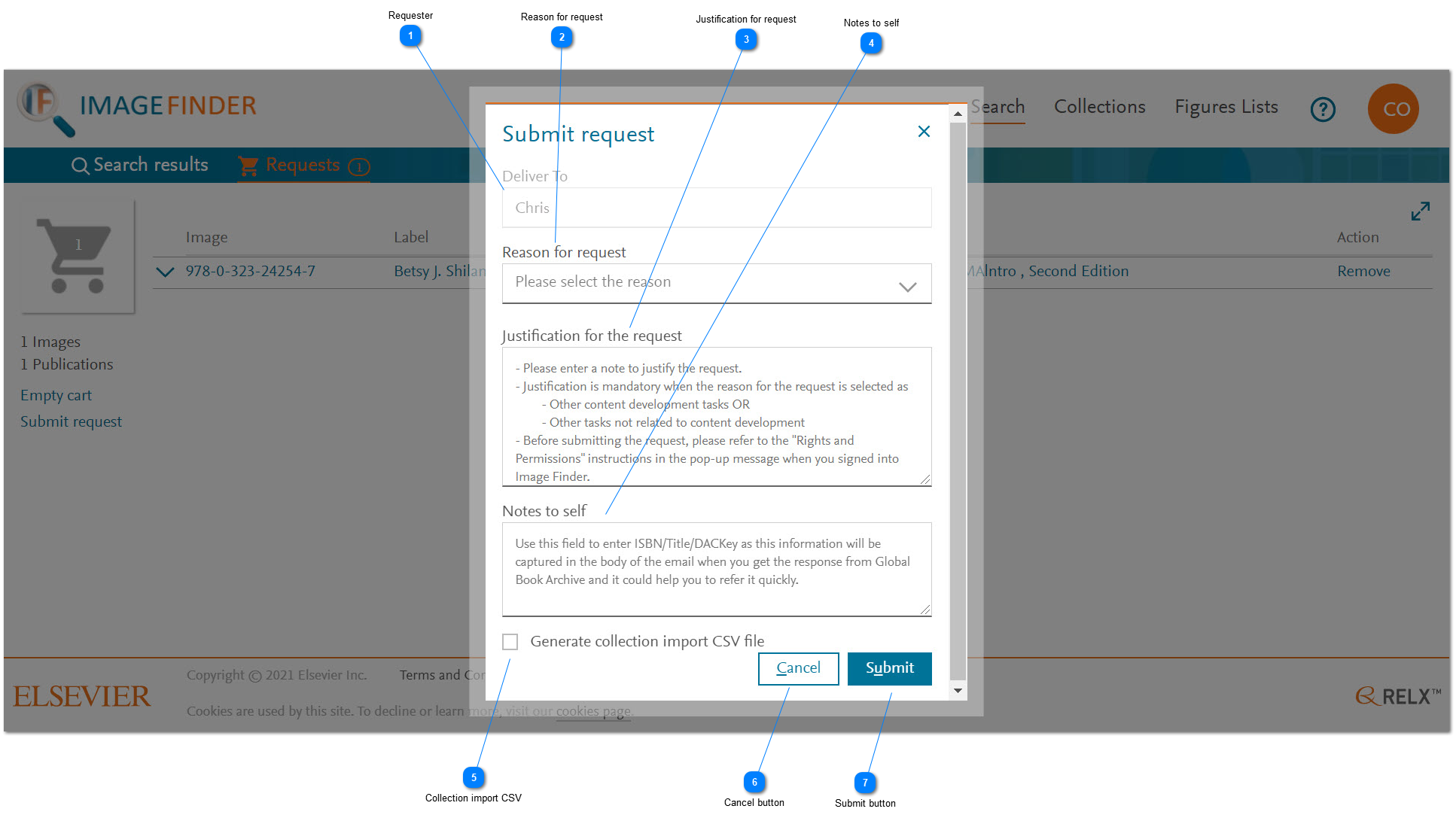
- Requester: The request is delivered to you (using the delivery method described below). Your name and e-mail address is determined automatically based on your login credentials.
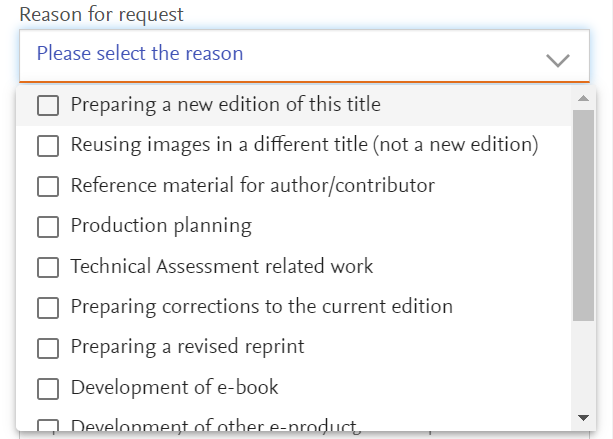
- Reason for request: You must select one or more reasons for requesting the selected images.
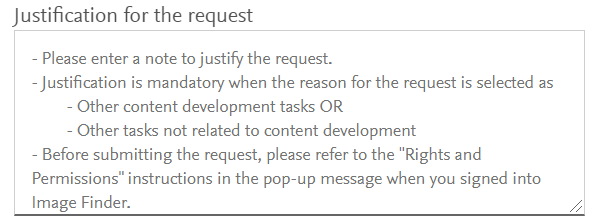
If you select 'Other content-development tasks' or 'Other tasks not related to content development', you must provide a justification for the request.
- Justification for request: Enter the justification for the request. Please note when this field is mandatory.
- Notes to self: You can enter information that helps you match your request to a project that you are working on. For example, the ISBN and the DAC key. The text entered in the 'Notes to self' field will be sent to you with the response from the archive.
- Collection import CSV: If you intend to use the images that you get from the archive to populate a curated collectionopens in new tab/window, instead of or in addition to illustrating a book, you can use Image Finder to generate an import CSV that contains some (not all) of the information that you need to import the imagesopens in new tab/window when you receive them. You still need to fill in some of the columns in the CSV because the data is missing from the book image metadata that Image Finder has access to. However, the generated CSV is a good start and can save you time.
Click the checkbox for 'Generate collection import CSV file' to generate the import file. The file will be sent to you as an attachment in an email. - Cancel button: Click 'Cancel' to close the 'Submit Request' pop-up window without sending the request to the archive. The cart remains unchanged. See How do I manage a Request Cart?opens in new tab/window
- Submit button: To submit the request click 'Submit'. Submitting the request triggers the following:
- Generate an e-mail with an attachment that lists the images you have chosen.
- Send the e-mail to the archive.
- Send a copy to you.
- Empty the cart. See How do I manage a Request Cart?opens in new tab/window





Did we answer your question?
Related answers
Recently viewed answers
Functionality disabled due to your cookie preferences