
View by category
How do I specify the annotation of figures in my Figures Lists?
Last updated on August 17, 2026
When setting up a figures listopens in new tab/window, the owner (creator) of the list can define the characteristics of figures being added into the list. These characteristics apply to all figures in the same figures list.
See How do I add a figure into a chapter in a Figures List?opens in new tab/window
How
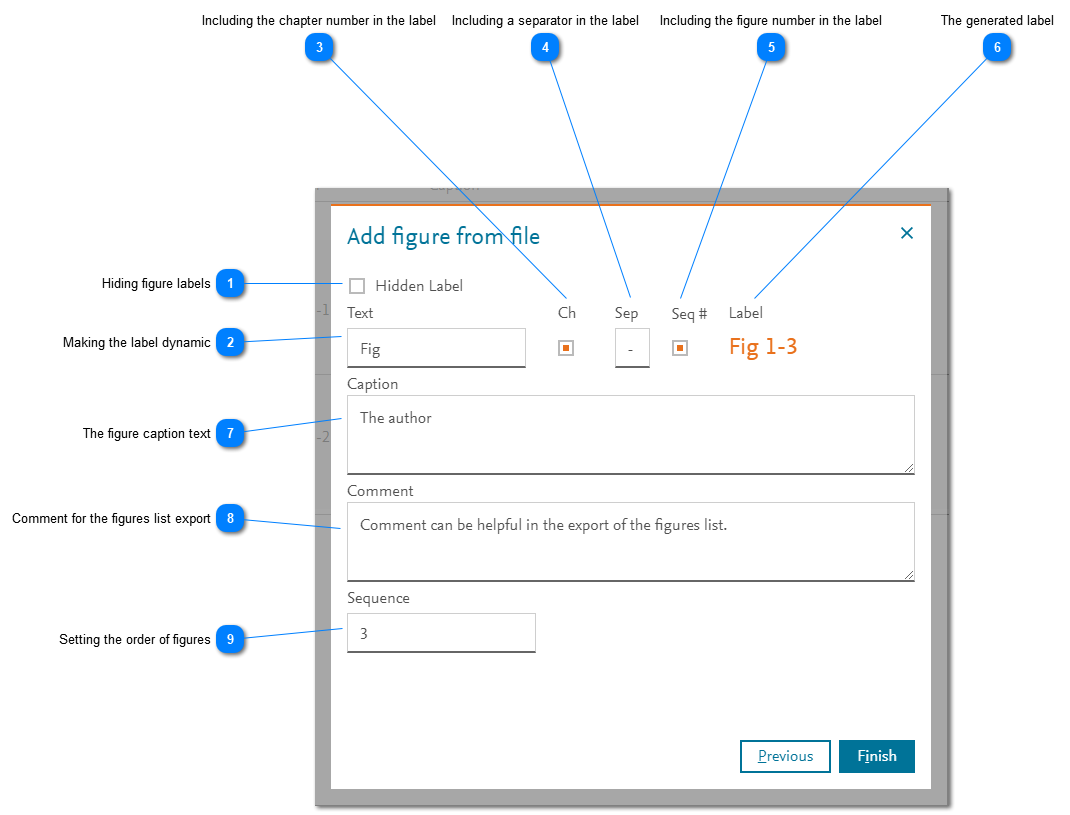
- Hiding figure labels: Some figures may appear in the project without a label or caption. However, the label is an important attribute of a figure when managing the figures list and seeking permissions because it uniquely identifies the figure in the list.
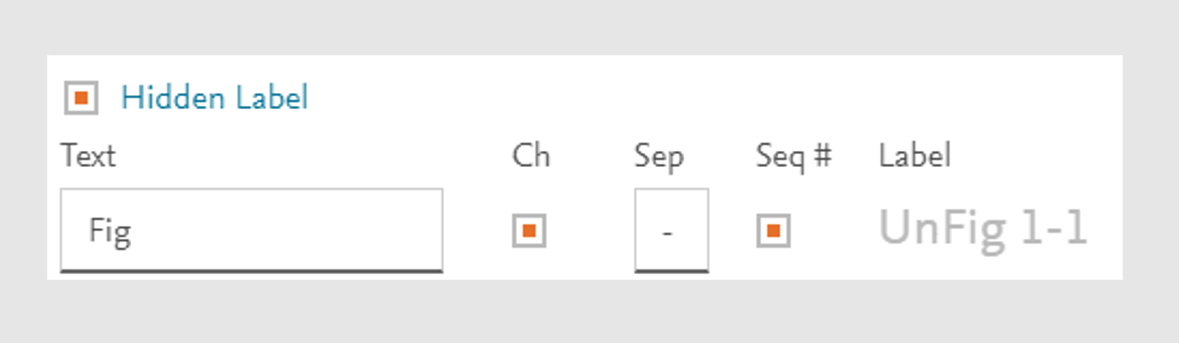
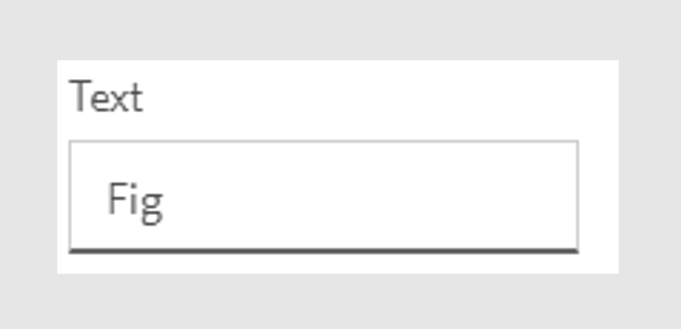
Image finder enables you to create special labels that uniquely identify the figure but do not affect the dynamic labelling of figures with visible labels. To create this special label, click the checkbox for Hidden Label. This figure is NOT counted when dynamically numbering other figures in the chapter. - Making the label dynamic: Image Finder enables you to control the way a figure label is generated. It can be completely static or it can be dynamic. For a static label (one that does not change automatically as figures are moved or added), enter all the static text for the label in this Text field. For a dynamic label, enter only the static prefix text (e.g. Fig.) into this Text field and then select one or both of the check boxes described below.
- Including the chapter number in the label: If you want to include the chapter number in the figure label, select the 'Ch' box. The chapter number is a decimal based on the order of the chapters starting at 1. If you selected this box and the figure is subsequently moved to another chapter, the label is automatically regenerated.
- Including a separator in the label: If you want to include a separator character between the chapter and figure numbers, enter it in the 'Sep' box.
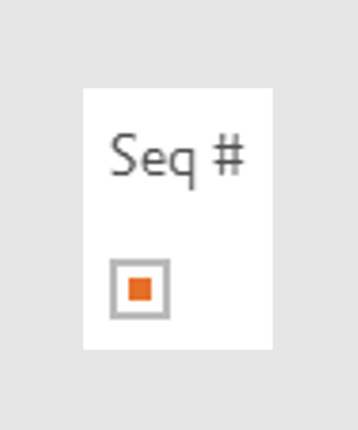
- Including the figure number in the label: If you want to include the figure number in the figure label, select the Seq # box. The figure number is a decimal based on the order of the figures in the chapter starting at 1 and excluding hidden figures. If you selected this box and the figure is subsequently moved to another chapter and/or the order of the figures is changed, the label is automatically regenerated.
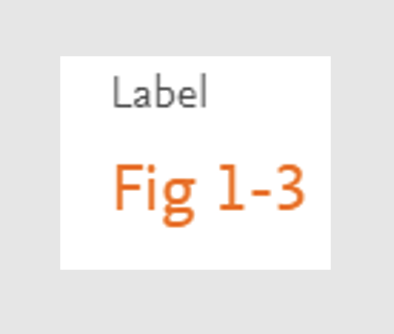
- The generated label: This shows how the generated label will look like based on the selections you have made. This applies to both static and dynamic labels.
- The figure caption text: Enter the caption for the figure in the 'Caption' box. You can leave the caption blank, if the figure is intended to be without caption.
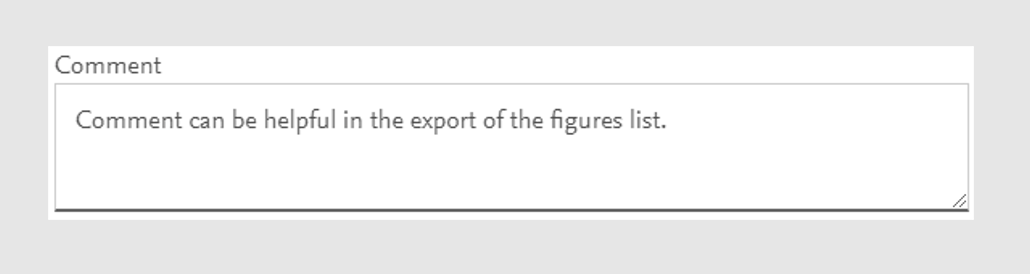
- Comment for the figures list export: You can enter a comment in the 'Comment' field if you intend to export the figures list and you want to enter additional information to support your particular workflow.
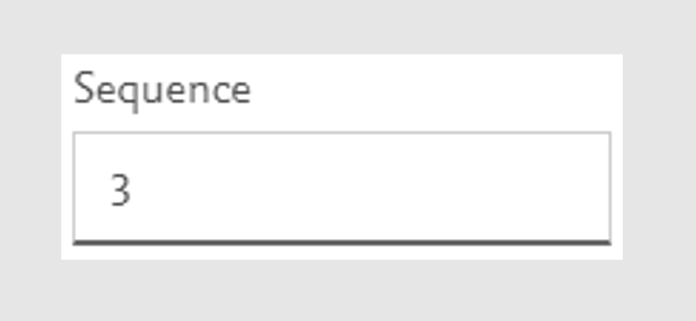
- Setting the order of figures: Specify where this figure appears in the order/sequence of figures in this chapter. By default, figures are added to the end of a chapter. If you change this value, then other figures are moved down in the sequence to accommodate. For example, if you change the sequence # from 5 to 2, then the existing #2 will become #3, #3 will become #4, and #4 will become #5. Altering the sequence # affects the labels of dynamically labeled figures in a chapter.



Did we answer your question?
Related answers
Recently viewed answers
Functionality disabled due to your cookie preferences