
View by category
How do I add a figure into a chapter in a Figures List?
Last updated on August 17, 2026
A figures list can include images that are found using Image Finderopens in new tab/window or from other sourcesopens in new tab/window. Regardless of the sources, creators and content managers of a figures list must go through the permission seeking processopens in new tab/window to ensure that these images can be used in a book project with the proper permission.
See also: How do I manage a figure in a Figures List?opens in new tab/window
How
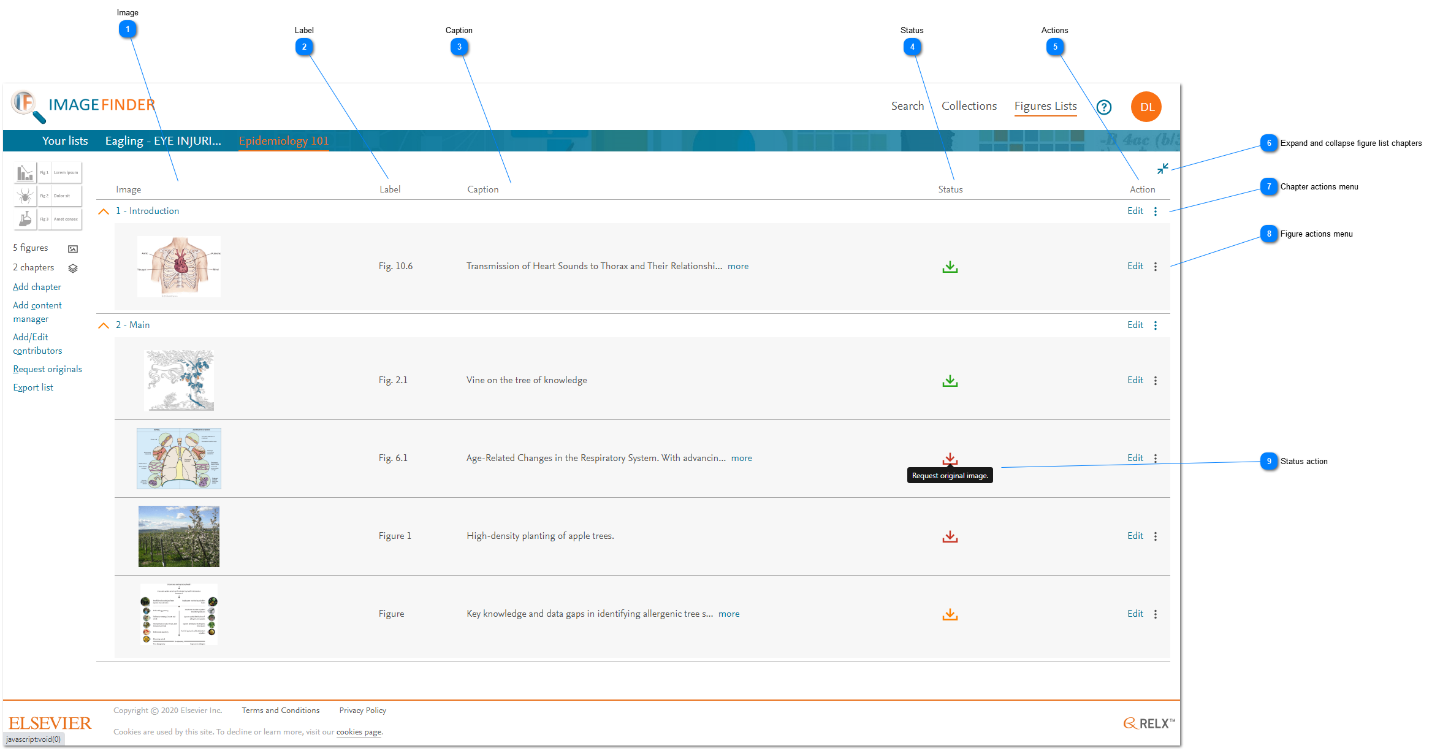
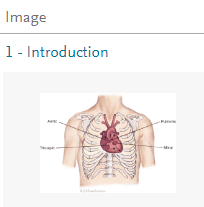
- Image: The Image column displays a thumbnail view of the figure's image.
- Label: The Label column displays the label that is used in the project. For images that are sourced from Image Finder, the figure metadata includes the label from the original document. The label indicates the order in which figures are displayed in the figures list.
- Caption: The Caption column displays the caption that is used in the project. For images that are sourced from Image Finder, the figure metadata includes the caption from the original document.
- Status: The Status column displays the availability of the image in a figures list. The status indicator is also used to perform an action depending on the status. See What do those image request statuses in Figures Lists mean?opens in new tab/window and 'Status action' below.
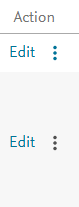
- Actions: The Actions column contains action menus for figure list chapters and figures. Click 'Edit' at the chapter level to edit the chapter detailsopens in new tab/window. Click 'Edit at the figure level' to edit the figure detailsopens in new tab/window. Click the vertical ellipsis at either level to see a menu of more relevant actions on a chapter or figure.
- Expand and collapse figure list chapters: Click the expand or collapse icon to expand or collapse the view of all the figure list chapters.
- Chapter actions menu: Click the vertical ellipsis to display chapter actions. Click 'Edit' to modify the chapter properties. The 'Edit chapter' pop-up windowopens in new tab/window is displayed.
- Figure actions menu: Click on the vertical ellipsis to display figure actions. Click 'Edit' to modify the figure properties. The 'Edit figure' pop-up windowopens in new tab/window is displayed.
- Status action: Depending on the availability status of the figure's image, you can click on the status icon to initiate the next action that will progress the status of the image. Hover over the icon to see a tooltip describing the action that will be initiated. Available actions depend on the source of the image. See What are the actions that I can perform on those figures in a Figures List?opens in new tab/window




Did we answer your question?
Related answers
Recently viewed answers
Functionality disabled due to your cookie preferences