
View by category
How do I manage a figure in a Figures List?
Last updated on August 17, 2026
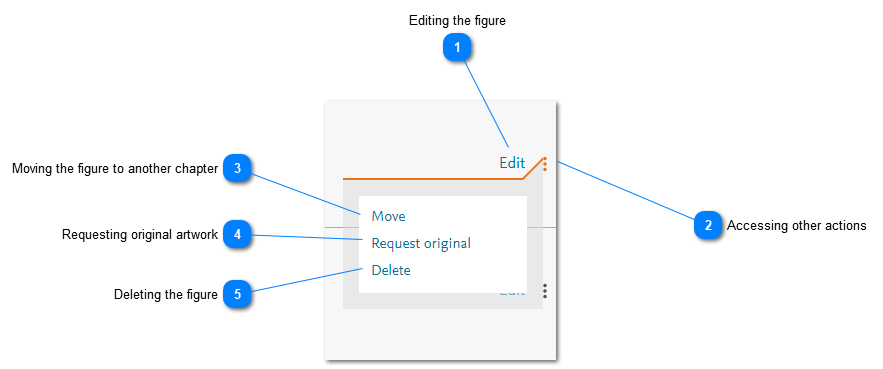
There are several actions that you can perform on a figure. These actions can be accessed from the action menu in the relevant row of a figures listopens in new tab/window.
How
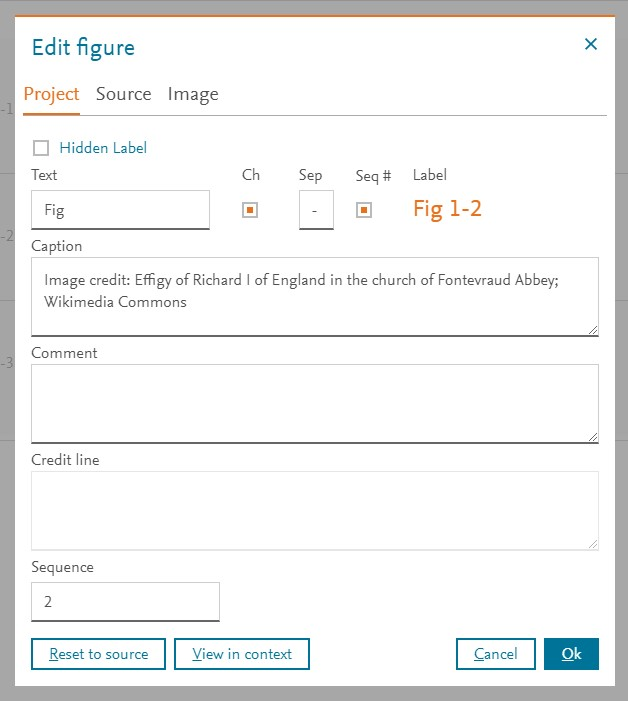
- Editing the figure: Click 'Edit' to edit the chapter information. The Edit figure pop-up window is displayed with the following three sections:
Displays information about the source of the image.
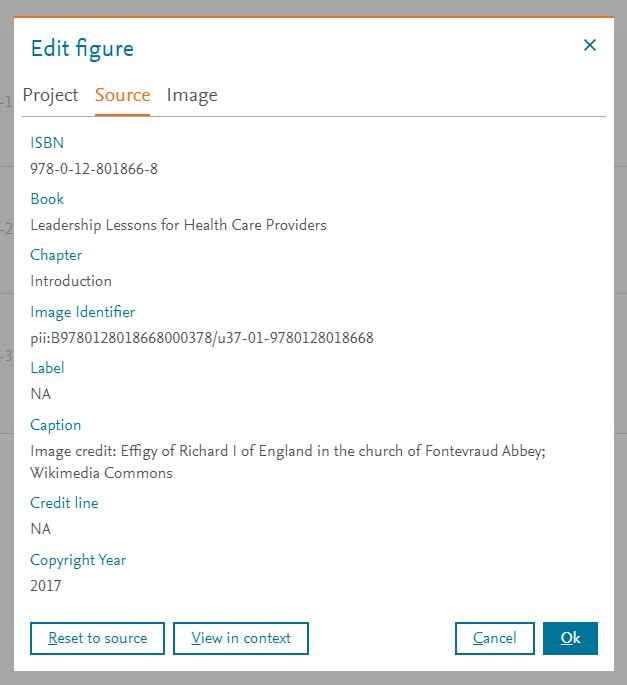
If the image came from an Image Finder search resultopens in new tab/window, then the information on this tab is not editable.
The following buttons are available:
- Reset to source - Some of the source information have been used are the default values on the Project section. If you want to reapply these defaults, click the Reset to source button.
- View in context - Click this button to view the image in the context of the publicationopens in new tab/window from which it is being borrowed.
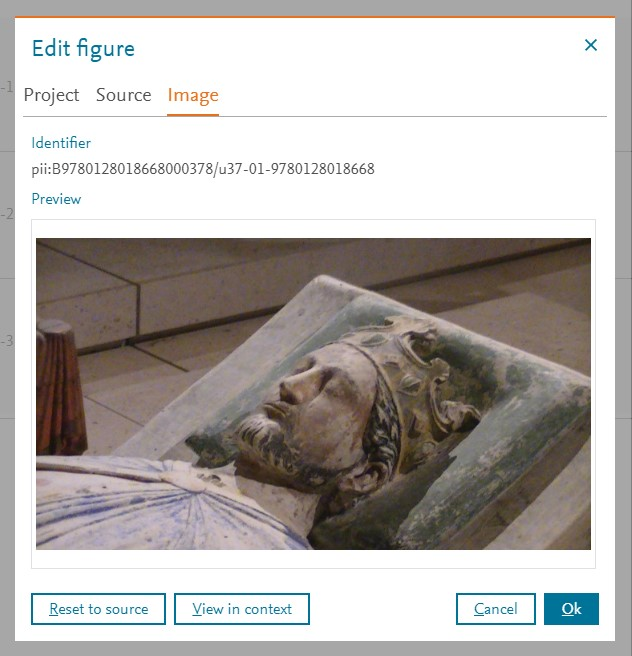
Displays information about the image that is used in the selected figure.
- Accessing other actions: Click the vertical ellipsis to display a menu of other actions that you can perform on a figure. These actions are described below.
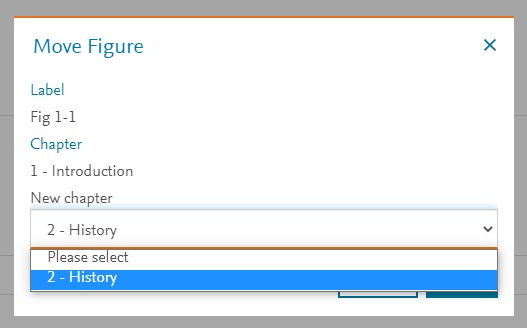
- Moving the figure to another chapter: Click 'Move' to move the selected figure to another chapter. The Move Figure pop-up window is displayed. Select the chapter to which you want to move the figure and click Move. Note: You can only select a chapter to which you contribute.
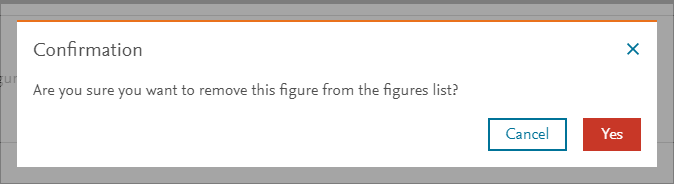
- Deleting the figure: Click 'Delete' to delete the figure from the list. A Confirmation message is displayed. Click 'Yes' to confirm the action.
This action cannot be undone.




Did we answer your question?
Related answers
Recently viewed answers
Functionality disabled due to your cookie preferences