
View by category
How do I manage a chapter in a Figures List?
Last updated on August 17, 2026
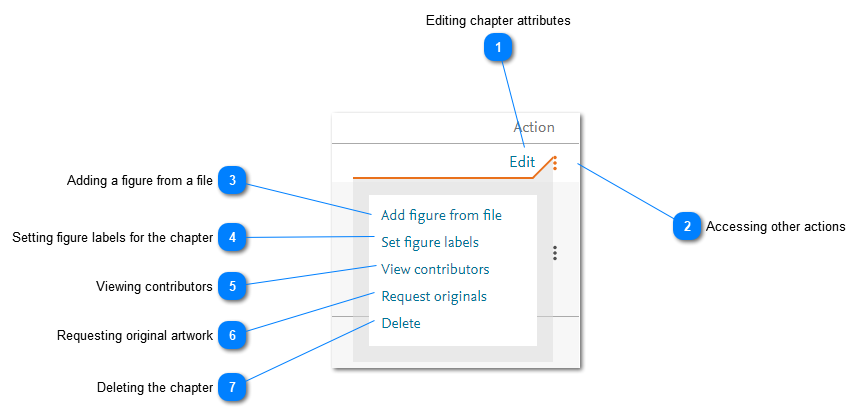
There are a number of actions that you can perform in a chapter. These actions can be accessed from the action column in the relevant row of a figures listopens in new tab/window.
How
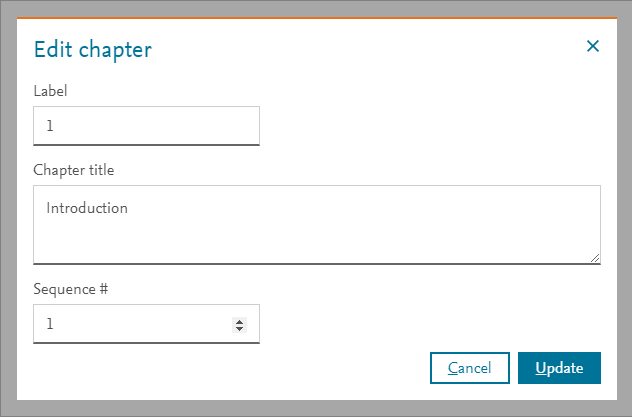
- Edit: Click 'Edit' to edit the chapter information. The Edit chapter pop-up window is displayed. Amend the details as described in adding a chapteropens in new tab/window. Then click 'Update' to apply the changes.
- Accessing other actions: Click the vertical ellipsis to display a menu of other actions that you can perform in a chapter. These actions are described below.
- Adding a figure from a file: Click 'Add figure from file' to add a figure to the chapter from an image fileopens in new tab/window on your computer. If you want to add a figure for an image that you found in Image Finderopens in new tab/window.
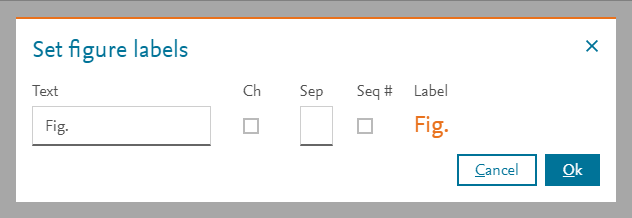
- Setting figure labels for the chapter: Click 'Set figure labels' to specify how figure labels are generated for all the figures in a chapter. This ensures figure labels remain consistent while the project is being developed. See Annotating a figureopens in new tab/window.
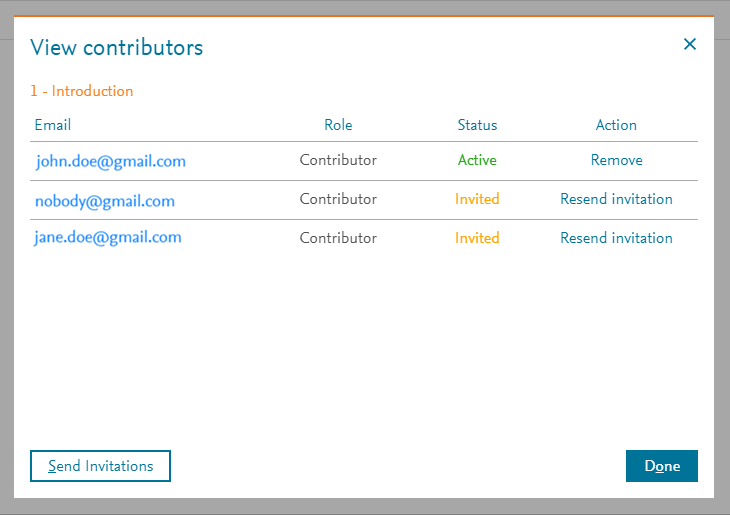
- Viewing contributors: Click 'View contributors' to view the contributors of a chapter. The View contributors pop-up window is displayed. As a creator, co-owner, or content manager of a figures list, you can remove active contributors and send/resend invitations to inactive contributors. See How do I manage Contributors in a Figures List?opens in new tab/window
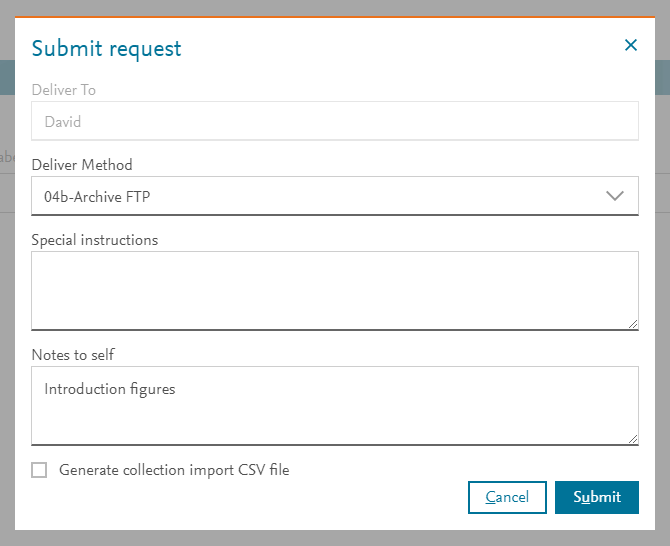
Click the 'Send invitations' button to send invitationsopens in new tab/window to all contributors to the selected chapter, when invitations are still appropriate (i.e. the contributor has not yet accepted an invitation or an invitation has not been sent). Or if necessary, click the 'Resend invitation' option for each contributor to send an invitation to that contributor for that chapter again. - Requesting original artwork: Click 'Request originals' to send an original artwork requestopens in new tab/window to the Global Book Archive. The Submit request pop-up window is displayed.
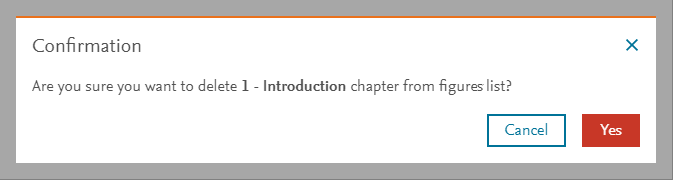
- Deleting the chapter: Click 'Delete' to delete a chapter from your project. A confirmation pop-up window is displayed. Only creators, co-owners, and content managers of a figures list can delete chapters from their lists. Click 'Yes' to confirm the action.
This action cannot be undone.






Did we answer your question?
Related answers
Recently viewed answers
Functionality disabled due to your cookie preferences