
View by category
How do I manage Contributors in a Figures List?
Last updated on August 17, 2026
Owner, co-owners, and content managers of a figures listopens in new tab/window decide who can contribute figures to book projects. It is a two-step process to add and invite contributors. First, you need to add contributorsopens in new tab/window to each book chapter. Then, you invite those contributorsopens in new tab/window to access those chapters. Only one invitation is sent to each contributor in an automatically generated email. Authors then accept that invitationopens in new tab/window by accessing the link in that email.
A user can only be assigned to one of the three rolesopens in new tab/window in a figures list, as appropriate.
Contributors can perform the following functions in their assigned figures lists:
- Add/remove figures for the chaptersopens in new tab/window that they have been invited to contribute to.
How
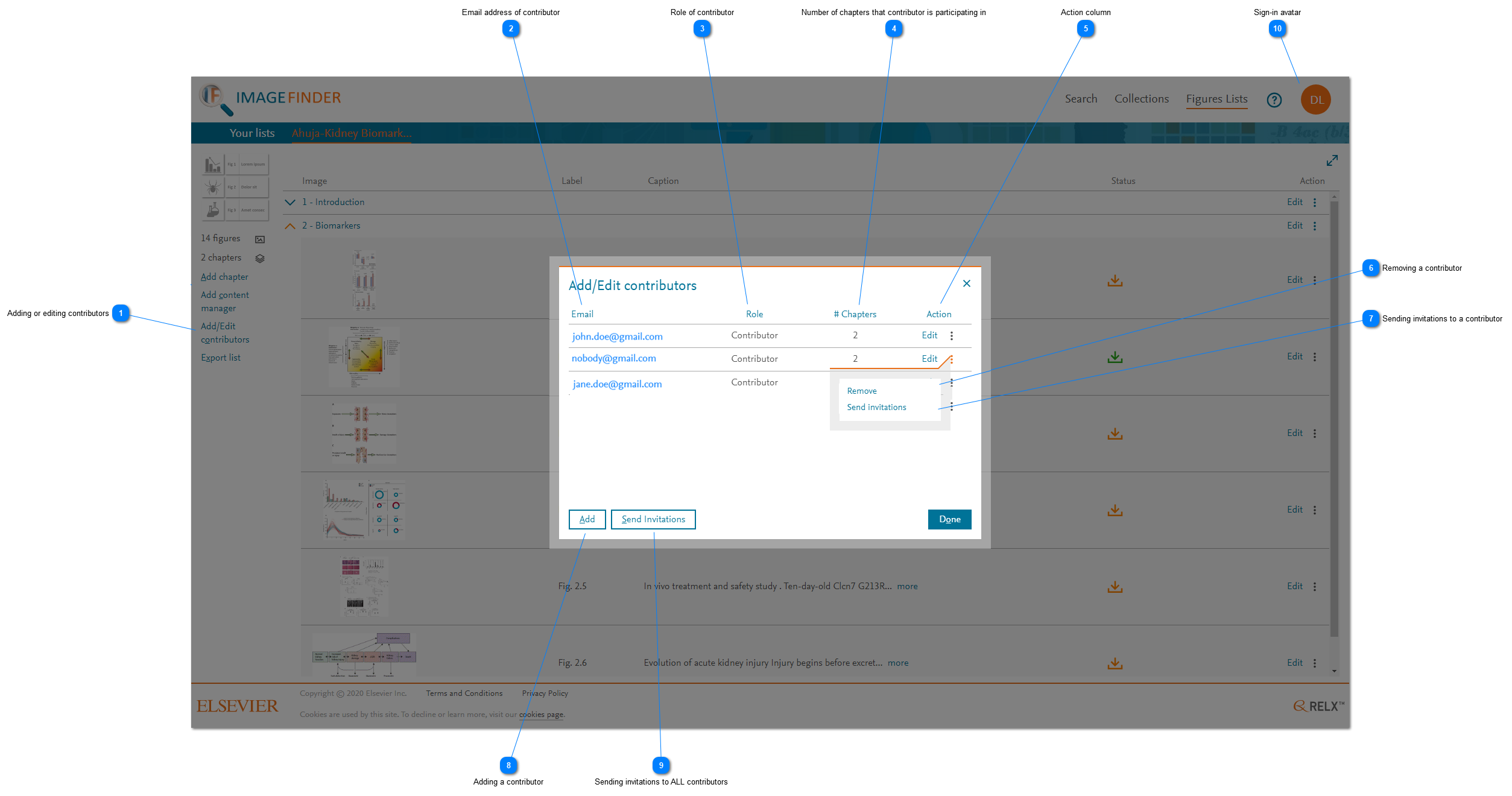
- Adding or editing contributors: In the figures list view, click 'Add/Edit contributors' to display the 'Add/Edit contributors' pop-up windowopens in new tab/window. The window shows a list of all the contributors and provides access to the functions that enable owner, co-owners, and content managers of a figures list to add, invite, and remove contributors, as necessary.
- Email address of contributor: The Email column shows the email address of the contributor. This is the email address to which the auto-generated email with invitation is sent. This email address also corresponds to the email address that the contributor uses to sign into Image Finder. If the contributor amends their sign in information through the authentication system, this email address is automatically updated.
- Role of contributor: Only owner, co-owners, and content managers of a figures list can add contributors. Typically, authors are given a contributor role and can only have access to the limited set of features in Image Finder. The user's role is reflected in the color of the user's sign-in avatar (see step 10 for further information).
- Number of chapters that contributor is participating in: The # Chapters column shows the number of chapters that a contributor is participating in for the displayed figures list. Each contributor can participate in one or more chapters. Participation in each chapter is distinct from participation in any other chapter. Contributors are not invited to participate in the whole book, unless all chapters are selected for a contributor.
- Action column: Click the vertical ellipsis to display a menu of other actions that you can apply to a contributor. Click 'Edit' to display the 'Edit contributor' pop-up windowopens in new tab/window.
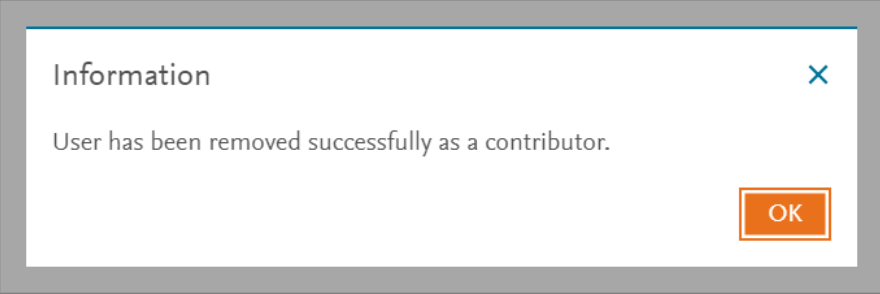
- Removing a contributor: Click 'Remove' from the actions menu to remove the contributor from the displayed figures list. An information message is displayed to indicate the removal of a contributor. This action removes the contributor from all of the chapters that they are participating in that figures list.
Two emails are sent automatically to the affected users. One email with the subject line "Removed you from figures list Chapter - [Figures List details]" is automatically sent to the newly removed contributor, informing them who removed them from particular chapters of a particular figures list as a contributor. Another email with the subject line "User removed from the Figures list Chapter - [Figures List details]" is also automatically sent to the person who removed the contributor, confirming that they have removed a particular user with their user ID from chapters of a particular figures list.
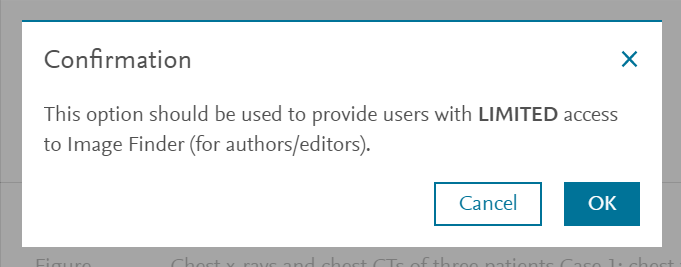
- Adding a contributor: Click 'Add' to add a new contributor to the selected figures list. A confirmation message is displayed to indicate the user permissions of a contributor. Click 'OK' to acknowledge the message and the 'Add contributor' pop-up windowopens in new tab/window is displayed. If you do not want to add a contributor, click 'Cancel' to dismiss the confirmation message.
- Sign-in avatar: Click the 'Sign-in' avatar to display the user related actions. The color of the avatar denotes the role of the user who signed in. An orange avatar is for RELX internal users and a green avatar is for external users (contributors) of Image Finder. See What are the user types in Image Finder?opens in new tab/window









Did we answer your question?
Related answers
Recently viewed answers
Functionality disabled due to your cookie preferences