
View by category
How do I use a Figures List?
Last updated on August 17, 2026
Figures listsopens in new tab/window enable their Owners (creators) and Co-owners, Content Managers (editorial staff)opens in new tab/window, and Authors (external users) to collaborate in the discovery and selection of images when illustrating a new book project. Authors have accessopens in new tab/window to features that enable them to searchopens in new tab/window for suitable images and select them for use in a specific figure in a specific chapter. If necessary, Figures Lists Owners, Co-owners, and Content Managers can also perform the same functions that Authors do. In addition, Owners, Co-owners, and Content Managers are expected to retrieve original artworkopens in new tab/window, resolve permissionsopens in new tab/window, and manage the overall process of getting the project illustrated.
Each Image Finder user can only take on ONE of these rolesopens in new tab/window in a particular Figures List, as appropriate.
How
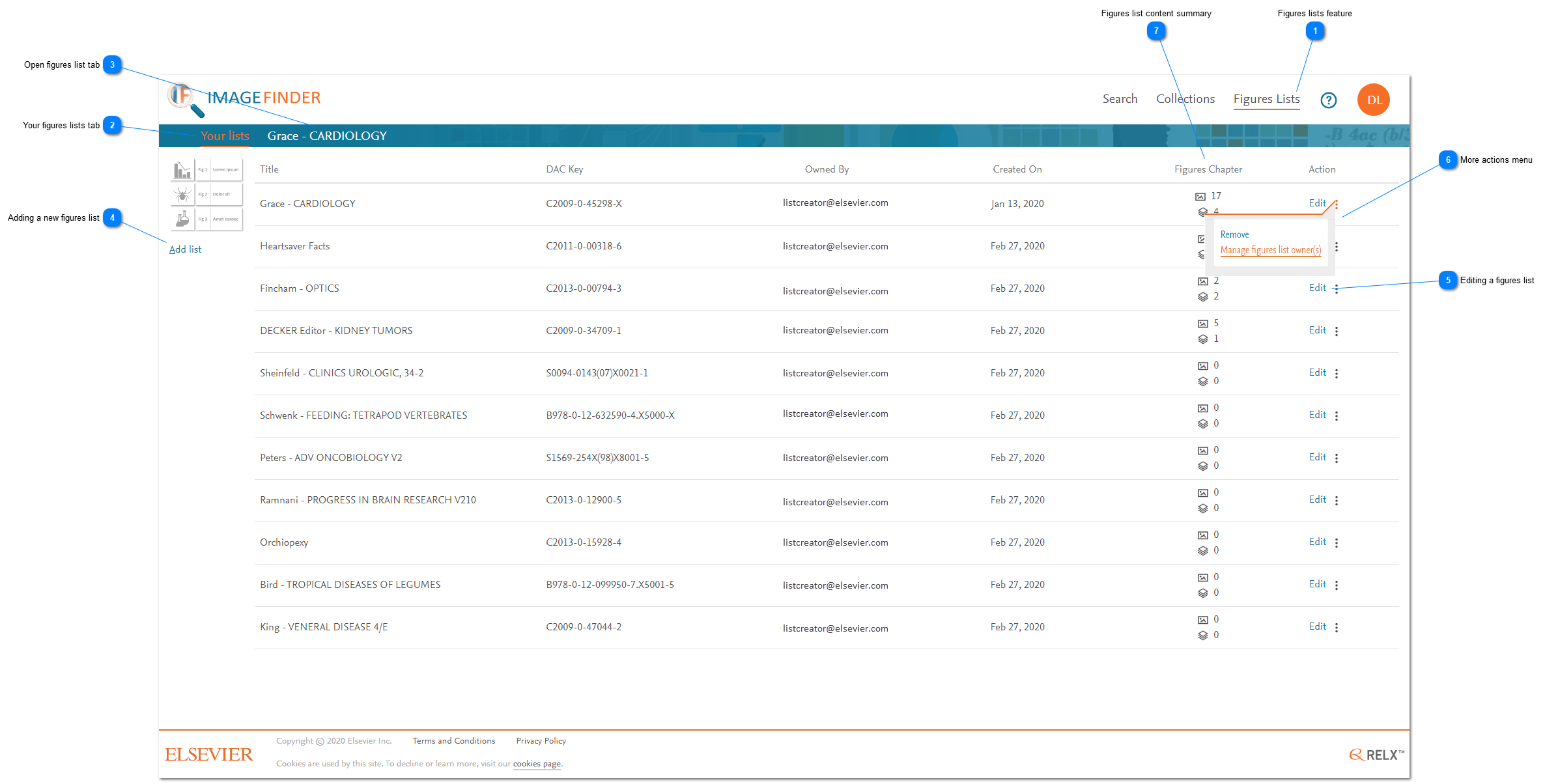
- Figures lists feature: Click the Figures Lists option to access the figures lists featuresopens in new tab/window. If you are an external user, the features include adding and removing figures to and from the chaptersopens in new tab/window to which you contribute. If you are an internal user, the features also include creating a figures listopens in new tab/window, adding and removing co-ownersopens in new tab/window, adding and removing content managersopens in new tab/window, adding and removing chaptersopens in new tab/window, and adding, inviting and removing contributorsopens in new tab/window. See What are the user types in Image Finder?opens in new tab/window
- Your figures lists tab: When you click on the figures lists feature in the main toolbar, the list of figures lists that you can access are displayed. Click 'Your lists' to switch back to displaying all your lists when the focus has shifted to another task (e.g. editing a specific list).
- Open figures list tab: Click one of the figures lists to shift the focus back to an open figures list, when the focus has shifted to another task (e.g. viewing your lists or editing a specific list).
- Adding a new figures list: Click 'Add list' to add a new figures listopens in new tab/window.
- Editing a figures list: Click 'Edit to edit a figures list. If the figures list has already been opened in a tab (see 3 above), then the tab is displayed. If a figures list has not been opened, then its tab is added to the ribbon and the selected figures list is then displayed.
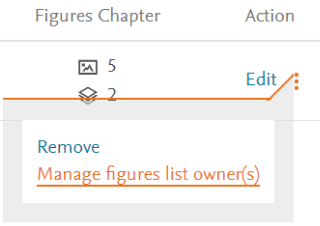
- More actions menu: Click the vertical ellipsis to display a menu of more actions that apply to the list. If you are the owner or co-owner of a figures list, you can click 'Remove' to remove the list. You can also click 'Manage figures list owner(s)' to add or remove co-ownersopens in new tab/window for that list.
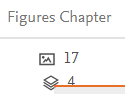
- Figures list content summary: The 'Figures Chapter' column displays the total number of figures and the total number of chapters in a list.





Did we answer your question?
Related answers
Recently viewed answers
Functionality disabled due to your cookie preferences