
View by category
How do I manage Content Managers in my Figures Lists?
Last updated on August 17, 2026
Owners, co-owners, and content managers of a figures listopens in new tab/window can manage content managers in their figures lists. Please note that a user can only be assigned to one of the three rolesopens in new tab/window in a figures list, as appropriate.
You must ensure that the content manager role is only given to authorized individuals, because they have full access to all Image Finder functionalities.
To add a content manager, click 'Add content manager' in a figures list. A confirmation message is displayed to indicate the user permissions of a content manager.
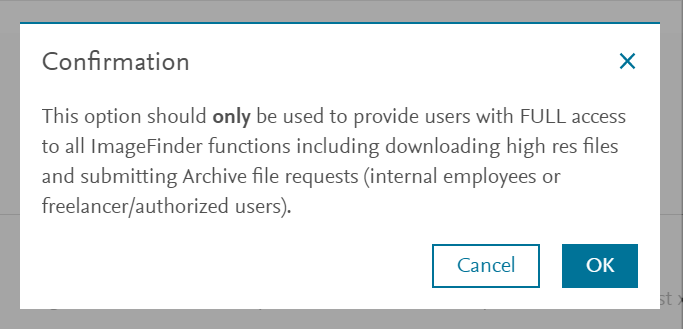
Click 'OK' to acknowledge the message and the Add content manager pop-up window is displayed. If you do not want to add a content manager, click 'Cancel' to dismiss the confirmation message.
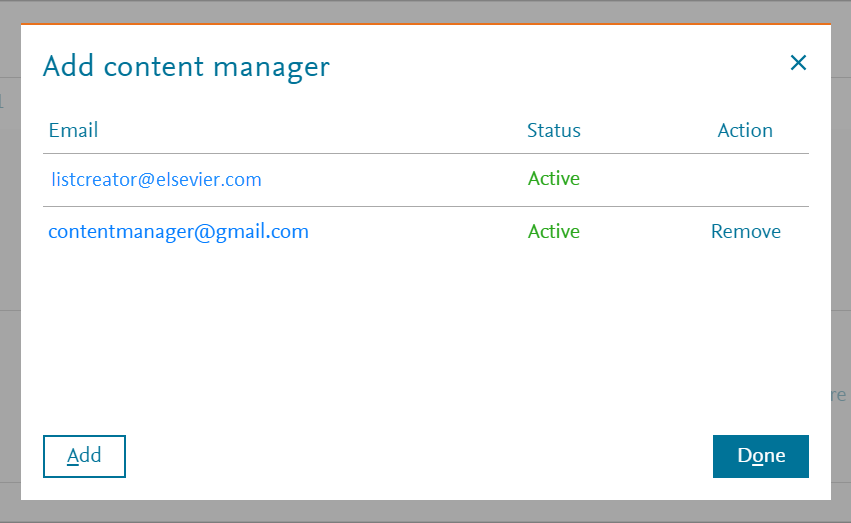
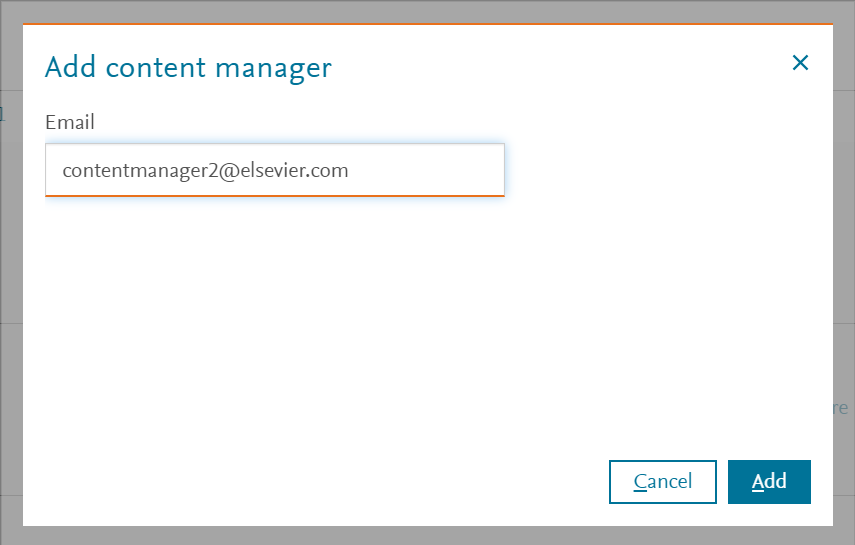
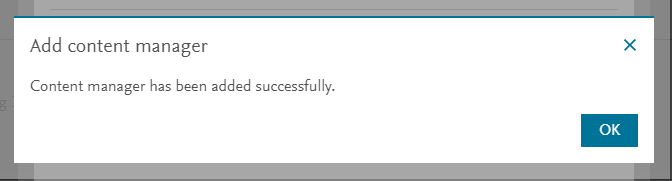
To add a new content manger enter the email address of the content manager and then click 'Add'. A confirmation message is displayed to indicate a content manager is added to the selected figures list.
Two emails are sent automatically to the affected users. One email with the Subject line "Figures list invite – [Figures list name]" is automatically sent to the newly added content manager, informing them who added them into a particular figures list as a content manager. Another email with the Subject line "User added to the Figures list" is also automatically sent to the person who added the content manager, confirming that they have added a particular user with their user ID to a particular figures list.
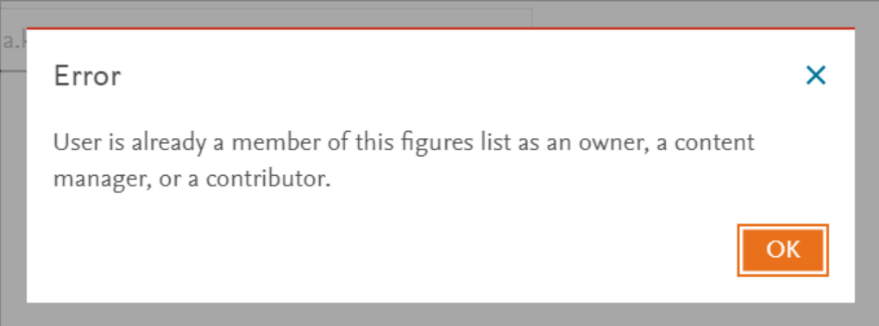
If the user is already an owner, a co-owner, or a content manager of the selected figures list, an error message is displayed and the user is not added as a content manager. A user can only be assigned to one of the three rolesopens in new tab/window in a figures list, as appropriate.
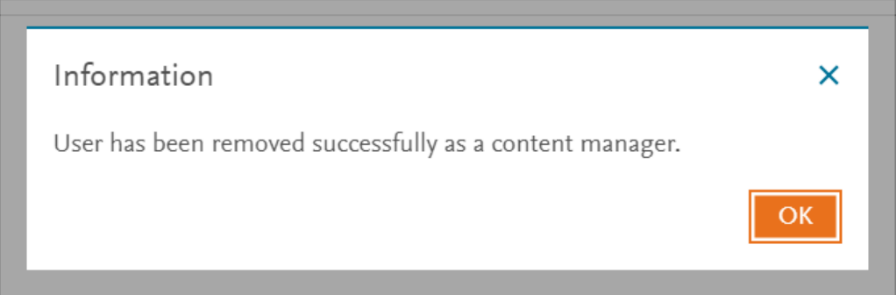
To remove a content manager, click 'Remove' in the Action column of the relevant row in the 'Add content manager' pop-up window. An Information message is displayed to indicate that the selected content manage has been removed from the selected figures list.
Two emails are sent automatically to the affected users. One email with the Subject line of "Removed you from figures list as content manager" is automatically sent to the newly removed content manager, informing them who removed them from a particular figures list as a content manager. Another email with the Subject line of "User removed from the Figures list" is also automatically sent to the person who removed the content manager, confirming that they have removed a particular user with their user ID from a particular figures list.
Did we answer your question?
Related answers
Recently viewed answers
Functionality disabled due to your cookie preferences