
How do I number Figures, Tables, and Boxes?
Last updated on July 21, 2025
Elsa automatically numbers Figures, Tables, and Boxes for you. You cannot manually number Figures, Tables, or Boxes.
When you insert a Figure, Table, or Box to your chapter, you’ll notice that it is not immediately numbered.
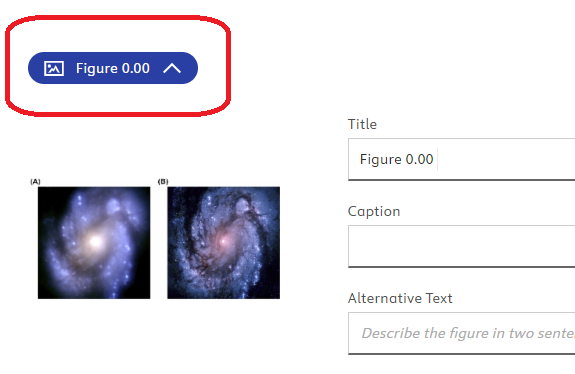
This is because you need to add a Callout for Figures, Tables, and Boxes in order for them to automatically number.
To add a Callout, place your cursor in the text where you would like the callout to appear, then select the callout icon  from the top toolbar. For more information, see this FAQ on Calloutsopens in new tab/window.
Once you have added a Callout for your Figure, Table, or Box, a number will appear. Figures, Tables, and Boxes will automatically renumber when you move them around in the chapter.
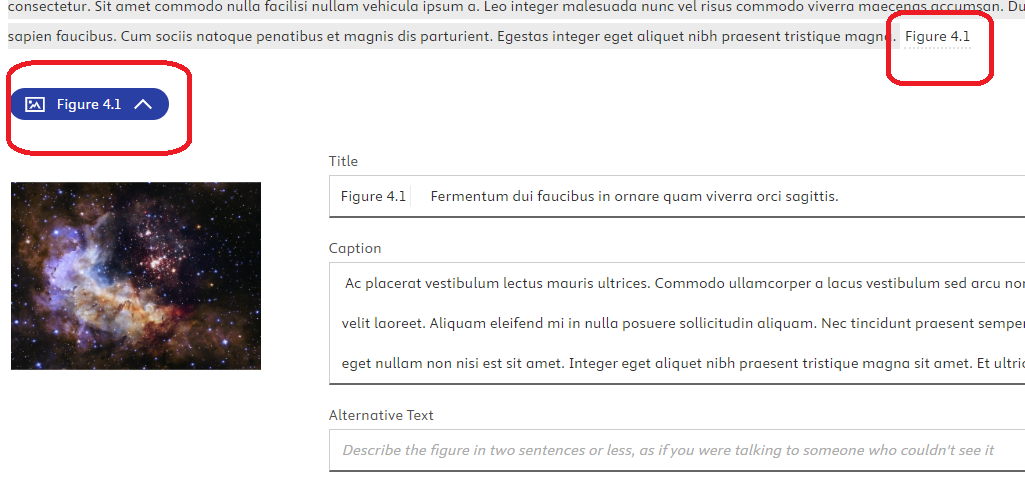
Renumber by Inserting a New Callout
When you insert a new item, it will default to being numbered 0.00. You will then need to re-insert the item's callout (a callout is the in-text citation, see What are callouts and how do I use them?opens in new tab/window in order to re-number it and have Elsa automatically re-number the subsequent items. Before deleting an item, it may help to mark where the callout was previously as deleting it will also remove its callout.
To re-number your item:
- Find where you would like to place your callout in the text
- Navigate to the Insert tab of the toolbar
- Click the callout icon
- Select the type of item you would like to cite from the dropdown menu (Tip! If your item does not have a title, it may help to add one to identify it in the window)
- Click "Insert"
- Your item and all subsequent related items should then be re-numbered.
Renumber by Cutting and Pasting
You can also try cutting and pasting an item's callout to re-number items. Use keyboard shortcuts to remove the callout and then paste it into it's new location in the text (it must be placed either before or after the previous or subsequent callout to be re-numbered).
Some projects may not require a chapter number for chapter assets (figures, tables, boxes).
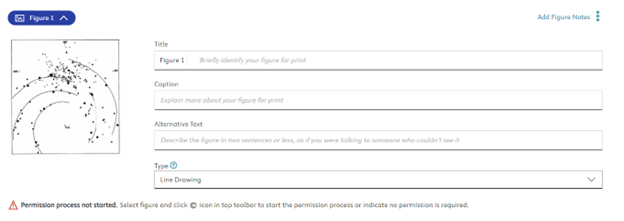
Elsevier staff can change the project settings so that assets appear labeled only with the asset number i.e. Figure 1, Table 1, etc. Only Elsevier staff have the ability to complete this and the setting cannot be turned off once engaged.
You will then insert chapter assets as normal and the asset pill will reflect the updated settings:
Did we answer your question?
Related answers
Recently viewed answers
Functionality disabled due to your cookie preferences