
View by category
This FAQ provides a quick overview of how the navigation in SciVal is structured to help you get started.
SciVal's navigation at a glance:
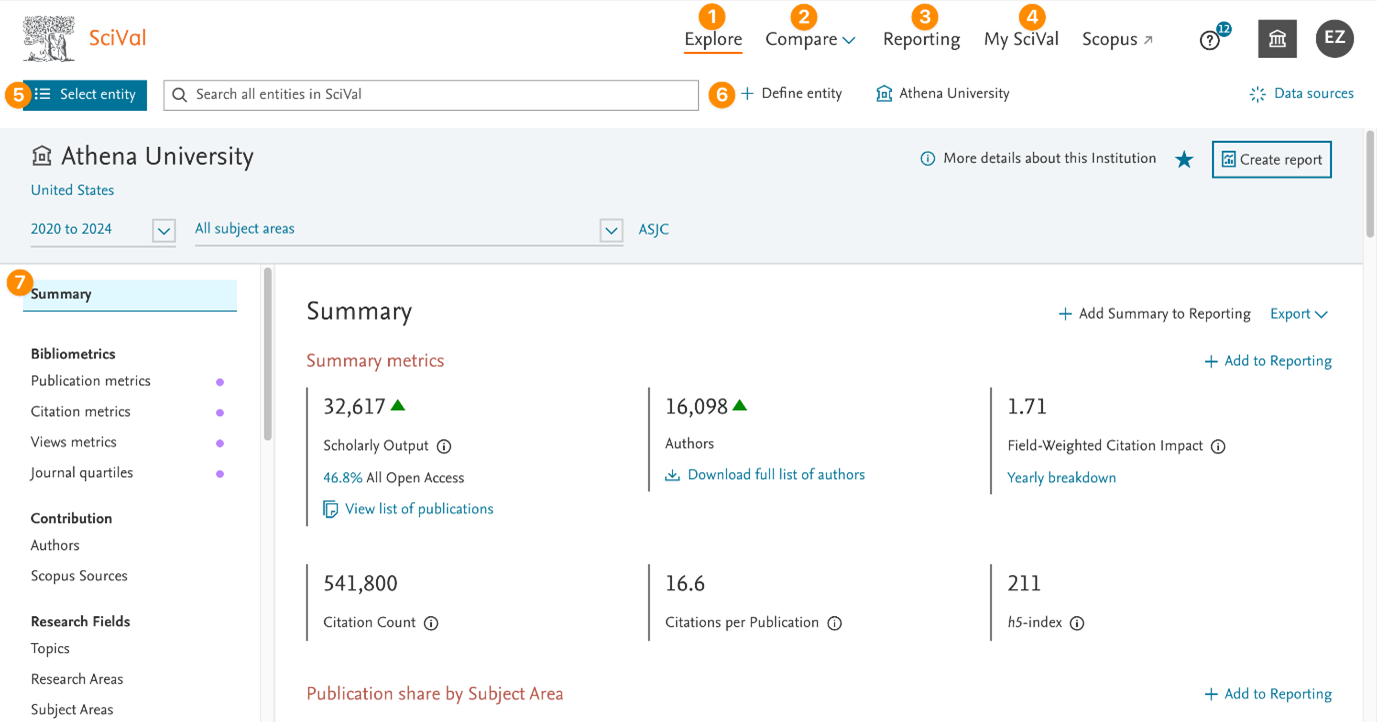
- Explore: The Explore section allows you to select and analyze one entity at a time.
- Compare: the Compare section contains all functionality that allows you to select multiple entities for the purpose of benchmarking or intersecting the entities.
- Reporting: Reporting allows you to create custom reports based on analyses saved from across SciVal pages.
- My SciVal: Manage your entities, add tags and share with colleagues at your Institution.
- Search or select your entity for analysis: Click on “Select entity” to select any entity you have previously added to the panel or use the search functionality to find an entity.
- Shortcuts to define new entities or select your home institution.
- Page menu: the page menu in Explore contains all pages that are available for the selected entity.
In the “Explore” section, your entity is the common thread of your analysis: you can select one entity at a time in the entity selection panel to analyze the entity in depth.
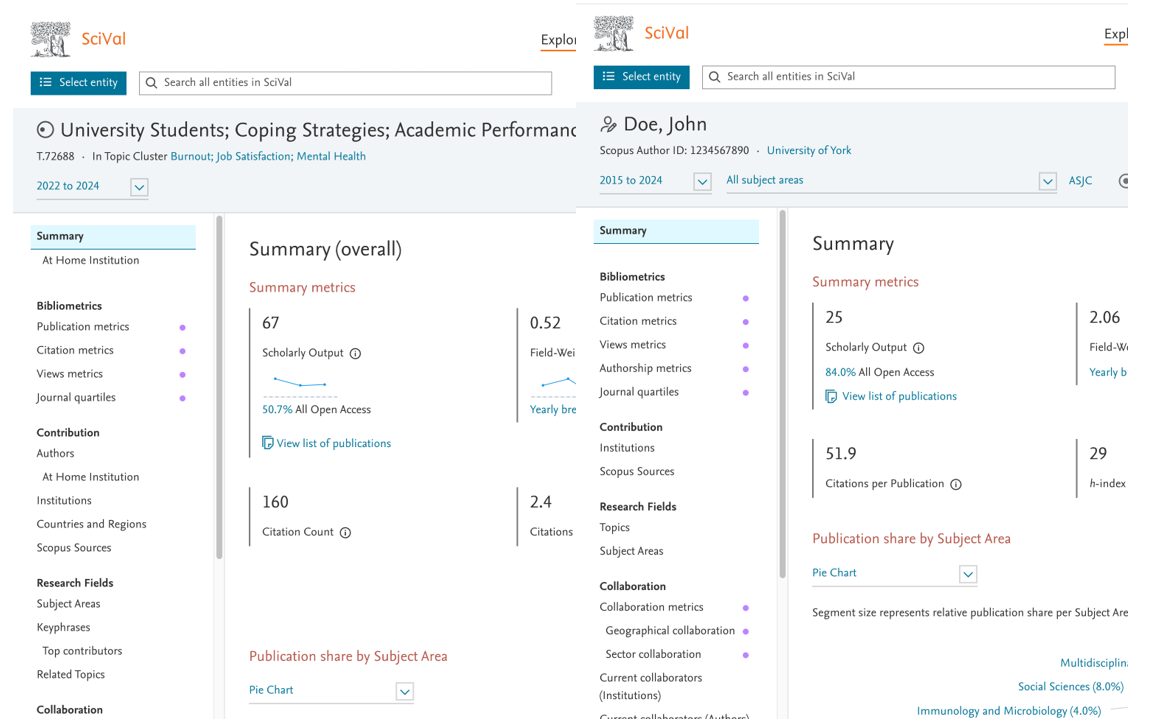
When you select an entity, you automatically see all pages that are available to you for the entity in the page menu on the left. The pages are grouped into page groups by function. Depending on your screen size, some pages may be off screen. You can use the scroll bar or arrow to navigate down the page menu.
You will not see the exact same pages for all entities, as some analyses are only available for specific entity types. Furthermore, your Institution’s module subscription determines which pages are available to you.
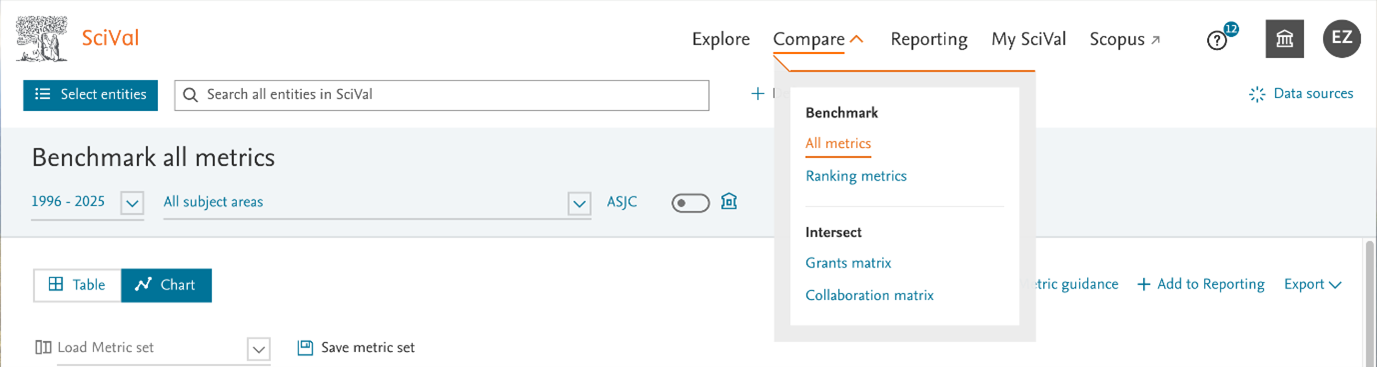
“Compare” contains pages that support the selection of multiple entities. Click on Compare to access these pages:
- Benchmark all metrics: select any combination of entities to benchmark them using a wide range of metrics.
- Benchmark rankings metrics: Benchmark Institutions based on their ranks and metrics considered in the QS World University Rankings, THE World University Rankings, THE Impact Rankings or S. News Best National University Rankings
- Grants matrix: Analyze awarded grants within Topics and Funding body entities for Institutions and Countries.
- Collaboration matrix: Analyze the collaborative links between your Groups of Researchers.
To select entities for analysis, click on the “select entities” button in the top left corner of the page. The entity panel functionality is the same as in the Explore section, with the difference that the entity types offered to you on the left will depend on the entity types supported on the respective Compare page, and that you can select multiple entities at the same time via checkboxes.
Which pages are available to you depends on your Institution's module subscription.
SciVal allows you to save analyses, and create custom reports, from most pages in SciVal as well as by using Reporting templates. Those Analyses and Reports are stored in a Reporting library accessible via the “Reporting” section in the navigation. Learn more about Reporting
My SciVal allows you to manage all the entities that are available to you in SciVal. You can find entities of interest by using the search and filter functionality and add them to your panel, share entities that you defined with your colleagues, edit your entities’ definition or add tags to them. Learn more about My SciVal.
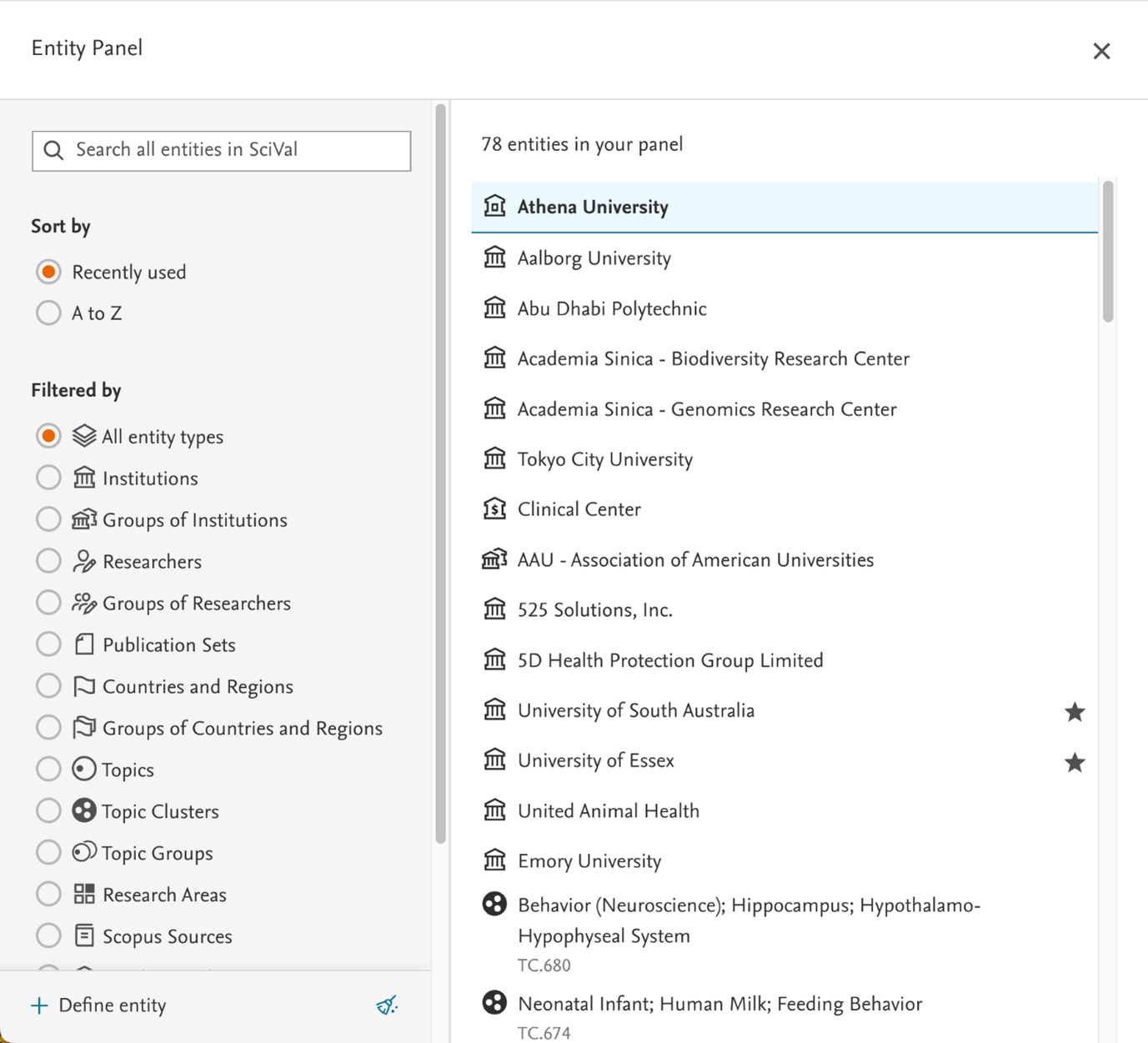
Click on “Select entity” to open the entity panel. That is where you can quickly access entities of interest to analyze. You can add entities to this panel from multiple places across SciVal.
On the left-hand side of the panel, you will find the entity filters:
- A search field, to retrieve entities based on entity name or tags.
- The option to sort your entities by “recently used”, which places entities in chronological order according to when they have been last selected, or by “A to Z” for alphabetical sorting.
- All entity types available to you in SciVal. You can choose to view “all entity types” which will provide you with a mixed list of all entities on your panel, or filter on a specific entity type.
- The option to show tags that you've added to entities, or filter to see only entities you marked as “Favorite”.
The right-hand side of the panel returns your entities based on the selections made on the left.
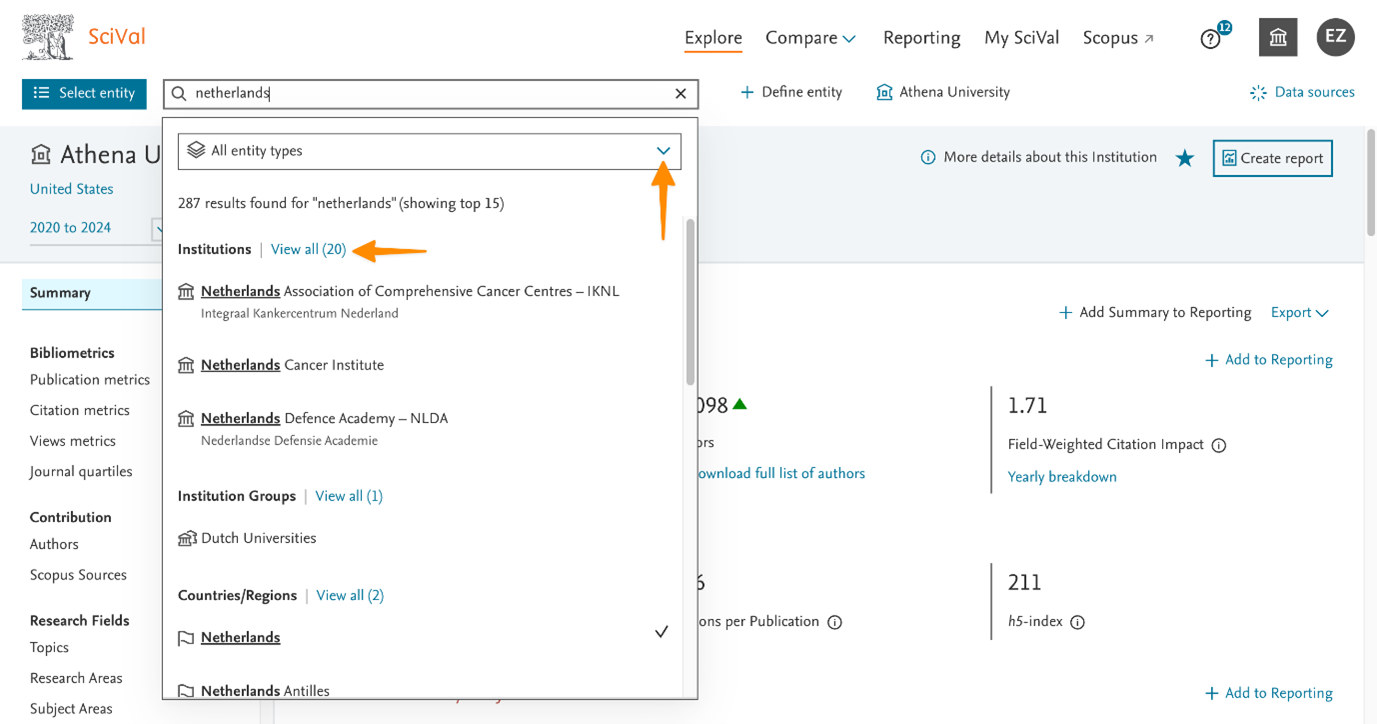
The search allows you to search for entities based on entity name or tags. To access the search, simply click into the search box and type your search term(s). You can also use the shortcut “/” to open the search.
The search will return the top 3 matches for all entity types. To view all results for a specific entity type, click on “View all” next to the results or select an entity type from the dropdown at the top. This searches across all entities available SciVal, even if they are not yet in your entity panel.
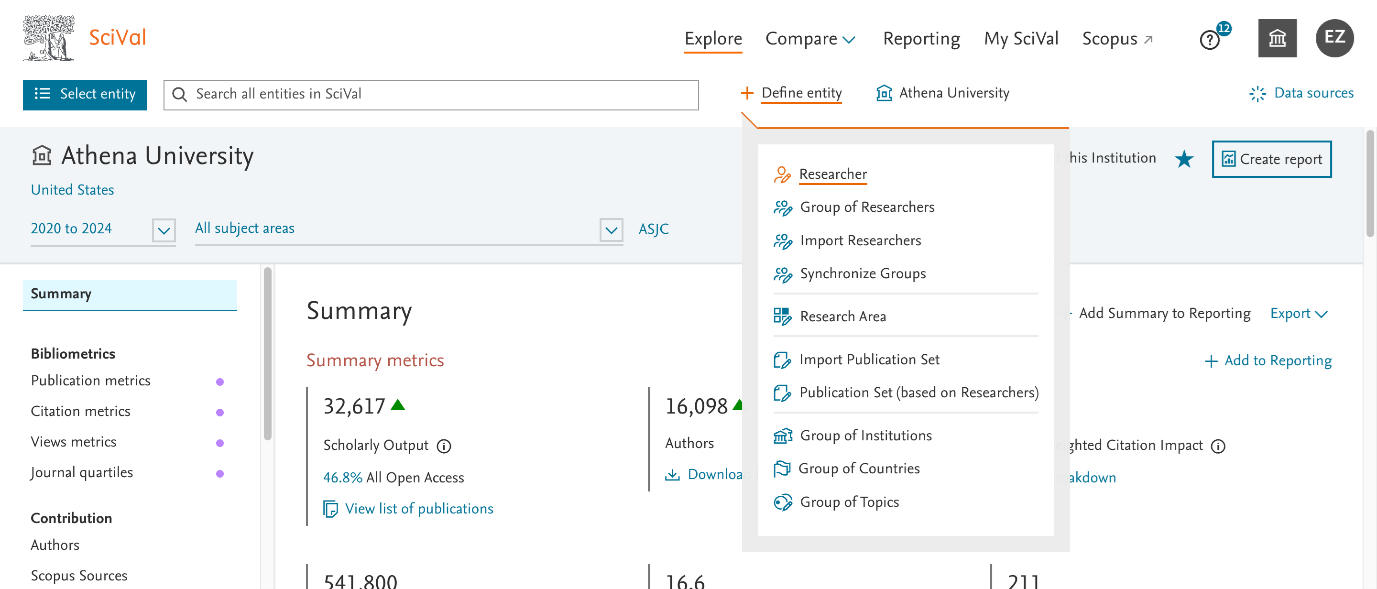
- The “Define new entity” link in the header section provides you with the options to define your own entity of any type.
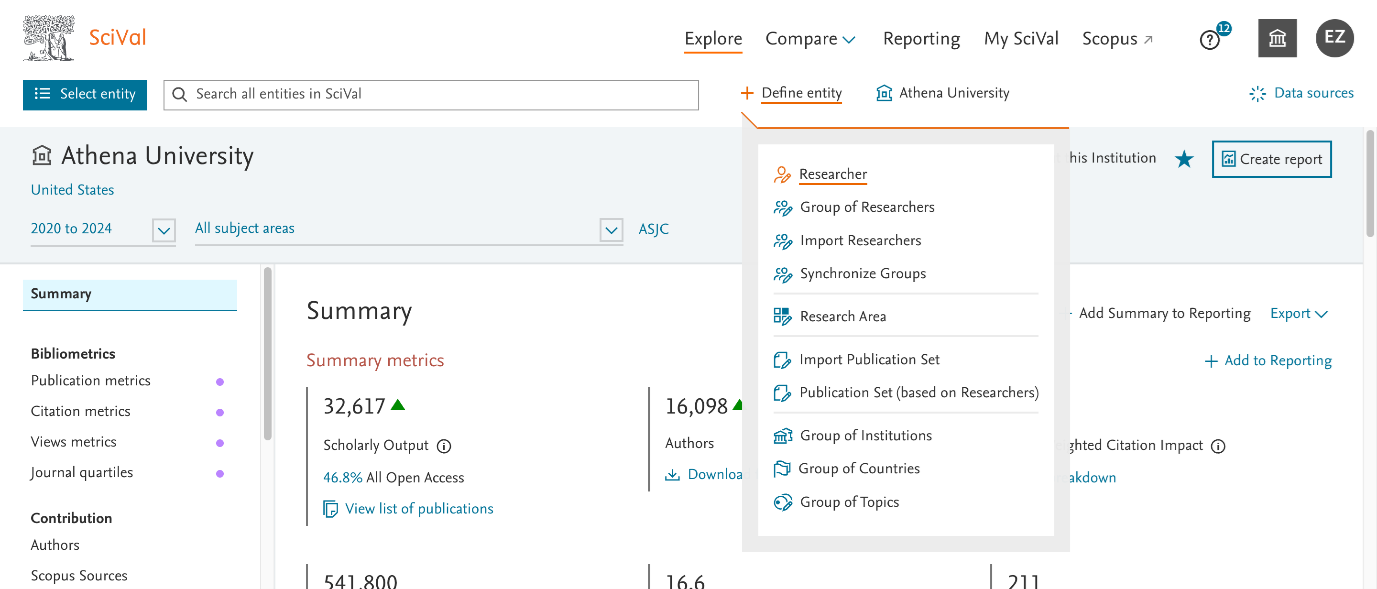
- If you have a home institution, you will also see a shortcut to your Institution in the header section. This link will select your Institution as the entity for analysis.
If your last visit to SciVal was before June 2024, you may notice that we have made a number of changes to the navigation.
We moved away from the module-based approach of navigating SciVal and reorganized the pages into 2 analysis sections: Explore and Compare. We made those changes as we want SciVal to be easy to navigate. The new navigation makes all available pages for each entity visible and accessible from one place. That eliminates the need to remember which module a page comes from, or pilot through complex nested pages.
While the modules are no longer visible in the interface, the content which you can access still depends on the modules to which your Institution subscribes. That also applies to the pages visible in the page menu. It often does not matter for analyses, but we understand that it’s sometimes relevant to know which module a given page is retrieved from.
An easy way to identify in which module you are, is by checking the page URL: that contains the module name.
For a more comprehensive overview of how pages map to module entitlements, please contact your Elsevier Sales representative.
Want to know more about the redesign? In this 30 minute webinar, we introduced the new navigation and explained the main changes it brought to SciVal.
Did we answer your question?
Related answers
Recently viewed answers
Functionality disabled due to your cookie preferences