
Reviewer Guide to Online Peer Review Service
Last updated on June 01, 2026
The Online peer review platform allows reviewers to interact directly with manuscript text to leave comments on selected passages. After submitting your review, the editor can read all the reviewer comments and reply to each one individually before making a decision. If you are asked to re-review a revision, you can read your previous comments along with any author or editor responses.
A file with tracked changes may be available to help you review an author's changes.
If you are not a reviewer, please see the Author Guide or Editor Guide.
You will receive an email from the journal, inviting you to review the manuscript. The email shows the title of the abstract of paper along with the deadline for the peer review report to be completed.
You can choose whether to accept or decline the invitation via the links in the email.

Both links in your email will direct you to the Editorial Manager, and the submission will be in your New Reviewer Invitations folder.
If you agree to review, the submission will appear in your Pending assignments folder.

If you decline to review, you can add the reason to decline and suggest reviewers.

To start the peer review process please click on View and review manuscript action link which will take you to the online peer review environment.
- The full manuscript is shown in the main part of the screen, with options to enter your review comments in the right-hand panel.
- You can now download the manuscript by clicking Download PDF. Should you have any concerns in downloading the file, please contact [email protected].
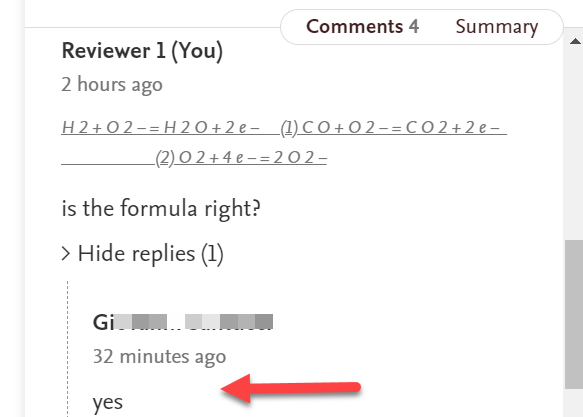
- Any comments you have added are listed in the sidebar, and selecting a comment there will advance the manuscript to that location and show the full comment text.

The online version will be available, typically within 24 hours after review invitations are sent, as we ensure proper formatting of text and figures. In the meantime, you can download the PDF of the manuscript and begin the peer review process. You can add your comments in the summary tab and return later to annotate the online version once it's live.

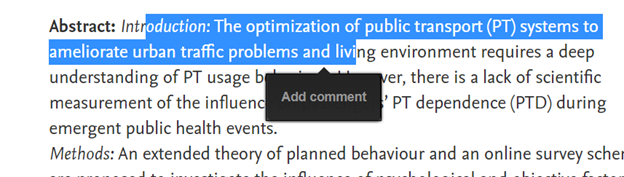
- To add a comment, highlight text on the manuscript that you wish to comment on, and a small ‘add comment’ tooltip will appear.
- Select this to quote the highlighted text in the right-hand-panel, and start typing your comment to the author.
- When done, select ‘post’ to save, or 'cancel' to discard the comment.
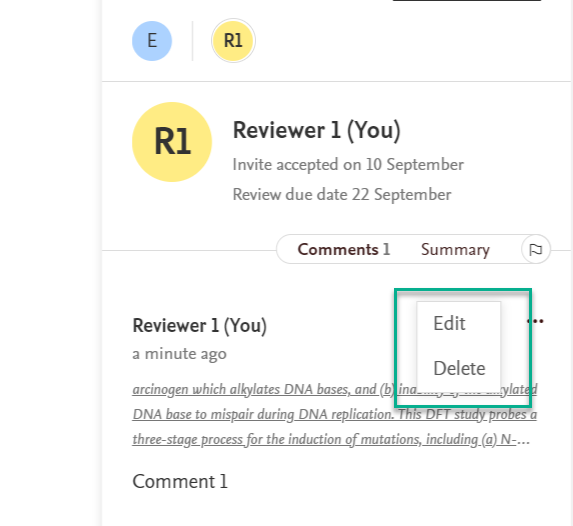
- To review and edit comments you already added
- Select on the quoted content in the right hand panel to scroll the manuscript to that location and read your comment text in the sidebar.
- Open the menu on a comment and select the Edit link to update the comment, or Delete to discard the comment.
- Selecting the quoted content in the right-hand-panel will scroll the manuscript to that location.
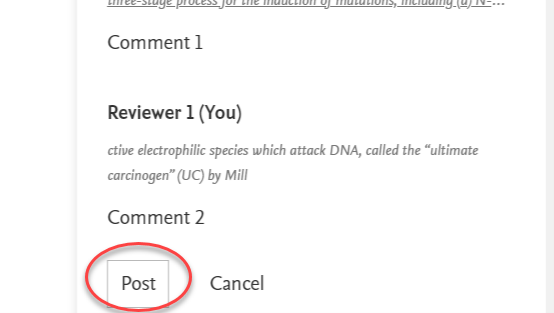
Copy the comments from the document and paste them in the summary tab and click "post".

When you have finished commenting on the text, you can now write your review summary. The ‘Summary’ tab is above the text comments in the right-hand-panel. Here, you can provide a more holistic point of view that describes your impressions of the manuscript as a whole.
Next, you can leave an optional message to the editor in the “Notes to Editor” tab. This message is confidential and won’t be seen by the author.
Select 'Post' to save your comments.

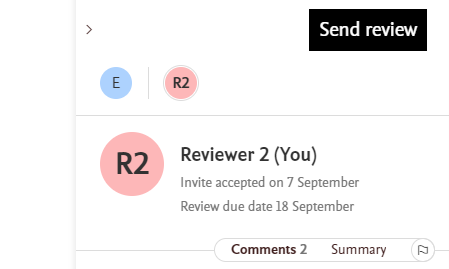
- When you are satisfied that you have completed your review, use the ‘Send review’ button to the top right of the right-hand-panel.
- When you do, a pop-up appears that invites you to rate the paper using a star rating, based on you perception of its quality. Reviewers are also asked to provide a recommendation to the editor: to accept the paper, ask for minor or major revision, or to decline. Only editors will see this.
- Finally, use the ‘send to editor’ button to complete the process. This will send the editor a notification that the review is complete, as well as forwarding the recommendation and any confidential message.
- When the review is successfully submitted, a very short survey may appear, asking you to rate their experience.
- All comments and summaries are visible to the authors.
- Authors cannot see reviewer names or personal details, confidential comments to editor, star ratings, the recommendation term, or any Flag the reviewer has sent to the editor.
- If the editor asks for the paper to be revised, and the author does so, the editor may wish to send the paper out for review again. You will receive a new invitation for the revision.
- If you accept the invitation to review the revision in Editorial Manager, the revised manuscript loads comments, and author responses.
You can download the manuscript and the revised manuscript by clicking on the download option.

- You can also see the replies that authors have made to your comments.
- At this stage, reviewers are able to see comments left by the editor and other reviewers, but won’t be able to see any reviewers’ names.
- You can reply to author responses to your original comments and leave new comments by highlighting manuscript as usual if you wish.
- Once you have reviewed the authors' changes and have optionally replied to the authors' comments, you can send a recommendation to the editor
- Select "Send Review"
- Select your recommendation from the available options: reject, revise, or accept.
- Select 'Send to editor'. Both the message and recommendation are confidential to the editors and won’t be seen by the authors.
- When the review of the revised manuscript is successfully submitted, the editor will receive a notification that the review is complete, as well as forwarding the reviewer’s recommendation and any confidential message.
How do I access the peer review service? Please access Manage Peer Reviews to sign in or create an account. Need assistance with troubleshooting? Please contact us via our Chat button to assist you further.
Did we answer your question?
Recently viewed answers
Functionality disabled due to your cookie preferences