
View by category
Editor Guide to Online Peer Review Service
Last updated on October 15, 2025
Disclaimer: Please note that the information on this page relates only to journals which are on the Quantum peer review pilot. If you would like to know if your journal is included in this pilot, please check the Guide for Authors.
Online peer review service is not available on mobile; use other devices to view the links.
The Quantum peer review environment allows reviewers to review comments on the text and add a summary. Editors can then enter their own comments on the text or reply to reviewer comments.
The Invitation, Decision, and Revision process are handled directly with the Editorial Manager.
New! Following up on your feedback, we are pleased to let you know that it is now possible to edit or delete reviewer comments that are made in Quantum before these comments are visible to authors.
If you are not an editor, please see the Author Guide or Reviewer Guide.
The process of inviting reviewers takes place in Editorial Manager.
Reviewers can accept or decline the invitation in editorial manager; however, if the reviewer agrees to review, they will submit their recommendations in Quantum. One of our journal administrators will be formatting the submission to ensure that the online version is accessible in Quantum for easy annotation.
ArticlesWhen the target number of completed reviews is met, you will be notified by email and the submission will be available in your ‘Submissions with required reviews complete’ folder.
To view the reviewer comments in Quantum peer review service, simply click the 'Submit and View Reviews' link.
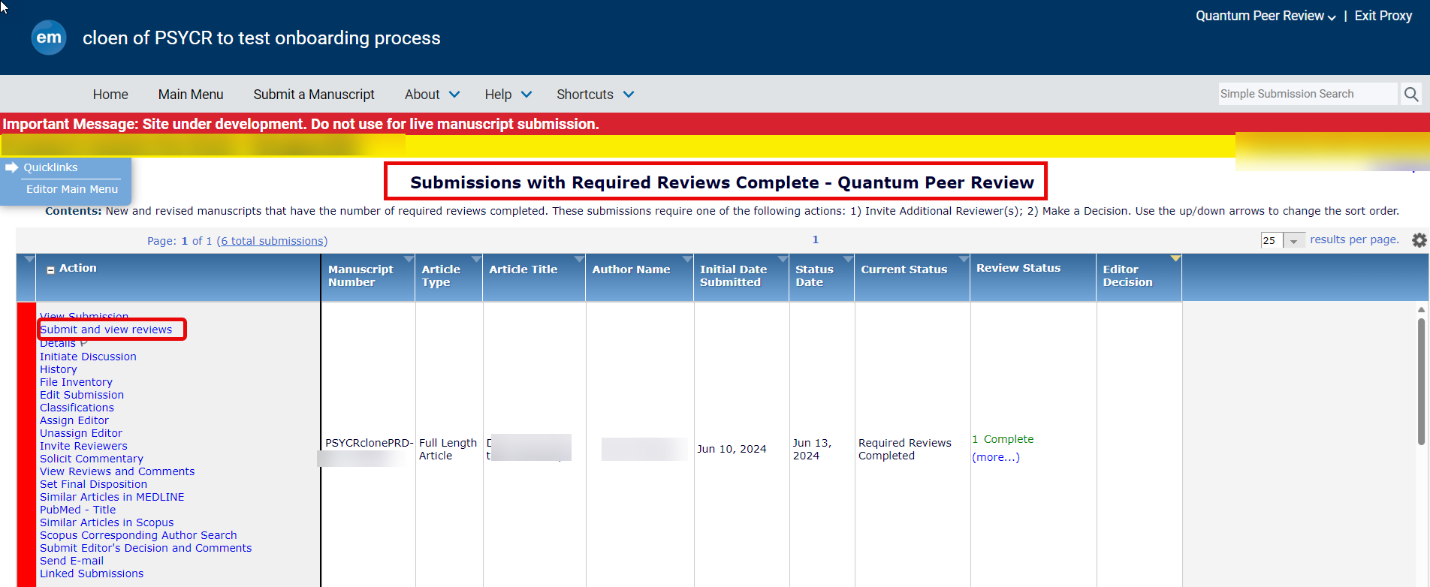
To open the Quantum peer review service in new tab or window right click the ‘Submit and view reviews’ Select Open link in new tab or open link in new window.
- By clicking this link, you will be taken to the Quantum peer review service.
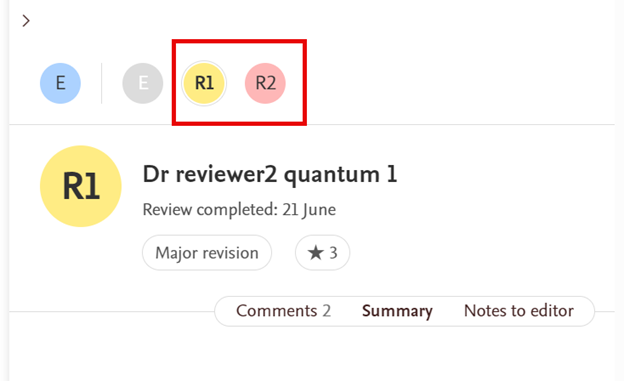
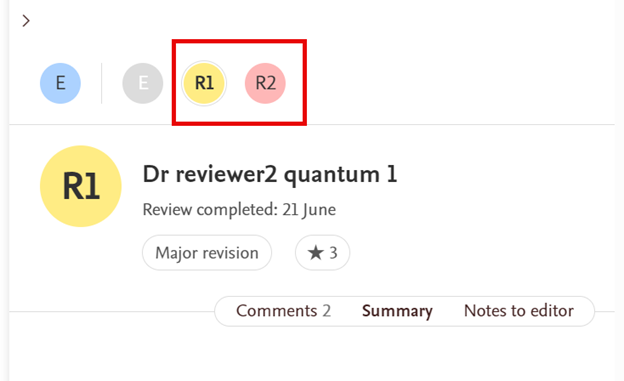
- Reviews appear on the manuscript page in the sidebar as numbered circular icons that correspond to the reviewer invited in Editorial Manager.
- Switch between reviewers by selecting these numbered icons and use the links below the selected reviewer to switch between the detailed comments and the summary.
- By default, clicking R1 or R2 displays the Summary. Click on Comments to see all of the reviewer's comments, which will be underlined to indicate where they are in the submission. Simply click on the underlined comment to get directly to the relevant text in the submission.
- Each completed review includes a recommendation: accept, reject, or the scale of revision required.
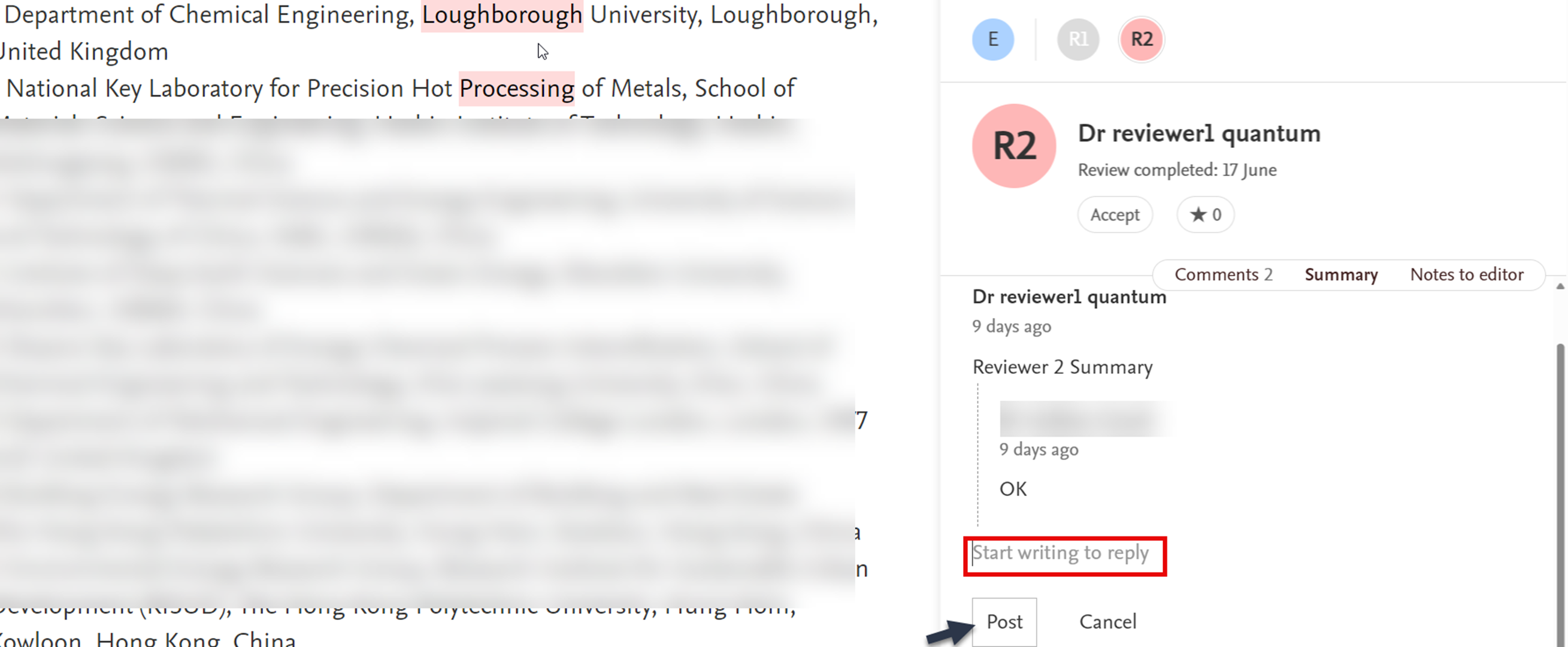
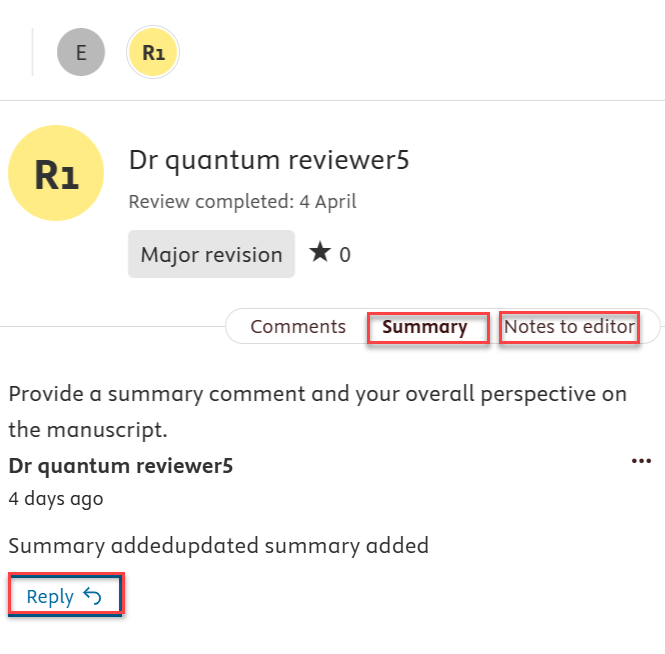
You may respond to a reviewer comment with your own comment to be seen by the author. Select the reviewer comment, and then select "Reply.". Type your reply and then select "Post".
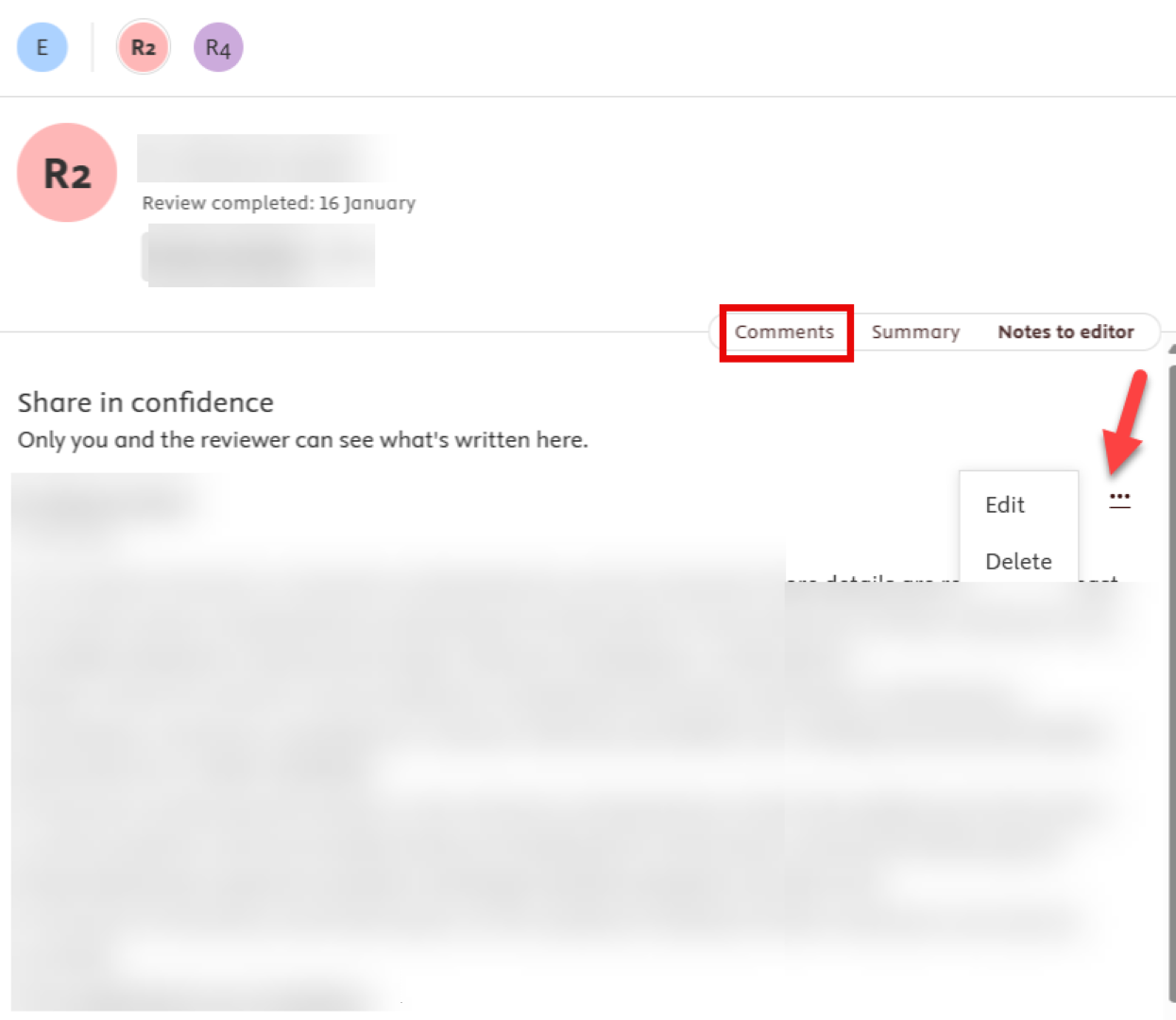
Should you need to edit reviewer comments —whether due to an error made by the reviewer, additional feedback provided after submission, or any other reason—you can do so by clicking on the three dots and choosing either "Edit" or "Delete".
Kindly note that the delete option is only available for the Comments section.
- If you wish to add comments, you can do so without inviting yourself as a reviewer (please note that in EM, you must add yourself as a reviewer to include comments). You may add your own comments for the author. Simply highlight any text on the manuscript and select ‘Add comment’. The highlighted text will appear in the sidebar, and you can write a comment underneath. Select ‘post’ to post this.
- When you make a decision in Editorial Manager, the authors will see any comments or replies you add here. If the manuscript is reviewed again, the reviewers will also see these comments.

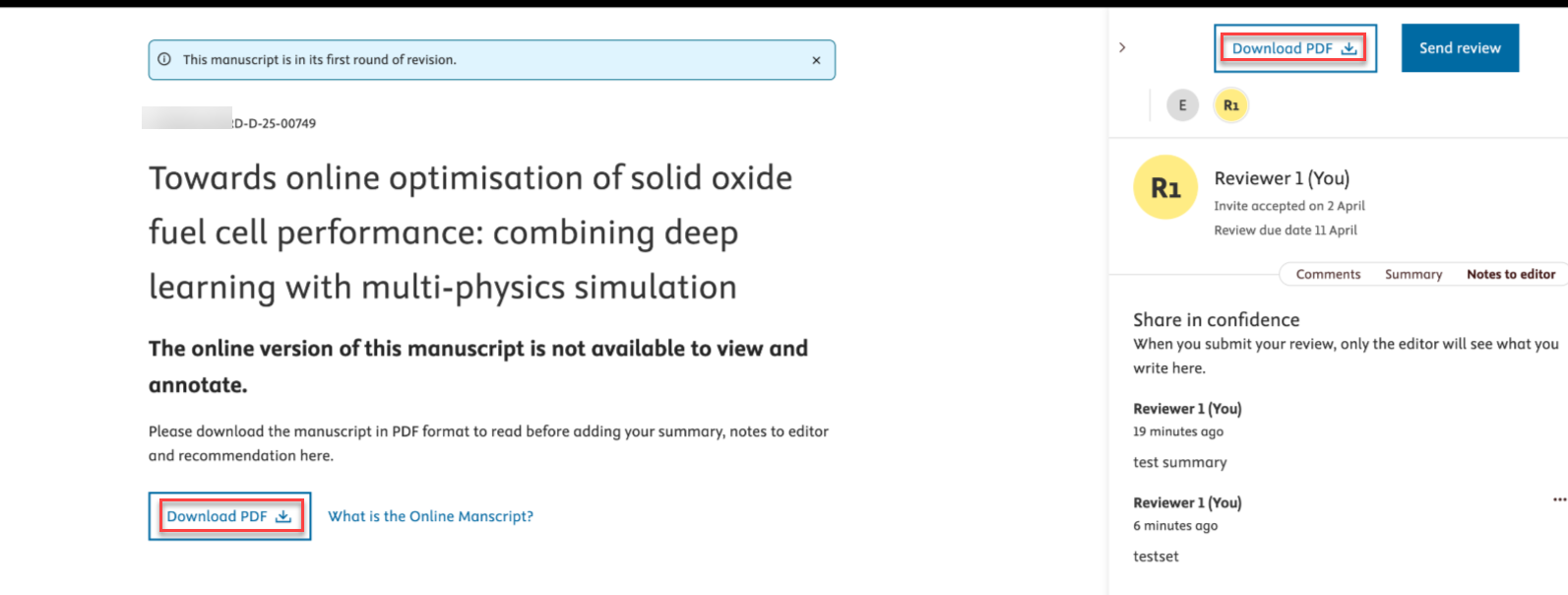
In certain scenarios, it may not be feasible to generate the online version of the manuscript. However, while the online version is unavailable, you can still download the PDF of the manuscript and provide comments in the summary tab within Quantum.
After responding to any reviewer comments and adding your own comments, you can get back to the Editorial Manager to make a final decision on the submission.
Because the review is in Quantum, the comments to author and confidential remarks to editor sections on the decision screen are blank. When you select the Proceed to Notify Author step, the decision letter will make it clear that authors can look at the reviewer comments by clicking the action link “View and reply to reviews”.

Hence there is no need to copy and paste the reviewer comments, as these will remain accessible in Quantum.
By clicking this link, authors will be directed to the Online Peer Review Service (Quantum), where they can respond to both reviewer and editor comments. Once they have made their revisions, they should return to the Editorial Manager to upload any revised files and submit their updated manuscript. This is clearly explained in the decision letter you send to the author.
Elsevier’s Article Transfer Service (ATS) allows editors to suggest more suitable journals for rejected papers. If the author agrees, the submission files are transferred to the Receiver Journal. If configured in the journal where the transfer decision has been submitted, the reviewer comments and identities will be transferred as well.
To identify if the manuscript was submitted to the journal via Article Transfer Service, check to see if the manuscript has the transfer flags enabled.
A single arrow [ ] displayed next to the Details action link indicates that the manuscript was transferred without any reviews and a double arrow [
 ] indicates that the review comments have been transferred along with the submission.
The editor can access the reviewer comments and other relevant information in the 'Transferred Information' section which is available via the Details action link. If this section is not present for submission, please consult your Journal Manager.

Clicking the link View Transferred Information will direct you to the transferred information window, where you can easily access details related to the submission including peer reviews and the decision letter.
For submissions transferred from online peer review journals, the reviewers' comments can be found by clicking 'View Transferred Peer Reviews' link.
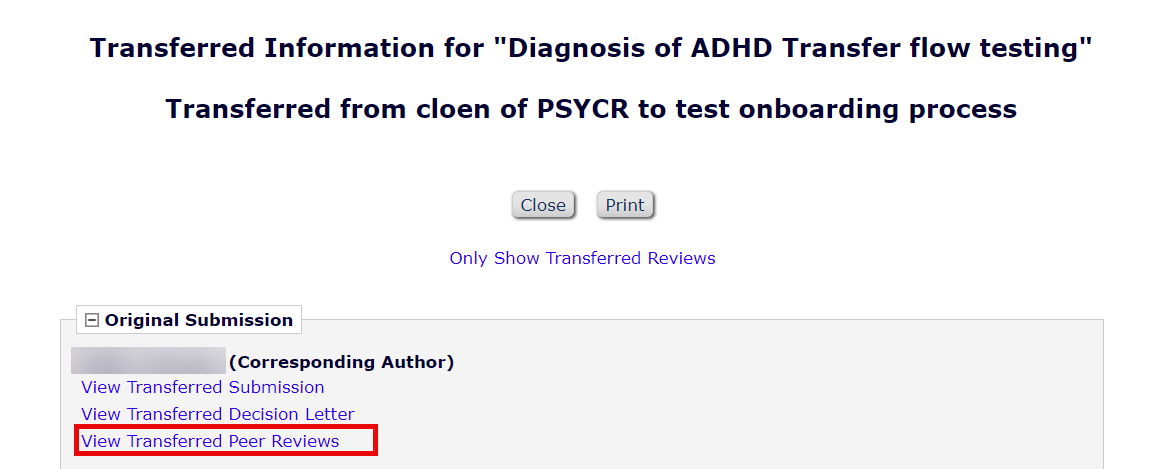
This will take you to the online peer review platform, and reviews display on the manuscript page in the sidebar as numbered circular icons corresponding to the reviewer invited in Editorial Manager.
You will be notified via email after the author has revised their manuscript in Editorial Manager.
You may view the revised version before making your final decision. Please keep in mind that any additional rounds of review, if necessary, will take place in the online peer review environment, using the same procedure as described above. The Editorial Manager allows you to make a final decision based on the comments they provide.
For further assistance on the online peer review service, please contact your Journal Manager via the journal mailbox.
Did we answer your question?
Recently viewed answers
Functionality disabled due to your cookie preferences