
View by category
Single Sign-on at Elsevier – FAQs
Last updated on June 23, 2026
This section of our Support Center provides you with additional information about the move to Single Sign-On (SSO), and the resulting changes to your Elsevier account and the way you sign in to access your Elsevier products and subscriptions.
We are introducing Single Sign-On (SSO) to make signing in simpler and more secure—especially for users with organizational email addresses.
Here is what is changing:
- If you use your organizational account:
Before you had to create a separate username and password to sign in. Now that your organization is integrating with Elsevier via SAML (a secure login method used by many companies), you’ll sign in using your existing organizational login credentials instead. No need to remember or manage a separate password for Elsevier.
- If you use your organizational email for a personal subscription:
Since your email belongs to an organization that now uses SAML with us, you’ll be redirected to sign in through your organization’s login system. You’ll still have access to everything as before, this change just updates how you sign in. It helps avoid duplicate accounts, ensures you only need to remember one password, gives you centralized control over access, and makes signing in easier.
Single Sign-On (SSO) means you can access all the Elsevier products and services connected to your account by simply signing in once to your organizational account.
SAML (Security Assertion Markup Language) is the secure technology that makes SSO possible. It is how your login details are safely passed between your organization and our systems. It is a secure way for your organization to manage logins. If your organization uses SAML, you don’t need to create a separate account or password with Elsevier. Instead, you can sign in using your existing login credentials, the same ones you already use for other systems at your organization.
You will no longer need to enter a separate username and password to access your account. Instead, just follow these steps:
Go to the usual sign in page.
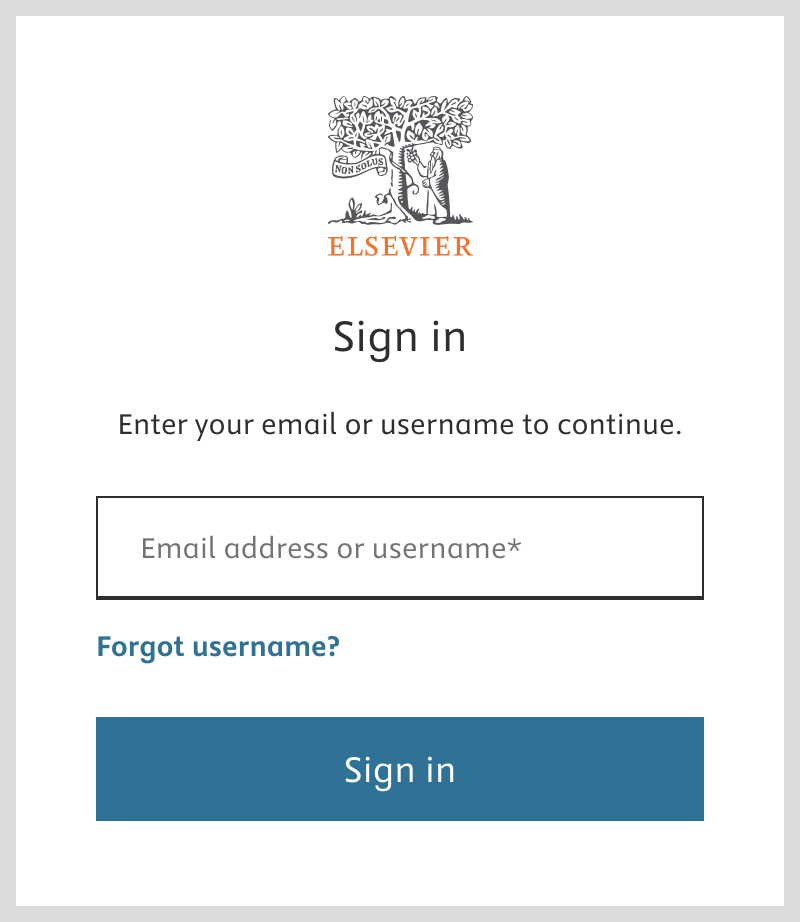
Enter your organizational email address. We will not ask you to enter a password. Instead, you will be automatically redirected to your organization’s sign in screen.
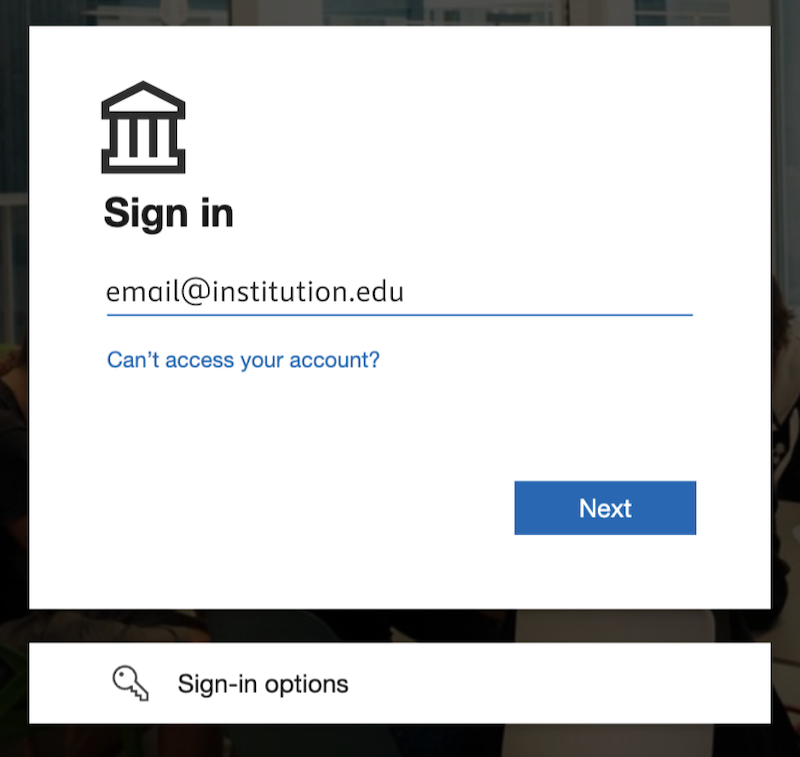
- Sign in using your existing login credentials (the same ones you use for your organization’s other systems).
- That is it! Once signed in, you'll be taken back to our platform, no separate account or password needed.
Your accounts are merging because your organization is now using Single Sign-On (SSO) with Elsevier. Since you were using your organizational email to sign in, whether for a business or personal subscription, we are connecting everything under one secure, organization-managed login.
This means:
- you’ll sign in using your organization’s existing login
- you no longer need separate accounts with different passwords.
- it avoids duplicate accounts and keeps things simpler for you.
- your access stays secure and consistent with your organization’s policies.
- you’ll still have access to all your products and subscriptions, just through one streamlined sign in experience.
Since two Elsevier accounts cannot share the same email address, and your personal subscription is currently linked to your organization email, we are merging your personal subscription into your organizational account. This way, your data remains intact and everything is accessible with a single, secure login.
As long as you are with your organization, there is no impact—you can use SSO to access both your personal and organizational subscriptions seamlessly.
Before you leave your organization, please reach out to Customer Support to unmerge your accounts and update the email for your personal account. This will ensure that your personal subscriptions continue to work smoothly even after you leave.
Coming soon: You’ll be able to unmerge your accounts on your own through our platform for a smoother experience. Stay tuned for updates!
Your accounts will be merged when:
- Your organization starts using Single Sign-On (SAML SSO) for sign-in, and
- You subscribe to products as an individual and via your ogranization using the same organizational email for both accounts.
We will automatically detect that both accounts belong to you and we will then guide you through a simple process to merge your accounts into one account that gives you access to all your products and subscriptions in one place.
When you sign in with your organizational email and we detect you already have another account with the same email, you'll see a screen explaining that your account is now recognized as part of your organization.
Here is what to expect:
On-screen message: You’ll be informed that your account is now managed by your organization. Your data and any existing subscriptions will remain safe and accessible.
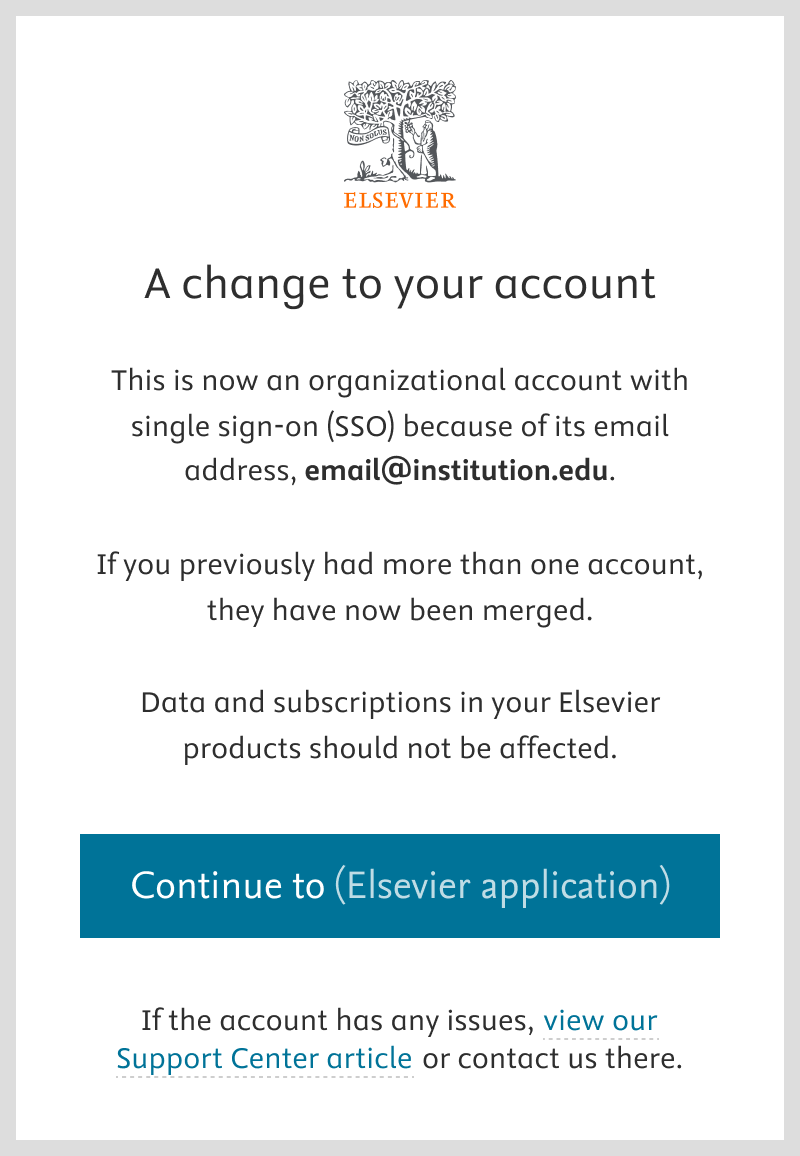
- Continue button: When you click Continue, your existing accounts using the same email will be merged into one.
- Confirmation email: After continuing, you'll receive an email confirming that you’ll now log in using your organization’s Single Sign-On (SSO). All your entitlements will remain as is—nothing will be lost.
Sometimes we will ask you to verify your email again to make sure it is really you, especially when important changes are happening, like switching to Single Sign-On or updating the way you sign in.
It is just a quick extra step to help keep your account safe. Check your inbox for the verification email and follow the instructions to continue.
Yes, you can! In most cases, there’s no need to keep your personal and organizational accounts separate, as merging ensures your subscriptions and data stay secure and accessible with one login. However, if you’re leaving your organization or have another valid reason to move your personal subscription to a different email , you can contact customer support. You’ll need to provide a personal email and complete a verification process to update your account.
Once your accounts are merged, your email and other details are locked because your organization’s subscription is tied to your account. Allowing changes to your email could result in losing access to the subscription provided by your organization. Even though your personal subscription remains separate, your email and other details will be managed by your organization after your accounts have been merged.
If you need to make any changes, please reach out to your organization’s admin, as they control and manage these details.
Did we answer your question?
Related answers
Recently viewed answers
Functionality disabled due to your cookie preferences