
As an Educator, how do I create and share content with my students?
Last updated on August 04, 2026
Also available in
Our Groupsopens in new tab/window feature is designed to help you organize and share your Screens, Quizzes and Videos effectively. Think of Groups as folders where you can store your content and keep it private or share it with other Complete Anatomy users.
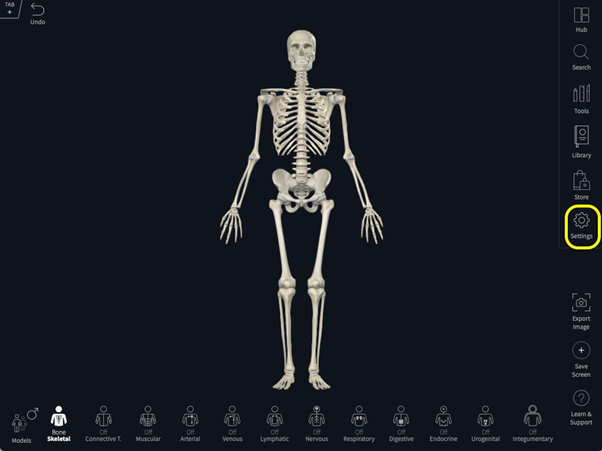
Click the Settings panel on the right-hand side of the main screen
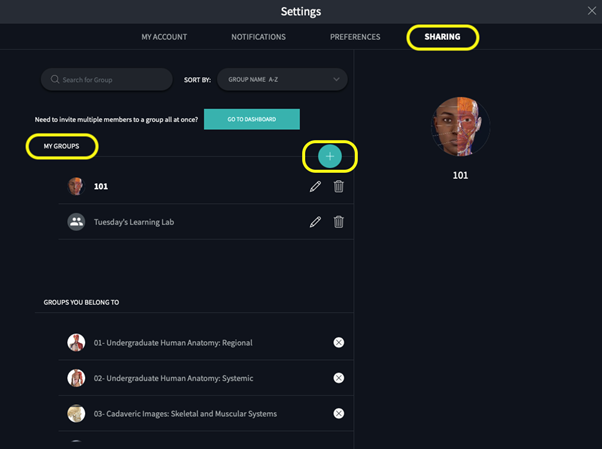
Within the Settings panel, select the Sharing tab
Under My Groups, click on the green Plus button in the Groups tab
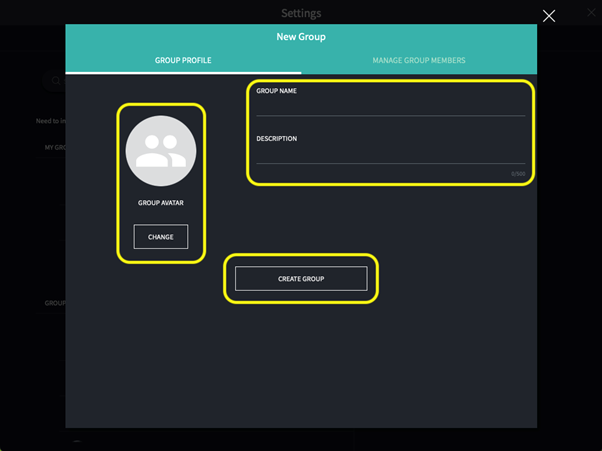
Enter the Group Name, Description, and Avatar and click Create Group
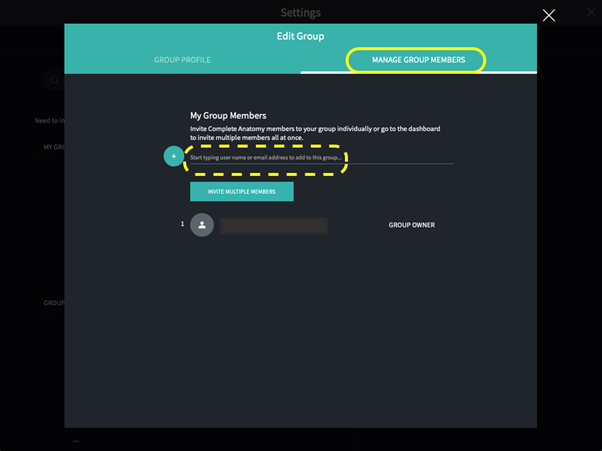
Select the Manage Group Members tab under your Group
Invite a Complete Anatomy member by typing their name or email address
To invite multiple members at once, use the Curriculum Manager Dashboardopens in new tab/window on your browser:
Log in to your Complete Anatomy account
Select Sharing on the left-hand side of the screen
Find your group, click View Group, and select Invite Group Members
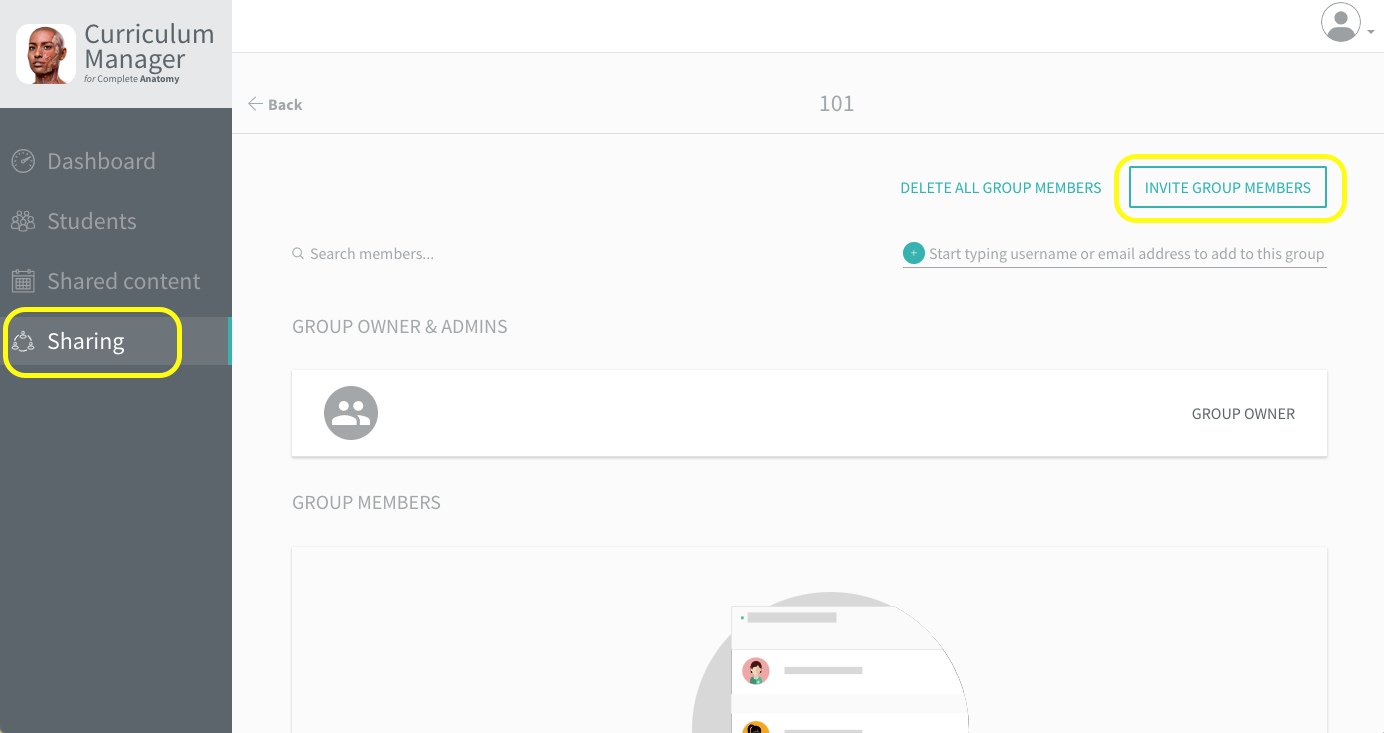
Upload your CSV file
Please ensure that your CSV file is formatted correctly by following these instructions.(Opens in a new tab or window)opens in new tab/window
Navigate to Manage Group Members
Find the Complete Anatomy member, and click Make Admin
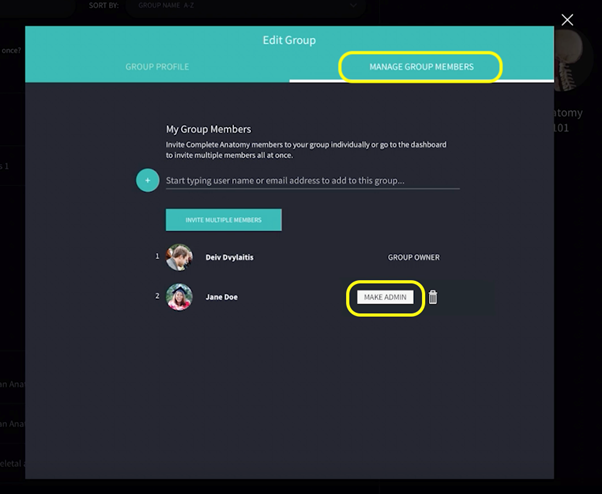
Once you make someone an Admin, they will be able to edit the content in the Group.
You can easily add pre-made or personalized content to a Group.
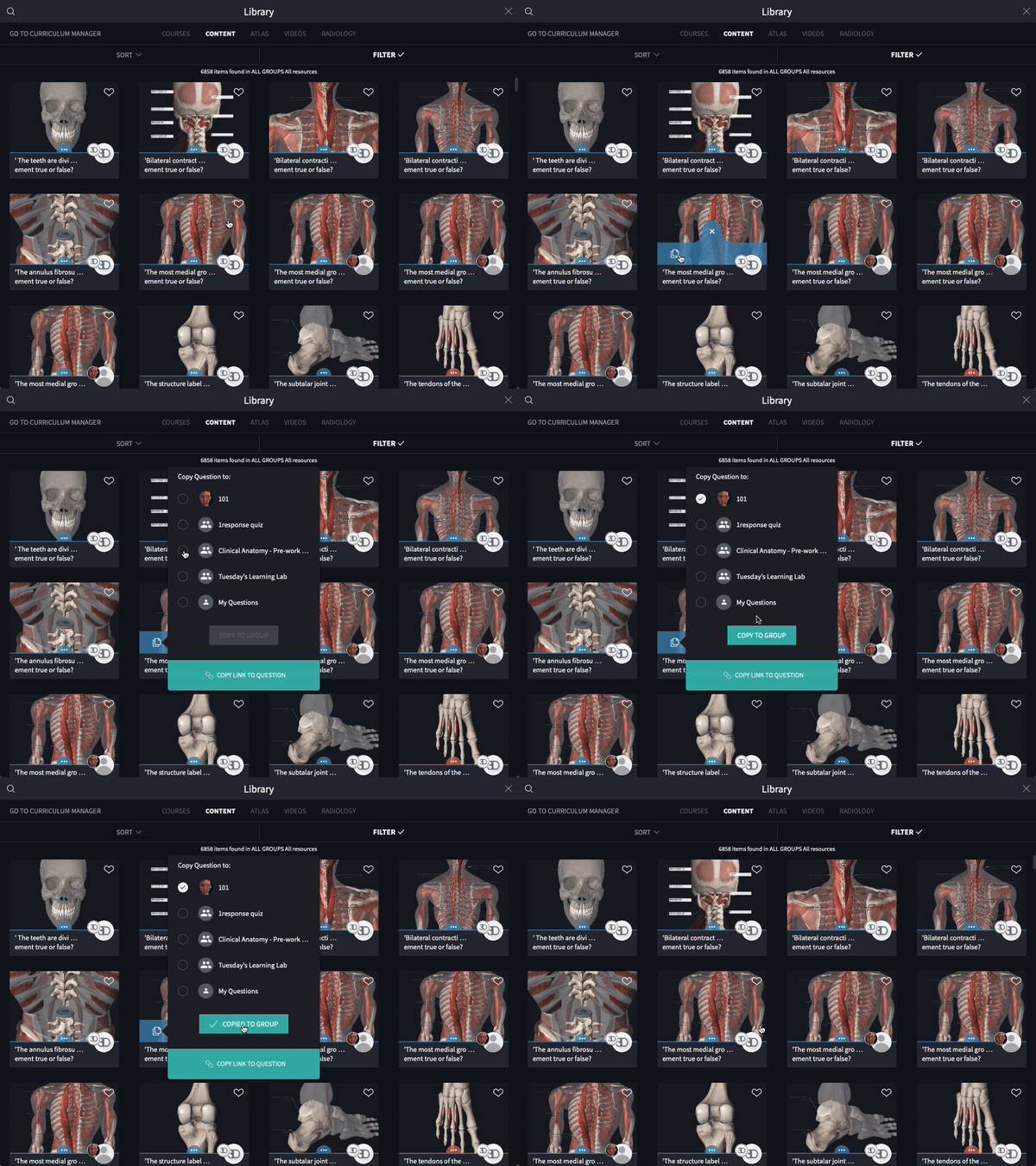
Navigate to the Library
Search for the content you’d like to add
Select three-dot menu
Click the Copy icon
Select your Group
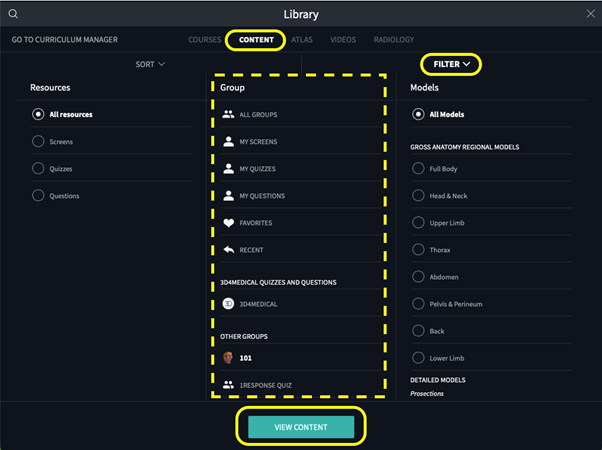
Navigate to the Library
Select Content
Click Filter
Under the Group column, select your Group
Click View Content
Navigate to Library
Click Videos
Search for the video you’d like to add
Click the three-dot menu
Click the Share icon
Select your Group
Click Share to Group
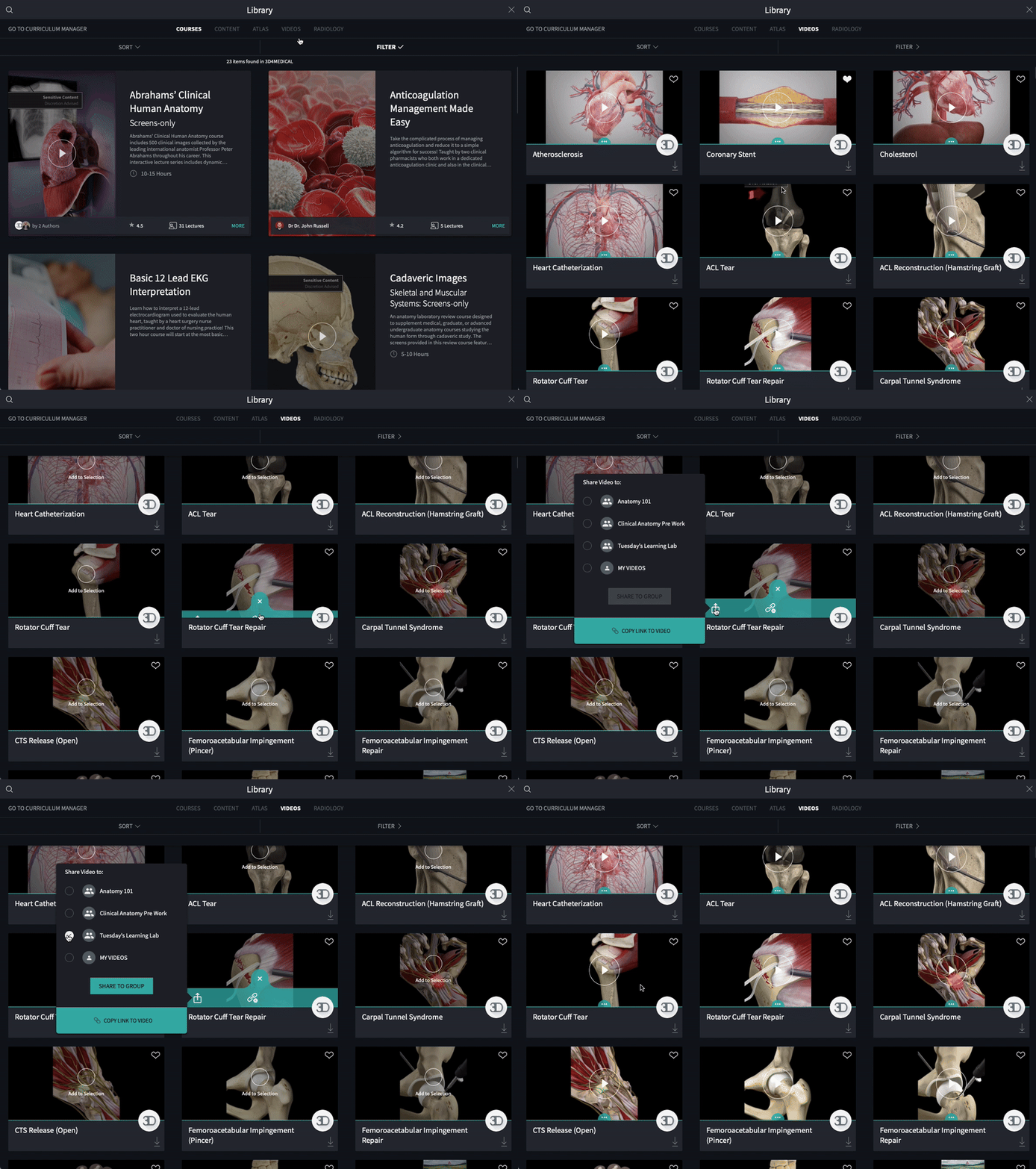
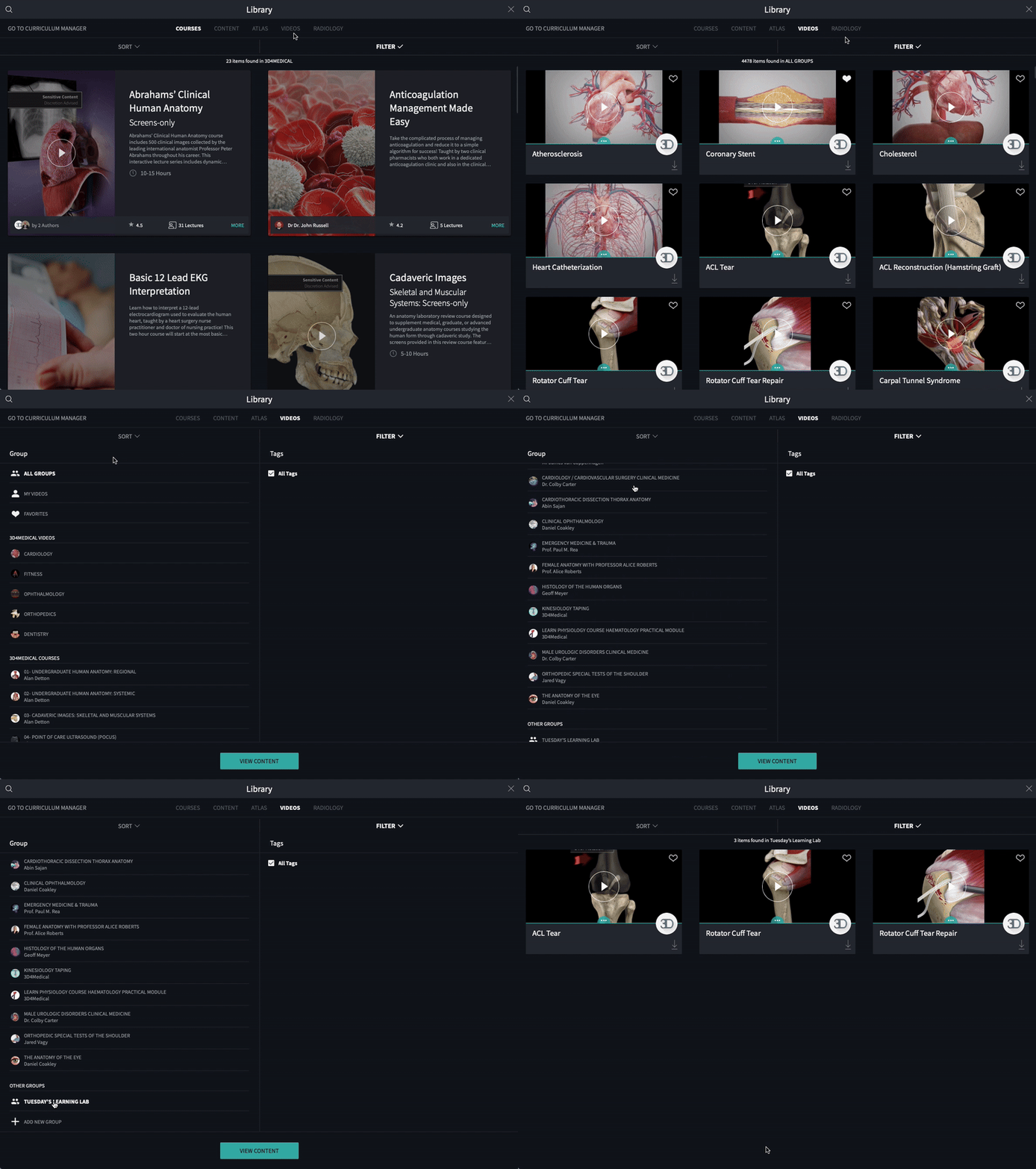
Navigate to Library
Click Videos
Click Filter
Under the Group column, scroll down to OTHER GROUPS
Select your Group
Click View Content
Did we answer your question?
Related answers
Recently viewed answers
Functionality disabled due to your cookie preferences