
How do I work with document search results?
Last updated on August 01, 2025
A document search returns a list of documents that provides options for refining, analyzing, and saving results.
Select an area of the document search results page to see the relevant section or browse each topic.
| |
|
|

The search results tool bar allows you to save and expand your current search.
You can save a search to run again in a future session.
After running a search, select 'Save' to save the search parameters.
- You must be signed in to save a search.
- You can save up to 200 searches.
You can create an email alert to be notified when Scopus publishes new documents that fall within your search parameters. For more information about how alerts are used, see How are Alerts used in Scopus?
- Select 'Set search alert'.
- You must be signed into Scopus to create a saved search or to create an alert.
- There is no limit on the number of alerts you can create.
- Non-Scopus documents (abstracts available on platforms external to Scopus) and citations derived from Scopus references are not included in Search alerts.
- Provide a name for the alert, email address(es), and the frequency of the alert.
- Select 'Set search alert'.
- Select 'Add search field'.
- From the Search within drop-down, select 'All'.
- Enter your terms in the Search documents field.
Note: select the 'Advanced query' toggle to work with complex queries. - Select 'Search'.
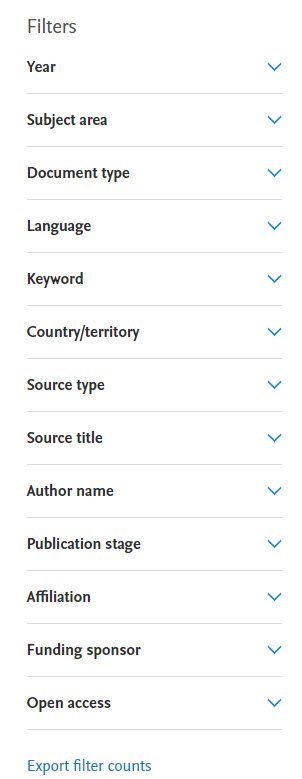
The filters allow you to refine your document results list and limit the results to specific categories of documents.
Note on Year Filters (Individual vs. Range) options
The Range filter and Individual Facet Filter works in following manner:
- Range filter working : In case of “AND NOT” operator, if the query is not wrapped correctly in ( ), then the range filter is applied to the part after “AND NOT”
- Example (AF-ID( 60072342) OR AF-ID (60072323)), excluding AF-ID(60032991) )
- If your query has AND NOT clause, to make the Range filter work like a Facet (individual Filter), the input query has to be wrapped with a parentheses () to treat it as a complete query on which the range has to be applied
- Example : (AF-ID(60032991) AND NOT (AF-ID( 60072342) OR AF-ID (60072323))) This query will yield the expected less results.
- Individual Facet Filter working : As it is a Facet Filter, it is applied to the complete query
Example AF-ID(60032991) AND NOT (AF-ID( 60072342) OR AF-ID (60072323))
Our guidance: For best performance, please keep the total number of Limit to and Exclude filters (combined) to 15 or fewer (10 or fewer is recommended for very large, complex queries). If you exceed these limits, we cannot guarantee the following actions will complete successfully:
- Running a search
- Running a search and then viewing Citation overview for the results
- Running a search and then exporting the results
How to apply filters
- Select the checkboxes for the filters you want.
- Select Limit to or Exclude.
- Select Apply change.
To remove a filter
- Deselect the filter and select Apply change.
Select 'Export filter counts' to export the search value numbers to a CSV file.
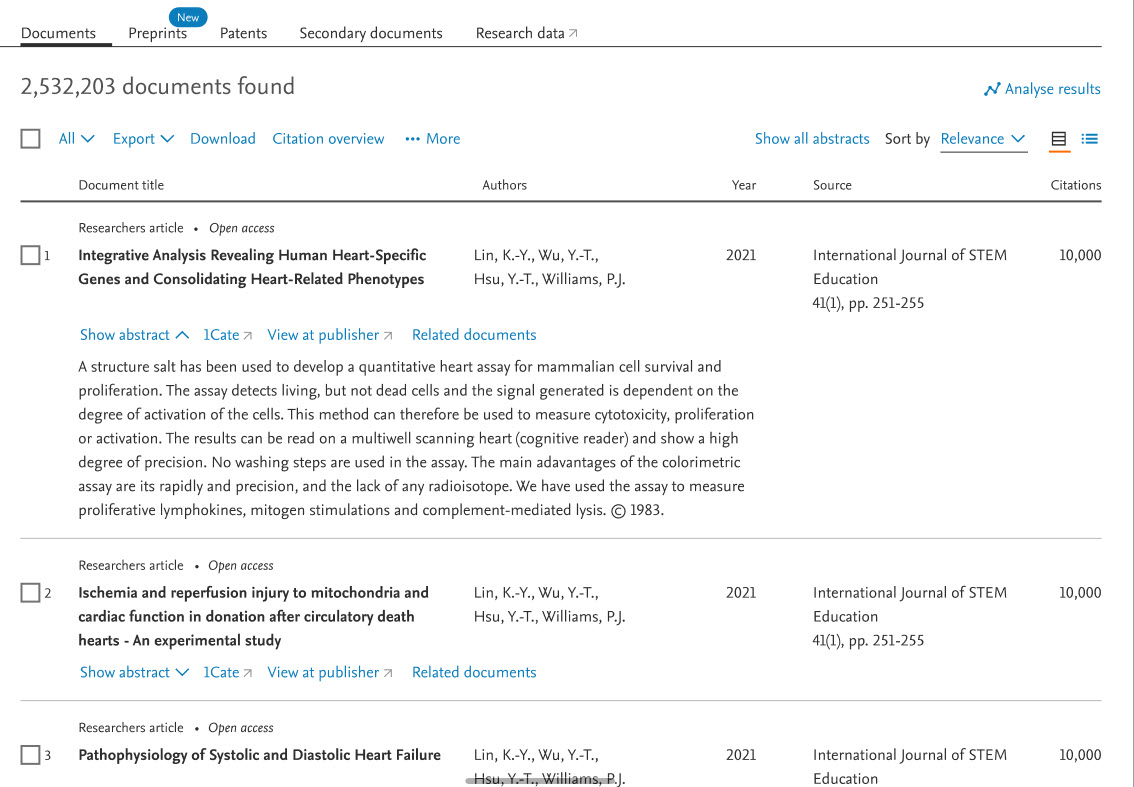
The Document search results tab shows the found documents and provides tools and functions for viewing, sorting, exporting, and analysis.
Analyze search results function
Scopus provides an analysis of your search results. Select 'Analyze results' to open the Analyze search results page.
The analysis shows you the documents in your search results by:
- Year
- Per year by source
- Author
- Affiliation
- Country/territory
- Document type
- Subject area
- Source type
- Funding sponsor
For detailed information about the Analyze search results function, see How do I use the Analyze search results function?
- To select single or multiple search results items, select the corresponding checkbox next to a results list item.
- To select All search results items on a page, tick the 'All' checkbox. All search results items for a page are selected.
You can export selected items to a file or to a reference management tool such as Mendeley:
- Scopus results lists including all search results, My lists, and Saved Lists
- Documents
- Document references
To export your documents, select the documents from your search results and select ‘Export’ and follow the prompts. For more information about exporting documents, see How do I export documents from Scopus?
You can download documents using the Scopus Document Download Manager Chrome Browser Extension. On the Document search results page, tick the checkboxes to select one or more documents (up to 50 documents). For more information, see How do I download documents?opens in new tab/window
The Citation overview allows you to track and analyze citation metrics for a specific publication, author, or a group of publications/authors.
- Select the documents you want to include, up to 10,000 documents.
- Select 'Citation overview'.
For more information about citation overviews How do I create a Citation overview?.
If you are signed into Scopus, you have the option to save documents to a list which may be accessed anytime you are signed into Scopus.
For more information about adding a document to a list, see How do I add a document to a list?
To view a list of documents that have cited selected documents from your search results:
- Select the document(s) for which you want to see citing documents.
- Select 'View cited by'. A result listing of documents which site the selected documents opens.
Tip: The Cited by column shows the number of times a document has been cited by other documents in Scopus. Select the number to view the documents.
You can view the references cited by the documents in your search results list. From the References list, you can output the references, view them on Scopus (if available), and view how many times they have been cited on Scopus.
- Select the document(s) (up to 2,000) whose references you want to view.
- Select 'View references'. A results list opens listing the documents references.
Select 'Show all abstracts' to display or hide the abstracts in your search results.
Search results are sorted by date, most recent first and appears as Date(Newest):
- Documents with unknown publication dates are treated as the oldest articles
- Sorting applies to the entire set of results, not just the 2,000 displayed at the time
- The sorting option you choose will remain selected for future, signed in sessions, until you change it
Select a sort parameter from the Sort on drop down:
- Date (newest): Results are sorted in descending order of publication date, most recent first
- Date (oldest): Results are sorted in ascending order of publication date, oldest first
- Cited by (highest): Results are sorted on the highest number of times cited by other articles
- Cited by (lowest): Results are sorted on the lowest number of times cited by other articles
- Relevance: Results are sorted according to the best match for your search terms. To determine relevance, Scopus uses a sophisticated model based on proven concepts from the science of Information Retrieval and experience with Web, data, and enterprise searching. For more information see What does Relevance mean in Scopus? opens in new tab/window
- First Author (A-Z or Z-A): Results are sorted by the first publishing author in alphabetical ascending or descending order
- Source Title (A-Z or Z-A): Results are sorted alphabetically on the journal name, book title, or other source in which the document was published in ascending or descending order. Documents that do not have a source title appear at the end of the list when sorted in ascending order or at the beginning of the list when sorted in descending order.
The Preprints tab displays the associated preprints and provides tools and functions for viewing, sorting, and analysis.
- To select single or multiple search results items, select the corresponding checkbox next to a results list item.
- To select All search results items on a page, tick the 'All' checkbox. All search results items for a page are selected.
Select 'Show all abstracts' to display or hide the abstracts in your search results.
Search results are sorted by date, most recent first and appears as Date(Newest):
- Documents with unknown publication dates are treated as the oldest articles
- Sorting applies to the entire set of results, not just the 2,000 displayed at the time
- The sorting option you choose will remain selected for future, signed in sessions, until you change it
Select a sort parameter from the Sort on drop down:
- Date (newest): Results are sorted in descending order of publication date, most recent first
- Date (oldest): Results are sorted in ascending order of publication date, oldest first
- First Author (A-Z or Z-A): Results are sorted by the first publishing author in alphabetical ascending or descending order
- Repository (A-Z or Z-A): Results are sorted alphabetically in ascending or descending order by preprint repository
Relevance: Results are sorted according to the best match for your search terms. For more information see What does Relevance mean in Scopus?
Patent Document Search was retired on June 2025. Scopus is exploring brining a new Patent Search version and new capablties back in 2026.
In the meantime, you can still find Patents Family Citations information on the Document Detail level under the impact tab.
A secondary document is a document that has been extracted from a Scopus document reference list but is not available directly in the Scopus database since it is not indexed by Scopus. For some of these documents, limited functionality is available on Scopus.
To view secondary documents, select the 'Secondary documents' tab.
Similar to the Document results page, the Secondary documents search page allows you to edit the search, refine the results, sort, export, and view cited by documents.
Because many of these documents are not available on Scopus, you cannot open the document or view the abstract. For some secondary documents, only certain fields in the citation are available to search. For example, if you search the Abstract field, and an abstract is not available for the reference, that reference is not included in your search results.
Elsevier retired Mendeley Data Monitor in June 2025. Therefore, 'Research data' option is no longer available on Scopus Document Search Results (since it was a Mendeley feature).
Did we answer your question?
Related answers
Recently viewed answers
Functionality disabled due to your cookie preferences