
What can I do if the icons and texts in Mendeley Desktop are too small?
Last updated on March 17, 2025
If you're using a 4K resolution screen, you might find that icons and texts in Mendeley Desktop appear too small for the display.
Select the version of Windows you're using and follow the steps to fix this.
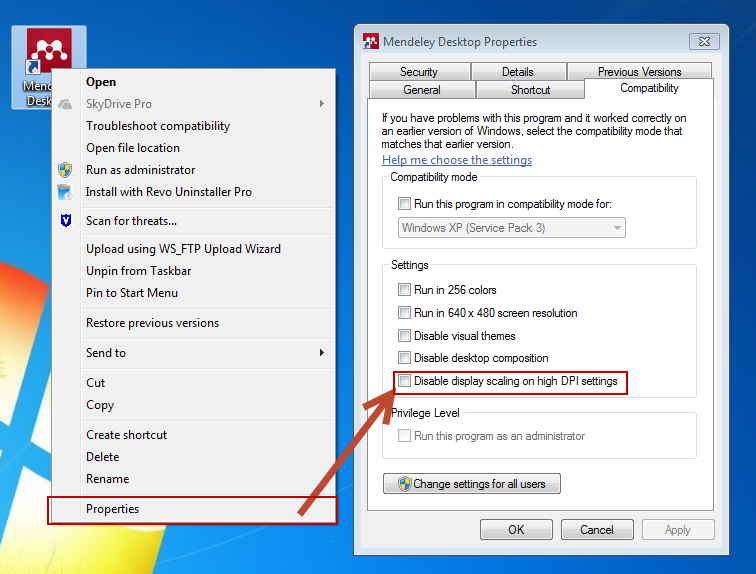
- Right-click on the Mendeley Desktop icon.
- Click Properties.
- Go to the Compatibility Tab.
- Check 'Disable display scaling for high DPI settings'.
- Click 'Apply' then 'OK'.
- Close and re-launch Mendeley Desktop.
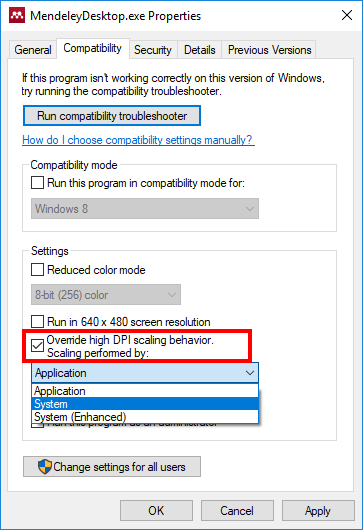
- Right-click on the Mendeley Desktop icon.
- Click 'Properties'.
- Go to the Compatibility Tab.
- Check 'Override high DPI scaling behavior. Scaling performed by:'.
- Choose 'System' or 'System (Enhanced)'.
- Click 'Apply' then 'OK'.
- Close and re-launch Mendeley Desktop.
Did we answer your question?
Related answers
Recently viewed answers
Functionality disabled due to your cookie preferences