
What can I do if I’m having trouble signing in to Mendeley Web Importer?
Last updated on September 14, 2021
Which browser are you using?
Step 1: Ensure Mendeley Web Importer has website permissions
Mendeley requires access to specific websites, including specific websites to sign in with. If you are not seeing a sign in page when you open, you may be seeing this issue due to the fact that Mendeley Web Importer cannot access the website required to sign in.
To resolve this issue, please follow the steps below:
- Go to the ‘Safari’ menu and select ‘Preferences’.
- Go to ‘Websites’.
- Scroll to bottom of the list to find ‘Extensions’ and select ‘Mendeley Web Importer’.
- Change the setting ‘For other websites’ to ‘Allow’.
Step 2: Try to sign into www.mendeley.com website
Mendeley Web Importer relies on common Mendeley services to sign in. If you can sign into www.mendeley.comopens in new tab/window then there is a specific issue with Web Importer. If you cannot sign into www.mendeley.com then there may wider downtime for the whole of Mendeley.
- Visit www.mendeley.comopens in new tab/window in your browser.
- If you are not already signed in, click ‘Sign in’ and enter your credentials.
- Check: Are you signed in correctly? If no, proceed to step 2 of troubleshooting.
- Select ‘Preferences’ in the Safari menu.
- Select ‘Privacy’ in the ribbon menu.
- Then under ‘Block all cookies’, ensure that this box is not selected.
If the cookie settings are correctly applied and you still cannot sign in, proceed to step 4 of troubleshooting.
Incorrect or expired cookies can cause browsers to stop working properly. Clearing cookies sometimes solves sign in issues.
To clear cookies, try these steps:
- Select ‘Preferences’ in the Safari menu.
- Select ‘Privacy’ in the ribbon menu.
- Select ‘Manage Website Data…’
- Select ‘Remove All’ (this may take some time to load up).
If clearing cookies does not successfully solve the issue, please proceed to step 5 of troubleshooting.
Step 5: Reinstall Mendeley Web Importer
In rare cases, an old version of Mendeley Web Importer can fail to auto-update. Reinstall Mendeley Web Importer using the following steps:
- Right-click on the Mendeley Web Importer icon in the toolbar and click ‘Manage Extension...'
- Select 'Uninstall'.
- Go to the webstoreopens in new tab/window and reinstall Mendeley Web Importer.
I'm using Web Importer version 2
Mendeley Web Importer version 2 has been superseded by Mendeley Web Importer version 3 (known as “Mendeley Web Importer” elsewhere on the site).
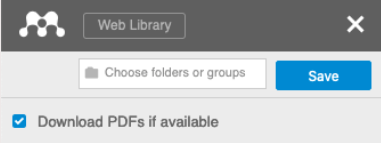
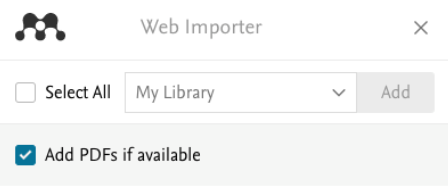
You should download the latest version of Mendeley Web Importer via our website. It has more compatibility with websites and retrieves more full texts than before, and is fully supported by the development team.
Please note that unlike Mendeley Web Importer 2, Mendeley Web Importer 3 is currently only available as a browser extension and not as a bookmark.
Note for academic librarians: We are aware that some “Export to Mendeley” academic library use cases that were supported by Mendeley Web Importer version 2 may not be functioning correctly. If you are experiencing problems, please send feedback to us including the URL of your library site.
I'm using Web Importer version 3

Step 1: Try to sign into www.mendeley.com website
Mendeley Web Importer relies on common Mendeley services to sign in. If you can sign into www.mendeley.comopens in new tab/window then there is a specific issue with Web Importer. If you cannot sign into www.mendeley.com then there may wider downtime for the whole of Mendeley.
- Visit www.mendeley.comopens in new tab/window in your browser.
- If you are not already signed in, click ‘Sign in’ and enter your credentials.
- Check: Are you signed in correctly? If no, proceed to step 2 of troubleshooting.
- Type ‘chrome://settings/cookies’ in the navigation bar.
- Check: ‘Block all cookies (not recommended)’ should be set to OFF.
If the cookie settings are correctly applied and you still cannot sign in, proceed to step 3 of troubleshooting.
Incorrect or expired cookies can cause browsers to stop working properly. Clearing cookies sometimes solves sign in issues.
To clear cookies, try these steps:
- Type ‘chrome://settings/siteData’ in the navigation bar.
- Either click ‘Remove all’ or locate and delete each cookie containing mendeley.com or elsevier.com.
- In a different tab, type ‘www.elsevier.com’ or any other valid URL into the navigation bar and press Enter.
- Click the Mendeley Web Importer icon in the toolbar and try to sign in.
If clearing cookies does not successfully solve the issue, please proceed to step 4 of troubleshooting.
Step 4: Check other browser extensions
Other extensions installed can override default cookie management settings. Such extensions may include: Privacy Badger, Ghostery, Disconnect, AdBlock Plus, DuckDuckGo Privacy Essentials and uBlock Origin.
If uninstalling one of the above extensions allows you to sign in to Mendeley Web Importer, but you want to keep the other extension, it may be possible to adjust the settings of the other extension so it does not interfere with Mendeley Web Importer. Please check with the extension vendor.
To check if this is the problem, please try the following steps:
- Type ‘chrome://extensions’ in the navigation bar.
- Scroll to ‘Mendeley Web Importer’ and click ‘Details’.
- Scroll to ‘Allow in incognito’ and set to ON.
- Open the ‘File’ menu and select ‘New Incognito Window’.
- Type www.elsevier.com or any other valid URL into the navigation bar and press Enter.
- Click the Mendeley Web Importer icon in the toolbar and try to sign in.
If this does not resolve your issue, please proceed to step 5 of troubleshooting.
Step 5: Reinstall Mendeley Web Importer
In rare cases, an old version of Mendeley Web Importer can fail to auto-update. Reinstall Mendeley Web Importer using the following steps:
- Right-click on the Mendeley Web Importer icon in the toolbar and click ‘Remove from Chrome…’.
- Go to Google webstoreopens in new tab/window and reinstall Mendeley Web Importer.
We regret that Mendeley Web Importer is no longer supported on Internet Explorer 11 or legacy versions of Microsoft Edge (now called Microsoft Edge Legacy) that are not based on the Chromium engine.
To find out more about upgrading from Microsoft Edge Legacy to Microsoft Edge, visit Microsoftopens in new tab/window.
I'm using Web Importer version 2
Mendeley Web Importer version 2 has been superseded by Mendeley Web Importer version 3 (known as “Mendeley Web Importer” elsewhere on the site).
You should download the latest version of Mendeley Web Importer via our website. It has more compatibility with websites and retrieves more full texts than before, and is fully supported by the development team.
Please note that unlike Mendeley Web Importer 2, Mendeley Web Importer 3 is currently only available as a browser extension and not as a bookmark.
Note for academic librarians: We are aware that some “Export to Mendeley” academic library use cases that were supported by Mendeley Web Importer version 2 may not be functioning correctly. If you are experiencing problems, please send feedback to us including the URL of your library site.
I'm using Web Importer version 3
Step 1: Try to sign into www.mendeley.com website
Mendeley Web Importer relies on common Mendeley services to sign in. If you can sign into www.mendeley.comopens in new tab/window then there is a specific issue with Web Importer. If you cannot sign into www.mendeley.com then there may wider downtime for the whole of Mendeley.
- Visit www.mendeley.comopens in new tab/window in your browser.
- If you are not already signed in, click ‘Sign in’ and enter your credentials.
- Check: Are you signed in correctly? If no, proceed to step 2 of troubleshooting.
- Type ‘edge://settings/content/cookies’ in the navigation bar.
- Check: ‘Allow sites to save and read cookie data (recommended)’ should be set to ON.
If the cookie settings are correctly applied and you still cannot sign in, proceed to step 3 of troubleshooting.
Incorrect or expired cookies can cause browsers to stop working properly. Clearing cookies sometimes solves sign in issues.
To clear cookies, try these steps:
- Type ‘edge://settings/siteData’ in the navigation bar.
- Either click ‘Remove all’ or locate and delete each cookie containing mendeley.com or elsevier.com.
- In a different tab, type ‘www.elsevier.com’ or any other valid URL into the navigation bar and press Enter.
- Click the Mendeley Web Importer icon in the toolbar and try to sign in.
If clearing cookies does not successfully solve the issue, please proceed to step 4 of troubleshooting.
Step 4: Check other browser extensions
Other extensions installed can override default cookie management settings. Such extensions may include: Privacy Badger, Ghostery, Disconnect, AdBlock Plus, DuckDuckGo Privacy Essentials and uBlock Origin.
If uninstalling one of the above extensions allows you to sign in to Mendeley Web Importer, but you want to keep the other extension, it may be possible to adjust the settings of the other extension so it does not interfere with Mendeley Web Importer. Please check with the extension vendor.
To check if this is the problem, please try the following steps:
- Type ‘edge://extensions’ in the navigation bar.
- Scroll to ‘Mendeley Web Importer’ and click ‘Details’.
- Scroll to ‘Allow in InPrivate’ and set to ON.
- Open the ‘File’ menu and select ‘New InPrivate Window’.
- Type www.elsevier.com or any other valid URL into the navigation bar and press Enter.
- Click the Mendeley Web Importer icon in the toolbar and try to sign in.
If this does not resolve your issue, please proceed to step 5 of troubleshooting.
Step 5: Reinstall Mendeley Web Importer
In rare cases, an old version of Mendeley Web Importer can fail to auto-update. Reinstall Mendeley Web Importer using the following steps:
- Right-click on the Mendeley Web Importer icon in the toolbar and click ‘Remove from Microsoft Edge…’.
- Go to Microsoft Edge Add-onsopens in new tab/window and reinstall Mendeley Web Importer.
I'm using Web Importer version 2
Mendeley Web Importer version 2 has been superseded by Mendeley Web Importer version 3 (known as “Mendeley Web Importer” elsewhere on the site).
You should download the latest version of Mendeley Web Importer via our website. It has more compatibility with websites and retrieves more full texts than before, and is fully supported by the development team.
Please note that unlike Mendeley Web Importer 2, Mendeley Web Importer 3 is currently only available as a browser extension and not as a bookmark.
Note for academic librarians: We are aware that some “Export to Mendeley” academic library use cases that were supported by Mendeley Web Importer version 2 may not be functioning correctly. If you are experiencing problems, please send feedback to us including the URL of your library site.
I'm using Web Importer version 3
Step 1: Try to sign into www.mendeley.com website
Mendeley Web Importer relies on common Mendeley services to sign in. If you can sign into www.mendeley.comopens in new tab/window then there is a specific issue with Web Importer. If you cannot sign into www.mendeley.com then there may wider downtime for the whole of Mendeley.
- Visit www.mendeley.comopens in new tab/window in your browser.
- If you are not already signed in, click ‘Sign in’ and enter your credentials.
- Check: Are you signed in correctly? If no, proceed to step 2 of troubleshooting.
- Type ‘about:preferences#privacy’ in the navigation bar.
- Check: Enhanced Tracking Protection should be set to ‘Standard’ or ‘Strict’.
If the cookie settings are correctly applied and you still cannot sign in, proceed to step 3 of troubleshooting.
Incorrect or expired cookies can cause browsers to stop working properly. Clearing cookies sometimes solves sign in issues.
To clear cookies, try these steps:
- Type ‘about:preferences#privacy’ in the navigation bar.
- Click ‘Manage data’ in the Cookies and Site Data section.
- Either click ‘Remove all’ or locate and delete each cookie containing mendeley.com or elsevier.com.
- In a different tab, type ‘www.elsevier.com’ or any other valid URL into the navigation bar and press Enter.
- Click the Mendeley Web Importer icon in the toolbar and try to sign in.
If clearing cookies does not successfully solve the issue, please proceed to step 4 of troubleshooting.
Step 4: Check other browser extensions
Other extensions installed can override default cookie management settings. Such extensions may include: Privacy Badger, Ghostery, Disconnect, AdBlock Plus, DuckDuckGo Privacy Essentials and uBlock Origin.
If uninstalling one of the above extensions allows you to sign in to Mendeley Web Importer, but you want to keep the other extension, it may be possible to adjust the settings of the other extension so it does not interfere with Mendeley Web Importer. Please check with the extension vendor.
To check if this is the problem, please try the following steps:
- Type ‘about:addons’ in the navigation bar.
- Scroll to ‘Mendeley Web Importer’, click the icon with the three dots on it and select ‘Manage’.
- Set ‘Run in Private Windows’ to ‘Allow’.
- Open the ‘File’ menu and select ‘New Private Window’.
- Type www.elsevier.com or any other valid URL into the navigation bar and press Enter.
- Click the Mendeley Web Importer icon in the toolbar and try to sign in.
If this does not resolve your issue, please proceed to step 5 of troubleshooting.
Step 5: Reinstall Mendeley Web Importer
In rare cases, an old version of Mendeley Web Importer can fail to auto-update. Reinstall Mendeley Web Importer using the following steps:
- Right-click on the Mendeley Web Importer icon in the toolbar and click ‘Remove Extension’.
- Go to Firefox Browser Add-onsopens in new tab/window and reinstall Mendeley Web Importer.
Opera is not currently supported by Mendeley. There are no current plans to release Mendeley Web Importer for Opera.
Did we answer your question?
Related answers
Recently viewed answers
Functionality disabled due to your cookie preferences