
View by category
How do I download high resolution images from a Figures List?
Last updated on August 17, 2026
The high resolution version of some images in figures listsopens in new tab/window is available to download immediately (e.g. Journal images and Elsevier Collection images).
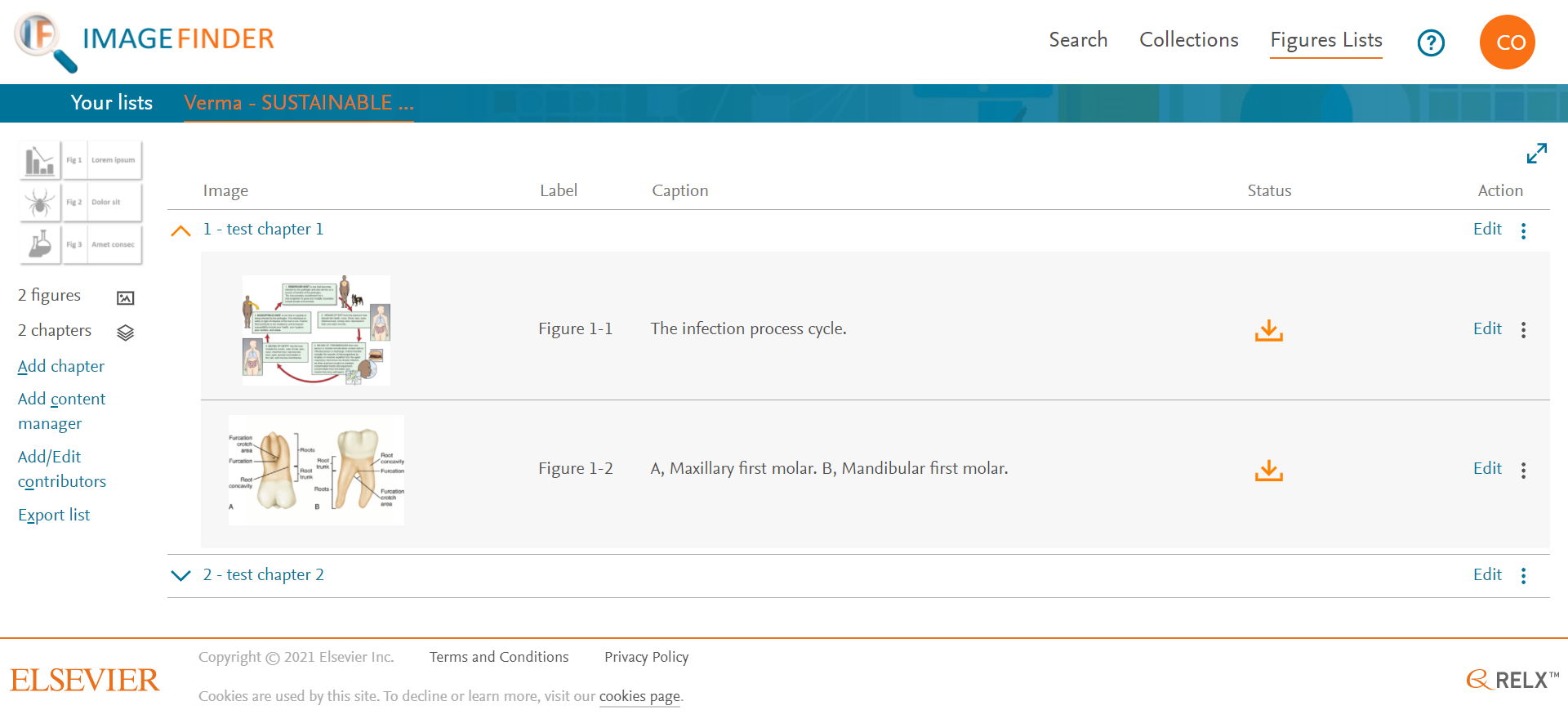
When an image has been selected from a journal or curated collection in Image Finder and added to a chapter in a figures list, its status is shown as yellow, which means the high resolution version can be but hasn't been downloaded.
- Click the yellow status icon of a downloadable image to download the high resolution version of the image to your computer.
- The high resolution version of the image is downloaded into the downloads folder that was configured for your Web browser. The status of the image is automatically changed to green, which means it has been downloaded.
Did we answer your question?
Related answers
Recently viewed answers
Functionality disabled due to your cookie preferences