
View by category
How do I add a chapter into a Figures List?
Last updated on August 17, 2026
You can manually add chapters into your figures lists.
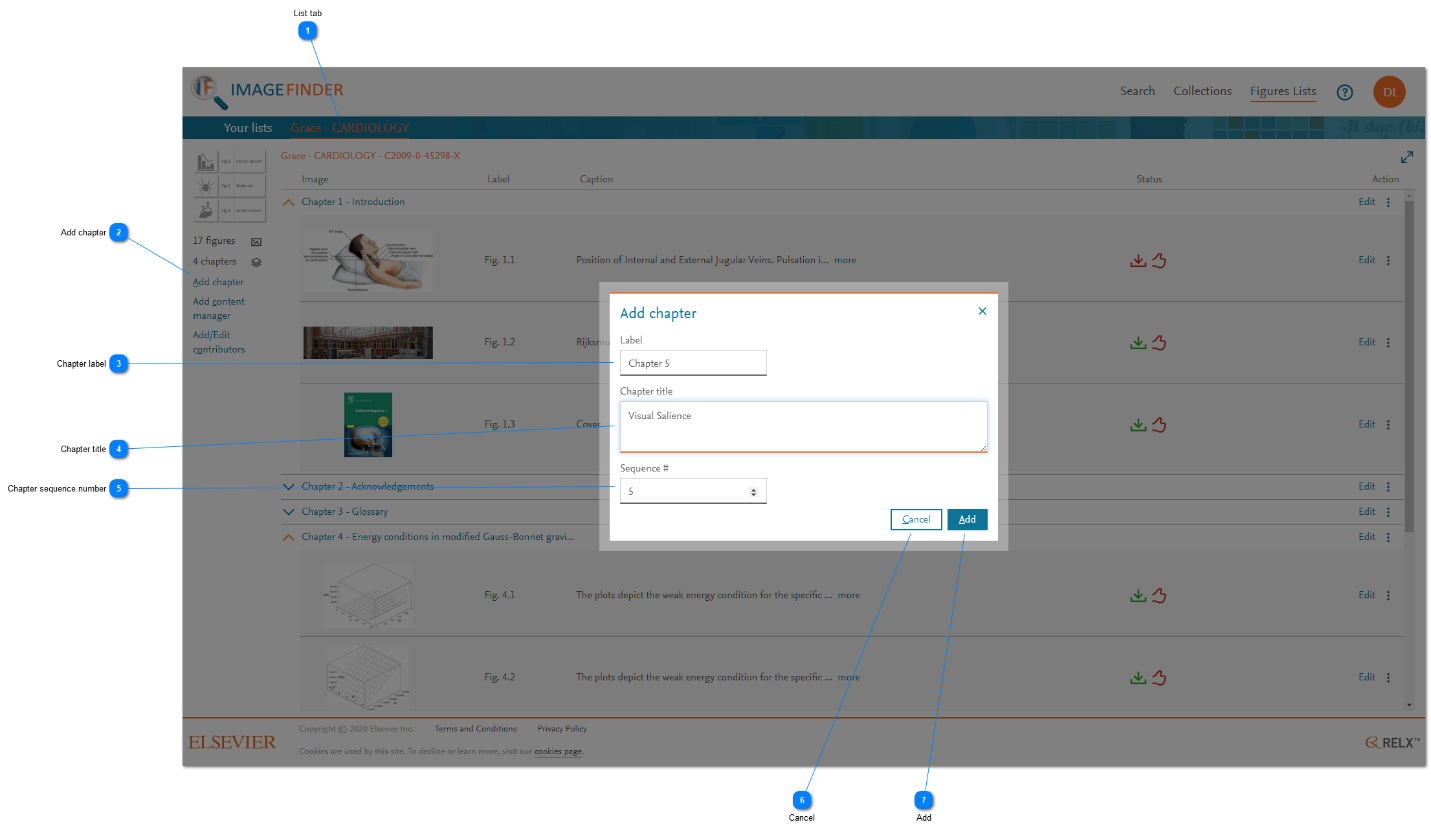
- List tab: When you open a list from the 'Your lists' tab, it is added as a tab in the 'List' tab area. Click on the tabs to switch between open lists.
- Add chapter: Click 'Add chapter' to add a new chapter to your project. The 'Add chapter' pop-up window is displayed.
- Chapter label: Enter the label for a chapter. This usually contains the chapter number and may contain any other text.
- Chapter title: Enter the title of a chapter. This is distinct from the label, which is usually used to number the chapter.
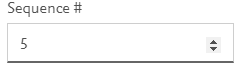
- Chapter sequence number: Select where this chapter should appear in the order/sequence of chapters. By default, new chapters are added to the end of the project. If you change this value, then other chapters are moved down in the sequence to accommodate. For example, if you change the sequence # from 5 to 2, then the existing #2 will become #3, #3 will become #4, and #4 will become #5. Altering the sequence # does not affect the chapter label.
- Cancel: Click 'Cancel' to cancel the addition of a chapter. The pop-up window is closed and the new chapter is not added.
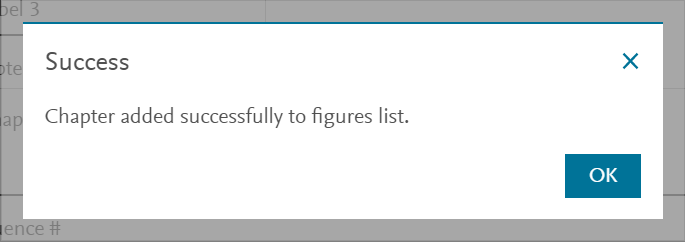
- Add: Click 'Add' to add a new chapter with the details and sequence information specified. Upon successful addition of a chapter, a confirmation message is displayed. Click 'OK' and the pop-up window is closed.






Did we answer your question?
Related answers
Recently viewed answers
Functionality disabled due to your cookie preferences