
View by category
How do filters work in Requests?
Last updated on April 02, 2026
A new set of filters are available across all statuses (Pending, Approved, Rejected) in Requests – note that each status page may offer specific filtering options relevant only to that status.
Filtering lets you narrow results on a list of requests by selecting attributes you want to find. Each attribute appears under its category and shows a counter indicating how many results in the list match that option.
For example, on the Pending page you see a filter category of Journal type showing a checkbox with a value of Hybrid and a number 5. This means that, in the list of Pending results, there are 5 requests which are published in a hybrid journal. If you select that attribute by clicking the checkbox, the list of requests will update to show you only the 5 pending requests that match that criteria.
Combining filters
You can combine multiple attributes across categories to refine the request list, the list will update to include only items that satisfy all selected criteria.
Currently, the number of matches within a filter does not refresh as you apply or remove filters. However, the total of results is shown on the top of the list, giving you immediate feedback on how your selections affect the total.

Showing the total results after filters applied.
You can deselect individual attributes or use Clear all to return to the full – unfiltered – list.
Filters are relevant to the list shown
Filters on a page apply to the requests listed on that page, and the available filter options reflect the attributes present in that list.
For example, if the Pending list shows 100 requests and all of them have a user license of CC BY, then CC BY will be the only value shown in the User license filter category. Since there are no other licenses present in this list, no additional options appear in that category.
For the same reason, some filters apply only to a particular status, and not another. For example, a filter category of Rejection reason is relevant in the Rejected status, but not in Pending.
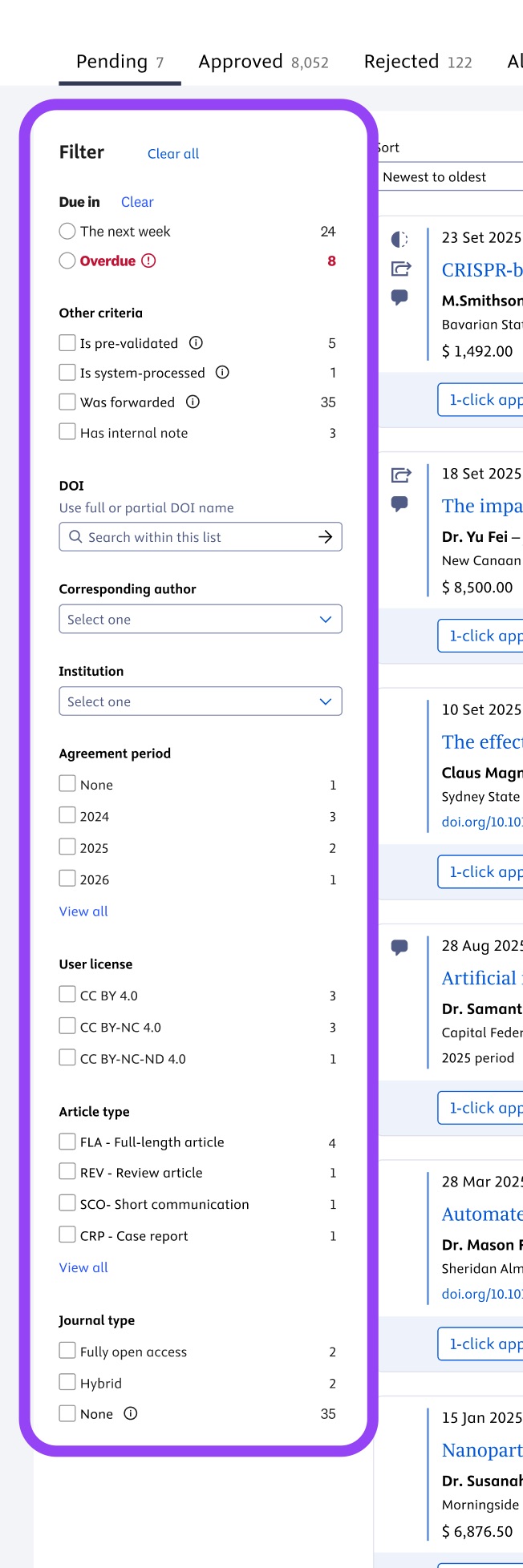
The current filter options in the Pending status.
Did we answer your question?
Recently viewed answers
Functionality disabled due to your cookie preferences